










It’s a common challenge for learning and development teams: you set out to create a straightforward training video, only to watch the budget and timeline spiral far beyond your initial estimates. Between scheduling delays, messy feedback loops, and inevitable updates, what should have been a quick asset turns into a costly project.
Reducing costs doesn’t require sacrificing production value when you use the right tools and workflows. To protect your budget, you need to consider the entire production process. Training video costs aren’t just about the hours spent filming. They encompass everything from pre-production planning and footage capture to post-production editing, scattered review cycles, and ongoing maintenance.
If your team needs to stretch your video budget further, this is your practical guide. Because video training can improve time-to-value for new hires and accelerate software adoption, cutting back on visual content isn’t the answer. Targeting workflow inefficiencies lets you lower production costs while continuing to deliver effective training programs for your employees.
Key takeaways
- Screen recording and AI-generated voices or avatars reduce production time and costs while helping teams create clear, professional training content that employees can follow step by step.
- Reusing existing assets like slides, footage clips, screenshots, and branded templates reduces production time, supports cost savings, and helps keep your training library visually consistent.
- AI-powered tools can streamline tasks like transcription, caption generation, and audio cleanup, reducing post-production effort without requiring advanced editing skills.
- Centralizing feedback in a single review link helps prevent expensive revision cycles caused by scattered comments across email threads, chat messages, and documents.
- Building accessibility features like captions into your workflow helps your training reach more employees while avoiding additional work later.
Why training videos cost more than expected
Most budget overruns don’t happen because a creator chose a premium font or an expensive background track. They occur because organizations underestimate the hidden costs embedded in traditional production workflows.
Consider this a diagnostic check. Before you can reduce costs, you need to identify where the money is going.
In a typical corporate training environment, the costs of software demos, compliance training, and onboarding content add up across footage capture, talent, post-production, and revisions.
If your library is built entirely on highly produced live video, keeping that content current becomes a long-term expense. Processes eventually evolve, interfaces change, and policies shift, so planning for maintenance from day one by choosing formats that are easy to update is one of the best ways to reduce the total cost of employee training over time.
Footage capture, talent, and reshoots
Live-action video can be expensive to produce. Renting equipment, setting up professional lighting, securing a quiet location, and aligning schedules for on-camera talent require significant time and financial investment. Screen recording offers a more efficient alternative because re-recording a segment can take minutes rather than days.
Reducing costs and improving efficiency have become growing priorities for training teams. In fact, 26% of organizations that reported training budget reductions said their budgets were adjusted to reflect lower costs and new training efficiencies.
Live video is also rigid. If a process shifts or a speaker slips up, you can’t simply update a section and move on. You often have to book the room, set up the cameras, and reschedule the talent. On-camera talent frequently requires multiple takes to nail a script, inflating the capture budget before editing even begins.
Post-production hours and revision cycles
Post-production is where projects frequently stall. Manual timeline editing, audio mixing, motion graphics work, and frame-by-frame polishing require specialized skills and significant time, making them far less efficient than template-based or AI-assisted workflows. When you rely on external agencies or complex, professional-grade editing platforms, every minor edit translates directly into more billable hours.
One of the biggest cost drivers, however, is the feedback loop. When a draft video is sent out for internal review, comments usually come back scattered across emails, chat messages, and marked-up documents. Stakeholders frequently provide conflicting feedback, forcing the creator to complete multiple rounds of revisions.
Five ways to lower training video expenses today
You don’t need to restructure your entire learning and development department to reduce production costs. You can start with these five practical tactics using assets and tools you likely already have.
1. Record screens instead of live training sessions
If you’re teaching an employee how to navigate an internal customer relationship management (CRM) system or complete an expense report, they don’t need to see a presenter standing in front of a camera. They need to see the software.
Screen recording captures exactly what employees see when performing a task, making it a more direct and efficient alternative to live demonstrations. By choosing a screen-first approach, you can reduce or eliminate the expenses associated with cameras, lighting, studio space, and talent scheduling.
Even if you aren’t replacing a full studio shoot or in-person training session, recording at a desk makes better use of your subject matter experts’ (SMEs) time. Instead of asking a top-tier engineer or HR leader to repeat the same live training session four times a month, they can record it once in the afternoon and get back to their primary responsibilities.
When choosing your tools, look for an editor that keeps recorded elements separate. For example, Camtasia Editor captures your screen, camera feed, microphone audio, and system sounds on separate tracks, making it easier to edit each element independently.
Because these elements aren’t permanently burned into the video file, you can resize the camera preview, mute background notifications, or adjust individual tracks later without re-recording the entire sequence.
Need to show your screen?
Skip the downloads. Use Camtasia online to record your screen, camera, and microphone right in your browser for free.
Start Recording
2. Reuse existing slides and footage
Before you write a new script or record a video, conduct a quick audit of your existing training materials, such as slides, previous recordings, stock assets, and internal demos. Your organization has already paid to create an extensive library of content—now is the time to extract more value from it.
Look for:
- PowerPoint presentation decks
- Process screenshots and software documentation
- Previous meeting recordings or live product demos
- Legacy training videos that contain accurate segments
Importing PowerPoint slides directly into your video can save significant production time. Instead of spending hours rebuilding visual aids from scratch, you can transform existing slides into clean video tracks.
Pro tip: Build a centralized B-roll library on your team’s shared drive. Collect approved brand assets, standard transition clips, product demos, stock footage, and interface screenshots. Having these assets ready to reuse can save hours of searching and editing across future projects.
3. Apply branded templates for consistency
Starting with a blank timeline can slow down the editing process and increase production costs. It forces you to make dozens of minor design choices, such as font sizes, callout styles, color schemes, and transition speeds, every time you start a new project.
By leveraging customizable templates within Camtasia Editor, you can establish standard intros, lower thirds, callouts, and outros for your team. You can also save and reuse templates across projects.
This approach reduces design time while helping your video content stay consistent, professional, and aligned with your company’s brand standards.
4. Automate captions and media cleanup
Manual transcription and captioning are labor-intensive tasks that can take significantly longer than the video’s runtime. Yet, skipping them isn’t an option. Captions are critical for accessibility, and they improve the learning experience for employees who watch training videos on mute or in noisy environments.
Instead of typing out every word by hand or paying a third-party service for transcription, use AI to handle the heavy lifting. AI transcription tools can generate accurate, time-synced captions in seconds, leaving you with a quick review pass to check corporate acronyms, product names, and other internal terminology.
For audio polishing, tools like Camtasia Audiate make the post-production workflow accessible to non-editors. Instead of manually scrubbing a timeline to fix low volume or background hums, you can use automated audio normalization and noise removal to produce cleaner, more polished audio with minimal effort.
5. Centralize feedback in one review link
The final sign-off phase is when many training video projects incur unnecessary costs due to repeated revision cycles. When feedback is scattered across Slack messages, email threads, and multiple documents, creators spend more time decoding conflicting notes than actually editing.
You can streamline this step and reduce total costs by moving away from file attachments and local video shares. Instead, publish your draft to a single, centralized review platform like Screencast.
A centralized review link allows stakeholders to leave timestamped comments directly on the video timeline. If an HR director wants a slide changed at the two-minute mark, they click that exact spot and leave a comment. Other reviewers can see the comment, reply, and resolve contradictions in real time, keeping revision cycles to a minimum.
Record once. Deploy globally.
Create your training video in English. Audiate can then translate your edited script and generate a new audio track in Spanish, German, French, and more.
Free Download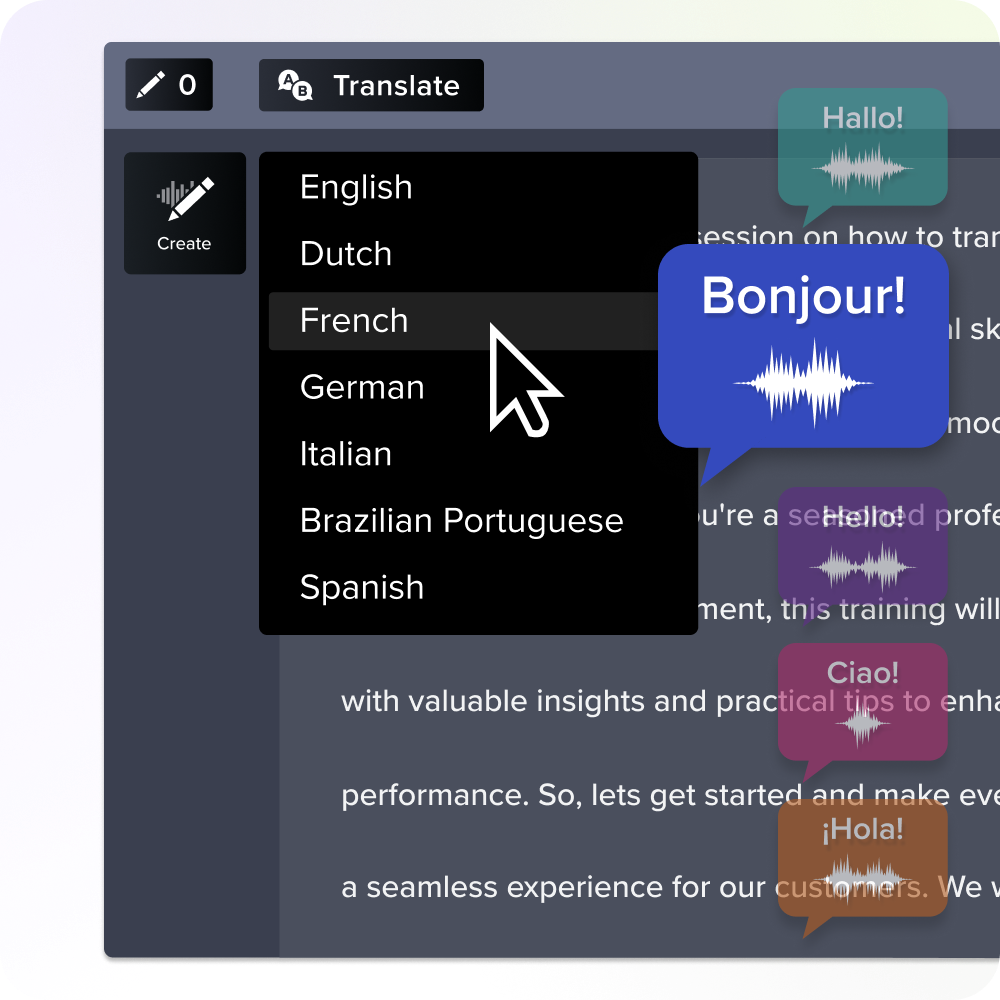
How generative AI and screen recording reduce video production costs
Generative AI isn’t about replacing human trainers or automating away creativity. It’s about helping teams optimize the production process. When combined with screen recording, generative AI can help streamline some of the most expensive and time-consuming steps in video creation, including script writing, narration, and editing.
Automated transcription and text-based editing
The traditional way to edit audio or video involves scrubbing back and forth across a timeline, viewing waveforms, and manually slicing clips. It can be tedious and often requires a technical understanding of editing software.
AI simplifies this workflow through text-based editing. When you bring your recording into Audiate, the AI generates a full, interactive transcript of your spoken audio. This is especially useful for non-editors who need an accessible workflow.
To edit the video, you simply edit the transcript like a document. If you want to cut a rambling explanation, delete a mistake, or remove filler words like “um” and “uh,” you highlight those words in the transcript and press delete. The software automatically updates the underlying video timeline to match your text changes, turning hours of manual editing into a few simple keystrokes.
Generative AI can also help create and refine scripts, reducing the time spent drafting narration from scratch.
Smart emphasis effects and quick narration options
When you record a software process on a large monitor, the viewer can easily lose track of where your mouse is moving. In a traditional workflow, fixing this requires a designer to manually apply zoom animations, add highlight boxes, and adjust keyframes over every single click.
AI features in Camtasia Editor, such as Smart Focus and automated cursor effects, help guide viewers’ attention. The software tracks cursor metadata during recording, enabling smooth, automatic zooms and highlights right where the action happens.
AI-assisted narration and digital avatars in Camtasia Audiate provide quick creation options for global or scaling teams. If you need to update a single line in a voiceover, you no longer have to bring the original speaker back into a studio. You can use text-to-speech tools to create or update professional voice narration, reducing reliance on voice talent and speeding up production timelines.
Create cost-effective training videos with Camtasia
The secret to low-cost, high-quality corporate training is an efficient, repeatable workflow. By combining screen recording, reusable assets, templates, AI-assisted editing, and centralized review, teams can create time-saving training videos without sacrificing quality.
The Camtasia Product Suite provides an in-house workflow for recording, editing, reviewing, and refining training content. You can capture desktop footage and camera feeds with Camtasia Editor, streamline audio editing with Audiate, and gather timestamped feedback through Screencast.
Explore Camtasia’s tools to start creating professional training videos with less production overhead.
FAQs
How often should I update a training video?
Review training videos quarterly and update whenever the underlying software, process, or policy changes. Screen-recorded content is usually easy to patch with new segments instead of requiring full reshoots.
Which file format balances quality and small size?
MP4 with H.264 encoding typically provides the best balance of quality and file size for training distribution. Most editors, including Camtasia, export to this format by default.
Can I start producing videos without prior editing experience?
Yes, tools like Camtasia Editor are built for non-editors with drag-and-drop workflows, templates, and AI-assisted features that reduce technical complexity. You can focus on the training content rather than advanced editing mechanics.
Share