









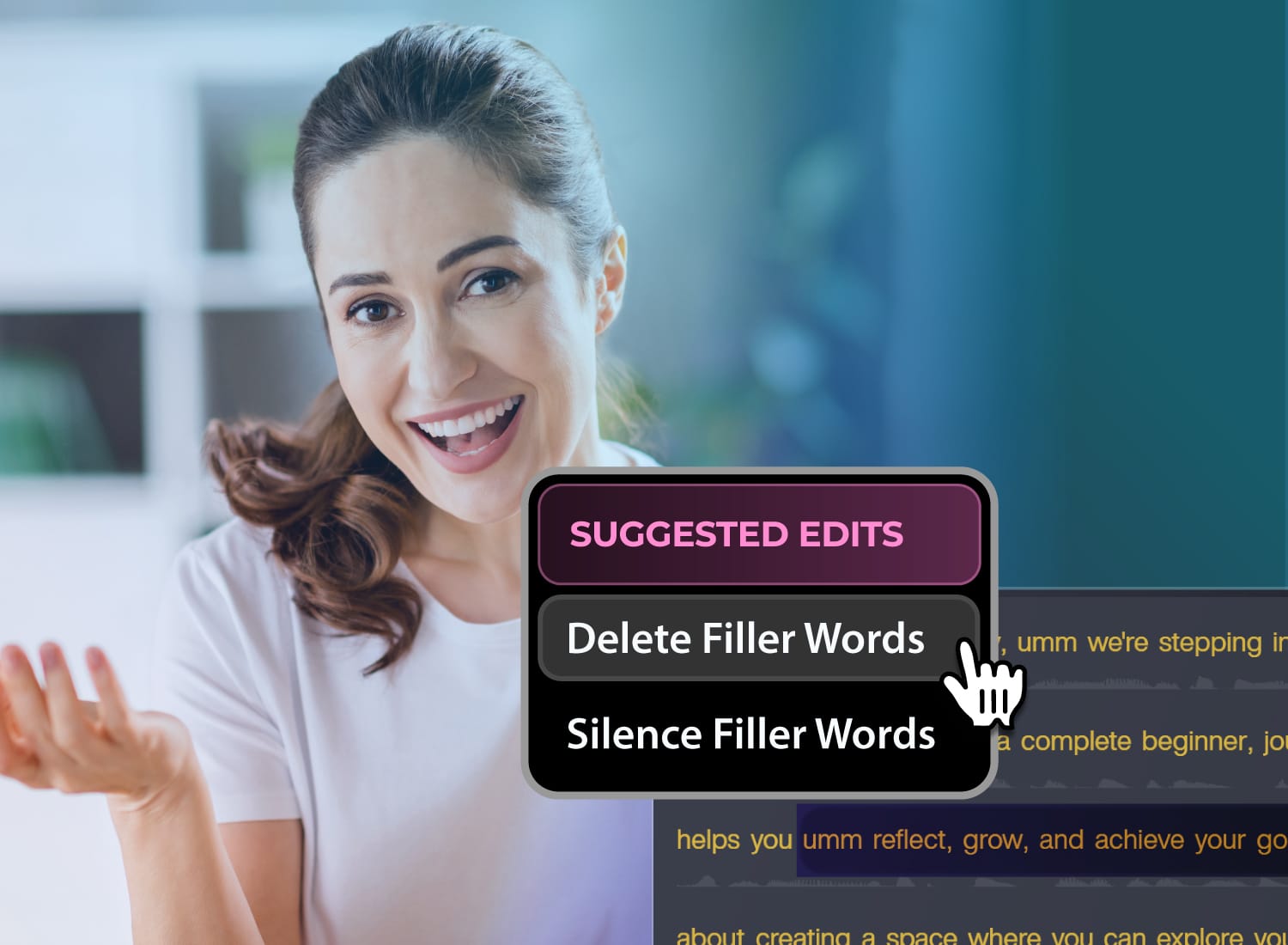
You just wrapped up an intensive Zoom training call or customer webinar. The presentation went as planned, but when you listen to the playback, you notice a lot of “ums,” “ahs,” and long, awkward silences. It’s a common frustration, but frequent verbal fillers are normal in unscripted speech. They represent an editing challenge, not a reflection of speaking skills.
Instead of spending hours re-recording your content, you can clean up your audio while keeping the delivery seamless and natural. This guide evaluates the best approaches to removing filler words for recorded calls, comparing how different tools handle the editing process. You’ll also get a practical, step-by-step walkthrough for streamlining this cleanup using Camtasia Audiate and Camtasia Editor.
Key takeaways
- Recorded Zoom, Teams, and Webex calls often include filler words because spontaneous speech naturally creates pauses, restarts, and verbal placeholders.
- Removing filler words from recorded calls works best when the tool edits both the spoken word and the surrounding pause, so speech still sounds natural.
- Transcript-based editing can speed up filler word removal because you delete flagged words in text instead of scrubbing through a timeline.
- AI filler word removal can save time, but accuracy may vary across accents, speaking styles, and non-native speech, so review still matters.
- For teams using Camtasia, cleaning call audio in Camtasia Audiate and syncing it to Camtasia Editor can help streamline the post-production workflow.
Why recorded calls are full of filler words
Live webinars, client demonstrations, and training sessions require you to juggle multiple things at once. You’re presenting a topic, navigating a software interface, and anticipating audience questions simultaneously. It’s completely natural for filler words and pauses to show up when you’re thinking on your feet.
In fact, speech studies show that our brains use these micro-pauses as processing time. When you’re planning your next sentence or explaining a complex, multi-step process, an “um” or “uh” acts as a natural placeholder while your mind catches up.
For corporate trainers, instructional designers, and content creators, the goal isn’t to become a flawless speaker. It’s about engagement and pacing. While a few casual filler words make you sound human, a high concentration of them can slow down the momentum of your video and unnecessarily inflate the total runtime.
The real problem isn’t that we use filler words; it’s that traditional video editing tools make removing them tedious. Manually hunting down every hesitation on a standard timeline means hours of scrubbing through audio waves, slicing clips, and trying to stitch the remaining audio back together seamlessly.
Long or repetitive fillers can undermine the authority of your presentation and drag out video runtimes, so it’s good to understand the ideal training video length. A long, unedited video often causes viewers to lose interest quickly, impacting your content’s effectiveness.
If you can edit a doc, you can edit a video
Stop fearing the timeline. Camtasia Audiate transcribes your recording so you can edit your video just by editing the text.
Free Download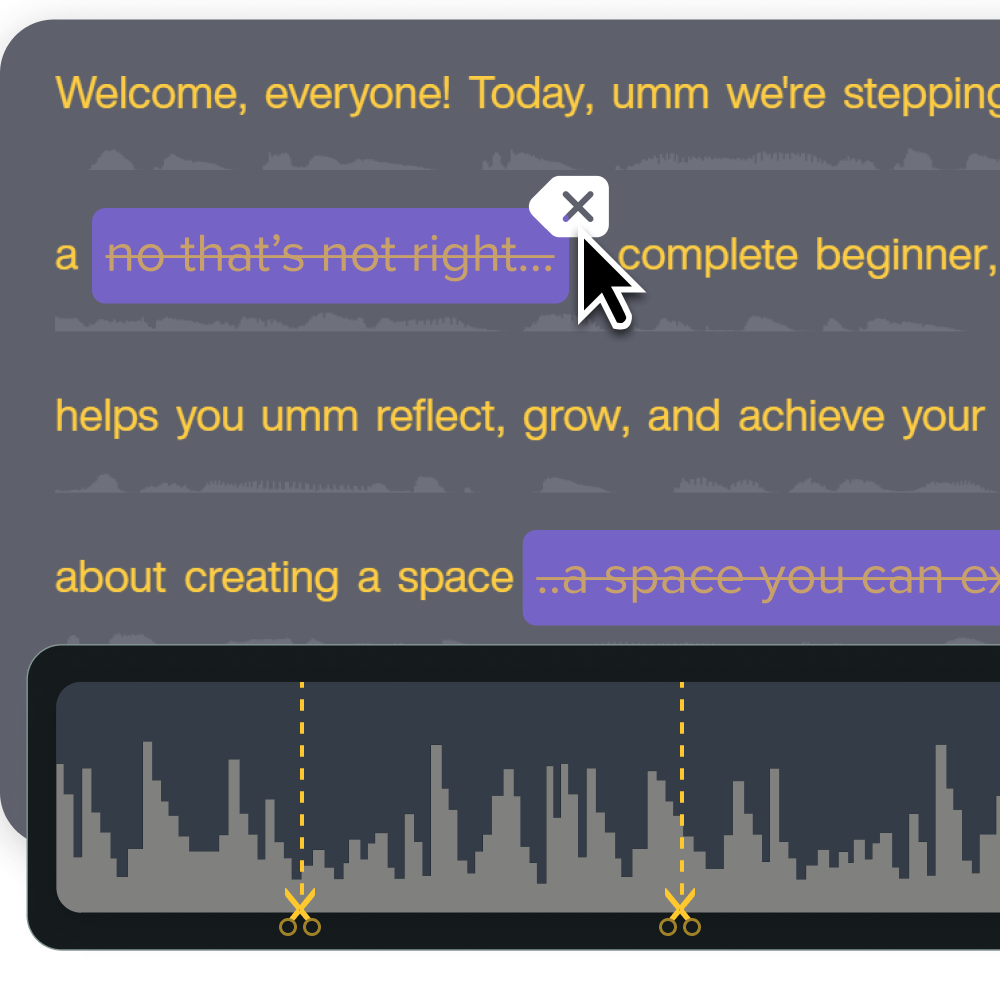
What filler word removal actually does to your audio
Before choosing a cleanup tool, it helps to understand how it handles your audio. Some basic platforms only delete filler words from the written transcript, leaving the filler words completely audible in the final video file. Professional editing tools remove the audio data entirely, but the final quality depends heavily on how the software manages the resulting silent spaces.
If a tool closes the gap too tightly, the speaker’s words collide, making the speech sound clipped, rushed, or robotic. To keep a natural rhythm, the software should maintain a tiny, controlled pause where the filler word used to be.
Consider this before-and-after example from a recorded meeting:
- Before: “Next, we will, uh… [two-second pause] … open the dashboard and, um, check the payroll settings.”
- After (aggressive deletion): “Next, we will open the dashboard and check the payroll settings.”
- After (balanced editing): “Next, we will… [half-second pause] … open the dashboard and check the payroll settings.”
Shortening long pauses and leaving comfortable breathing room helps your audio sound polished and natural.
How AI filler word removal works
Automated audio cleanup can seem like magic, but the process is straightforward. First, an artificial intelligence (AI) engine analyzes the recording’s audio waveform to identify speech patterns.
It then converts the spoken audio into a written transcript while comparing sound peaks and pauses with acoustic markers for common fillers. Once the analysis is complete, the software flags likely fillers such as “um,” “uh,” “like,” and “you know” directly within the text. Instead of forcing you to hunt through complex visual sound waves on a traditional timeline, the software highlights these placeholders inside your transcript so you can see them in context.
From there, you have full control over the final cut. The most reliable editing workflows combine this automated detection with a quick human review. You can skim the flagged suggestions, delete them in bulk, or choose to leave specific ones intact. You can even search the text for custom catchphrases or repetitive words unique to a specific speaker.
This hybrid approach ensures you don’t over-edit your audio or clip essential pauses that your audience needs to process information. Taking a moment to review these suggestions helps you maintain an intentional, conversational pace for your video. If you want to practice pacing before you record, check out these practical tips on how to improve voice over skills.
Transcript-based editing as the core paradigm
Traditionally, editing call audio was a slow, visual process. You had to look at the timeline of audio waves, manually listen for hesitations, and slice out the bad parts second by second. Transcript-based editing changes that workflow. Instead of scrubbing through a timeline, an AI engine turns your spoken audio into text and automatically flags common filler words. This allows you to skim your audio like a text document and delete unwanted words.
For corporate trainers, educators, and content teams, using a tool like Camtasia Audiate turns audio editing into a quick, routine task rather than a specialized project. What used to take hours of manual timeline slicing can often be handled in a single pass, making it realistic to clean up routine internal training or client calls that you otherwise wouldn’t have had the time to edit.
Why accuracy varies across accents and speaking styles
While AI-driven speech recognition is highly advanced, it has limitations. Automated engines rely on baseline speech models, which means their accuracy can fluctuate based on who is speaking:
- Regional accents: Variations in pronunciation and cultural speech patterns can occasionally confuse automatic filler detection.
- Fast talkers: Rapid speakers frequently blend their filler words into the surrounding speech, making it difficult for an AI engine to isolate the sound wave.
- Non-native speakers: Different pronunciation patterns or pacing may cause the software to misinterpret a natural pause as a hesitation, or vice versa.
Pro tip: Treat the AI’s flags as recommendations. Always do a quick manual pass before you publish customer-facing webinars or formal training modules to ensure the transcript and audio are accurate.
How to remove filler words from a recorded Zoom, Teams, or Webex call
Cleaning up your virtual meetings follows a straightforward post-production workflow. Record your video call, import the file, clean up the transcript, and finish your video edits.
Here’s how to transform raw recorded files into polished training videos, software demos, and internal updates using Camtasia Audiate.
Step 1: Import your recording into Camtasia Audiate
Start with the recorded audio or video file you exported from Zoom, Microsoft Teams, or Webex. Importing the file into Camtasia Audiate launches the automated transcription engine.
If you’re using the Camtasia Zoom integration to edit a multi-track Zoom call with separate feeds for your webcam and screen share, import the file into Camtasia Editor first. This keeps your tracks separated. From there, you can send the audio to Camtasia Audiate with a single click, keeping your visuals and audio linked.
Go from screen recording to polished video
A screen recording is just the start. Camtasia’s editor helps you add the callouts, animations, and edits you need to create a truly professional video.
Free Download
Step 2: Let Camtasia Audiate transcribe and flag filler words automatically
Once your file is loaded, Camtasia Audiate generates a text transcript of your call. The built-in AI automatically scans the text and highlights common verbal fillers like “um,” “uh,” “like,” and “you know.” After transcription, you can review flagged filler words across your entire recording at a glance.
Step 3: Review, remove, and fine-tune the transcript
Browse the flagged words to check their context. This pass matters because conversational words such as “like” or “well” can sometimes be part of an actual sentence. You can delete all flagged fillers at once to save time or click through them individually to make specific choices.
During this step, remember to trim long, awkward silences rather than erasing every pause, as your audience still needs a little breathing room to absorb complex information.
Step 4: Sync your cleaned audio directly to Camtasia Editor
Once your audio sounds clean, send it back to your main project. Your text-based edits automatically apply to the main video timeline in Camtasia Editor, aligning the video clips with your audio cuts. This saves you from having to manually match your edits on a timeline later, leaving you free to add final visual touches and captions, and to export your polished video.
What to look for when choosing a filler word removal tool
Not all automated tools handle cleanup the same way. When you’re evaluating your options, you want a solution that speeds up your workflow instead of introducing new technical headaches. Here’s what to keep in mind:
- Audio gap control: Look for a tool that lets you shorten pauses rather than deleting them entirely. If the software snaps the remaining audio together too tightly, your speaker may sound rushed and unnatural.
- Transcript accuracy: The filler word removal is only as good as the transcription engine behind it. If the tool struggles with varied accents, background noise, or industry terminology, you’ll spend more time manually correcting the text than you save on editing.
- Workflow integration: Consider where your video lives. If you have to export your audio, upload it to a separate website, download the cleaned file, and then manually realign it with your video timeline, the time required will quickly outweigh the benefits. Look for a tool that syncs with your primary video editor.
- Granular editing control: While a “delete all” button sounds tempting, you don’t always want to strip out every single placeholder. Look for software that gives you the flexibility to flag filler words and quickly review and approve them one by one, giving you the final say over the pacing of your video.
While individual creators might tolerate switching between standalone web apps, corporate teams handling recurring webinars, online course updates, and monthly training recordings need a workflow that can scale. A unified workflow can reduce unnecessary exporting, rendering, and file-management steps.
Start editing smarter with Camtasia Audiate
The ideal post-production tool removes distracting filler words, preserves the natural pacing of human speech, and fits the recorded-call-to-video workflow. By pairing text-based transcript editing with multi-track video controls, the Camtasia Product Suite helps teams turn recorded calls into cleaner, more polished educational content.
Cleaning up your recorded calls shouldn’t mean spending hours slicing up an audio timeline or sacrificing a natural, conversational delivery. With Camtasia Audiate, you can remove distracting filler words, trim awkward silences, and keep your video and audio aligned — all by editing text.
Visit Camtasia to explore flexible licensing options.
FAQs
How do you get rid of filler words in a recording?
The fastest method is transcript-based editing, where you delete flagged words like um, uh, or like instead of cutting waveforms by hand. In Camtasia Audiate, you can review each match, remove only what helps, and keep the rest intact.
Can filler words be removed without making the audio sound unnatural or choppy?
Yes, if you review each edit and shorten pauses carefully, because deleting every hesitation can make the speech sound clipped. A good tool lets you choose between removing the word completely or preserving some timing, which helps the rhythm stay natural.
How does AI filler word removal work?
Most tools start with speech recognition, build a synced transcript, and flag common fillers, such as um, uh, you know, or basically. Accuracy may vary across accents, speaking speed, and false starts, so manual review still matters before you publish training or marketing content.
How do I remove filler words from a recorded Zoom, Teams, or Webex call?
Import the recording into Camtasia Audiate, let it transcribe the audio, and review the filler words it flags. After cleanup, sync the polished audio to Camtasia Editor for captions, visuals, callouts, and other finishing work on your video.
Does Camtasia have a direct integration with Zoom for importing recorded calls?
Yes. Camtasia Editor includes direct Zoom cloud integration, so you can import your Zoom recordings without downloading and manually re-uploading files. Once connected, select the recording you want to clean up, and it pulls straight into your timeline, where you can then sync it with Camtasia Audiate for transcript-based filler word removal and audio cleanup.
What should I look for in a filler word removal tool?
Look for transcript accuracy, selective removal, pause control, and a workflow that edits the actual audio, not just the transcript. For teams producing frequent training or webinar content, Camtasia Audiate is especially useful when paired with Camtasia Editor.
Share