









Your onboarding video started simply in VEED: a quick screen recording, some captions, and a fast export. Six months later, you’re rebuilding the whole thing because the interface changed, a stakeholder wants new branding, and the timeline can’t handle the layered revisions you need.
That’s when many training teams start looking for VEED alternatives. The best options go beyond quick browser-based trimming to support structured screen recording, layered editing, accessibility, review, and branding across a maintained course library. Camtasia is the stronger choice when your team needs a repeatable production workflow instead of a one-off clip.
This comparison breaks down where VEED can create revision bottlenecks, which Camtasia tools address them, and when switching makes sense.
Key takeaways
- VEED works well for quick trims and social captions, but structured training often requires deeper screen recording, editing, and branding controls.
- Camtasia Editor gives training teams multitrack timeline control for polished, repeatable videos without requiring a professional production background.
- Branded templates and reusable annotations help teams keep training libraries consistent and easier to update across multiple authors.
- Camtasia Editor’s caption editing and Screencast’s review workflows support accessibility and approval steps that VEED’s trimming tools don’t cover.
- Teams can start with lightweight, watermark-free recording in Camtasia Online, then move complex projects into Camtasia Editor as training requirements grow.
When does VEED stop working for training videos?
VEED stops being a practical training workflow when layered revisions, consistent branding, accessibility checks, stakeholder review, or a maintained course library demand more control than quick browser-based editing can offer.
Picture a 20-minute onboarding video that’s been through three interface updates. Each fix means rebuilding the narration, cursor callouts, and branding within a timeline that wasn’t designed for repeated, layered changes.
Watch for these switching triggers:
- Frequent layered revisions
- Inconsistent branding across modules
- Long screen demonstrations
- Repeated narration fixes
- Stakeholder review cycles
- Accessibility work
- Slow browser performance on longer projects
- No verified path to LMS-ready delivery
Audit one current lesson against this list. You’ll quickly see where production time is being lost.
Crystal-clear screen recording
Why settle for blurry screen content? Camtasia Editor’s screen recorder captures everything at up to 4K!
Free Download
VEED’s strengths and its ceiling for training content
VEED’s browser-based convenience is real: no installation, fast publishing, and quick turnaround. Compare its current paid plans against your training requirements rather than a generic feature checklist, and confirm pricing and limits on VEED’s site before publishing because plans change.
A short coaching update may fit VEED well. A maintained onboarding module that requires repeated revisions can quickly reach its ceiling.
What VEED does well: fast trims and social captions
VEED handles quick trims, aspect-ratio resizing, automatic captions, and social exports well, especially on paid plans that offer higher resolution and watermark-free downloads. Confirm current plan details on VEED’s pricing page because limits can change. We verified these capabilities on the date noted at the top of this comparison.
A 90-second promotional clip or a one-time coaching update fits this workflow well. Trim it, add captions, resize it for Instagram, and publish. That approach suits content you’ll rarely revisit, unlike a growing training library that needs regular updates.
Where the browser-based model breaks down for training
A browser-based editing model can create training risks once a project becomes long and layered. Before committing to a workflow, test a realistic project of your own, such as a 20-minute software onboarding lesson with screen, webcam, microphone, and system audio, on your actual browser, network, and source-file resolution. Note the date and conditions because performance can vary with connection speed and file size.
Watch for these risk points:
- Upload time on longer, high-resolution files
- Timeline responsiveness as a project grows or accumulates edits
- Whether screen, webcam, microphone, and system audio can be adjusted independently
- What happens to unsaved edits if the connection drops
- Whether the platform provides a clear version-recovery path
- How easily teams can reuse approved assets across projects
Each issue can add revision time and create delivery risk if you don’t test it before committing to the workflow.
What does a structured training video require that VEED doesn’t offer?
Structured training combines instructional design, production, review, accessibility, delivery, and long-term maintenance into one system.
Before opening an editor, document eight requirements:
- The learning objective
- The learner’s need
- How the learner will apply the material
- Who owns the content
- How often it will be updated
- Which accessibility standard applies
- Where the content will be stored
- How it will reach learners
This planning matters because demand for video continues to grow, as shown in Camtasia’s recent video statistics.
Do AI Voices and Avatars Improve Learning?
Discover what the data reveals about learning outcomes.
Get the Full Report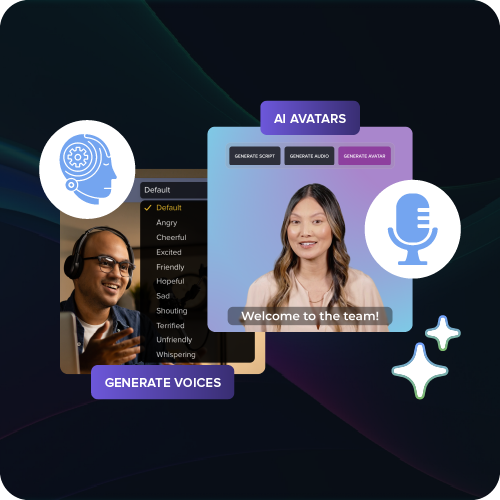
Consider a software training library that must be revised whenever the interface changes. Without clear requirements, every update can become a scramble.
Screen recording, multi-track editing, and branding
Separate recording tracks let you fix one part of a lesson without changing the rest. Camtasia Editor captures the screen, camera, system audio, and microphone in one session, then lets you edit each on its own track.
Create one shared visual kit with approved colors, fonts, callouts, cursor treatments, intros, and outros saved as reusable User Styles and templates.
If a software interface changes, you can replace the affected screen segment and return it to the existing timeline while preserving the presenter footage and narration.
This matters most when several trainers or departments publish modules under one brand. Shared templates help every module remain consistent, regardless of who edits it.
Governance, review, and LMS-ready exports
Training is ready to publish only after named reviewers approve it and the team confirms that the target learning management system (LMS) will track it correctly. Before production begins, assign owners for subject matter accuracy, brand consistency, accessibility, compliance, and final sign-off.
Screencast collects time-stamped feedback, allowing reviewers to comment directly on the moment that needs a fix instead of describing it in an email.
Exporting an MP4 doesn’t automatically make a course LMS-ready. For a compliance onboarding module, confirm packaging format, caption requirements, quiz integration, metadata, hosting, and completion tracking with the LMS administrator before production.
Try Camtasia free to test the review and export workflow before committing to a delivery format.
How do VEED and Camtasia compare feature by feature for training teams?
Capture depth and reuse controls matter more than any single checkmark when you’re maintaining a training library.
| Capability | VEED | Camtasia Editor |
| Capture sources | Limited browser-based capture and upload | Screen, camera, microphone, and system audio |
| Separate tracks | Limited | Available |
| Templates | Available | Available |
| Reusable branding | Limited | Available through User Styles |
| Captions | Available | Available |
| Audio repair | Add-on | Available through Camtasia Audiate |
| Review workflow | Limited | Available through Screencast |
| Offline use | Unavailable | Available |
| LMS considerations | Unverified | Requires admin verification |
| Plan limits | Project and plan limits apply | Seat-based licensing |
Separate tracks and reusable branding can reduce unnecessary rerecording. For example, a trainer can replace one screen segment in a compliance module without changing the narration or intro.
Screen capture, editing depth, and accessibility compared
Training quality becomes most visible during revisions, especially in a multi-step customer relationship management (CRM) walkthrough with the screen, webcam, system audio, and microphone recorded together.
In VEED, correcting a mispronounced field name or adding cursor emphasis may require rerecording or re-uploading footage, followed by another review of captions and callout placement. Apply the same fix in Camtasia Editor using separate tracks, then compare how much of the lesson you had to change.
Accessibility work goes beyond auto-captions in both tools. Dynamic captions can improve readability and engagement, but they don’t replace closed captions when accessibility compliance requires them. Confirm which caption types each tool produces, then evaluate:
- Caption correction workflow
- Caption export formats
- Callout contrast and readability
- Keyboard accessibility in the playback environment
- Human review for caption accuracy
Score each workflow on four measures:
- Total revision time
- Number of rerecordings required
- Caption correction effort
- Consistency across callouts and branding
Run this test on one representative lesson before choosing a long-term workflow.
Where does VEED fit among training video tools?
Match the tool to the training job rather than relying on a feature count. A training manager might use VEED for a short announcement, a transcript-led editor for a podcast-style lesson, an AI-avatar tool for a policy overview, a quick messaging tool for a subject matter expert (SME) update, and a structured editor for a maintained software course.
Ask one question: Does this content need governance, consistent branding, or regular revision? If so, you likely need more than a fast browser-based editor.
How Descript, Synthesia, and other alternatives compare
Descript, Synthesia, and HeyGen each address a specific production need, but none replaces a complete training workflow. Descript works well for transcript-led editing, like a podcast-style leadership interview.
Synthesia and HeyGen generate avatar-led videos that may suit short policy announcements read from a script. That output still requires AI disclosure, governance review, and human accuracy checks.
These tools may be less suited to screen-heavy work. Consider a CRM lesson in which a trainer records the interface, adds callouts, revises narration monthly, and reuses branded templates across modules. A structured editor provides the screen-capture depth and timeline control that workflow requires.
For a broader breakdown of AI editors by strength, see this comparison of AI video editors.
The Camtasia lineup for training video production
Each Camtasia tool handles a different training task, so a distributed L&D team doesn’t have to force one app to do everything.
- Camtasia Online: Quick capture
- Camtasia Editor: Full production
- Camtasia Audiate: Narration cleanup
- Camtasia Snagit: Static visual guides
- Screencast: Stakeholder review and storage
Screencast can also hold your library between revisions. Storage lasts 12 months on most plans and for the full length of your subscription on Pro, so confirm that your plan’s storage window matches how long each course needs to remain accessible.
Solo buyers should review the current Camtasia Plan bundles. Teams should verify Business License details covering transferable seats, offline activation, and centralized deployment.
Camtasia Online: a free browser-based starting point
Camtasia Online lets you record directly in your browser for free, without a watermark or installation. It provides separate screen, webcam, and microphone layers, 1080p output, and unlimited scenes capped at five minutes each.
Try it with a five-minute product walkthrough: record your layers in Camtasia Online, then export the project directly into Camtasia Editor for callouts, branding, and deeper revisions.
Use it for pilots and quick walkthroughs rather than full training libraries.
Camtasia Editor: polished branded training libraries
Camtasia Editor keeps a growing training library consistent by combining separate tracks with reusable visual assets, so editing one part of a lesson doesn’t disrupt the rest.
Build a master project with approved intros, outros, colors, fonts, callouts, caption styles, templates, and an export preset that any author can use.
That master project makes the segment-swap workflow described earlier possible: replace the outdated footage, preserve the original narration and branding, and export with the same preset every time.
This can save hours across a library maintained by multiple authors.
Camtasia Audiate: fast, clean narration and generation
Camtasia Audiate lets you fix narration by editing text instead of rerecording audio. Transcribe the voiceover, correct mistakes on the page, remove filler words, reduce background noise, and sync approved edits directly into Camtasia Editor.
For example, a trainer who mispronounces the same term four times in a 25-minute software lesson can correct those sections in the transcript instead of recording the full demonstration again.
Audiate also generates AI voices, avatars, and translations, and other AI video-generation tools follow similar approaches. Always disclose AI-generated content and confirm organizational, platform, industry, consent, and accessibility requirements. Keep subject matter and accessibility reviewers involved before publishing.
Camtasia Snagit: step-by-step documentation
Use Camtasia Snagit when the goal is a static, numbered procedure rather than a video. Its Step Capture feature, scrolling capture, Smart Redact, callouts, and arrows support that workflow.
An IT team documenting a password-reset process, for example, can capture each screen and add callouts to create a guide quickly.
If the same workflow later needs narration or motion, import the screenshots into Camtasia Editor as source assets instead of starting over.
When does VEED still make sense, and when is it time to switch?
Keep VEED when your content is short, temporary, and built for speed. A one-minute social announcement rarely needs multitrack revisions, accessibility audits, or a maintained asset library.
Switch when your lesson looks more like a 15-minute branded software course that gets updated every quarter. Run this checklist against your current project:
- Does it require layered capture sources beyond screen and voice?
- Will it need repeated revisions from multiple stakeholders?
- Does branding need to remain consistent across authors?
- Does it require accessibility checks, offline editing, or LMS-ready export?
If you answered yes to two or more questions, don’t compare subscription prices alone. Include revision hours, rerecording time, brand cleanup, and review delays, much like how teams evaluating Vidyard alternatives compare total production costs with a single license fee.
Moving from VEED to Camtasia in three steps
Reduce migration risk by rebuilding one lesson at a time: start in Camtasia Online, clean the narration in Audiate, and then build a branded template in Camtasia Editor.
Choose a representative lesson, such as one onboarding module, and run it through capture, narration repair, accessibility checks, stakeholder review, and LMS delivery testing.
Preserve source files, captions, brand assets, and review history. Define success before production begins using criteria such as capture quality, editing time, review turnaround, accessibility approval, and delivery compatibility.
Step 1: Start free with Camtasia Online
A short pilot in Camtasia Online can confirm that your capture quality and workflow meet your needs before you commit to a license. Record a five-minute employee onboarding walkthrough with separate screen, webcam, and microphone layers.
- Open Camtasia Online in your browser.
- Record the pilot walkthrough.
- Review capture quality, resolution, and scene length.
- Export the project into Camtasia Editor.
- Document presenter comfort, audio clarity, and any browser limitations.
Step 2: Clean up narration with Camtasia Audiate
Cleaning up the pilot narration in Audiate shows how much rerecording the workflow can eliminate.
- Import the pilot narration.
- Correct the transcript.
- Remove filler words and mistakes.
- Reduce background noise.
- Send synchronized edits to Camtasia Editor.
If a trainer needs to fix an inaccurate policy explanation, they can edit the transcript instead of rerecording the entire screen demonstration. They can also generate a script, AI voiceover, or AI avatar in Audiate.
Label any AI-generated narration and route it through the same review process before publishing.
If you can edit a doc, you can edit a video
Stop fearing the timeline. Camtasia Audiate transcribes your recording so you can edit your video just by editing the text.
Free Download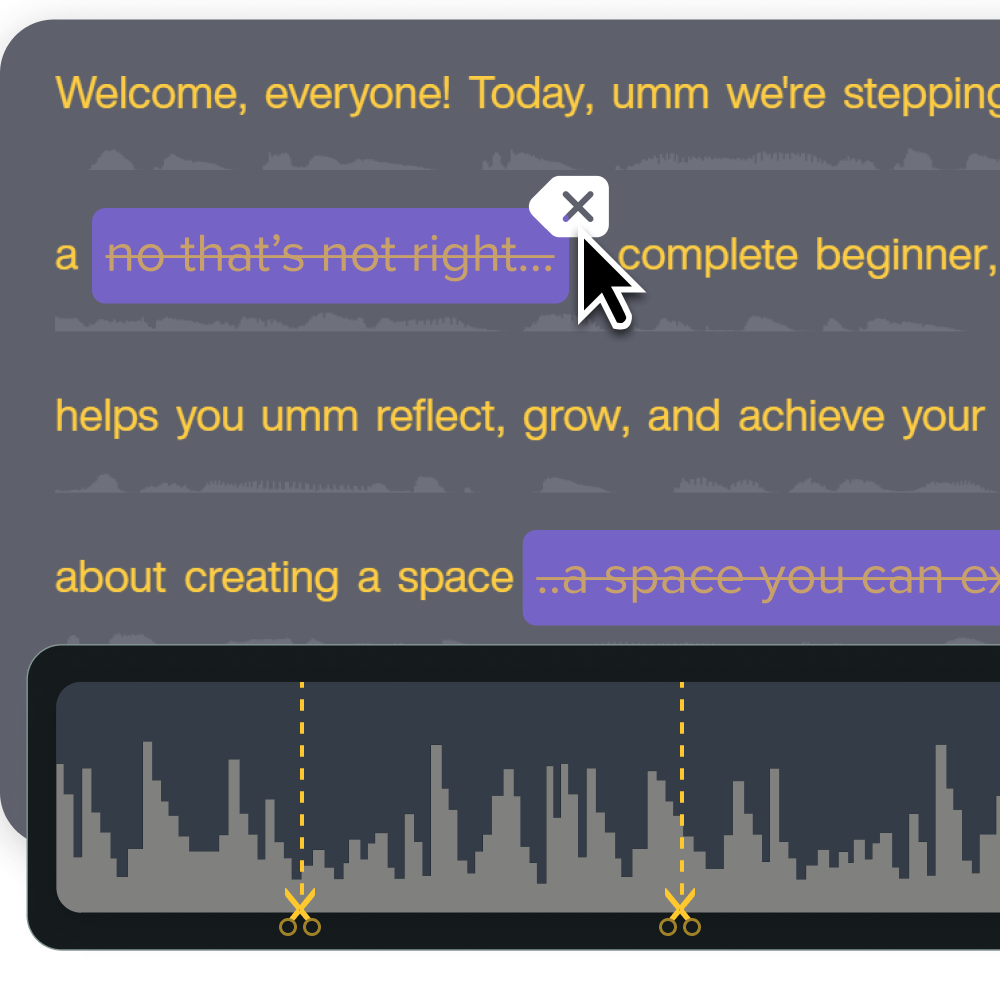
Step 3: Build your branded template in Camtasia Editor
A tested Camtasia Editor template gives every author the same defaults before you expand the migration. Build it in this order:
- Add your intro and outro.
- Set brand colors and fonts.
- Create approved callouts and caption styles.
- Standardize audio levels and one export preset.
- Define project and file-naming rules.
- Save annotation and callout settings as User Styles.
- Replace one segment to test maintainability.
- Route the draft through Screencast for stakeholder feedback.
Instructional design teams can share one onboarding template with the same intro, callout style, and file-naming convention regardless of who’s editing.
Don’t scale the template until the update test works, the accessibility review passes, and delivery checks are complete. Skipping this step can allow inconsistent branding to return as the library grows.
Choose the editor built for how training actually gets made
That 20-minute onboarding module you keep patching in VEED whenever a button moves or a policy changes is the best test case for this comparison. Rebuild that lesson once in a layered format with editable callouts and captions rather than continuing to rerecord it.
That’s the practical difference between quick trims and maintainable training content. Camtasia Editor provides separate screen, camera, and audio tracks, saved callout styles for consistency, and captioning tools for polished delivery.
Test the workflow before installing anything, starting with Camtasia Online. Record one training walkthrough in the free, watermark-free browser recorder, then move it into Camtasia Editor when you need deeper control.
Ready to capture your first training walkthrough? Start recording free with Camtasia Online.
Frequently asked questions
What is the best alternative to VEED for teams that need real video editing rather than online trimming?
The Camtasia Product Suite is the strongest VEED alternative for teams that need structured training workflows rather than quick browser-based trims. Camtasia Editor combines multitrack screen recording, timeline control, annotations, reusable templates, caption editing, and professional exports in an approachable desktop workflow. Camtasia Audiate supports narration cleanup, while Screencast provides a clearer process for stakeholder feedback.
When should a training team switch from VEED to Camtasia?
A training team should switch when projects require layered screen recordings, repeatable branding, precise audio changes, accessibility review, or reliable updates across a growing content library. Those requirements favor Camtasia Editor’s multitrack timeline and reusable templates over a workflow centered on fast trims, captions, and social formats. Screencast also keeps reviewer comments attached to the video instead of spreading feedback across email threads and separate files.
What is the best free VEED alternative for short training videos?
Camtasia Online is a practical free alternative for short browser-based screen recordings, walkthroughs, coaching clips, and lightweight training content. It requires no installation and supports a fast capture workflow. Projects that need full timeline control, layered media, reusable templates, and polished exports can move into Camtasia Editor. Confirm current recording limits and export specifications before starting a pilot.
Can ChatGPT create a training video?
ChatGPT can help prepare learning objectives, scripts, quiz questions, outlines, and shot lists, but producing the finished training video still requires recording and editing software. Camtasia Editor can record and assemble the lesson, while Camtasia Audiate supports transcription and AI-generated narration. A human reviewer should check any AI-generated voice, avatar, translation, or script for accuracy and accessibility and label it according to applicable organizational, platform, and industry policies.
How can teams move from VEED to Camtasia?
Teams can move from VEED to Camtasia by rebuilding one representative lesson before migrating the full library. Preserve the source recordings, captions, brand assets, export settings, and review history. Capture the pilot in Camtasia Online, clean the narration in Camtasia Audiate, and build a reusable template in Camtasia Editor. Route the pilot through Screencast for review, verify accessibility and LMS delivery requirements, and then migrate the remaining projects in controlled batches.
Share