









When creating an instructional video, many trainers and educators quickly realize that video production involves far more than just editing footage. Scripts, captions, summaries, social posts, translations, and content planning can quickly turn a simple project into hours of extra work. That’s where AI tools like OpenAI’s ChatGPT fit in.
While ChatGPT can’t edit or generate video files natively, it can streamline the production process by creating scripts, captions, translations, summaries, shot lists, and content prompts that work alongside your existing editing tools.
Key takeaways
- ChatGPT is a text generation tool, not a video editor. It can produce scripts, captions, and translations, but a dedicated video editor is required to record footage, assemble clips, and export a finished video file.
- No-code tools like Zapier and Make.com let you automatically move ChatGPT-generated text into your video editing timeline without manual copy-paste steps.
- Structured prompts that specify audience, tone, and video length produce more usable scripts that require less editing before recording.
- AI-generated content often needs human review to match brand voice and trim overly long explanations that slow down video pacing.
- Combining ChatGPT’s text generation with Camtasia’s AI-powered editing features creates a complete workflow from idea to polished training video.
What ChatGPT can and cannot do for video creation
Before trying to integrate ChatGPT into a video workflow, it helps to understand its functionality and limitations. ChatGPT is a text-generation tool, not a video-generation platform. It can’t shoot footage, edit timelines, or export finished videos. Those tasks still live in dedicated video editing software.
Where ChatGPT does add value is in all the content creation surrounding the edit. It can quickly generate scripts, shape storylines, build outlines, write captions, summarize long recordings, and adapt content for different platforms or audiences. In other words, it supports the thinking and writing layer of video production, not the visual editing layer.
Within a typical workflow, ChatGPT fits across all stages:
- Pre-production: brainstorming ideas, writing scripts, outlining scenes, and planning structure
- Production: refining talking points and adjusting messaging during recording prep
- Post-production: creating captions, titles, summaries, subtitles, and repurposed social content
ChatGPT generates scripts, not complete videos
ChatGPT is strongest when it comes to text-based video assets, like narration scripts, on-screen text and captions, scene descriptions, and translated drafts for multilingual audiences. For training and educational content specifically, creators also use it to generate vocabulary lists, dialogue variations for roleplay scenarios, and simplified explanations of complex topics.
How you use ChatGPT in your video editing workflow depends on what you’re trying to make:
- For a quick how-to on a simple process, the Camtasia ChatGPT plugin’s generative screencast feature can take you from screenshots to a narrated, structured video without ever leaving the chat interface.
- For a more fully produced training video covering a complex workflow, you can use ChatGPT throughout the desktop-based process of scripting, refining, and generating assets that feed into Camtasia’s editing timeline.
Either way, human review still matters. AI can produce persuasive, well-structured text, but people still need to refine emotional tone, pacing, and accuracy to make sure the final message lands the way it should.
Keep training videos accurate. Avoid “AI slop.”
Build training content faster without sacrificing quality. The HUMAN Framework is a 5-step strategy for integrating AI effectively.
Get the Guide
How ChatGPT integrations speed up video creation
The biggest advantage of ChatGPT integration is simple: It reduces the amount of time spent moving between writing, editing, and publishing tasks. Instead of writing every script, caption, or video description from scratch, creators can generate drafts in minutes and move directly into production.
In pre-production, ChatGPT can help brainstorm ideas, organize outlines, and draft scripts. During production, it can refine talking points or update narration on the fly. In post-production, it can generate captions, summaries, subtitles, social posts, and platform-specific descriptions that support faster publishing.
Tools like Camtasia Editor can help you turn AI-generated content into polished videos more efficiently, while Camtasia Audiate makes it easier to refine scripts and edit narration as text, helping creators improve pacing and clarity before final production. And if you need to make multiple videos, Camtasia also allows you to make a video template so you don’t have to start from scratch every time.
Connect planning directly to production
ChatGPT integrations reduce the constant back-and-forth between planning documents, messaging plugins, and editing software. Instead of copying scripts from one tool into another or manually rebuilding outlines inside a video editor, creators can move content more directly from planning into production.
A script generated in ChatGPT can become narration, on-screen text, captions, or scene structure inside the editing workflow, without needing to be rewritten multiple times. The same applies to outlines, training steps, interview questions, or tutorial walkthroughs that flow directly into recording and editing stages.
Turn AI-generated scripts into editable video content
ChatGPT integrations allow scripts to move directly into video editing tools instead of being copied, rewritten, or reformatted across multiple documents. This makes the script a starting point for narration, captions, and scene structure inside the editor.
Once imported, creators can refine timing, pacing, and visuals without rebuilding the script from scratch. This reduces repetitive rewriting and keeps the focus on shaping the final video, rather than managing content between tools.
Camtasia Editor’s drag-and-drop timeline then makes it simple to turn those generated scripts into polished, engaging videos, even without video editing experience.
Let Audiate write your script!
No more blank pages! Instantly generate amazing, customizable scripts in any length, tone, and style!
Get Audiate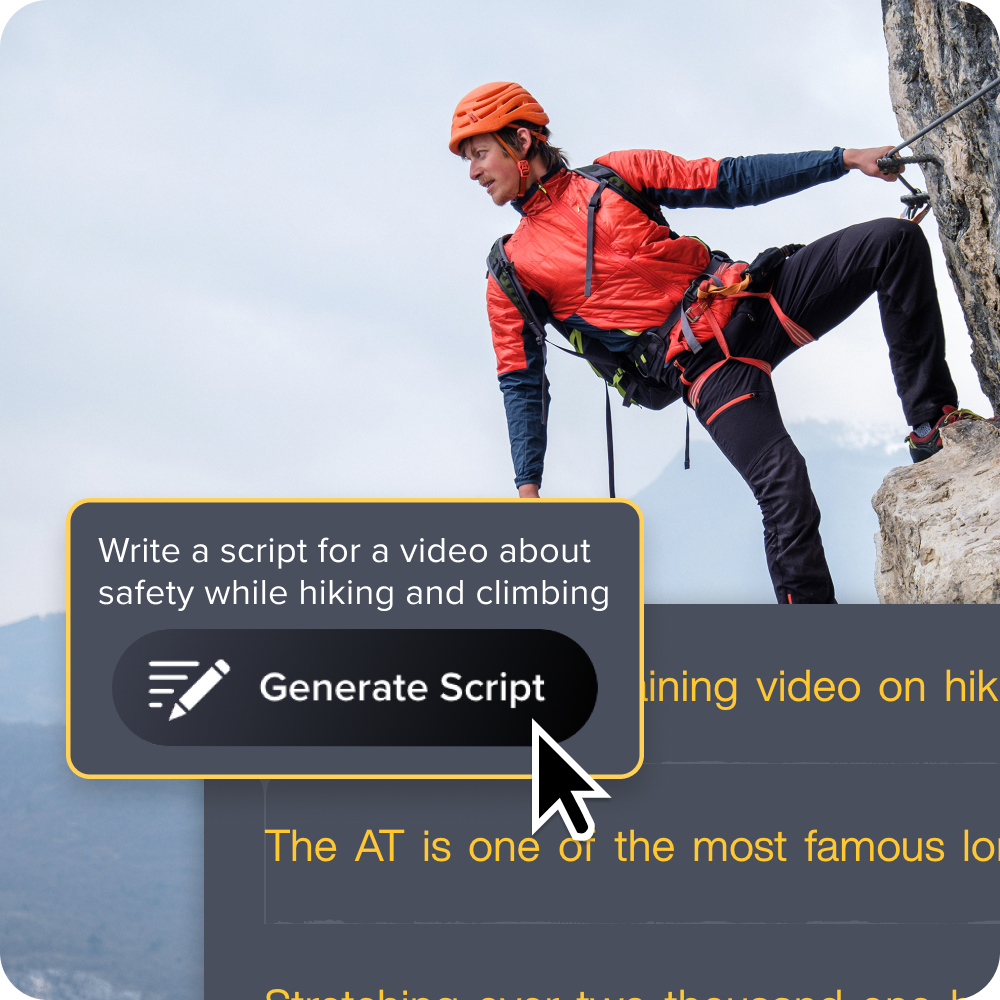
Streamline editing with connected tools
Structured ChatGPT outputs make editing faster by giving creators organized scripts, captions, and outlines that they can use directly inside the editing workflow instead of reworking raw text. They can move quickly from narration to visuals, with fewer gaps between planning and production.
The result is less back-and-forth, fewer manual adjustments, and a smoother overall editing process with faster turnaround times.
Using integrations that streamline the entire process
Not all video creation integrations will be a good fit for this use case. Some tools only connect ChatGPT to writing tasks, like scripts or captions, while others extend further into the actual production workflow.
More advanced integrations like Camtasia now go beyond text generation to support video creation more directly. Instead of stopping at planning or scripting, they help bridge the gap between AI-generated content and the editing environment where the final video is built.
Create videos from screenshots with the Camtasia ChatGPT plugin
The Camtasia ChatGPT plugin is a deeper integration that helps you turn screenshots into structured, storyboard-style videos.
You chat with Camtasia directly inside a ChatGPT conversation via the plugin. Upload your screenshots directly, which generates a storyboard for your video. From there, you can adjust the script and refine the focus points for each screen before building anything. Once you’re happy with it, Camtasia Online generates the finished video, complete with animations and narration.
This is where generative screencast comes in. Instead of manually sequencing visuals and recording narration separately, the integration turns your real workflow screenshots into a structured, narrated instructional video in just a few steps.
Refine and finish your video in Camtasia Online
After generating a draft, you can continue refining and polishing your content in Camtasia Online.
Camtasia Online acts as a continuation of the workflow, allowing creators to adjust edits, enhance clarity, and improve overall production quality without starting over. This approach supports traditional editing rather than replacing it, with AI speeding up early creation and editors handling final refinement.
Need to show your screen?
Skip the downloads. Use Camtasia online to record your screen, camera, and microphone right in your browser for free.
Start Recording
5 steps from prompt to polished training video
You don’t have to get bogged down in the editing process. It only takes five steps to turn an idea or rough prompt into a clear, professional instructional video. Each step saves time while also improving clarity, pacing, and accessibility for learners.
1. Draft a focused prompt for script and scene list
The quality of your script depends on the quality of your prompt. Vague instructions tend to produce generic, hard-to-use scripts that require heavy editing, while specific prompts generate structured, production-ready content.
To ensure better results, include key details such as your:
- Target audience
- Desired video length
- Tone of voice
- Required talking points
- Any terminology to include or avoid
If you request both narration and a scene-by-scene breakdown, you can plan visuals in advance, align footage with the script, and reduce guesswork during recording and editing.
Example prompt:
“Write a two-minute training script for new customer service representatives explaining our return policy. Use a friendly, professional tone. Include three key steps they must follow. Also provide a scene-by-scene breakdown for visuals.”
2. Import text into your editor timeline
After ChatGPT generates a script or outline, the next step is moving it into your video production tool. You can do this through copy/paste or built-in import features, depending on the editor you’re using, so the text can directly guide the video build.
Some programs support structured script imports that create scene placeholders or timeline markers, making it easier to match narration with visuals without rebuilding everything manually. Camtasia allows text-based editing, so you can refine narration while keeping it synced to the timeline.
Before recording, do a quick read-through to make sure the phrasing flows. It’s an important but often overlooked step that helps you avoid retakes and keeps production smoother.
3. Add AI voice or record narration on a separate track.
AI voice is especially useful for internal training or frequently updated videos where speed matters more than recording perfection. It lets you update a script and generate narration quickly without re-recording.
In the Camtasia Suite, built-in text-to-speech and AI voice tools can turn scripts directly into narration, without the need for extra equipment or gear.
Once you have your narration, keep it on a separate audio track so you can easily adjust timing, replace sections, and balance audio without affecting the rest of the edit.
Instant lifelike AI voice over
No voice over? No problem. Audiate generates incredibly life-like voice over right from your script!
Get Audiate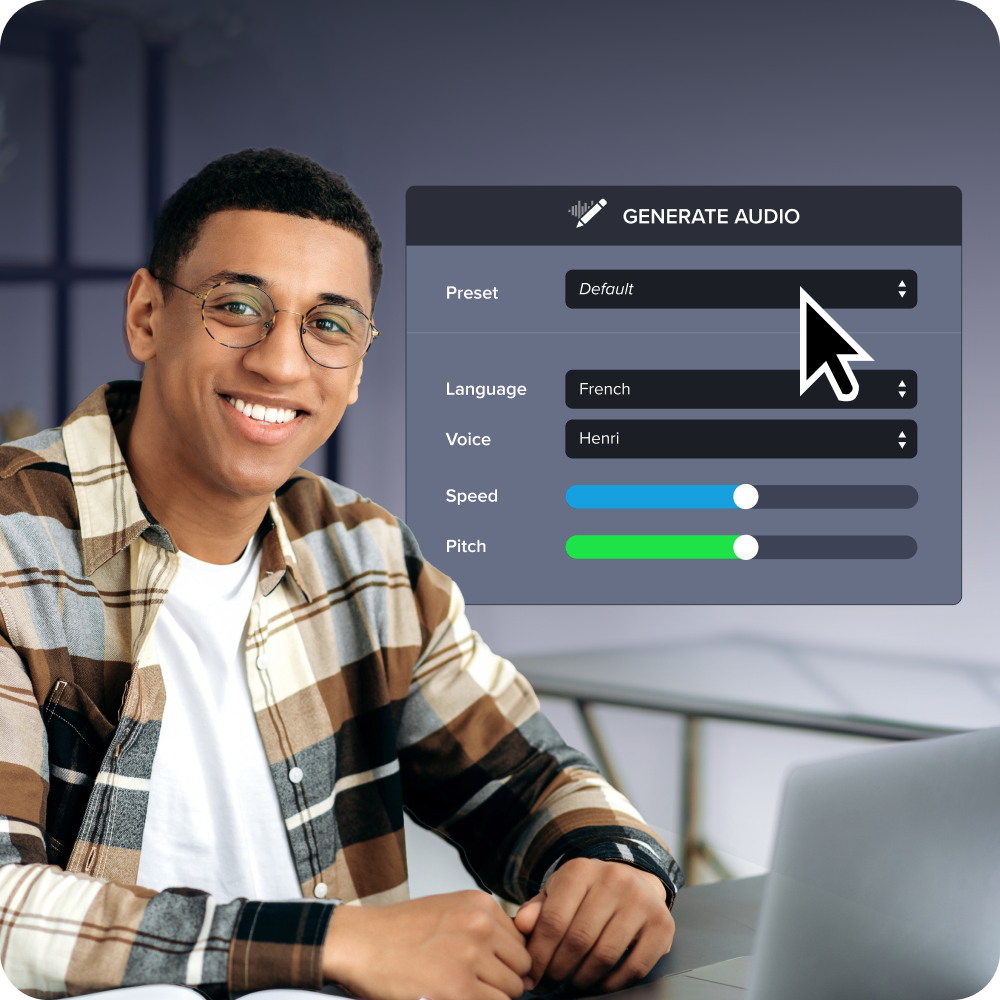
4. Auto-generate and sync captions
Captions are a must. They improve accessibility, comprehension, and engagement, and they support sound-off viewing. ChatGPT can help draft and clean up caption text, while the editor handles timing, syncing, and styling.
In Camtasia Editor, automated and dynamic caption features reduce the manual work of transcribing and aligning text with audio, making it faster to produce accurate, readable captions directly within the editor.
But remember, before you publish, always proofread captions for names, acronyms, product terms, and compliance language.
5. Export, then trim into shorts for social platforms
You can repurpose a single training video into multiple short clips for social media platforms like LinkedIn, YouTube Shorts, or internal comms, extending its value without extra production work.
Once the full video is ready, you create shorter versions using built-in export presets available in most editors — it makes the process much faster than it sounds. ChatGPT can also help by generating tailored titles, captions, and descriptions for each clip based on the platform and audience.
Fixing AI video issues
Human review is a normal and necessary part of any professional AI-assisted video workflow. The goal is not to remove editing but to make revisions faster and more consistent.
Most issues fall into two areas: length and tone. Scripts may be too long for the format, or the wording may feel too formal, generic, or slightly off for the audience.
At this point, fixes should be simple: tightening phrasing, adjusting tone, and regenerating only small sections when needed. This turns QA into a quick step rather than a production bottleneck.
Shrinking scripts without losing clarity
One common issue with AI-generated scripts is that they tend to over-explain, which can push your video longer than intended. A simple way to fix this is to use a direct reduction prompt, such as: “Reduce this script to [X] words while keeping all key points.”
After that first pass, it’s still important to do a quick manual cleanup where you remove repetition, tighten phrasing, and cut filler words.
Audiate, which is made specifically for instructional video scripts, makes this process even easier by allowing you to refine narration quickly and focus on clarity without losing important content.
Adjusting tone that feels off-brand
AI-generated scripts can sometimes feel off in tone, with generic phrasing, inconsistent formality, or too much jargon. Even when the content is accurate, it may not sound like your organization.
A simple fix is to provide a short sample of approved content and ask ChatGPT to match that style. This gives it a clearer reference for your voice and helps improve consistency quickly.
You can also use focused prompts like:
- “Make this more conversational.”
- “Remove jargon and use plain English.”
- “Match our brand voice: clear, friendly, instructional.”
Small, specific edits usually work better than broad rewrites.
A quick human review is the final step. Light editing for tone and phrasing helps ensure the script sounds natural and on-brand.
Improve your ChatGPT video workflow with Camtasia
If you’re making instructional content, you don’t need a whole production studio to make it happen. The ChatGPT-Camtasia workflow connects planning and production into one streamlined process.
ChatGPT helps you plan, outline, and refine scripts, while Camtasia handles recording, editing, visuals, audio, and export, bridging the gap from script to polished video. Camtasia also includes powerful AI features built into the platform, including AI script support, AI voiceover and text-to-speech, automated captions, and text-based editing.
Together, they create a simple end-to-end flow — plan, script, generate, narrate, caption, and publish — making it faster to produce clear, professional instructional videos.
Create professional instructional videos with Camtasia: Get started now!
FAQs
Can ChatGPT make videos directly?
No, ChatGPT generates text like scripts and captions but cannot create video files. You need a video editing integration like the Camtasia ChatGPT plugin to create footage, assemble clips, and export the final video.
How do I link videos to ChatGPT for analysis?
ChatGPT Plus and Enterprise users can upload video files directly to the chat interface, where ChatGPT will analyze the content and provide summaries, transcripts, or suggestions based on what it sees and hears.
What’s the fastest way to turn a ChatGPT script into a training video?
Copy your ChatGPT script into Camtasia, use AI voice narration to generate audio automatically, then add screen recordings or visuals to match each section; this workflow can produce a polished video in under an hour.
Do ChatGPT video integrations work for team collaboration?
Yes, automation tools like Zapier can send ChatGPT-generated scripts to shared documents or project management platforms so teammates can review and edit before production begins.
Share