









A corporate trainer opens a long, multi-screen software workflow, scrolls through a dozen tabs and fields, and marks up the two steps new hires always get wrong. Then she opens the documentation platform her team pays for and finds a blank text editor. No screen recording, no annotation tool, no way to turn what she just watched into a training video new hires can rewatch on their own.
That’s the gap built into most software documentation tools: The platforms teams use to record, organize, format, and publish technical and process documentation and videos. Many buying guides only cover the writing and publishing layer. They skip the screen recording and annotation step that creates the source content (and the training video) in the first place.
But a platform that formats and publishes beautifully still leaves the trainer, instructional designer, or technical writer to solve the recording and screenshot work on their own, often by bolting on a separate screenshot tool or skipping video altogether.
This guide evaluates documentation tools against the full recording-to-distribution workflow. That means looking at how a tool handles the moment someone records a live process, marks it up, and turns it into something a team can actually reuse as a written guide, a training video, or both.
By the end, you’ll have a practical set of criteria to bring into a vendor demo or trial, so you can choose the software documentation solution that fits your real workflows.
Key takeaways
- Source video content creation is the missing piece in most documentation tool comparisons.
- Trainers and instructional designers typically start from a live software workflow, not typed text, which makes screen recording a core evaluation criterion.
- Splitting recording and editing across separate tools tends to create rework and inconsistent annotation styles whenever a workflow or interface changes.
- A single screen recording can serve as the raw material for a written doc, a training video, and a quick-reference guide, reducing duplicate recording work.
- Consistent screenshot and annotation styling across contributors matters more for documentation quality than any individual tool’s polish, especially for teams without a formal style framework.
Why recording capability matters as much as editing and publishing
Most documentation tool evaluations compare editing and publishing features, which only works if you already have finished text to work with. Corporate trainers and instructional designers rarely start there.
That assumption breaks down fast for the people building training and process documentation. For developers, source content can lean on written specs. For trainers and IDs, the knowledge you’re documenting lives in someone’s screen activity — which means your source material has to be recorded before it can be written, edited, or published.
This shows up in how teams actually work. 53% of documentation teams rely on self-created guidelines instead of formal information-architecture frameworks. Most teams are missing repeatable structure for turning raw screen activity into something usable, whether that’s a written procedure or a training video.
Score how a tool handles recording and annotation. Editing and publishing come after.
The recording step most evaluations skip
Recording and annotation belong in your evaluation right next to editing, publishing, and versioning. Every piece of documentation starts as live screen activity:
- A workflow someone performs
- A screenshot someone takes
- A screen recording someone makes
That raw material becomes source content, your team edits and annotates it, then publishes it.
Most documentation teams already have publishing sorted. The recording stage is where evaluations fall short, and it’s worth testing before you commit.
Where your source content actually comes from
Source content for process and how-to documentation usually starts as a screenshot, scrolling capture, or screen recording of a live workflow.
That’s a different starting point than a lot of documentation tools assume. Many are built around markdown files or drafts that already exist, which fits developers editing text. Trainers and technical writers start somewhere else: Watching an expert click through software, capturing what happens on screen, and then deciding whether the output becomes a step-by-step written guide, a training video, or both.
Screen-based recording and screenshotting often take up a significant chunk of a technical writer’s day. Technical writers make up 35% of documentation professionals surveyed, the largest single role group.
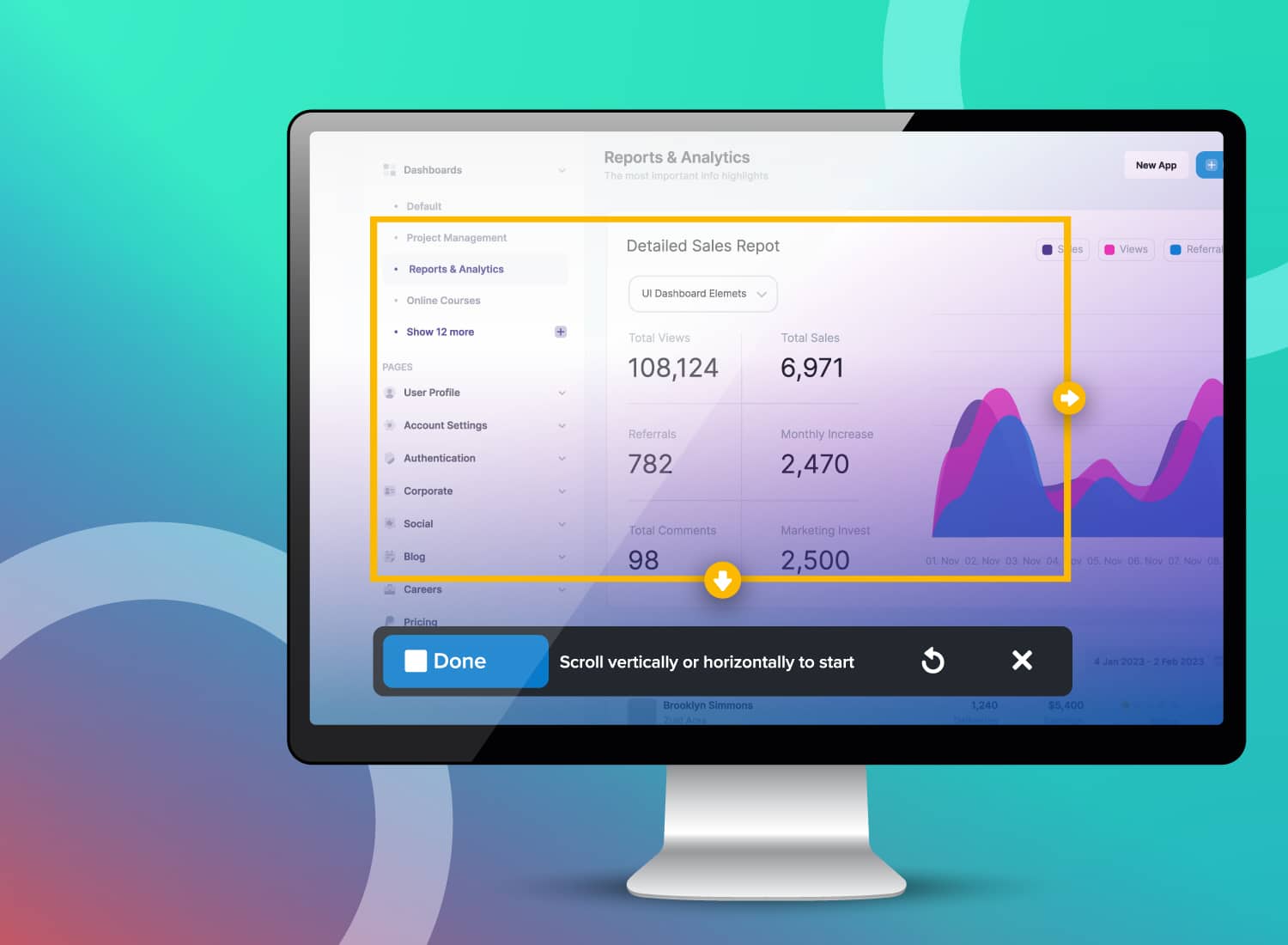
Those recordings and screenshots are the raw material for everything built afterward, including the training videos your team shares in an LMS or embeds in a help center. Camtasia Snagit handles this stage directly with screenshot capture, scrolling capture, annotations, and step guides that feed directly into a video timeline.
Streamline workflows with Snagit Assets
Transform your screenshots with ready-made templates, custom themes, and unique stamps.
Get Started
What gets lost when recording and editing are separate tools
Split recording and editing workflows create rework, inconsistent annotation styles, and lost context, and nowhere is that inconsistency more visible than across training videos made by different contributors. When one trainer records the workflow in one tool and hands the raw files to someone else for editing, that second person has to reconstruct decisions they weren’t part of:
- Which steps mattered
- Where to place a callout
- Why a particular screen got zoomed in
Without notes or shared style assets, they guess, and the guesses don’t match what came before. That handoff cost is especially obvious in video walkthroughs, where mismatched callout styles and inconsistent zoom behavior across a training library signal to viewers that different people made different videos with different tools. It shows up every time the source material needs an update, but you can lower it.
Building source content from simplified user interface (SUI) graphics and recording in short, chunked segments means a single interface change doesn’t force a full re-record. Only the affected segment needs attention, and whoever updates it can reuse the existing style choices.
How poor recording and screenshot choices surface later in your docs
Poor recording and screenshot choices (like inconsistent resolution, missing context, or mismatched annotation style) don’t show up until months later, when a contributor tries to reuse or update that asset.
Say you inherit a screenshot taken at the wrong resolution, maybe from a single-monitor setup that didn’t match your team’s standard. The interface has since changed. No note explains which fields the callouts pointed to, so you can’t tell what the original author meant to highlight.
Unclear source ownership and split tools compound the problem. Nobody flagged the resolution issue when it happened, because the person capturing the screen wasn’t the person who’d eventually edit it or turn it into a training video.
Catching this at evaluation time, before rollout, is the whole argument for testing the recording and annotation step on its own. A platform that standardizes resolution and preserves context up front cuts that rework before it starts.
Questions to ask before you commit to a platform
Kick off your vendor evaluation with questions about source creation, contributor consistency, and portability. Documentation tools generally fall into three camps:
- Wikis
- Dedicated documentation platforms
- Recording/annotation tools
Each treats the recording step, and reuse across formats, differently.
| Criterion | Wiki | Dedicated documentation platform | Recording/annotation tool |
| Where documentation content originates | Manually typed or pasted directly into pages | Assumes text content already written elsewhere | Recordings live screen activity directly as the source material |
| Reuse across multiple asset types | Limited; pages are typically single-purpose | Limited; content is structured for one output format | High; one recording can feed a written doc, a training video, and a quick-reference guide |
The three questions that follow turn those differences into things you can test in a demo or trial, mapped to how each platform handles where content originates, how consistent it stays across contributors, and what happens if you ever switch tools.
Who creates your source content today?
The right tool depends on whether your SMEs, trainers, or technical writers begin with finished text or need to record a live software workflow first. A wiki or a dedicated docs platform assumes someone has already written words to publish. A recording/annotation tool assumes the opposite: The real starting point is a screen, and the output might be a written guide, a training video, or both.
Before you evaluate anything, name the actual contributor. Is it an SME who knows the process but has never written a step-by-step guide? A trainer building a walkthrough from scratch who needs both a written procedure and a shareable video? A technical writer who works from existing drafts?
That answer tells you what to prioritize. If your contributor starts with a written draft, you mainly need strong publishing and formatting. If they start by clicking through software, you need a tool built for recording first (like Camtasia Snagit’s Step Capture, which produces a static numbered guide that feeds directly into Camtasia Editor’s video timeline) and publishing second.
Ask each platform vendor to show you how it handles your contributor’s actual starting point, including what the output looks like when that contributor needs a video alongside the written doc.
Can every contributor match your screenshot and annotation style?
The real test is whether a new contributor can apply the same callout and screenshot style as your most experienced one, on their first attempt, without someone reviewing every asset before it goes out.
A new contributor shouldn’t have to rebuild your team’s look from scratch. They should be able to reuse approved styles the same way they’d reuse an approved template or a shared script, including when they’re producing training videos rather than written docs.
Don’t judge this by one polished sample in a sales demo. Ask the vendor how style moves between five contributors and what a new hire has to do to match your team’s existing work.
What happens to your docs if you switch tools later?
A platform’s long-term cost comes down to whether your team can move both written content and original screen-based assets like video project files without rebuilding them. Migration risk shows up when written content moves easily but the screen-based assets behind it don’t, or the other way around.
Before you commit, ask a few important questions:
- What formats can you export in?
- Do your original recordings and screenshots come with you, or just the finished text?
- Can a new tool open your source files and let you edit them, or only view a flattened copy?
Teams don’t converge on one answer here. Dedicated documentation tools account for 45% of adoption, open-source platforms and Git repositories cover 21%, and website publishing platforms make up 9%. The rest splits across other methods.
That spread matters. Your team’s current setup is one of several common paths, and switching later is a real possibility worth planning for now. Test what any platform lets you export before you assume it will let you leave.
Building an evaluation checklist around your actual workflow
Build your checklist around your own workflow stages: recording and annotation, structure, publishing, maintenance.
Start with three line items pulled straight from your workflow:
- Where your source content originates, and whether that source can become both a written guide and a training video
- Whether every contributor can match your annotation and callout style across both written docs and video output
- Whether your files stay usable if you switch platforms later
Score each platform against these before you look at anything else.
From there, add criteria specific to your team. Check whether a platform supports alt text and other accessibility basics, and whether it fits the format your audience actually reads or watches. Assess how it handles version tracking, and how much AI-assisted work it offers at the recording and annotation stage as well as publishing. For teams producing training videos specifically, confirm whether the tool exports a video format your LMS accepts.
The best evaluation includes the recording step
Most documentation tool buying guides start at editing and publishing, which is the wrong end of the workflow for trainers, instructional designers, and technical writers. Those teams start at the screen, recording a live workflow that becomes a written guide, a set of annotated screenshots, and a training video, often from a single session. A platform that handles only the publishing side leaves the harder work unsolved.
That’s the line to draw in your evaluation. Before you compare feature sets or run trials, confirm that a tool can handle the moment a trainer records a process and needs three usable outputs from it. If it can’t, the editing and publishing polish won’t make up the difference.
Need to show your screen?
Skip the downloads. Use Camtasia online to record your screen, camera, and microphone right in your browser for free.
Start Recording
Frequently asked questions
What tool does a technical writer use to take scrolling screenshots and annotate them for software documentation?
Camtasia Snagit captures a full scrolling window in one continuous image, so a technical writer doesn’t stitch together multiple screenshots. The same tool lets that writer add callouts, arrows, and text directly on the capture before it ever reaches a documentation platform. That combination of scrolling capture and built-in annotation is what separates a dedicated recording and annotation tool from a text-first wiki or docs platform.
How long does it typically take to migrate existing documentation to a new tool?
Most teams need several weeks to a few months to migrate existing documentation to a new platform, though timelines vary widely. The real time sink is usually re-tagging screenshots and recordings, since most platforms handle plain content imports well. Teams that already store source recordings and screenshots in a single, organized library tend to migrate faster than teams piecing content together from scattered folders.
Is a free or open-source documentation tool enough for a growing training or documentation team?
A free or open-source tool can work for a small team publishing mostly text, but it rarely includes built-in recording or annotation features. As a team grows, contributors typically fall back on separate screenshot tools with inconsistent styles, which undoes the consistency a documentation platform should provide. For organizations scaling training video output across many contributors, a paid platform with native recording tools and shareable libraries often pays for itself in saved rework.
How can AI-assisted recording features reduce the rework caused by frequent software UI changes?
AI-assisted recording features reduce rework by cutting down on the manual rebuilding a UI change usually forces. Screentelligence-powered cursor effects in Camtasia Editor keep focus on the workflow itself. You can also send Camtasia Snagit’s Step Capture guides directly onto the Camtasia Editor timeline, creating transitions, callouts, and cursor motion automatically, so a recorded workflow doesn’t need to be manually rebuilt into a training video.
Pairing these with SUI graphics and shorter, chunked recording segments means a single interface change rarely forces a full re-record. If the workflow steps still make sense, a small jump cut over the updated screen is usually enough.
What’s the real cost of choosing a documentation tool that doesn’t fit your team’s workflow?
The real cost shows up as rework: Every time a contributor re-records a screen or re-explains context because their tool doesn’t match the last one. Inconsistent annotation and screenshot styles across contributors also erode trust, since readers and viewers notice when guides and training videos look inconsistent. A tool that supports shared style libraries and a single recording-to-editing workflow helps a team avoid paying that cost repeatedly.
Share