










You’re already being asked to do more with the team you have. More tutorials, more onboarding docs, more product walkthroughs, without another writer or video editor on the roster. And AI keeps coming up in those conversations, either as the reason leadership thinks the request is reasonable, or as the thing you’re wondering whether you should be using.
Here’s the grounded version: AI in customer education means using generative and automation tools to speed up producing, editing, and personalizing the tutorials, documentation, and onboarding content that teach customers how to use your product. It doesn’t set your learning strategy, or know which customers need what, in what order, or what’s coming next on your product roadmap.
Key takeaways
- AI speeds up producing and personalizing customer education content, but it doesn’t set curriculum strategy or learning objectives.
- One raw screen recording can become several role-specific tutorials faster when text-based editing replaces manual timeline scrubbing.
- Automated captioning and audio cleanup can make accessible, polished tutorials the default output rather than an extra production step.
- Sequencing lessons for retention and spotting a confused learner in real time remain judgment calls AI tools can’t make on their own.
- AI-suggested layouts give teams without production training a faster route to consistent, branded output across many pieces of content.
Three tasks chosen for speed, not strategy
The AI capabilities worth adding to a customer education video content workflow are the ones that clear production bottlenecks without asking a tool to make instructional decisions.
Your job is figuring out where the time goes between an expert’s knowledge and a finished, published video tutorial. Then find the AI tools that handle those steps:
- Turning one recording into several branded tutorials
- Generating captions and cleaning up audio
- Applying AI-suggested layouts
1. Turning recordings into branded tutorials faster
If your team records a product walkthrough and gets one tutorial out of it, you’re leaving content on the table. That same recording can become several role-specific videos (one for new admins, one for end users, one for support staff) without scheduling a separate session for each audience.
Here’s how that workflow runs in Camtasia Audiate:
- Record once. The subject-matter expert records a single feature walkthrough.
- Edit the transcript, not the timeline. Camtasia Audiate transcribes the recording automatically. The trainer trims filler, cuts off-topic sections, and rearranges for a different audience by editing that text like a document. No timeline scrubbing required.
- Apply saved styles. Customize callouts and titles in Camtasia Editor, save them as Favorites, and share them with your team. Every version that comes out of that recording starts with the same branded look.
The person who did the walkthrough can do the editing themselves. They don’t need to learn a full production tool to get there.
Let Audiate write your script!
No more blank pages! Instantly generate amazing, customizable scripts in any length, tone, and style!
Get Audiate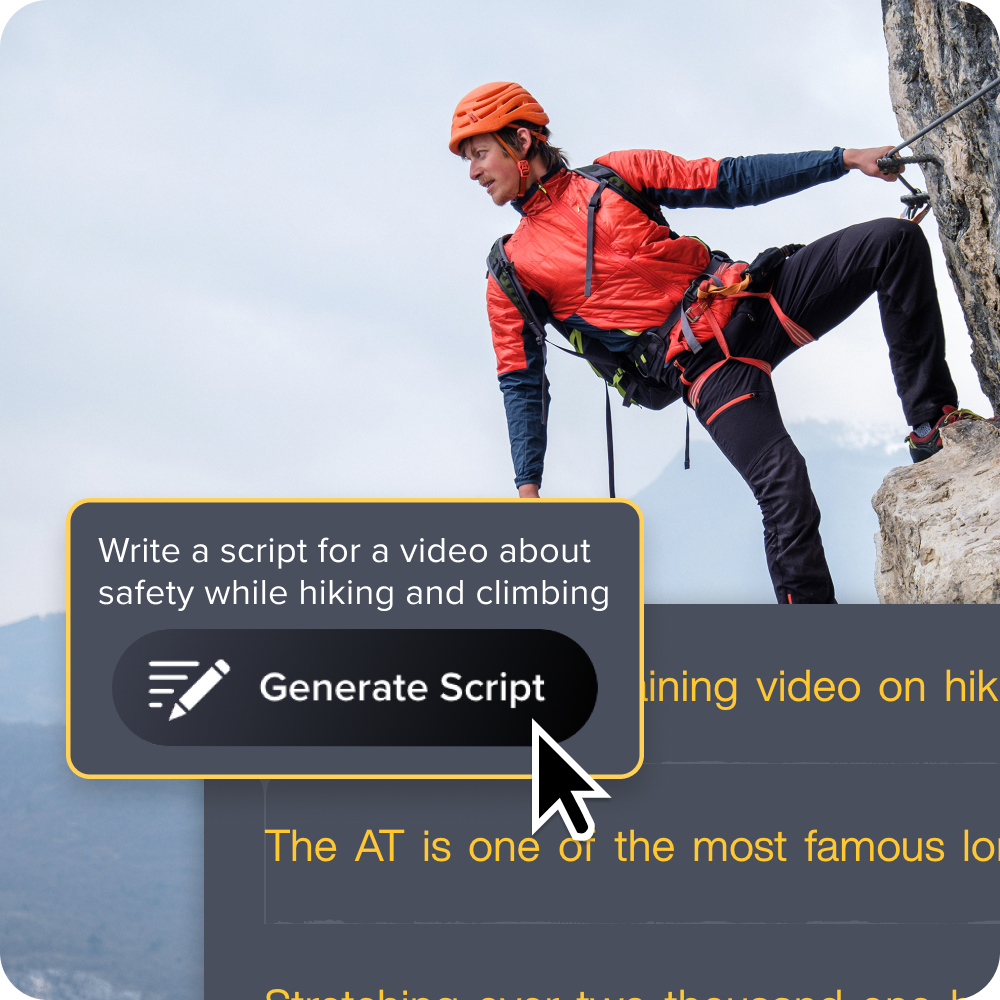
2. Auto-generating captions and cleaning up audio
A customer relying on captions to follow your product walkthrough shouldn’t have to wait for a second production pass before that video is usable. Accessibility and clean audio should come out of the same recording session as everything else, not land on someone’s to-do list afterward.
Before automated tools, that wasn’t realistic for most lean customer education teams. The old process looked like this:
- Record the tutorial
- Hand it off for manual captioning
- Fix background noise from the home office or open floor plan
- Wait for everything to come back before the video could go live
That’s three handoffs and at least a day of lag for something that should take one step.
Both Camtasia Editor and Camtasia Audiate can generate captions automatically and remove background noise in the same session. A trainer recording in an imperfect environment (a spare bedroom, an open office, a conference room with a noisy HVAC) can capture a walkthrough and get professional-sounding audio without booking studio time.
One step that stays human: Someone still needs to check the generated captions for accuracy and confirm the tone matches your brand before the video goes live. That review doesn’t go away.
For a broader look at where AI fits into the training video process, check out this guide to creating training videos with AI.
3. Applying AI-suggested layouts and effects with Camtasia Rev
Not everyone on a customer education team is a video editor, and most teams can’t afford to route every tutorial through the one person who is. Camtasia Rev handles the layout, zoom, and pan decisions that would otherwise mean placing every element by hand, so the trainer who recorded the walkthrough gets to a polished, on-brand result without a production handoff.
Camtasia SmartFocus works alongside Camtasia Rev on Essentials, Create, and Pro plans, reading the size and context of the recording to place zoom and pan animation points automatically. Nobody has to guess or correct where a viewer’s attention should land on a busy screen.
When to use Camtasia Rev vs. manual editing:
- Use Camtasia Rev when a tutorial needs to look consistent with the rest of your library and ship quickly. It’s the right tool for high-volume production where speed matters more than frame-level control.
- Use manual multi-track editing in Camtasia Editor when a specific project needs precision: a flagship product demo, a complex walkthrough where the camera, screen, and audio timing has to be exact.
These aren’t competing tools. They sit at different points on the same flexibility spectrum inside Camtasia Editor.
Faster video creation with Rev
Make videos as easy as click, click, done! Camtasia Rev is so fast it’s like magic!
Learn More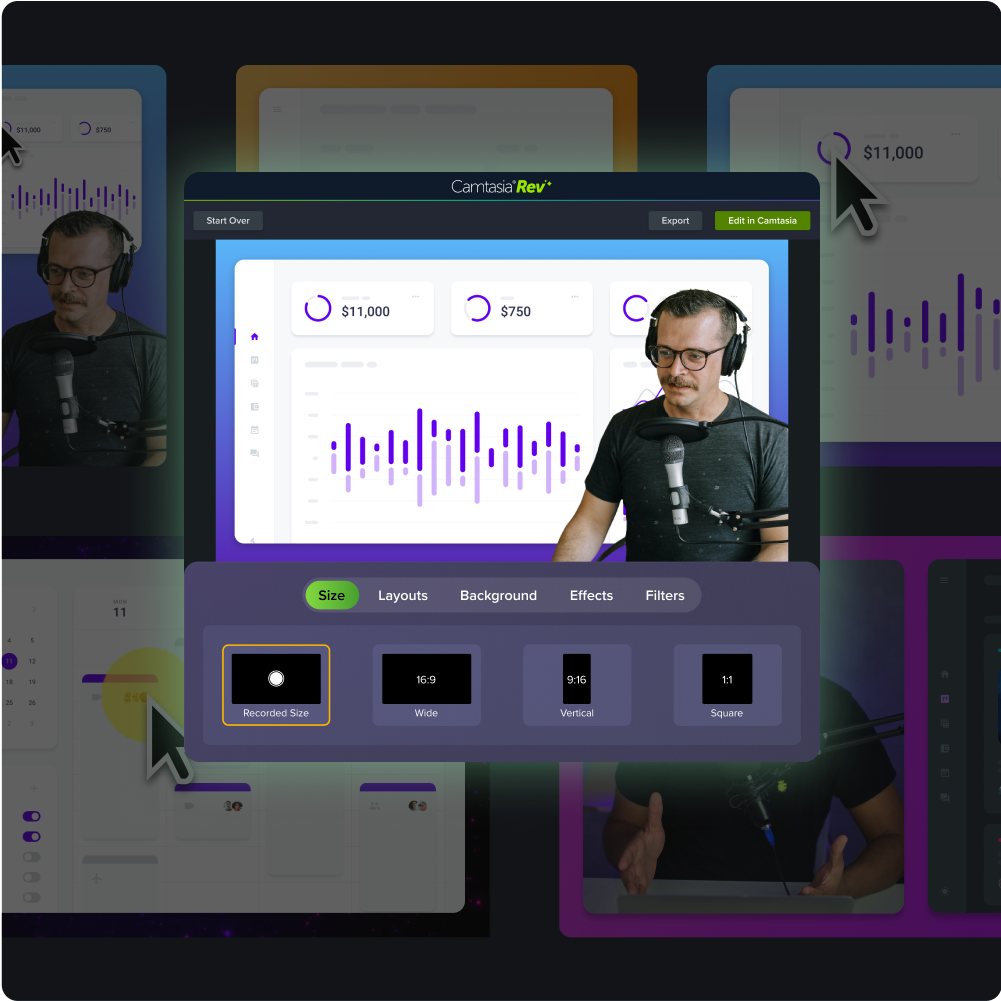
One technical note on cursor effects: They apply to footage recorded natively in Camtasia Editor using TREC format, not footage imported from Camtasia Online. For teams producing many role-specific videos from the same source recording, recording natively in Camtasia Editor from the start sidesteps that entirely.
What AI still can’t do for your program
AI moves fast through production. It doesn’t run learning programs.
Every AI-generated caption, script, or voiceover needs a human review before it reaches a customer. These tools can produce inaccurate or hallucinated output, and catching that before publication is your responsibility, not the software’s. That review doesn’t shrink as the tools improve. It’s the difference between production assistance and program ownership. The same applies to any AI-assisted training program.
The three things AI consistently can’t do for customer education teams:
- Decide what your learners need to know.
- Sequence a curriculum for retention.
- Catch confusion in real time.
Each one is worth understanding specifically, because that’s where your value as an education lead lives.
It doesn’t decide what your learners need to know
Choosing what a customer segment needs to learn first is a strategic judgment call, one that takes knowledge of what your customers are trying to accomplish, where they are in their product experience, and what’s coming on the roadmap.
Consider the difference between two tutorials covering the same product:
- A new customer’s onboarding video needs account setup, core navigation, and the one or two actions that get them to their first win fast.
- An advanced workflow tutorial for existing users needs depth on edge cases, integrations, or a feature that just shipped.
Those are two completely different content decisions, and AI has no way to know which customer is watching or what your product team has planned for next quarter.
Once you’ve made the call, AI works well as a drafting and editing assistant. Deciding what goes in the curriculum and signing off before it reaches a customer: That stays with your team.
It doesn’t sequence a curriculum for retention
Generating captions and trimming a recording are production tasks. Deciding which lesson comes first, which concept needs to land before the next one makes sense, and when to circle back for reinforcement. That work is instructional design, and AI tools don’t do it.
A certification track makes this concrete. Consider a three-module sequence:
- Module 1: Core terminology and basic navigation
- Module 2: A multi-step workflow that relies on the vocabulary from Module 1
- Module 3: Troubleshooting and edge cases, assuming the learner can already run the workflow from Module 2
Reorder those modules, or cut Module 1 because it seemed optional, and Module 2 stops making sense, no matter how polished the videos look. The education lead also revisits that sequence as the product and learner base change. That’s ongoing work AI can support with faster content production, but can’t own.
It doesn’t catch confusion in real time the way an instructor can
A live instructor notices when a customer hesitates, rewatches a step, or asks a question that reveals they missed something earlier, and adjusts on the spot. A recorded tutorial plays the same explanation whether the viewer is following along or stuck on step two.
Keep live sessions in your program for the moments that need real-time answers. If customers are working through a genuinely confusing workflow, a live walkthrough gives them something recorded content can’t.
You don’t have to lose that value when the session ends. Record it, share it through Camtasia Screencast so customers can revisit it or catch up, and if your session ran on Zoom, Camtasia Editor can import the cloud recording directly for further editing. A one-time live event becomes a lasting resource your whole customer base can use.
Let AI handle speed, you handle strategy
AI’s job in your customer education program is production velocity: faster tutorials, accessible captions, consistent layouts across a growing content library. Your job is the judgment those tools don’t have. What customers need to learn, in what order, and when a recorded video isn’t the right answer at all.
Start with one task this quarter. Run a caption pass on an existing tutorial. Try Camtasia Rev on a single lesson. Use Camtasia Audiate to turn one walkthrough into two versions for different audiences. You don’t need to redesign your whole program to see whether any of this saves you real time.
When you’re ready to try it on your own content, download Camtasia for free to get started.
Need to show your screen?
Skip the downloads. Use Camtasia online to record your screen, camera, and microphone right in your browser for free.
Start Recording
Frequently asked questions
Can customer-facing training content generated with AI tools be published without human review?
Customer-facing training content that uses AI-assisted editing or captions still needs human review before publishing. AI tools can speed up scripting, captioning, and audio cleanup, but they can introduce errors or miss brand-specific nuance. Treating a trainer’s review as a required step, not an afterthought, keeps published content accurate and on-brand.
How is AI in customer education different from AI-powered support chatbots?
AI in customer education, as used in tools like Camtasia, focuses on speeding up production of tutorials, documentation, and onboarding videos. AI-powered support chatbots or learning agents serve a different job: answering live customer questions inside a product or platform rather than producing training assets.
Can AI translate customer training videos into other languages?
Yes, Camtasia Audiate can generate translated voiceovers and captions from an existing recording, giving teams a faster path to multilingual training content. Since this output is AI-generated, someone fluent in the target language should still review it for accuracy before it reaches customers.
How can a customer education team measure whether AI-assisted training content is actually working?
Measuring AI-assisted training content works the same way as measuring any customer education asset: track completion rates, support ticket trends, and product adoption after launch. AI tools speed up how fast a team publishes a tutorial or doc, but they don’t change what counts as a good outcome. Comparing engagement and support volume before and after a piece goes live is still the clearest signal of whether it’s helping.
Where should a customer education team start if they’re new to using AI in their workflow?
The best starting point is a single, low-risk task: adding automated captions to an existing tutorial or trying Camtasia Rev on one video. This lets a team test AI’s impact on production speed without committing to a full workflow overhaul. Camtasia Editor’s free trial makes it straightforward to test these tools on real customer education content before rolling them out more broadly.
Share