









Artificial intelligence (AI) is already standard in instructional design, but the real challenge is choosing tools that speed up production without causing workflow sprawl.
Instead of wading through lists of random apps, focus on the deliverables you actually need to create. A software walkthrough, microlearning clip, course module, and job aid each have different requirements, and the best AI tools are those that fit those workflows.
Most roundups overlook an important category: video creation. The Camtasia Product Suite helps fill that gap, bringing together the tools needed to create polished training videos without a dedicated production team.
Key takeaways
- Most instructional designers already use AI, so the real challenge is choosing tools for each deliverable rather than collecting overlapping apps.
- Writing tools like ChatGPT can help instructional designers draft outlines, scripts, and learning objectives faster, then refine them with human judgment.
- For tutorials, software walkthroughs, and microlearning clips, Camtasia Editor supports polished video creation without the production overhead of traditional editing tools.
- Camtasia Audiate simplifies narration workflows with script-based recording, text-based audio editing, and captions that support clearer, more accessible training videos.
- Camtasia Snagit’s Step Recorder feature automatically captures and annotates each step of a software process, making it useful for job aids and documentation.
- Camtasia Snagit’s Simplify UI feature removes visual clutter from screenshots to make software interfaces easier for learners to follow.
- A focused AI stack often works better than a long tool list, especially when you need writing, video, authoring, and accessibility tools to work together.
The AI adoption reality in instructional design
AI use is now mainstream in instructional design. Recent findings show that AI adoption in corporate training increased from 25% to 37% in a single year.
The challenge is no longer whether to use AI, but which tools belong in your workflow. Adopting new technology doesn’t automatically improve learning outcomes if the tools don’t fit your team’s processes or capacity.
The best AI tools for instructional designers (IDs) align with the deliverables you’re creating, the accessibility standards you need to meet, your review cycles, and the resources available to your team.
Record once. Deploy globally.
Create your training video in English. Audiate can then translate your edited script and generate a new audio track in Spanish, German, French, and more.
Free Download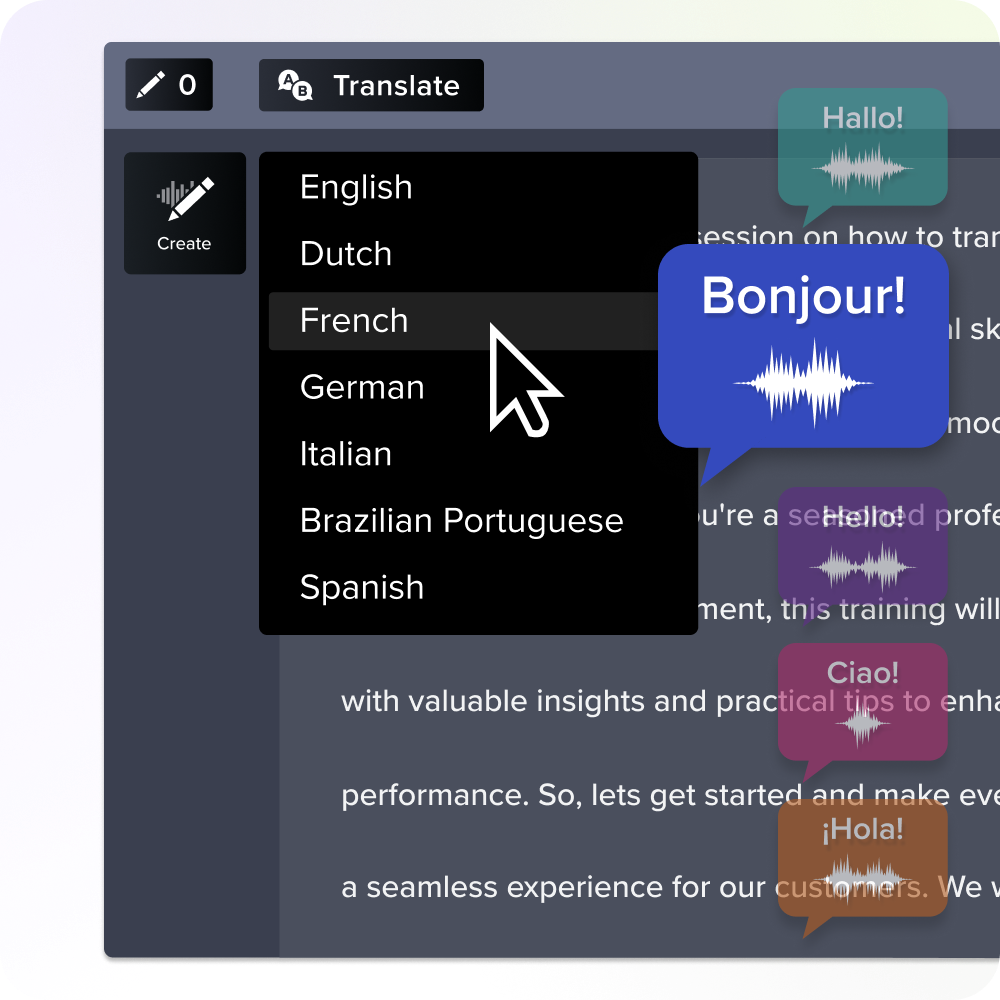
Why most instructional designers are already using AI
Today, 71% of learning and development (L&D) professionals are already exploring, experimenting, or actively integrating AI into their daily work. Many IDs use these tools to get past the blank page and move from ideas to a first draft more quickly.
While AI can speed up drafting and production, human instructional judgment must drive the process. AI can’t perform the needs analysis, learning sequencing, or learner experience mapping that defines effective training. Think of AI as a development assistant. Your expertise ensures the content solves a real business problem.
The real problem: Too many tools, not enough guidance
This shift has created decision fatigue. IDs aren’t struggling to find AI tools. They’re struggling to build a reliable, compliant stack for the training content they create.
When you don’t have a videographer or dedicated post-production support, managing a disjointed software stack becomes a full-time job. To eliminate overwhelm, prioritize tools based on the deliverables you need to create, how they fit into your existing processes, and the trade-offs involved.
A smarter way to choose AI tools: start with your deliverable
Choose your AI tools by the asset you need to create, not by which platform added an AI feature last. From there, map tools to the writing, recording, editing, authoring, and publishing tasks required to produce it.
For example, a software walkthrough, a compliance module, and a microlearning clip each have different production bottlenecks, approval paths, and documentation needs.
How a deliverable-first framework cuts through the noise
This deliverable-first framework functions in three moves:
- Define the exact educational asset you need to create.
- Identify the production bottlenecks (e.g., script delays, audio editing).
- Choose the smallest, most consolidated tool stack that eliminates those bottlenecks.
This model ties directly to the Development phase of ADDIE (analysis, design, development, implementation, evaluation). It’s often the stage where video production, authoring, visual design, and accessibility requirements create the most tool sprawl and project delays.
AI tools for writing and content development
In the writing phase, AI tools can help IDs move quickly from subject matter expert (SME) input to usable scripts, outlines, and measurable objectives.
To get the most value from large language models (LLMs), treat them as first-draft engines. Human review is still essential for content accuracy, tone, and instructional alignment. High-quality prompts, reliable sources, and SME validation are especially important for regulated, technical, or customer-facing training.
ChatGPT and other LLMs for scripts, outlines, and learning objectives
When used effectively, platforms like ChatGPT or Claude can help IDs turn technical documentation and SME notes into training content. You can use LLMs for specific development tasks:
- Distill SME notes: Feed source material into the model to identify key concepts and training themes.
- Draft outlines and scripts: Convert jargon into clear learner language tailored for video voiceovers.
- Formulate assessment items: Generate banks of contextual quiz questions and realistic distractors.
- Refine learning objectives: Use targeted prompts to tighten vague goals into measurable objectives using Bloom’s Taxonomy verbs.
While effective, LLM outputs can sound confident while missing policy nuances, product-specific details, or assessment validity. That’s why expert review remains essential.
AI tools for video creation and screen recording
For teams without professional production support, recording, audio cleanup, narration updates, caption generation, and revisions can quickly add time and complexity to a project. To create training videos at scale, it helps to have a workflow that brings those tasks together.
One approach is to use a connected toolset, such as the Camtasia Product Suite, rather than managing separate tools for recording, editing, narration, and captions.
Tutorials, walkthroughs, and microlearning clips
For software demos and microlearning content, Camtasia Editor gives IDs more control over the recording and editing process. Unlike tools that combine your camera, screen, and audio into a single recording, Camtasia Editor keeps them on separate tracks.
That flexibility is especially useful when software interfaces change or a recording needs to be updated. Because cursor movements and screen activity can be adjusted during editing, you can often make revisions without re-recording an entire video.
You can also establish reusable video templates to create time-saving training videos that maintain brand consistency. Uploading your draft to Screencast allows reviewers to leave time-stamped feedback directly on the video player, helping streamline review and approval cycles.
Streamline workflows with Snagit Assets
Transform your screenshots with ready-made templates, custom themes, and unique stamps.
Get Started
Script-based narration and text-based audio editing
For narration, transcription, and dialogue cleanup, Camtasia Audiate generates a text transcript of your recording.
Instead of scrubbing through a timeline to find a spoken mistake, you can edit your audio like a text document. Delete a sentence or awkward pause from the transcript, and the underlying audio updates automatically. This approach saves time and makes it easy to automatically remove filler words, normalize volume levels, and create polished narration for training content.
AI-powered editing tools
Several AI-powered editing features are built directly into the Camtasia Product Suite to help IDs spend less time on manual editing tasks:
- Camtasia Rev: Automatically arranges camera footage, screen recordings, and backgrounds into a polished layout, reducing the amount of time spent organizing a project after recording.
- AI text-based editing: Lets you trim, cut, and rearrange video and voiceover by editing a transcript instead of scrubbing through a timeline.
- SmartFocus: Automatically adds pans and zooms during software walkthroughs to help direct attention to the most important areas of the screen.
AI tools for course authoring and SCORM packaging
Shareable content object reference model (SCORM) authoring tools package learning modules, interactive branching scenarios, and graded quizzes for delivery through a learning management system (LMS).
Video tools focus on demonstrations, reinforcement, and performance support. Authoring platforms are well-suited for structured courses, tracking, and assessments, but they’re not designed for software walkthroughs or screen-based instruction. For an optimized learner experience, the most effective approach is to pair a SCORM module with a Camtasia video walkthrough.
Articulate AI and Rise for structured e-learning modules
Platforms like Articulate AI and Rise are effective choices for building multi-device compliance courses or policy-based modules. Their integrated AI features help IDs generate text blocks, build image-and-text components, and assemble knowledge checks.
The trade-off is that these tools don’t offer dedicated video editing capabilities. If learners need to understand how a software interface works, a Camtasia Editor walkthrough often provides more clarity than a series of static screenshots embedded in an authoring tool.
Easygenerator and similar rapid-authoring platforms
Easygenerator and similar rapid-authoring platforms offer a path for organizations where SMEs draft training content. Simplified interfaces allow non-designers to generate SCORM outputs.
However, organizations should still consider governance, branding controls, and export requirements. While rapid-authoring platforms can speed up initial layout tasks, they may create review bottlenecks if generated visual or embedded video content doesn’t meet quality standards.
AI tools for visuals, voiceover, and accessibility
The quality of your visuals, narration, and captions can influence how well learners engage with and understand your training content. These elements also play an important role in making training content accessible across teams and locations.
Accessibility should be treated as a requirement, not an optional feature. AI-driven systems can accelerate captioning and visual asset creation, but human review is still essential to verify accuracy and support compliance requirements.
AI image and graphic generators for slides and job aids
Generative image tools can be useful for brainstorming concepts, creating icons, and building slide backgrounds. Review outputs to ensure they align with your organization’s copyright frameworks and data privacy rules.
When creating technical job aids and software quick-reference guides, screenshots and documentation tools are often more effective than AI-generated images. This is where Camtasia Snagit can help:
- Step Capture: Camtasia Snagit tracks your clicks as you perform a software task, then generates an ordered, annotated step-by-step guide.
- Simplify UI: Removes busy text and distracting elements from screenshots, replacing them with simplified geometric shapes. This helps learners focus on key navigation steps without losing the context of the user interface.
- Smart Redact: Blur and redact private information in screenshots, such as emails, phone numbers, and credit card details.
Text-to-speech and automated captioning tools for scalable, accessible narration
Using text-to-speech tools in Camtasia Audiate, you can generate realistic AI narration directly from approved scripts. As you evaluate these options, it’s worth considering when AI-generated narration makes sense and when a human voice may be the better choice. (Learn more in our guide to AI voices and avatars in training videos.)
Generating transcripts and closed captions early in your production process can make training content more accessible, searchable, and easier to maintain across teams.
Since caption accuracy matters for accessibility requirements, automated output still needs human review before publishing training content.
How to build a focused AI stack without feeling overwhelmed
Most instructional designers don’t need a dozen different AI tools. Instead, focus on a core stack built around three categories: text generation, media production, and course assembly.
The Camtasia Product Suite illustrates this approach. Instead of relying on separate tools for screen recording, audio cleanup, captioning, and video editing, you get an all-in-one ecosystem. For example, Camtasia Editor captures screen video, manages separate audio tracks, auto-smoothes cursor paths, and includes editing features like Camtasia Rev.
When paired with the transcription editing capabilities in Camtasia Audiate and the documentation features in Camtasia Snagit, you cover your entire visual and audio production workflow. By matching a focused set of tools to your deliverables, you can scale training production without adding unnecessary complexity.
Start creating better training videos today with Camtasia Editor
By selecting your tools based on deliverable types rather than chasing software trends, you protect your team from tool sprawl. The most effective AI workflows for L&D enable you to move seamlessly from text development to media generation to final compliance without technical roadblocks.
The Camtasia Product Suite supports that workflow by bringing video recording, editing, narration, captions, and visual documentation into a single platform.
Ready to reduce production overhead, streamline editing, and deliver video training without a dedicated production crew? Try Camtasia now.
FAQs
What AI tools are instructional designers actually using right now?
Most instructional designers use a mix of AI writing, authoring, video, and accessibility tools rather than relying on a single platform. They use LLMs for outlines and scripts, authoring tools for SCORM modules, and tools like Camtasia Editor for walkthroughs and software training.
How can AI tools support the ADDIE instructional design process?
AI may help at every ADDIE stage, from faster analysis summaries to draft objectives, storyboard options, quiz ideas, and review support. The key is to match each tool to the deliverable, then keep human review focused on accuracy, alignment, and learner needs.
What is the difference between AI authoring tools and AI video tools for e-learning?
AI authoring tools build structured learning modules, quizzes, and SCORM packages. AI video tools create demonstrations, walkthroughs, and narrated explanations. In many cases, teams need both: authoring for trackable courses and Camtasia Editor with Camtasia Audiate for training videos.
How can instructional designers use AI for microlearning content?
Instructional designers can use AI to turn longer webinars, manuals, or classroom sessions into short lessons focused on a single task or decision. Camtasia Editor works well here because you can record the exact workflow, trim quickly, add callouts, and keep each clip easy to update. Add captions and a transcript early so the content stays accessible and reusable across teams.
How do you use AI to create training videos without a production team?
You can create effective training videos with a small stack: a script tool, Camtasia Audiate for narration, and Camtasia Editor for recording and editing. Start with one process, record the screen at full resolution, keep clips short, and use templates so every video stays consistent. If you want to test that workflow, try Camtasia for free and create a tutorial before standardizing your team’s process.
Share