









To print screen on Windows, press the PrtScn key to capture your screen and copy it to your clipboard. From there, paste the screenshot into a document, chat, email, or image editor. You can also use Windows + Shift + S to open Snipping Tool for a selected area, window, full screen, or freeform capture.
Taking a screenshot is a handy skill for everyone, whether for work or personal use, but how do you use the Print Screen key on your machine?
In this guide, we’ll cover how to screenshot on Windows, the Mac equivalent, and ways to get more from your screenshots.
Key takeaways
- Print Screen on Windows captures your screen and usually copies it to the clipboard.
- Windows + Shift + S opens Snipping Tool when you want more control over the capture area.
- Windows + PrtScn saves a full-screen screenshot as a file, while Alt + PrtScn captures the active window, according to Microsoft’s Windows keyboard shortcuts guidance.
- Mac does not have a Print Screen key, but Command + Shift + 3, Command + Shift + 4, and Command + Shift + 5 cover common screenshot needs.
- Camtasia Snagit is useful when you need scrolling capture, annotations, editable screenshot text, or an easy way to share a link.
What does the Print Screen key do?
The Print Screen key captures what is currently displayed on your Windows screen.
This function is built into Windows as the Print Screen keyboard shortcut. Depending on your keyboard layout, it might be labeled as “PrtScn”, “PrntScrn”, “Print Scr”, or something similar.

Once you press this key, your computer captures the entire screen, including any active window. This screenshot is then stored in your clipboard, ready to be pasted and used as needed.
How do you print screen on Windows?
The simplest way to take a screenshot on Windows is to press PrtScn, then paste it where you need it. If you want to choose a specific area first, use Windows + Shift + S instead.
Use this quick table to pick the right Windows screenshot shortcut for the task.
| Shortcut | What it captures | Where it saves | Best use case |
| PrtScn | The full screen | Clipboard | Quickly paste a screenshot into another app |
| Windows + Shift + S | A selected area, window, full screen, or freeform shape | Clipboard | Capture only the part of the screen you need |
| Windows + PrtScn | The full screen | A screenshot file | Save a screenshot automatically |
| Alt + PrtScn | The active window | Clipboard | Capture one open window without extra cropping |
How do you use Print Screen keyboard shortcuts?
Use Print Screen keyboard shortcuts when you want the fastest way to capture your screen without opening another app.
- Find the Print Screen key on your keyboard. Depending on your computer, your key may look different.
- Look for an abbreviation of Print Screen, like PrtScn, PrntScrn, or Print Scr.
- Press PrtScn to capture your full screen and copy it to your clipboard.
- Paste the screenshot anywhere you need it, such as a document, email, chat, or image editor.
To save a full-screen file, press Windows + PrtScn. For the active window only, press Alt + PrtScn, then paste the screenshot where you need it.
How do you use Windows’ built-in Snipping Tool?
Use Windows’ built-in Snipping Tool when you want to choose the exact part of the screen before you capture it. You can open it two ways: search for “Snipping Tool” in your Windows search bar, or press Windows + Shift + S to jump straight into a new snip.
- Open Snipping Tool by searching for it, or press Windows + Shift + S to start a snip right away.

2. Select Mode, then choose Rectangle, Window, Full screen, or Freeform.

3. Make your selection based on the mode you chose, or use New to start a fresh capture.
What if your keyboard does not have a Print Screen key?
If your keyboard does not show a Print Screen key, look for a shortened label like PrtScn, PrntScrn, or Print Scr. On some laptops, you may need to use the Fn key with the Print Screen key. If you still cannot find it, press Windows + Shift + S or search for Snipping Tool from the Windows search bar.
What if Print Screen is not working?
If Print Screen is not working, first try pasting into another app to confirm the screenshot is not waiting on your clipboard. Next, try Windows + Shift + S to open Snipping Tool and make a new capture. If you are using a laptop or a compact keyboard, check whether the Print Screen key shares a key and requires Fn.
How do you print screen on Mac?
Mac does not have a dedicated Print Screen key like Windows does. Instead, Mac uses built-in keyboard shortcuts for screenshots and screen recording. Learn more about Mac’s built-in screenshot function.
What are the Mac keyboard shortcuts for taking screenshots?
The main Mac screenshot shortcuts are Command + Shift + 3 for full screen, Command + Shift + 4 for a part of the screen, and Command + Shift + 5 to open the Screenshot menu.
To take a screenshot of your entire screen on Mac, press Command + Shift + 3.
To take a screenshot of part of your screen, press Command + Shift + 4, then drag your cursor from the corner of your screen to capture a specific area.
Lastly, the key combination Command + Shift + 5 opens the Screenshot menu, which lets you capture a screenshot or screen record.

Automatically, it will save your screenshot on your desktop. To make retrieval less confusing, we recommend you set up a screenshots folder to store them all.
How can Camtasia Snagit improve screenshots?
Camtasia Snagit improves screenshots by giving you capture, editing, and sharing tools in one workflow. Although the built-in screenshot options on Windows and Mac provide the basics, you can easily elevate your screenshots with Snagit. Snagit is a powerful screenshot and screen recording tool that lets you edit and share captures easily.
The best snipping tool for Windows and Mac
Don’t let clumsy built-in tools hold you back. Take and edit screenshots with Snagit!
Get Snagit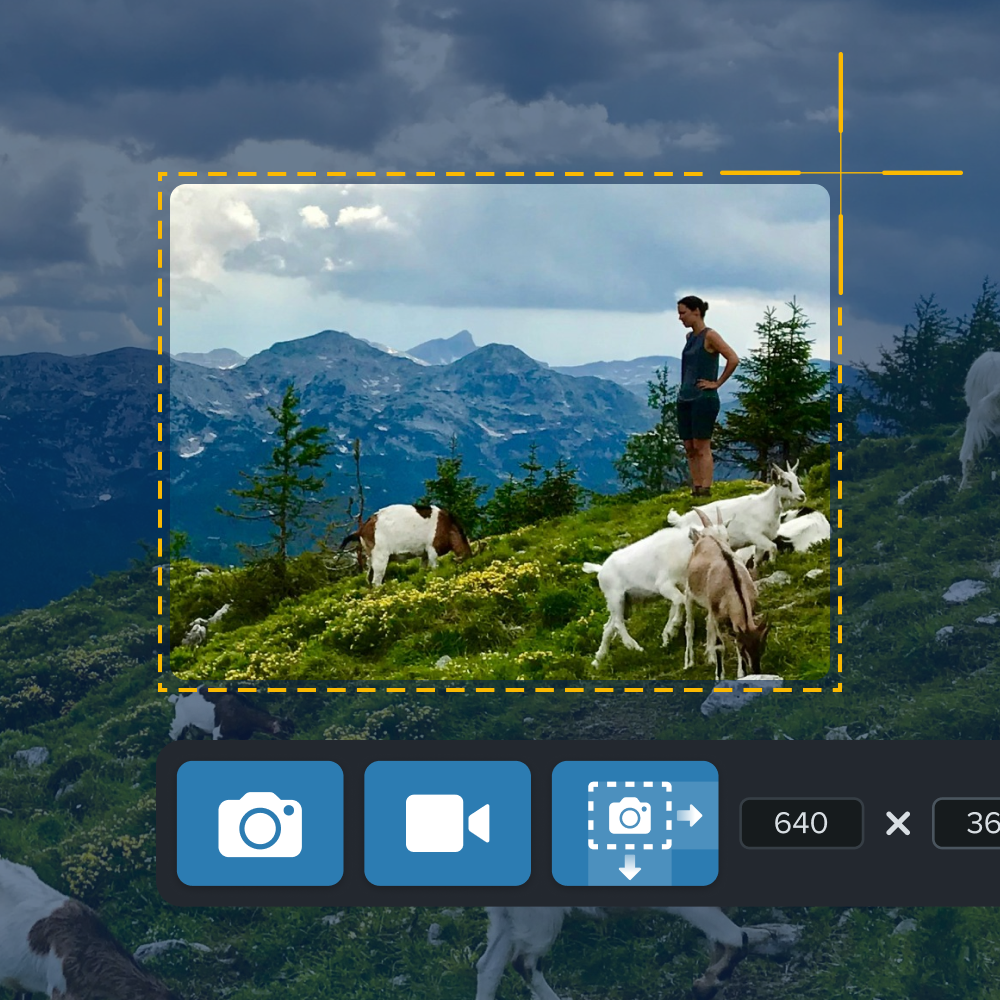
How do you get started with Camtasia Snagit?
Ready to try it? Get Snagit and see how much faster your screenshot workflow becomes.
Capture more with Snagit
Camtasia Snagit can capture more than just a basic region or the full screen.
For example, capture beyond what’s on your screen with scrolling capture. Screenshot entire web pages and comment threads in one. Simply press capture and start scrolling until you’ve captured everything you need.
With Camtasia Snagit on Windows, you can also capture multiple areas of your screen in one snapshot. Want to avoid a specific part of your screen? Just draw around it, and Camtasia Snagit will automatically turn the unwanted area into a transparent background. This keeps unwanted distractions out of the shot.
Quick and easy professional edits
Camtasia Snagit helps you edit screenshots with callouts, stamps, arrows, text boxes, and editable screenshot text. Now that you’ve captured your screenshot, it’s time to edit it. Snagit makes it easy to edit screenshots while keeping up a polished, professional look.
Use Callouts to give specific feedback, stamps to show reactions, and customize arrows and text boxes to your liking.
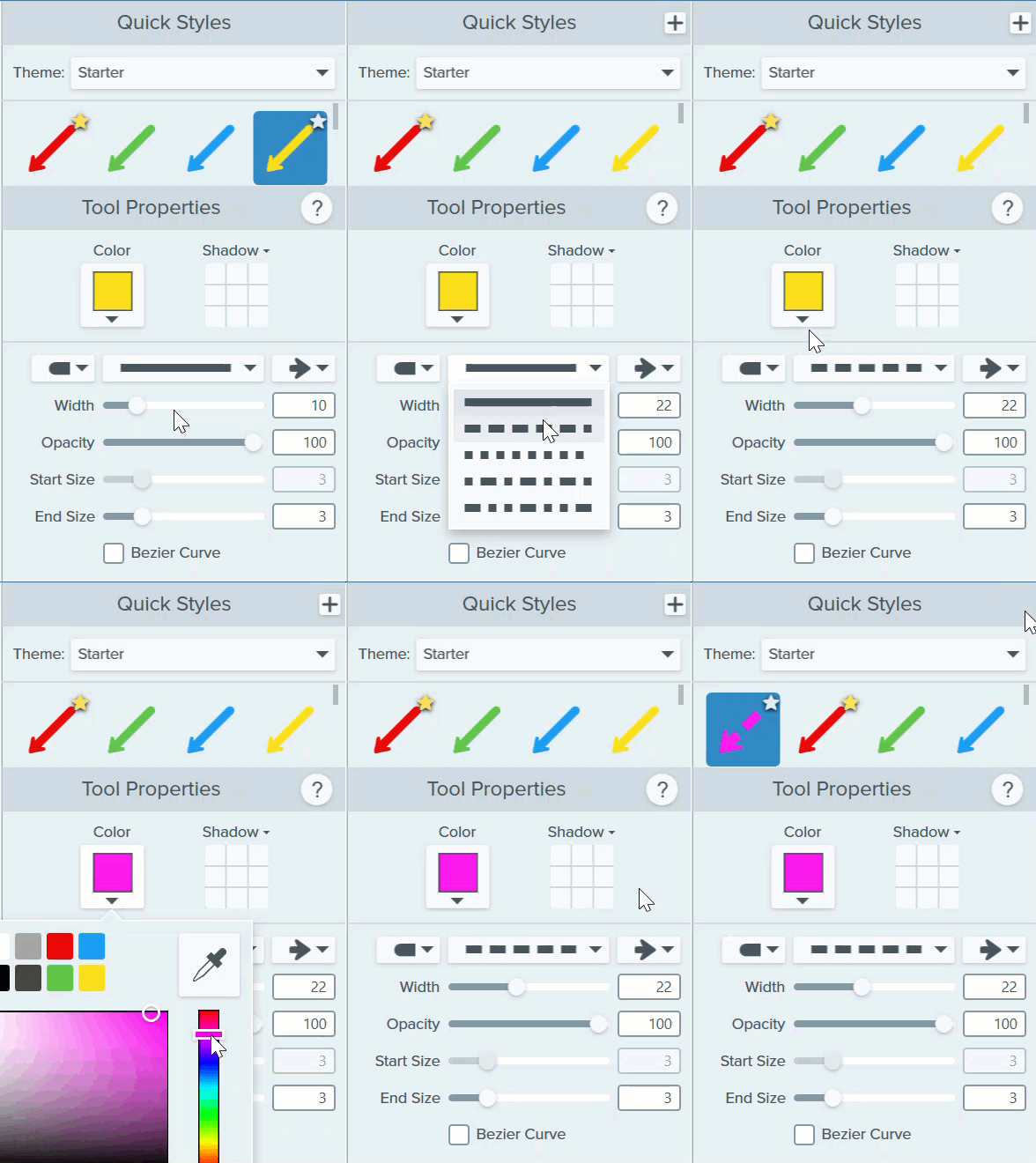
You can even edit text right on your screenshot to show different copy choices.

Save and send to anyone
Camtasia Snagit can share a capture through Screencast with a copied link. No more worrying about downloading images to your computer. With Camtasia Snagit, you can upload your capture to Screencast with just one click. Click on the Share Link button, watch as your link is copied directly to your clipboard, and paste anywhere.
You can share your screenshot with anyone, even if they don’t use Camtasia Snagit.
The best snipping tool for Windows and Mac
Don’t let clumsy built-in tools hold you back. Take and edit screenshots with Snagit!
Get Snagit
Make your next screenshot clearer
Print Screen is a fast way to capture what you see, and Snipping Tool gives you more control when you need a specific area. When your screenshot needs arrows, callouts, scrolling capture, or a shareable link, Camtasia Snagit can help you add the context people need.
Try Camtasia Snagit free to see how it fits into your workflow.
Frequently asked questions
Where does Print Screen save on Windows?
When you press PrtScn, Windows copies the screenshot to your clipboard. It does not automatically appear as a file unless you use a shortcut or tool that saves a file. After pressing PrtScn, paste the screenshot into a document, an email, a chat, or an image editor.
How do I take a screenshot without a Print Screen key?
If your keyboard does not have a visible Print Screen key, press Windows + Shift + S to open Snipping Tool. You can also search for Snipping Tool from the Windows search bar and start a capture from there. On some compact keyboards, the Print Screen function may be on a shared key and require Fn.
What should I do if Print Screen does not work?
First, press PrtScn again, then paste into an app to see whether the capture is on your clipboard. If that does not work, try Windows + Shift + S or open Snipping Tool from the Windows search bar. If you use a laptop, check whether the Print Screen key needs to be used with Fn. On newer versions of Windows, PrtScn may open Snipping Tool instead of copying to the clipboard; you can change this behavior in Settings under Accessibility > Keyboard.
Does Print Screen capture scrolling pages?
Print Screen captures what is visible on your screen at that moment. It does not capture an entire long web page or comment thread by itself. For that kind of capture, Camtasia Snagit includes scrolling capture so you can capture beyond what is currently visible.
What is the difference between Print Screen and Snipping Tool?
Print Screen is fastest when you want to capture your screen and paste it somewhere right away. Snipping Tool is better when you want to select a rectangle, window, full screen, or freeform area before capturing. Both are built into Windows, so the best choice depends on how much control you need before the screenshot is created.
Does Mac have a Print Screen key?
Mac does not have a Print Screen key like many Windows keyboards do. Use Command + Shift + 3 for the full screen, Command + Shift + 4 for a selected area, or Command + Shift + 5 for the Screenshot menu. Mac screenshots save to the desktop automatically unless your settings are changed.
Share