









A corporate trainer gets an assignment: build a training video for the new onboarding process. The trainer has no old version to model, no template folder, and nothing but a blank timeline before a deadline. What that trainer needs is a training video template: a pre-built structure, not a script, that lays out a video’s sections and pacing before anyone records or edits a single clip.
A handful of named template structures, each built for a specific training scenario like compliance, software onboarding, or process documentation, can settle those decisions before you touch a single clip.
Key takeaways
- Most training video production stalls on unresolved structural decisions long before editing skill becomes the issue.
- A training video template maps out sections, pacing, and cues, leaving script and narration choices for a separate step.
- Different training video types, like onboarding walkthroughs and compliance checklists, call for distinct structural patterns rather than one universal format.
- A template’s length and number of sections should scale to a topic’s cognitive demand rather than follow a fixed runtime rule.
- Breaking a training video into small, chunked segments within a set structure makes future updates faster and far less disruptive.
Why the blank page stalls training video production
A trainer has to resolve section order, pacing, callout placement, and what to cut before recording can start, none of which has anything to do with editing skill.
You’re an instructional designer, and you’ve booked 30 minutes with a subject matter expert who knows a process cold but has never explained it in order. You have no existing video to copy and no approved structure to follow. So you’re making decisions live:
- Does the intro run 10 seconds or 60?
- Does step four need its own callout, or fold into step three?
- Do you recap after every section or just at the end?
Every one of those questions is still open when recording starts, so you’re designing the video and capturing the expert’s knowledge at the same time.
That’s why unstructured recordings run long and unfocused. Without a structure to fill, nothing forces a decision about what belongs on screen and what gets cut, so the expert keeps talking and the timeline fills with material nobody sorted for relevance. You end up trimming after the fact instead of recording with intent, which costs more editing time than the recording session itself.
Pick a video structure, not a script
A training video template hands you a structure to build on. You bring the subject matter; a scripted treatment only covers the topic it was written for, while a structural template works for any of them.
A structural template pre-solves the parts of production that eat up planning time before you open a recorder. That includes the intro and context beat, cues marking when to record and what to show, callout points where you’ll flag something on screen, a recap section, and an assessment prompt to check understanding.
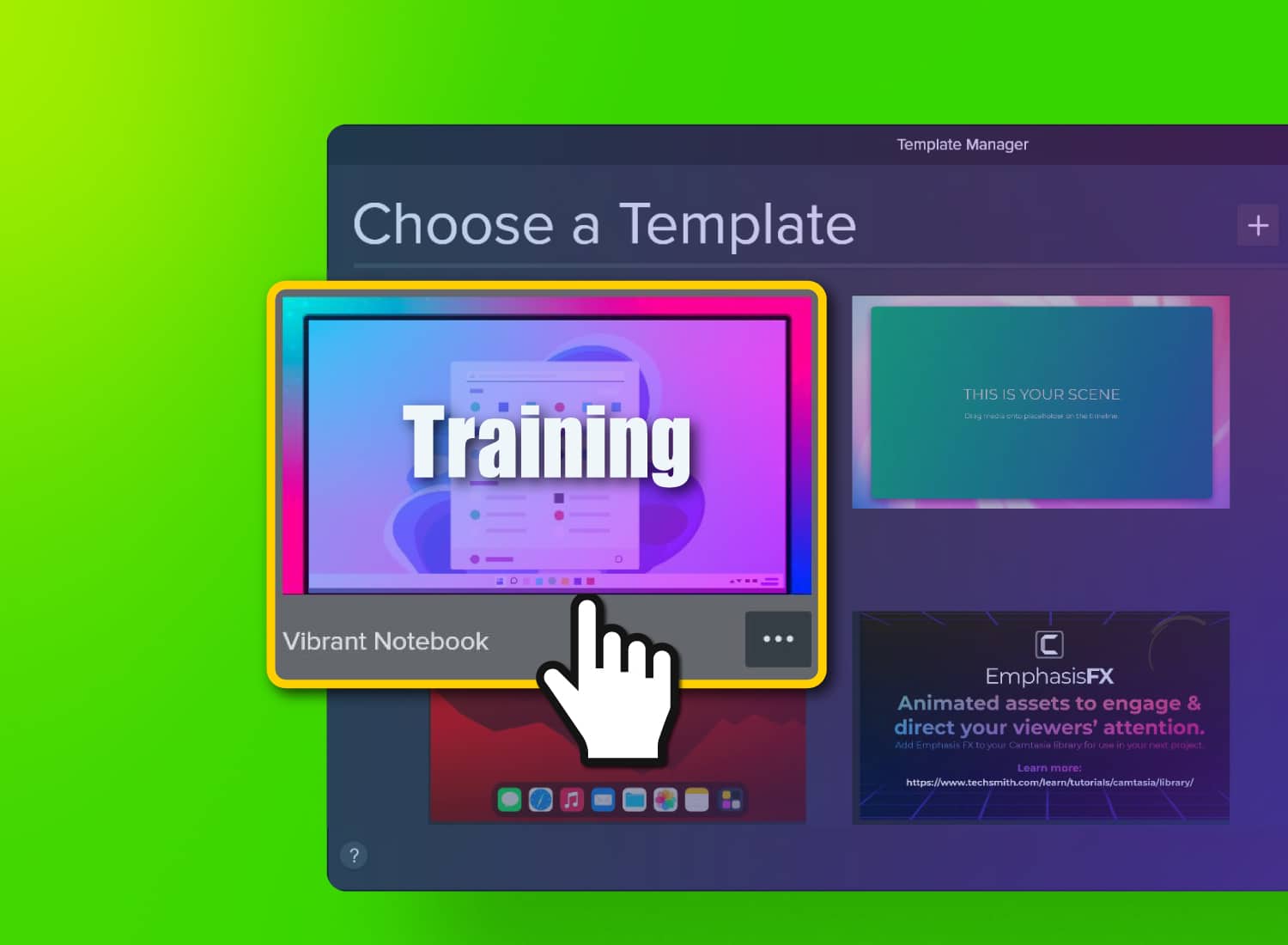
Camtasia Editor’s built-in video templates turn that structure into a project file you can open, with media placeholders already set for footage, callouts, and titles. Once you’ve customized callout and title styles for a course or department, Camtasia Editor lets you export those as local Library assets. Anyone on your team can import that file into their own Library, so the next trainer starts from the same structure and look, without rebuilding from scratch.
Build your next training video with Camtasia
Record your screen or camera. Then, use the video editor to add polish and clarity.
Learn More
Where structure matters most across training content
Different training formats need different structural skeletons. A process walkthrough that skips a step confuses a new hire. A compliance video that skips a required point creates liability. A generic template ignores those risks and treats every project the same way.
Not every training topic needs the same skeleton. The table below shows how structural needs, risks, and template shape shift across the four most common training video types, so you can match a starting structure to the job before you open an editor.
| Onboarding and process walkthroughs | Compliance and safety training | Quick-tip and micro-training content | Skills, leadership, and customer-facing training | |
| Primary structural need | Sequential steps in a fixed, repeatable order | Complete coverage of every required point | One clear takeaway per short segment | Scenario-based flow modeling a real interaction |
| Risk if left unstructured | Skipped or reordered steps confuse new hires | A missed requirement creates a compliance gap | Too many points dilute the single takeaway | An unclear scenario reduces learner relatability |
| Best-fit template shape | Sequential walkthrough with numbered steps | Checklist or beat-sheet covering each requirement | Single-scene short built around one point | Scenario or dialogue-based structure |
| How often content needs revisiting | Whenever the underlying process changes | Whenever a regulation or policy changes | Often, as tips and tools evolve | Less often, since core skills stay stable |
Onboarding and process walkthroughs
Onboarding and process walkthroughs need a sequential template with every action locked into a fixed, repeatable order, since a new hire who sees step three before step two loses the thread fast.
Build that structure around three fixed parts.
- Start with a short intro that sets context: What the process is and why it matters.
- Follow with numbered cues, one per action, in the exact order the viewer needs to click, type, or choose.
- Close with a recap that restates what happened, so the process sticks before the viewer moves on.
Use small, chunked recording placeholders in Camtasia Editor for each step, and lean on SUI graphics (simplified illustrations of the interface, rather than live screenshots) so a single UI change doesn’t force you to re-record.
A sequential template earns its keep right here: When one button moves or one menu item changes, you swap in a single chunk without re-recording the whole walkthrough. This same fixed-order logic also drives strong SOP documentation, where step order matters just as much as it does for a new hire’s first week.
Compliance and safety training
Compliance and safety training needs a checklist or beat-sheet template that gives every required point its own place, because a single missed requirement creates a compliance gap. Build the template as a numbered list of beats, one per policy, procedure, or safety point, and lock that order in before recording starts.
Each explicit beat acts as a placeholder you have to fill or consciously cut. That structure makes omissions visible during planning, when they’re cheap to fix, rather than after the video ships and someone flags a missing requirement during an audit or incident review.
For beats that reference dates, dollar figures, or procedures that change often, generate narration in Camtasia Audiate instead of scheduling a presenter every time the content updates. This narration is AI-generated, so review it against the source policy before publishing.
Keep sensitive topics, like benefits or compensation changes, with a human presenter. Those beats carry a personal weight an AI voice or avatar shouldn’t be asked to hold.
Quick-tip and micro-training content
Quick-tip and micro-training content needs one clear takeaway per segment, since packing in extra points dilutes the single message you’re trying to land.
Build this as a single-scene template in Camtasia Editor:
- One content placeholder
- Minimal setup or context
- One instructional point
- A short recap
Skip the extra scenes and transitions that longer training videos rely on. A tip video is trying to make one thing stick, not walk someone through a process.
Size the segment to the topic itself rather than a fixed run time. A single-point tip rarely needs more than a couple of minutes. If your draft runs longer, that’s usually a sign you’re covering more than one takeaway, so split it into a second tip.
Skills, leadership, and customer-facing training
Skills, leadership, and customer-facing training need a scenario-based template that models a recognizable interaction, because a vague or generic scenario makes the training feel disconnected from what learners actually face on the job.
Build the template around four beats:
- The setup establishes who’s involved and what’s at stake.
- The interaction plays out the actual conversation or decision point.
- The resolution shows how it lands.
- The reflection prompt asks the learner to connect the scenario back to their own work.
This content holds up over time, since core skills like giving feedback or handling a difficult customer don’t shift as often as software steps do. That stability makes a higher level of polish worth the investment.
An AI avatar generated through Camtasia Audiate can work well here as a small talking-head overlay or as a short intro or outro segment. Keep it compact so it doesn’t compete with the scenario itself. This output is AI-generated, so review it before publishing to your team.
Matching a template to your topic’s complexity
Your template’s length and number of sections should grow with how much cognitive work the topic demands, not match some standard runtime you picked in advance. A quick tip and a compliance checklist don’t carry the same mental load, so they shouldn’t share a template shape.
The Online Learning Consortium’s guidance backs this up: conceptual or explanatory content stays tightest, often five to seven minutes or less, while sequential or technical content can run longer without losing the learner, because breaking a multi-step process into several short videos can fragment their understanding of the whole.
Apply that to your template choice. A multi-step software walkthrough needs more sections, each covering one action in order, than a single-scene quick-tip template built around one takeaway.
If a topic is complex, resist cramming it into one long template. Instead, split it into multiple linked template segments, each covering a logical chunk of the process.
This keeps the full sequence intact for learners who need to see how the steps connect.
Skip the blank timeline: Open Camtasia’s templates
A template’s real payoff is every structural decision already made for you: where the demo goes, when the recap hits, how long the intro runs. That’s the part a subject matter expert shouldn’t have to solve alone every time they sit down to record.
Browse Camtasia’s video templates to find a structure that fits your training type. Once you’ve found one, select and download it from the Camtasia Assets library. Then open Camtasia Editor and choose Start New Project from Template to load your options and drop the one you picked onto your timeline, ready for your footage.
How to save your own structure as a reusable template
Once one of your own training videos proves its structure works, you can turn it into a template your whole team can start from. Position the playhead where you want creators to swap in new content, then select Edit > Add Placeholder (or press P) to mark it. Use File > Save Project as Template to save the structure, then File > Export > Template to share the .camtemplate file with your team, following the steps in Camtasia’s template tutorial.
Resolve structure struggles for good with scalable templates
Every production decision you push past the planning stage gets more expensive. Section order is cheap to change in a template. It’s not cheap to change after a subject matter expert has already recorded 45 minutes of footage in the wrong sequence.
The trainers and instructional designers who build video libraries that hold up over time aren’t necessarily the fastest editors. They’re the ones who resolved structure before they hit record, so each new video starts from a proven skeleton instead of a blank slate.
The template you pick this week doesn’t have to be perfect. It has to be specific enough to take the first round of structural decisions off your plate and get you into recording.
Need to show your screen?
Skip the downloads. Use Camtasia online to record your screen, camera, and microphone right in your browser for free.
Start Recording
Frequently asked questions
Does using a training video template make my training video look generic?
A template only sets the structure, like section order, cues, and callout placement, not the visual outcome. You still record your own screens, write your own callout text, and apply your own branding inside Camtasia Editor. The video looks like your content because a structure is a starting frame, not a finished design.
Are free, general-purpose design templates good enough for workplace training videos?
General-purpose template libraries are usually built for social posts or marketing clips, not sequential process walkthroughs or compliance checklists. They rarely account for training-specific needs like numbered cues, recap sections, or callout points tied to a required policy. A structure built specifically for training removes more of the planning work than a generic layout can.
What if none of the standard training video template structures fits my topic?
Most real training topics borrow from more than one structure, so it’s fine to combine elements rather than force one exact match. For example, you might open with a scenario-based hook, then move into a sequential walkthrough with a recap. Once your team lands on a combination that works, you can turn that video into a reusable template: convert the recording or webcam clip to a placeholder, save the project as a template, and share it with your team so you don’t have to rebuild it next time.
Do I need a paid Camtasia plan to use its training video templates?
Camtasia Editor’s built-in video templates are available as part of the editor, and you can test a structure through the free trial before committing to a subscription. Watermarked exports apply at the entry tier, so budget for an upgrade once you’re ready to publish a finished training video. Testing a template structure during the trial period is a low-risk way to confirm it fits your topic first.
How much time does starting from a training video template actually save?
The time savings come from skipping structural decisions like section order, pacing, and where callouts go. Those are planning decisions, and they’re what eat up time when nothing’s pre-solved before you open the editor.
Share