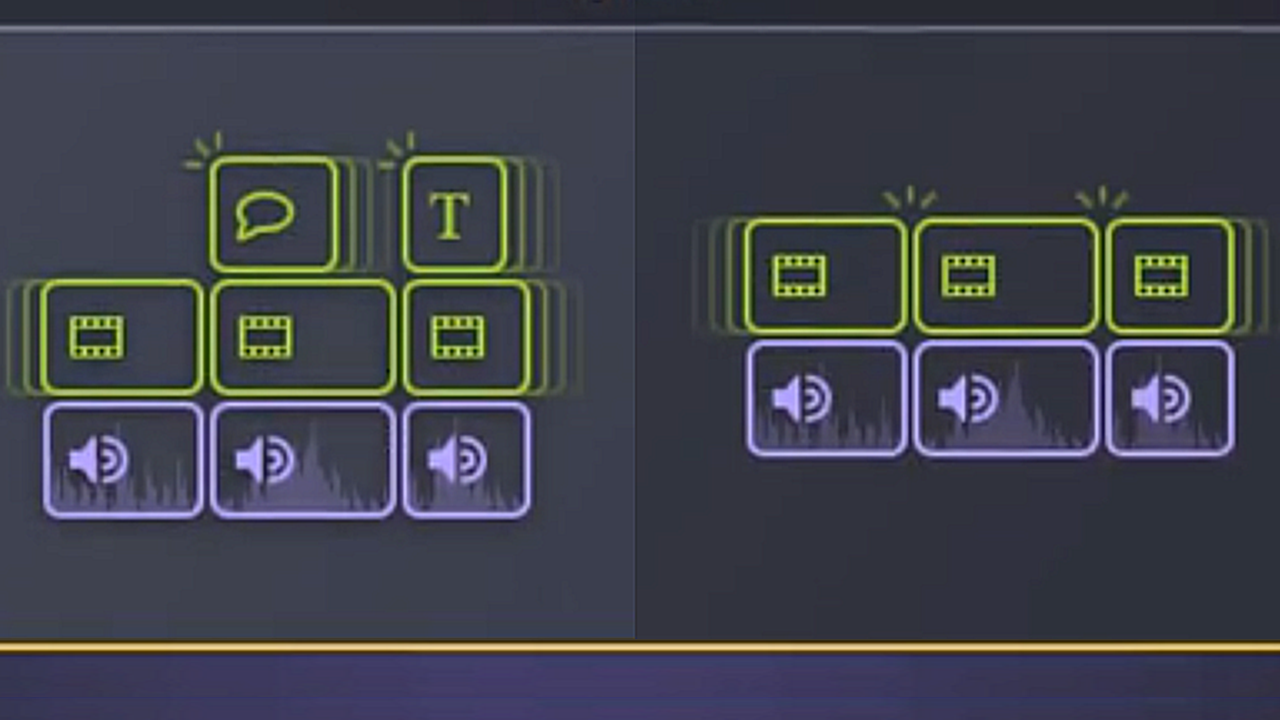
When faced with writer’s block or when you need fresh ideas for your video script, try Camtasia Audiate’s AI-assisted script generation:
- Create a Script – Quickly transform your ideas into a structured script ready for recording a voiceover or generating audio, or spark ideas for a fresh approach.
- Rewrite a Script – Change the style or tone of an existing project, or adapt it for a different audience or platform.
- Summarize a Transcript – Generate an overview of a meeting recording, or create an introduction to the video.
Create a Script
Generate a new script when you are faced with writer’s block or need fresh ideas.
Important! AI script generation overwrites any existing script, audio, and video for the scene. To preserve these for future use, be sure to save the original project first. Then select File > Save As to save a separate copy for script generation.
- Open Camtasia Audiate.
- Click Generate.

- On the Generate Script tab, select Create from the Options dropdown.
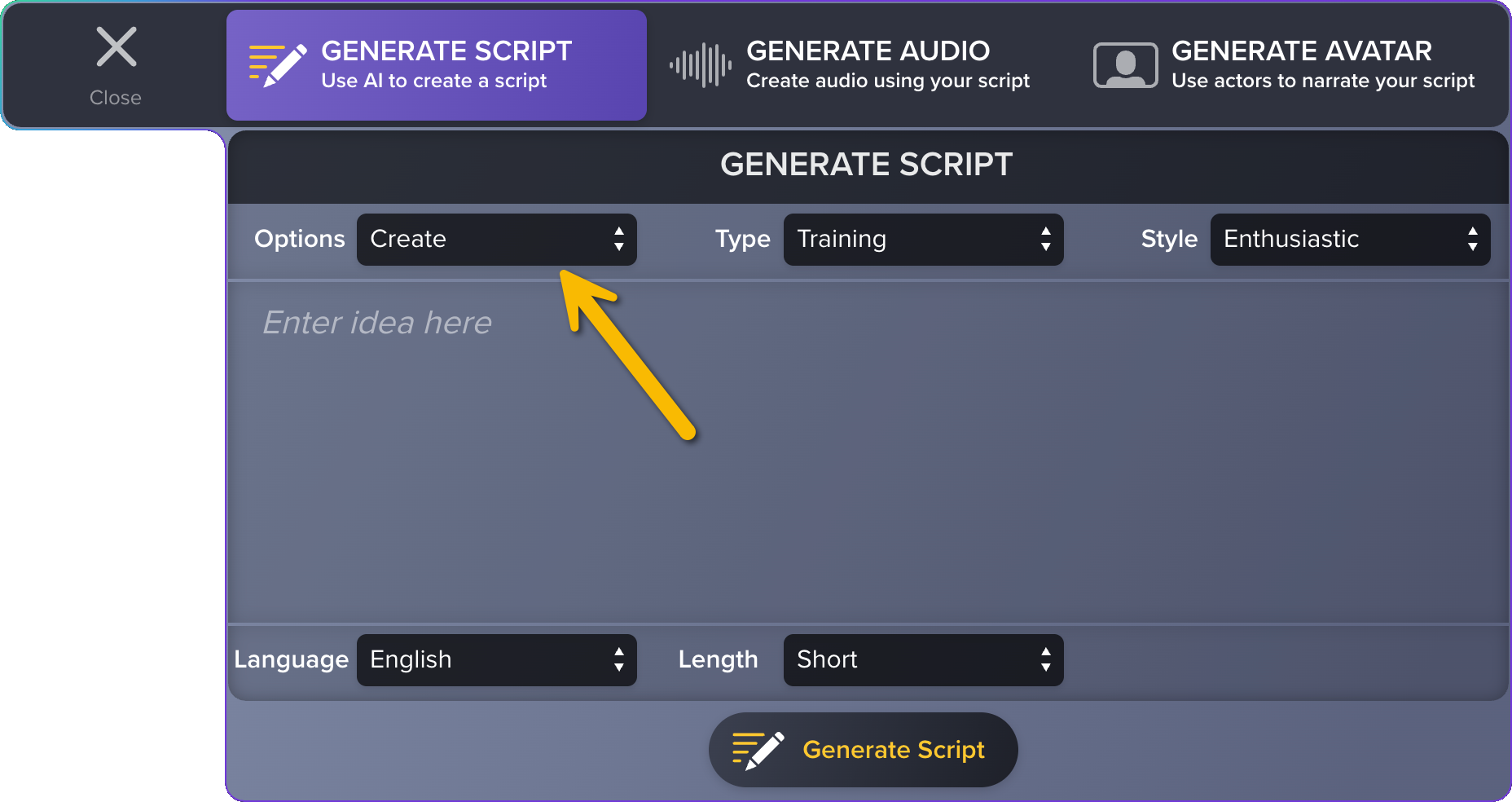
- Select options from the Type, Style, Language, and Length dropdowns.
- Enter a prompt in the text area.
Tip: Make your prompt as descriptive as possible
- Clearly state the goal, audience, and intended use for the video.
- Provide key messages, if known.
- Give examples of what to include or exclude.
- Click Generate Script.
The generated script appears in Audiate.
- Review the generated script for accuracy and complete any of the following as needed:
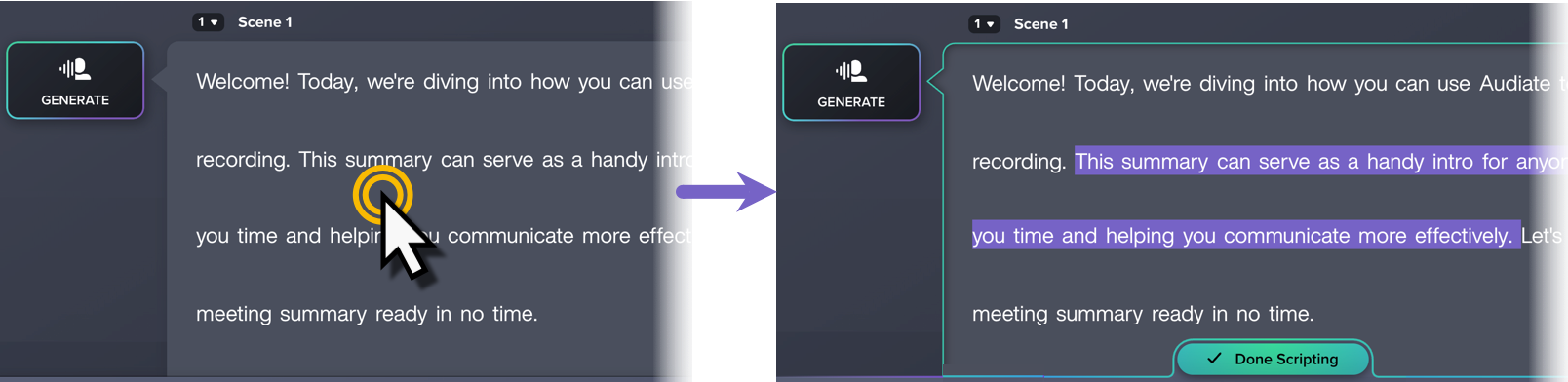
- To edit the generated script, double-click the script to enter scripting mode and edit the text. When you are finished, click Done Scripting.
- To start over and generate a different script, repeat Steps 2-6.
When you are happy with your script, complete any of the following:
Rewrite a Script
To change the type or style of an existing video or script, or to adapt it for a different audience or platform, rewrite the script with help from AI.
For example, transform your existing training video script into short-form content for social media, or adjust the tone to be less formal or more humorous.
Important! AI script generation overwrites any existing script, audio, and video for the scene. To preserve these for future use, be sure to save the original project first. Then select File > Save As to save a separate copy for script generation.
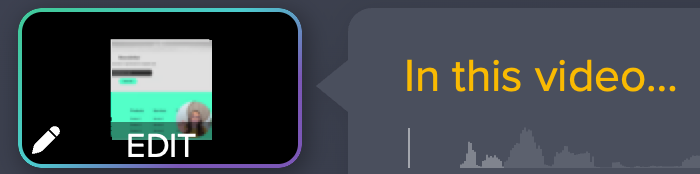
- With a project open in Camtasia Audiate, click Generate, Audio, or Edit next to the scene transcript:
- Generate: The scene has no audio or video.

- Audio: The scene has existing audio.
- Edit: The scene has existing audio and video.
- Click to select the Generate Script tab.
- In the Options dropdown, select Rewrite.
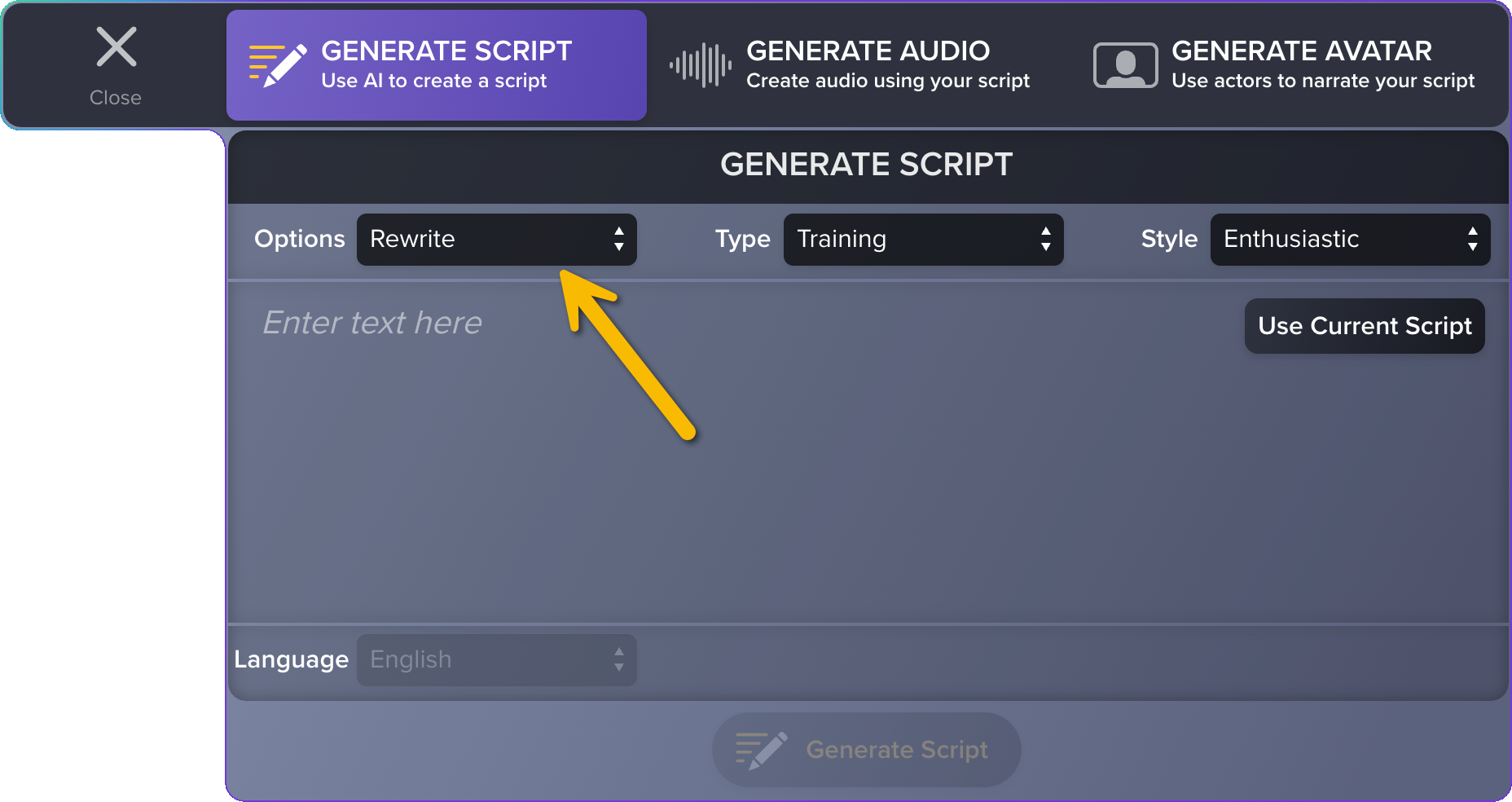
- Select options from the Type and Style dropdowns.
- Type or paste text into the text field, or click Use Current Script.
- Click Generate Script.
The new script replaces the previous version in Audiate.
- Review the new script for accuracy and complete any of the following as needed:
- To edit the generated script, double-click the script to enter scripting mode and edit the text. When you are finished, click Done Scripting.
- To try again with a different prompt or for a different type or style, repeat steps 1-6.
Summarize a Transcript
Summarize an existing script or transcript, for example when you want a high-level overview or introduction to a lengthy video or meeting recording.
Important! AI script generation, including summaries, overwrites any existing script, audio, and video for the scene. To preserve these for future use, be sure to save the original project first. Then select File > Save As to save a separate copy for script generation.
- Complete any of the following:
- Paste the text of a script or transcript into an empty Camtasia Audiate project.
- Open an Audiate video project. Select File > Open Project or Open Recent.
- Import an audio or video file. Select File > Import.
- Save a copy of the project to preserve the original for future use. Select File > Save As.
- Click Generate, Audio, or Edit next to the scene transcript. The button text differers depending on whether the scene already has existing audio and/or video:
- Generate: The scene has no audio or video.
- Audio: The scene has existing audio.
- Edit:The scene has existing audio and video.
- Click to select the Generate Script tab.
- In the Options dropdown, select Summarize.
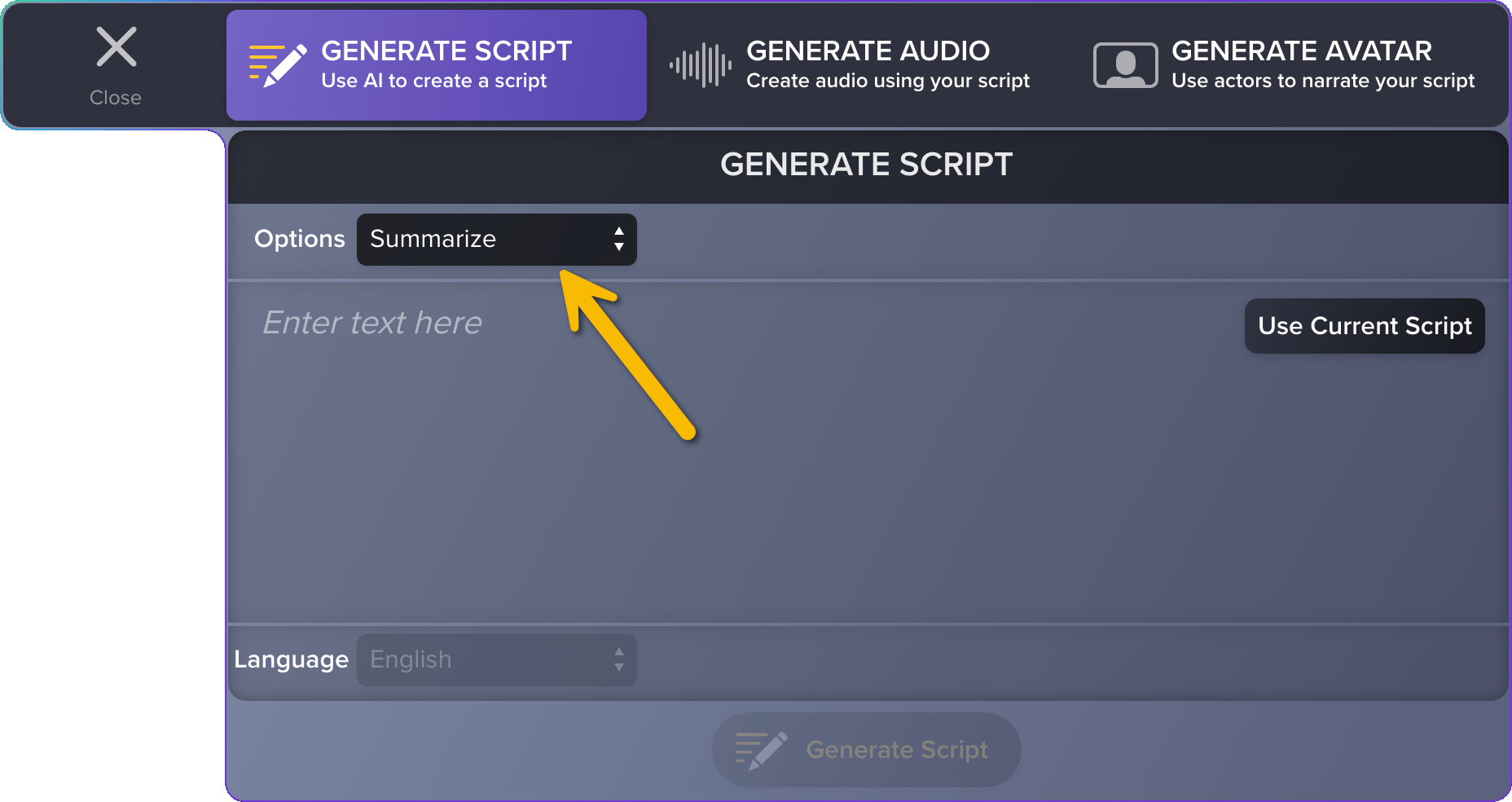
- Click Use Current Script.
- Click Generate Script.
The summary replaces the script or transcript in Audiate.
- Review the summary for accuracy. To make edits, double-click the script to enter scripting mode. When you are finished, click Done Scripting.
All Audiate Tutorials