Record a Picture-in-Picture Video
Record your screen and webcam at the same time with Snagit's Picture-in-Picture feature.

Record your screen and webcam at the same time with Snagit's Picture-in-Picture feature.

Add a Picture-in-Picture (camera) video to connect with your viewers. Snagit’s Picture-in-Picture allows you to:
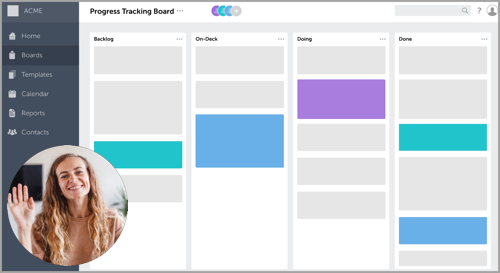
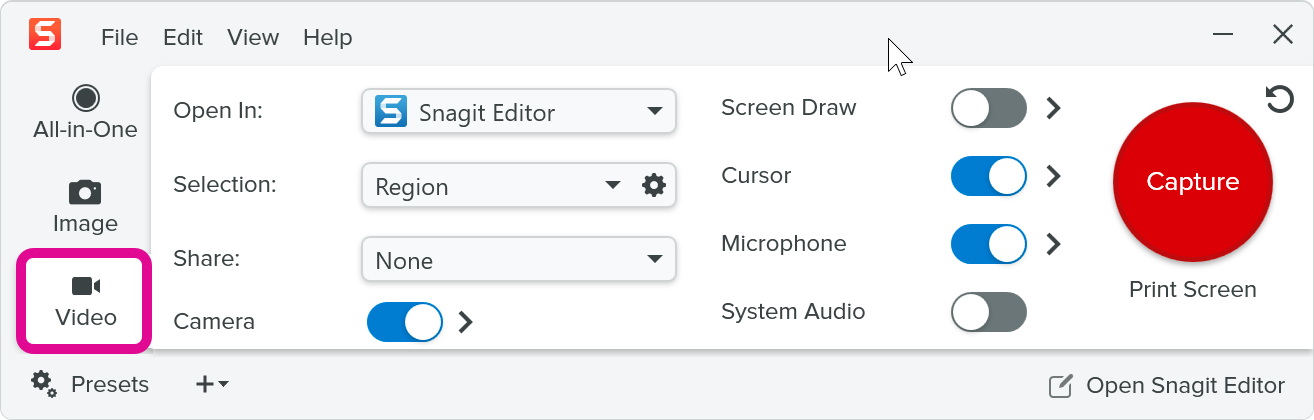


Note: You can also preview and adjust camera options before you start recording.




The capture opens in Snagit Editor where you can:
A few adjustments to the camera options before and during recording can improve the impact and effectiveness of your video.
Tip: Record to Camtasia Online for hundreds of video styles and backgrounds.
Camtasia Online, our web-based video creation and editing tool, offers hundreds of options for your video layout, background, effects, and more. See Record Snagit Video to Camtasia Online.
Select webcam options from the Video tab of the Snagit Capture window or the video recording toolbar.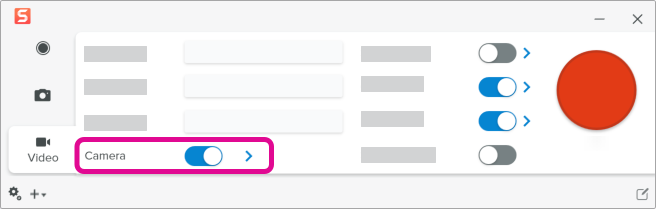
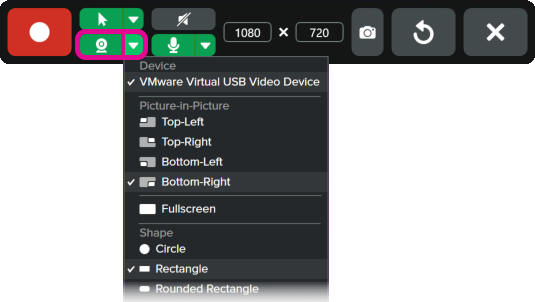
Device
Select a built-in camera or connected device to record.
Placement
Select the location for the Picture-in-Picture window in your final video: Top-left, Top-right, Bottom-left, or Bottom-right.


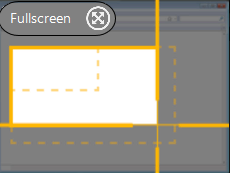
Or select Fullscreen (Windows) or Fullscreen Camera (Mac) to show only camera video and no screen recording.
Shape
Select Circle, Square, Rounded Square, Rectangle, or Rounded Rectangle for Picture-in-Picture camera display.




Mirror camera (Mac only)
Flip the camera video horizontally.
Border (Mac only)
Add a border to your picture-in-picture camera video and select the color.
Backgrounds (Mac only)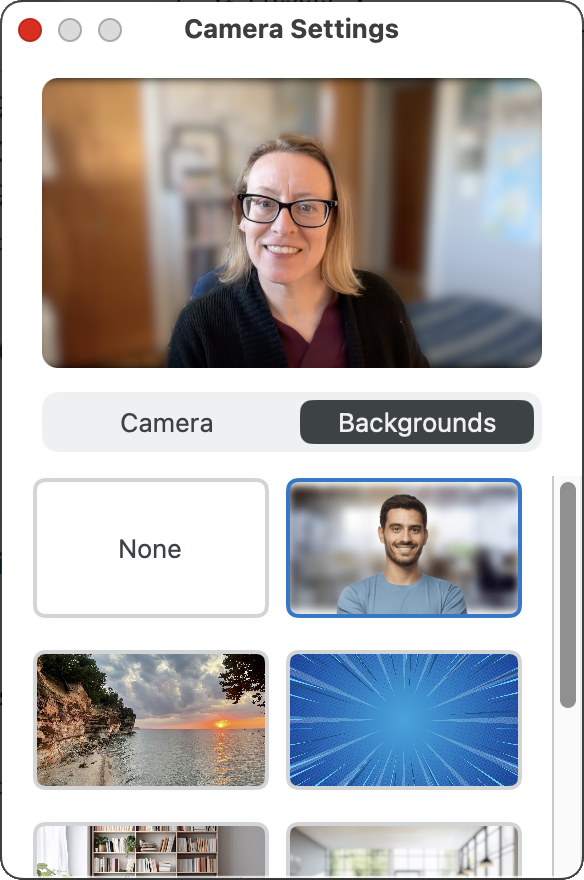
In the Camera Settings dialog, click the Backgrounds tab and select one of the following options:
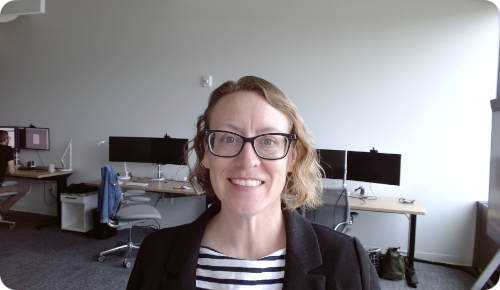
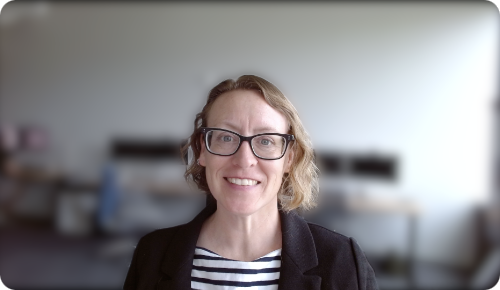
Note: Virtual backgrounds are not supported on Macs with Intel processors. Select from None or Blur background options.
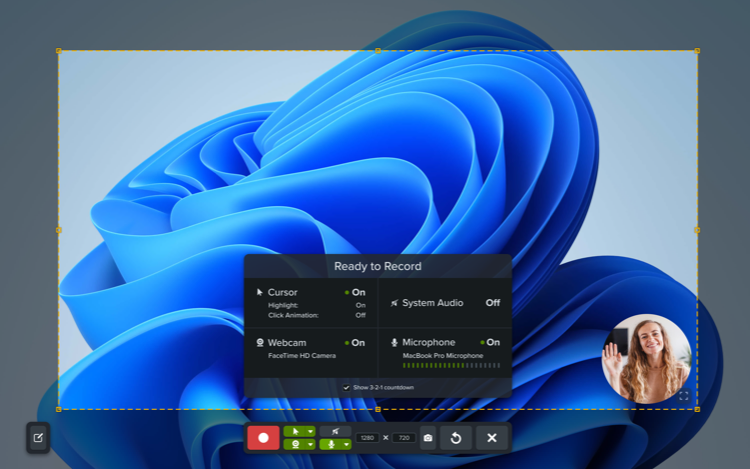
Before you press Record, Snagit shows a preview of your recording area and camera. You can adjust the size, style, and placement of the camera in the preview or even while recording.
Change camera size
To change the size your camera is displayed in the Picture-in-Picture, drag a corner of the camera preview in or out.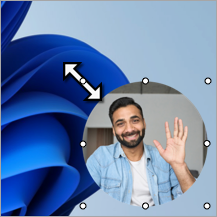
Change camera placement
To change the placement of the camera in the Picture-in-Picture, click and drag the camera preview to a different corner.
Swap Picture-in-Picture and Fullscreen Camera
To swap between Picture-in-Picture and fullscreen camera, click the Fullscreen Camera  or Picture-in-Picture
  button, or press Control+Shift+F.
Tip: Pause recording to change video settings.
For a polished video, pause the recording before changing video settings, such as changing the Picture-in-Picture placement.
The best screen capture software for professionals
* Have Snagit 2024 or earlier? Check out our previous version help.