Export and Share Your Step Capture Documentation
Learn how to export and share your Step Capture guide to create a variety of training documentation and videos.

Learn how to export and share your Step Capture guide to create a variety of training documentation and videos.
Record a workflow once with Step Capture to create a variety of training documentation, such as PDF guides and training videos. To learn how to take a Step Capture to quickly document a series of steps, see Document a Process or Workflow Automatically.
Share your Step Capture to any of the following destinations to create a visual guide.
Note: Snagit sends the Step Capture as an uneditable image. To share an editable format, see Export as an Editable File.
| Destination | Steps |
|---|---|
Screencast | Click Share Link to copy a link to your clipboard to paste in an email or message. Recipients can view your guide on Screencast, ask questions, and give feedback even without a TechSmith account. See Get a Shareable Link. |
PDF | Select File > Save As and select the PDF file type. |
Print | Select File > Print to print the guide. |
MS Teams | Select Share dropdown > Teams. Snagit shares the visual guide as a PNG file. |
Slack | Select Share dropdown > Slack. Snagit shares the visual guide as a PNG file. |
Cloud storage (Box, Dropbox, Google Drive, OneDrive)    | Select Share dropdown and select the location. Snagit shares the visual guide as a PNG file. |
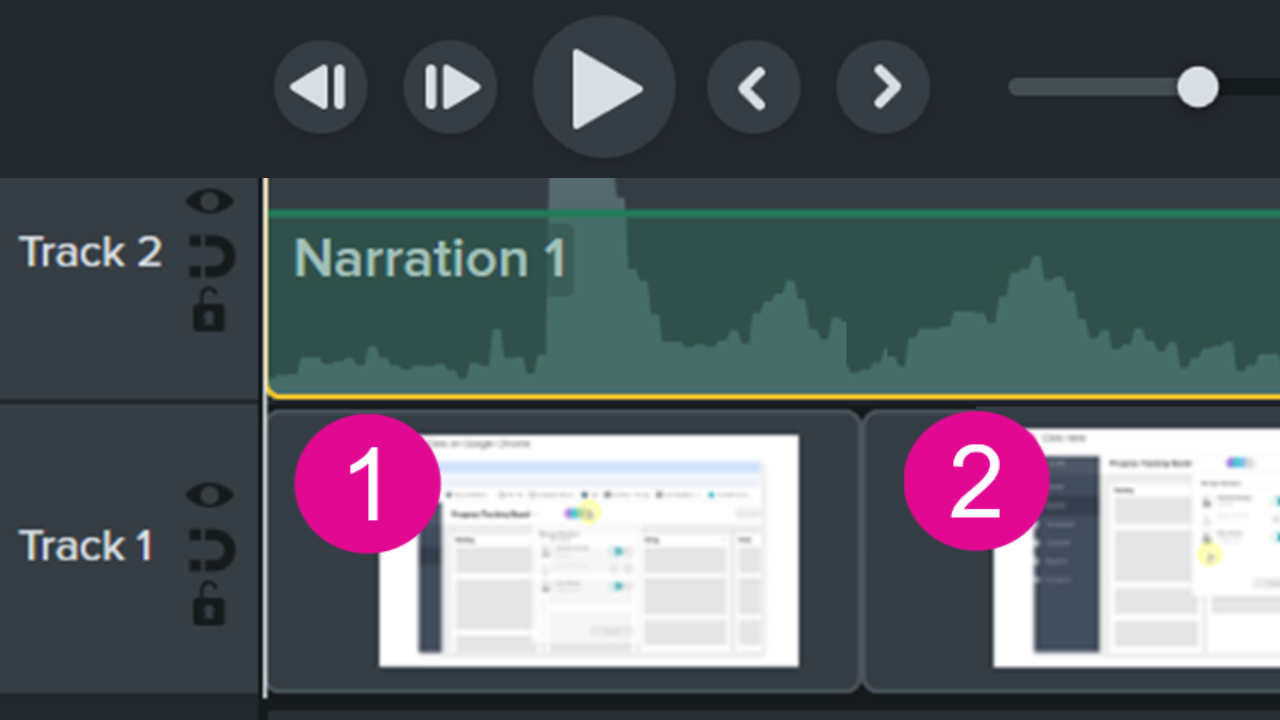
Camtasia Editor adds title callouts, animations, transitions, focus areas, and cursor enhancements to automatically create a professional, ready-to-share video from the series of screenshots.
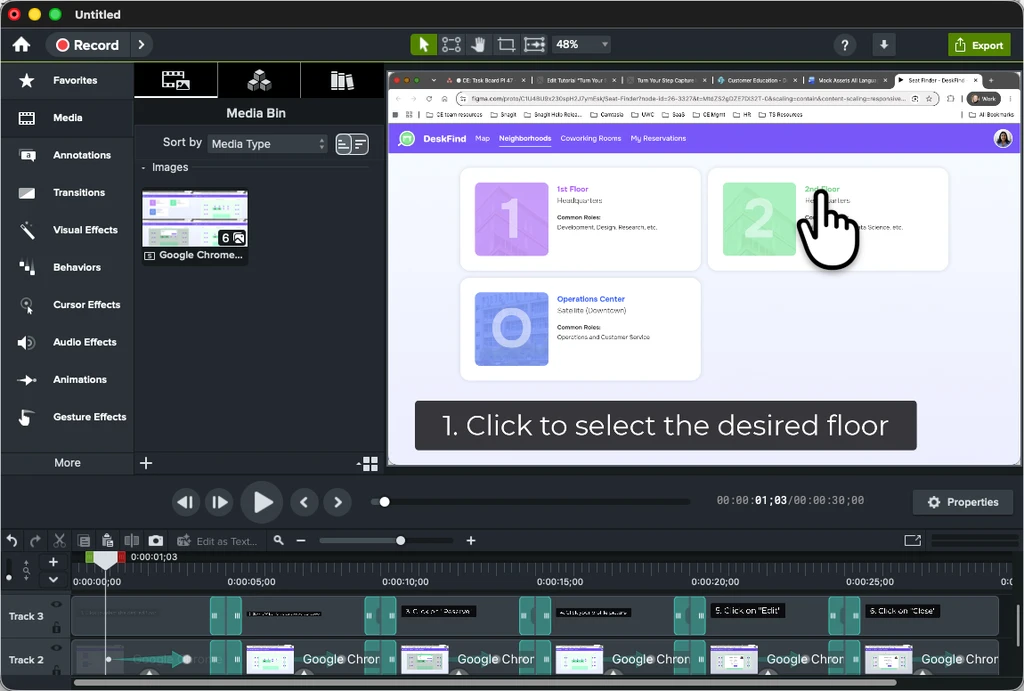
To send the file to Camtasia Editor, in Snagit select Share dropdown > Camtasia Editor.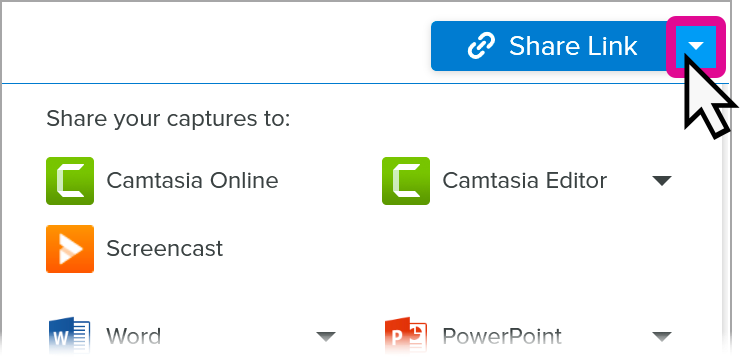
For more information, including recommendations to further edit and customize the video in Camtasia Editor, see Quickly Create a Professional Step-by-Step Video.

No credit card needed. Videos exported without a Camtasia Essentials, Create, or Pro subscription include a watermark.
Download Now
Share your Step Capture screenshots to Camtasia Online, our web-based video creation tool to:
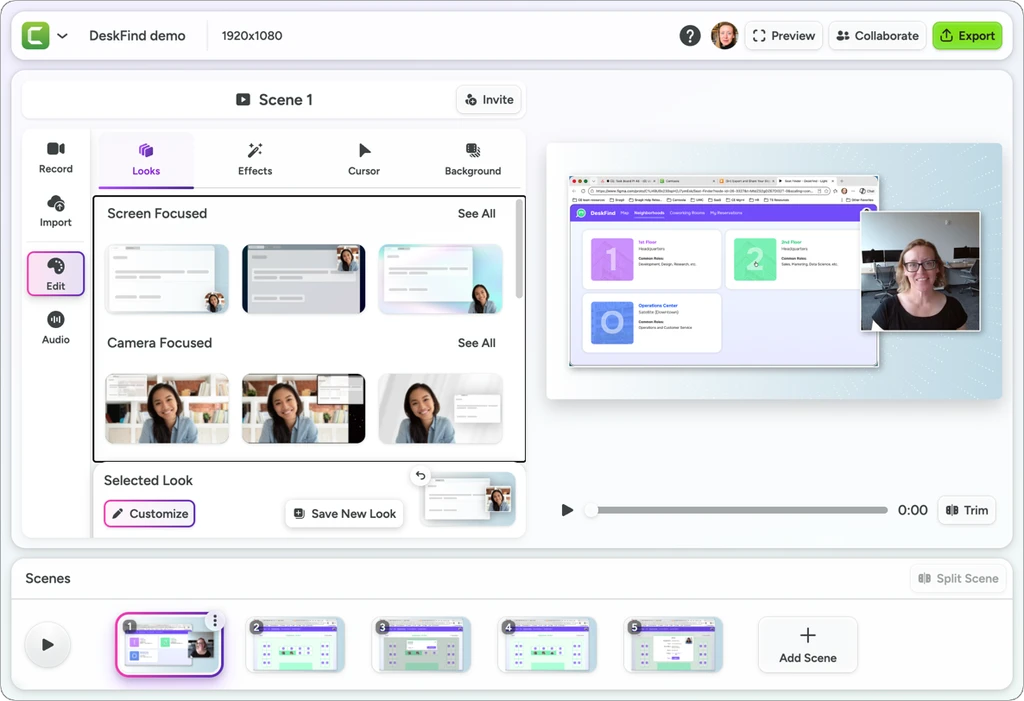
To send the file to Camtasia Online, in Snagit select Share dropdown > Camtasia Online.
For more information, including recommendations to further edit and customize the video in Camtasia Online, see Capture Steps and Create a Video.
Export to any of the following applications to continue editing your documentation. Click the Share dropdown and select the destination from the menu.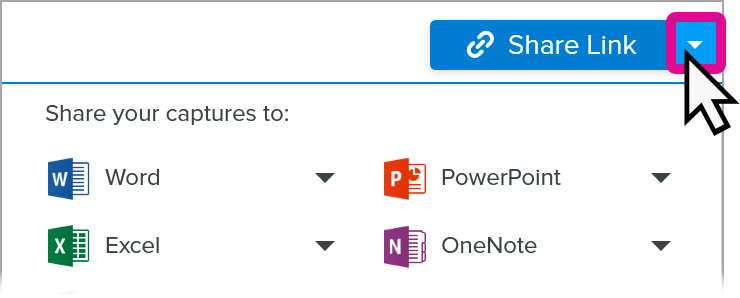
| Destination | Details | Snagit for Windows Version | Snagit for Mac Version |
|---|---|---|---|
Microsoft Word | Snagit sends editable text and screenshots to a new Word document. | 2025.3.0 or later | 2025.1.0 or later |
Microsoft PowerPoint | Snagit opens a new slideshow with editable text, a title slide, and individual slides for each image. | 2026.1.0 or later | 2026.0.0 or later |
Keynote | Snagit opens a new slideshow with editable text, a title slide, and individual slides for each image. | — | 2026.0.0 or later |
Apple Pages | Snagit sends editable text and screenshots to a new Pages document. | — | 2025.2.0 or later |
Note: When you share to these destinations, Snagit sends editable text and individual images. Formatting for text font, text color, and step color are not preserved.
Export your step-by-step guide as HTML or markdown for use on websites or in other applications.
| Destination | Steps | Snagit for Mac Version |
|---|---|---|
| HTML | Select File > Export > HTML. Select a location to save a folder that includes the HTML file and images. | 2026.3.0 or later |
| Markdown | Select File > Export > Markdown. Select a location to save a folder that includes the markdown file and images. | 2025.3.0 or later |
Batch export individual images from a Step Capture. Select File > Export > Step Capture images and select a location. Requires Snagit for Mac version 2026.1.0 or later.
Tip: Quickly find all your Step Captures in the Library
Step Captures taken in Snagit version 2026.3.0 and later are saved to a Step Captures category in the Snagit Library for you to quickly find, edit, and share. To access the Snagit Library, click Library in the Snagit Editor toolbar.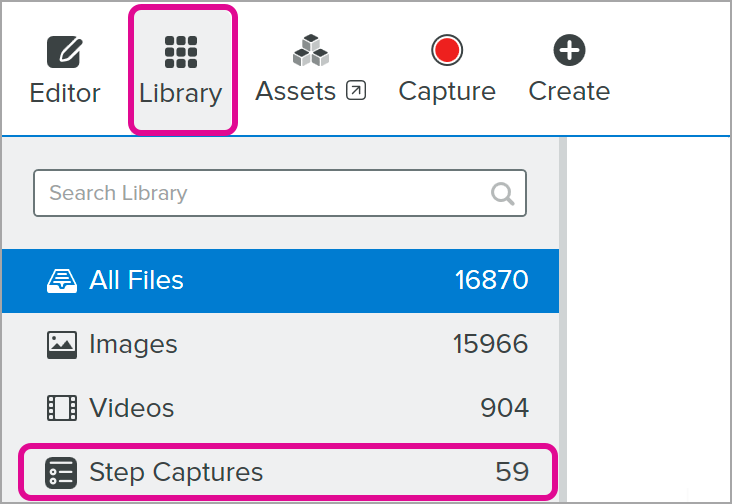
The best screen capture software for professionals
* Have Snagit 2024 or earlier? Check out our previous version help.