










User documentation is the customer-facing content that helps people understand, use, and troubleshoot a product or service. It can include user manuals, quick-start guides, troubleshooting articles, FAQs, videos, and knowledge base content. When written and created with intention, user documentation can act as an extension of the customer service experience and save your company time and money by reducing the number of support inquiries that users have to make.
In this article, we’ll examine the different kinds of user documentation, explore what a user manual is, and outline exactly how to write user guides that your team members and customers will be eager to use.
Key takeaways
- User documentation helps end users complete tasks, answer common questions, and solve problems without waiting for support.
- The best user manuals use plain language, logical steps, useful visuals, and accessible formatting.
- Screenshots, videos, and annotated images make complex instructions easier to understand and reuse.
- A single capture workflow can support user guides, internal training, and support articles when teams document a process as they perform it.
What are examples of user documentation?
User documentation examples include a quick-start guide for first-time setup, a troubleshooting article for a common error, a feature guide with numbered steps, and a short visual process guide with screenshots. Each example should help the reader complete a specific task instead of describing every possible feature at once.
For example, a quick-start guide might explain the first three actions a new user should take. A troubleshooting article might list the symptom, the likely cause, and the fix. A visual process guide might show each click in order so the user can compare the instructions to what they see on screen.
What types and formats does user documentation include?
User documentation can take many forms, depending on what the user needs to do and where they look for help. Common formats include quick-start guides, user manuals, FAQs, knowledge base articles, troubleshooting guides, in-app help, visual process guides, and video tutorials.
Choose the format that matches the task. A new user may need a short quick-start guide, while a support team may need a searchable troubleshooting article with screenshots. For complex workflows, a step-by-step visual guide or short how-to video can make the process easier to follow.
Create how-to guides in seconds with Camtasia Snagit
Document any internal process as you do it. Step Capture organizes the screenshots, numbers, and steps into a clear, shareable visual. Learn more about Step Capture
How is user documentation different from technical documentation?
User documentation is a user-facing part of the broader technical documentation category. The main difference is the audience: user documentation helps end users complete tasks, while broader technical documentation may also support developers, support teams, technicians, or internal stakeholders.
| Criteria | User documentation | Technical documentation |
| Audience | End users and customers | Users, developers, technicians, support teams, or internal teams |
| Purpose | Help someone use a product or service successfully | Explain how something works, how it is built, or how it should be supported |
| Language style | Plain language, task-focused steps, and practical examples | May include more technical detail, specialized terms, or internal context |
| Typical outputs | User manuals, quick-start guides, FAQs, troubleshooting articles, and how-to videos | User guides, service manuals, system notes, process documentation, and developer-facing content |
What is a user manual?
A user manual is a type of documentation that helps an end user complete tasks, understand a product or service, and troubleshoot problems. You may hear terms like instruction manual, user guide, maintenance manual, or technical documentation, but they all point to content that helps people use something correctly. A manual can be provided in print, digital format, or both.
User manuals contain detailed, step-by-step instructions for the end user and also provide support for troubleshooting. They are not meant to be read from cover to cover but used as reference guides. Therefore, a table of contents should always be included in a user manual.
A quick start or startup guide should be included in your manual to help users feel comfortable and confident when they begin using the product.
What are the different types of user manuals?
The main types of user manuals include instruction manuals, training manuals, service manuals, operation manuals, organizational policy manuals, and standard operating procedures (SOP) manuals. Each one serves a different purpose depending on your audience and context — here’s a closer look at each.
1. Instruction manual
An instruction manual explains how to use a product in its intended way. It usually focuses on setup, basic use, and the steps a user needs to complete a common task.
2. Training manual
A training manual teaches someone how to complete a specific task, project, or job. It often supports onboarding, classroom instruction, or internal training programs.
3. Service manual
A service manual explains how to care for and maintain a piece of equipment or machinery at different points in its life. It may include maintenance schedules, repair steps, and troubleshooting guidance.
4. Operation manual
An operation manual outlines the roles, responsibilities, and processes that keep a company or organization running. It helps teams complete work in a consistent way.
5. Organizational policy manual
An organizational policy manual documents a company’s policies, procedures, and best practices. It gives employees a shared reference for expected behavior and internal processes.
6. Standard operating procedures (SOPs) manual
A standard operating procedures manual gives users specific instructions for completing established procedures. It helps users with support content follow the same process each time.
Why does your business need user manuals?
If a user runs into a question or a problem with your product, they’ll look for help. If documentation is readily available and well-written, they can often self-serve and resolve the issue themselves instead of reaching out to your support team. That saves everyone valuable time.
A well-crafted user manual makes that kind of self-service possible. User guides are a valuable supplement to good customer service. Some of the benefits your business will see from writing great user manuals include simplifying training, saving time, and creating a knowledge base for your team.
What are the essential elements of a great user manual?
Even though each product is unique and will require different elements to create truly great user documentation, these core traits apply no matter what:
- Plain language — simple, jargon-free wording that doesn’t assume prior knowledge
- Simplicity — content and design that’s easy to scan, follow, and trust
- Visuals — screenshots, images, and annotations that show rather than tell
- Focus on the problem to be solved — content tied to the user’s real goal, not just a feature list
- Logical hierarchy and flow — a clear structure that moves from basic to advanced
- Accessibility — usable by people with visual, hearing, or cognitive differences
- Good design — easy to read, navigate, and use in the moment
- Feedback from real users and/or beta testers — tested and refined based on real use
1. Plain language
Plain language helps users understand instructions without needing insider knowledge. An important part of writing effective user manuals is making sure you are writing for the user, not the developer. Don’t make assumptions about what your end user might know or be familiar with.
Using acronyms, buzzwords, or slang used around the office will leave your customers feeling confused, frustrated, and ill-equipped. Balance plain language with enough detail so users fully understand how to use the product. Use simple language, but don’t write as if your readers are children.
2. Simplicity
Simplicity is golden. A simple manual is easy to scan. It’s easy to follow. People trust it. Dense text and complicated illustrations make documentation feel inaccessible before anyone even starts reading.
3. Visuals
Visuals help users see what to do, where to click, and what should happen next. “Show, don’t tell” is a key philosophy in writing user manuals. Content like images, instructional videos, and annotated screenshots go a long way in helping to understand a concept.
Seeing how something works is often much more effective than just reading about it. Not only do visual aids break up long blocks of text, but they also eliminate some of the bulk of text that can make user manuals intimidating.
In a study completed by Techsmith, it was discovered that 67% of individuals were able to complete tasks better when provided instructions that used annotated screenshots to convey information rather than text alone. You can read more at TechSmith’s Research Hub.
4. Focus on the problem to be solved
Problem-focused documentation connects each feature or step to the user’s real goal. Instead of simply listing and describing each feature or design detail of your product, present them in a way that supports the user’s experience. Explain features and benefits in the context of the problems they solve.
5. Logical hierarchy and flow
A logical hierarchy helps users move from basic information to more advanced tasks without getting lost. Use a clear structure of headings and subheadings to help users understand what they will learn in each section of your user manual. The hierarchy should follow a logical flow, guiding customers smoothly through the information they need from beginning to end.
Make sure to begin with the basics and build in a logical progression toward the more advanced features of your product.
6. Accessibility
Accessibility makes your user manual usable by more people from the start. It’s not uncommon for some individuals who need your user manual to require additional support to use it effectively. Accessibility requirements are law in many places and good practice regardless of the legal obligation behind them.
Ensuring that your user manuals adhere to accessibility standards is simply good customer support. Creating accessible content for users who may have visual or hearing impairments or cognitive disabilities is an important factor in designing user manuals.
7. Good design
Good design makes the manual easier to read, navigate, and use in the moment. Design your user manuals with your customer’s satisfaction in mind. A visually appealing manual is more likely to get used.
Use graphics and images to support the text where they add clarity. This is a great option for either print or digital user manuals, with videos and GIFs adding interest and a supportive element to digital user guides.
If your organization has a style guide, your design should adhere to it, but if you are working without one, it is important to maintain consistency throughout your user guide. Font and color choices should remain consistent throughout the document and ideally between all of your user manuals.
You can use Camtasia Snagit to help maintain consistency in your user guides by accessing the free templates for Camtasia Snagit.
Annotate and edit screenshots with Snagit
Professional mark-up tools and powerful features make it easy to create helpful images.
Try it Free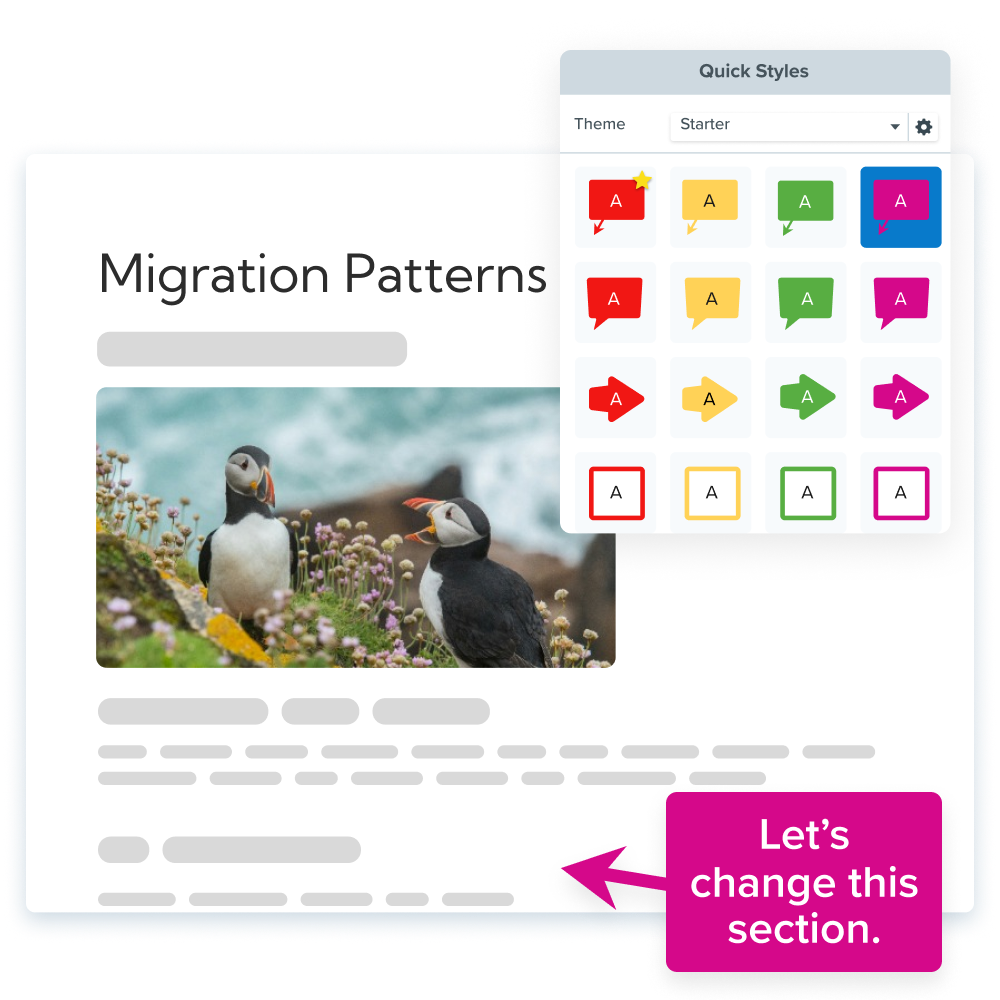
8. Feedback from real users and/or beta testers
Feedback from real users shows whether your documentation works outside your team’s assumptions. Unless you have asked for and listened to feedback from the individuals who will actually be using your product about the user manuals you have written, you won’t have an accurate sense of whether or not they are as effective as possible.
You need to understand the pain points of your product’s users and ensure they are addressed in the user manuals you write. While some feedback may seem obvious, there is a significant opportunity to gain valuable insights into the needs of the consumers you aim to serve.
How can one capture workflow support documentation, training, and support?
A single-source workflow means you capture a real process once, then reuse the same ordered steps and visuals in multiple places. For example, a documentation team can capture the process for a user guide, then adapt the same screenshots and step order for an internal training handout or a support article.
This approach helps teams avoid rebuilding the same instructions from scratch. It also keeps the user manual, training material, and support content aligned because they all start from the same real workflow.
How do you capture a single-source workflow?
To capture a single-source workflow, record the process once with Camtasia Snagit’s Step Capture. It saves the session as a project file (.snagx) and exports a screenshot-based guide you can share right away.
That same .snagx project file can also become a narrated training video: import it into Camtasia Editor through the Share menu, where transitions, callouts, and cursor motion are added automatically. If someone other than the person who did the capturing will build that video, make sure the .snagx file — not just the exported guide — gets saved and shared with them.
How do you create a user manual?
To create a user manual, identify the audience, define the problem, document the steps in order, test the instructions with real users, and revise the content until it is clear. Creating a user manual is an important undertaking that can significantly impact your business and benefit the users you aim to serve. While it can be overwhelming, we’ve broken down the process of writing a user manual so you can easily follow along!
1. Identify the users
Start by identifying who will use the manual so you can choose the right tone, detail, and format. Like any piece of communication you create, a crucial first step is identifying the person who will be on the receiving end.
Identifying your audience for your user manual will help you make good decisions about the tone, the amount of detail to include, and how to present the content. Writing a user guide for a developer is done differently than writing one for your product’s end user. Identifying your audience is a make-it-or-break-it step.
2. Focus on the problem
Define the problem your documentation must solve before you start writing. User documentation is created to assist in solving a problem or teaching someone to do something new. It is necessary to identify exactly what your user manual is meant to accomplish and ensure that you keep your focus there.
It can become tempting to expand the subject matter and cover many aspects of or potential uses for your product. This can cloud the actual solution that the user needs and cause frustration or calls to your customer service line. Focus on the specific solution your customer will need to have, whether they are an individual learning to use the product or a technician needing to repair it.
3. Map the user journey
Map the user journey so the manual follows the user’s path from problem to solution. The goal in writing a user guide is to understand how your customers intend to use your product and create a way for them to easily do just that.
You need to put in the work to understand the problem the user has or the goal they hope to reach in using your product, as well as how they interact with your brand. These details will help you imagine the customer journey from problem to solution and map out the steps needed to get them through the process.
4. Choose a template
Choose a template to keep structure, design, and repeated sections consistent. Developing a set of templates can make the job of writing and designing user documentation significantly easier. It streamlines your process and makes consistency a more achievable goal.
Templates for your documentation should include formatting, like fonts (type and size), contrast requirements, and colorways, as well as:
- Assigned space for an introduction
- Clear sections and subsections
- Your selected format for sharing sequential steps
- Warnings and highlighted cautions
- Assigned space for a conclusion
5. Explain symbols, icons, and codes early
Define symbols, icons, and codes before users need to act on them. As you write a user manual, you may need to use icons, symbols, or codes to help give the instructions needed. It is important to define these as early as possible in your user manual to avoid any confusion or frustration on behalf of the reader.
6. Use sequential steps in order
Write the steps in the exact order a user must complete them. Sequential steps or numbered lists are essential to creating an instruction manual. The instructions should be presented in the order required to complete the task at hand.
Attempt to complete the task while following the specific steps you have laid out in the order presented. It is possible, likely even, that you will identify missing steps as you work through your initial list. You may also discover that something you thought was one task actually needs to be broken down into a few tasks for the sake of clarity.
To make this process easier, Camtasia Snagit’s Step Capture can help. With this feature, you walk through the process you want to demonstrate one time while Camtasia Snagit records each click. Once you’re done, Camtasia Snagit compiles your clips into a sequential, step-by-step guide.
7. Treat all users as beginners
Assume the reader is new to the product so the manual does not skip needed context. When writing a user manual, assume that the reader knows nothing about your product. Write as if you’re explaining it to someone brand new to the product.
Avoid technical language and jargon wherever possible. While there may be instances where it is unavoidable, these should be rare exceptions.
8. Build content using a practical approach
Use practical examples so users know what result to expect after each step. Write out or show what a user might see in your product before they perform a step, be clear about the step to be performed, and give examples of what they will see after the step is performed.. The user should know what feedback they may receive from the product; what they might see or hear at any step of the process.
9. Write simple and easy-to-follow content
Write each step so the reader can complete one clear action at a time. The content of your user manual should be as simple and easy to follow as possible. Both the content and the format need to be considered and reviewed for clarity and simplicity.
Make sure that each step of the process explains only one task and uses language that is as concise and clear as possible. Be sure to edit down your content as thoroughly as possible until you have arrived at a user manual with only the most essential information included.
Camtasia Snagit’s Step Capture can also help here. With this feature, you’ll be able to show each step necessary to complete a process.
The best snipping tool for Windows and Mac
Don’t let clumsy built-in tools hold you back. Take and edit screenshots with Snagit!
Get Snagit
10. Test instructions with users who haven’t seen the product before
Test the instructions with people who have not used the product or seen the manual before. An important step in the process of writing a user manual is the testing. The choice of who to test on can change the results dramatically.
Ideally, testing should be performed on individuals who have never used your product or viewed the manual before. Observe them working through the process and make a note of where they get stuck as they progress through the user manual. The material should then be revised accordingly.
Your testers should be able to navigate and use the product, relying solely on the user manual for support. They should not need to reach out for additional support. Everything they need should be in the user guide itself.
Build documentation users can follow
Strong user documentation starts with a clear task, a real user need, and instructions that are easy to test. Use plain language, show the process visually, and keep every guide current as the product or workflow changes.
Camtasia Snagit’s Step Capture is built for exactly this kind of written documentation — capturing screenshots and steps as you work through a process.
When a video walkthrough fits the task better than a written guide, Camtasia Editor can turn that same kind of Step Capture session into video. See Quickly Create a Professional Step-by-Step Video for the steps. Explore Camtasia Pro to see how the full product line supports both formats for reusable training and documentation content.
Do AI Voices and Avatars Improve Learning?
Discover what the data reveals about learning outcomes.
Get the Full Report
Frequently asked questions
What is user documentation?
User documentation is content that helps end users successfully interact with a product or service. It can include user manuals, user guides, quick-start guides, troubleshooting content, FAQs, knowledge base articles, and videos. Good user documentation focuses on the task the user wants to complete and gives them enough context to move forward without extra help.
What are the different types of user documentation?
The main types of user documentation include instruction manuals, training manuals, service manuals, operation manuals, policy manuals, and SOP manuals. Digital formats can also include FAQs, searchable knowledge base articles, troubleshooting guides, in-app help, visual guides, and how-to videos. The right type depends on the audience, the task, and how much detail the user needs.
What is included in user documentation?
User documentation should include clear instructions, a logical table of contents, plain language explanations, and steps that follow the actual workflow. It should also include visuals where they make the task easier to understand, such as screenshots, annotations, short videos, or GIFs. A strong user manual is searchable, accessible, tested with real users, and updated when the product or process changes.
How do you create an effective usermanual?
To create a usermanual, start by identifying the user and the task they need to complete. Then outline the process in order, write simple instructions, add useful visuals, and test the guide with someone who has not used the product before. Revise the manual based on where testers get stuck, then keep it current as the product or workflow changes.
Can you give me an example of a user manual?
A simple user manual might include a short introduction, setup instructions, a list of basic tasks, troubleshooting steps, and a section that explains icons or terms. For a software product, one section might walk the user through signing in, changing a setting, and confirming that the change worked. For a physical product, a user manual might include assembly steps, safety notes, maintenance instructions, and common fixes.
Is user documentation the same as technical documentation?
User documentation is part of technical documentation, but the two terms are not always identical. User documentation is written for end users and focuses on completing tasks, solving problems, and understanding how to use a product or service. Technical documentation can be broader and may also include developer notes, service information, internal process documents, or system-level details.
Share