









If you’ve ever updated a training video after recording the narration, you know how quickly a small change can turn into a production headache. A revised process, an updated policy, or a stakeholder comment can force you back into the recording booth, create timing issues with your screen recordings, and delay publication while everyone waits for a new version.
That’s why many L&D teams are using AI voiceover as part of their production workflow to production, revisions, and updates. The goal is simple: create and maintain training videos more efficiently without sacrificing quality.
In this guide, we’ll compare common voiceover approaches and show how the Camtasia Product Suite can help teams create, update, and scale narrated training videos with less production friction.
Key takeaways
- Creating AI voiceovers for training videos can be faster when scriptwriting, voice generation, and editing are handled in a single workflow.
- Modern AI voiceover tools can help training teams produce natural-sounding narration without booking talent or re-recording every update.
- In Camtasia Audiate, you can create an AI voiceover by pasting a script, choosing a voice, and editing the result as you would text.
- The right AI voice for video training depends on tone, pacing, and clarity, not just how realistic the voice sounds.
- AI voiceover can support scale by helping teams standardize narration across videos and create multilingual versions more efficiently.
- When a process or UI changes, AI voiceover lets you update training narration by editing the script with no re-recording session required.
Why AI voiceovers are changing how training videos get made
AI voiceover helps training teams move faster, and today’s AI-generated voices often sound natural enough for professional instruction.
For L&D teams, that means fewer recording sessions, fewer requests for pickup lines, and faster updates when product interfaces, processes, or policies change. Instead of coordinating a new recording every time content changes, teams can update the script, generate revised narration, and keep production moving.
The benefits go beyond efficiency. AI voiceover can help create more consistent training experiences across onboarding programs, compliance courses, software tutorials, and other learning content. With the same narration style used across multiple videos, audiences receive a more uniform learning experience, while training teams gain a more repeatable production process.
Instant lifelike AI voice over
No voice over? No problem. Audiate generates incredibly life-like voice over right from your script!
Get Audiate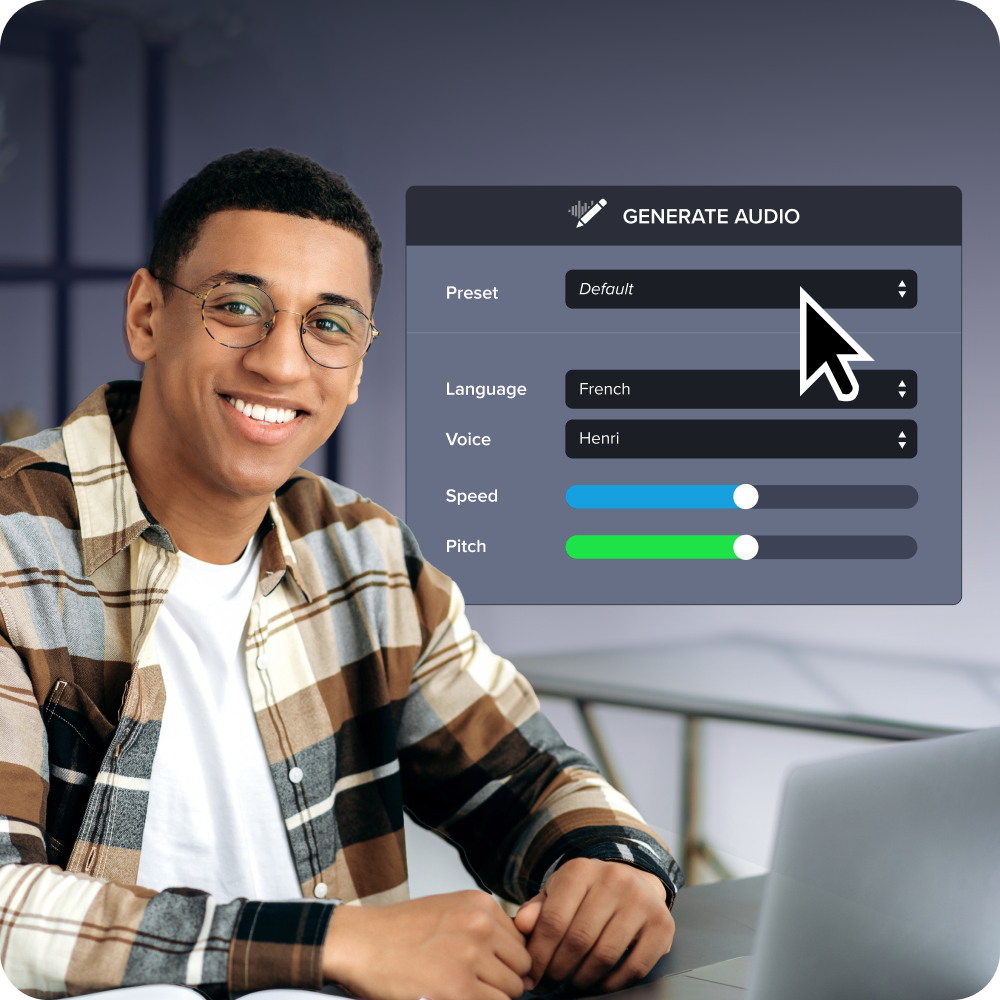
What modern neural TTS makes possible today
Modern AI voiceovers are powered by neural text-to-speech (TTS) technology, which uses AI models to convert written text into spoken audio. Compared to earlier generations of synthetic speech, neural TTS produces more natural pacing, intonation, and emphasis, making it better suited for instructional content.
But that doesn’t mean it’s completely hands-off. Training teams should still review generated narration for pronunciation accuracy, especially when dealing with acronyms, product names, technical terminology, or regulated language. A quick review step helps ensure the finished narration sounds professional and aligns with the training content.
Two approaches to AI voiceover: standalone tools vs. integrated workflows
Most AI voiceover tools generate an audio file. But the production work doesn’t stop when the file is exported.
For training teams, the real challenge is what happens next: matching narration to visuals, managing revisions, collecting feedback, and keeping projects moving. That’s where the difference between standalone voice generators and integrated workflows becomes more apparent.
When evaluating AI voiceover tools, focus on the work that happens after narration is created. How quickly can you make updates? How much effort does it take to keep audio and visuals in sync? How many tools are involved in the process? The answers often have a bigger impact on production efficiency than the quality of the voice itself.
How standalone voice generators work
Most standalone AI voice tools follow a similar process: write a script, generate narration, download an MP3 or WAV file, and import that file into your video editor.
This approach can work well for simple projects, and many standalone platforms offer large voice libraries. But every script revision creates additional work. Updating a single sentence may mean:
- Generating a new audio file
- Exporting it
- Importing it into the editing software
- Manually adjusting timing to match the visuals
- Replacing the previous version
As training content grows, those extra steps can slow production and complicate version management.
Why integrated voiceover changes the production equation
Integrated workflows keep scripting, narration, and video production closer together, reducing the need to switch between tools and helping teams make updates more efficiently.
For example, Camtasia Audiate and Camtasia Editor are designed to work as complementary parts of the same workflow. Teams can generate and refine AI narration (including pacing) in Audiate, then send the finished audio directly to the Camtasia Editor timeline for synchronization with screen recordings, animations, and other visual elements.
The result is a more streamlined process for creating narration, matching it to visuals, making revisions, and moving projects through review and publication, with fewer handoffs along the way.
Choosing the right AI voice for your audience
When selecting the best AI voice for videos, aim for credible over flashy. Training narration should help learners follow steps and understand information, not draw attention to the voice itself.
Camtasia’s study on AI avatar voices in training videos found that professional-quality AI voices can support knowledge retention as effectively as human narration, while low-quality synthetic voices are quickly recognized by learners and can reduce engagement and trust.
In other words, the right AI-generated voice is the one that sounds clear, consistent, and easy to follow.
When evaluating AI voices, instead of worrying about whether it’s lifelike or “human-like” enough, focus on listening factors that affect learning:
- Intelligibility: Can learners clearly understand every word without strain?
- Listening fatigue: Is the voice comfortable to listen to over several minutes of instruction?
- Emphasis: Does the narration naturally highlight important steps, warnings, or key concepts?
- Fit for long-form instruction: Does the voice remain clear and consistent across an entire module or course?
That said, different audiences respond to different delivery styles. A compliance course, a software tutorial, and an onboarding video may all use AI narration, but each use case leans toward a different tone, pacing, or emphasis.
Matching tone, pacing, and voice style to your training content
Whether you’re creating a company-wide module or a SaaS training video, different training scenarios call for different delivery styles.
- Compliance, policy, and process training: A calm, measured voice works best when accuracy and clarity are the priority.
- Onboarding and culture-focused content: A slightly warmer, more conversational voice can help create a more approachable learning experience.
- Educator-led lessons or software walkthroughs: A steady instructional tone with clear emphasis helps learners follow along step by step.
Pacing matters just as much as tone. Test your AI narration against the actual training screens, captions, and cursor movement. A voice that sounds natural in isolation may move too quickly once paired with dense visuals, causing learners to fall behind. Slower, deliberate pacing is often more effective for instructional content than conversational speed.
How to create AI voiceover for training videos in Camtasia Audiate
This workflow works best when you start with the script. Camtasia Audiate handles AI voice generation, where most narration work already happens.
Whether you’re creating software onboarding videos, compliance refreshers, or lesson content for remote learners, a script-first workflow makes it easier to create, review, and update narration throughout the production process. Camtasia Audiate lets you generate AI voiceovers, edit them, and add them directly to your video project without juggling multiple tools.
Step 1: Write or paste your script into Camtasia Audiate
For most training teams, a script-first approach simplifies stakeholder approvals and makes later revisions easier to manage.
Use short paragraphs, straightforward sentence structure, and clear transitions between topics. If your training includes product names, acronyms, or technical terms that must be pronounced correctly, consider spelling them out phonetically or reviewing those sections carefully before generating narration.
For example, a software onboarding video might include specific menu names and terminology that should be verified before production begins.
Step 2: Choose an AI voice that fits your training context
For most onboarding, tutorial, and internal training video content, listener comfort matters more than personality. A calm, clear, and steady voice is often easier to follow during longer instructional sessions than a highly expressive one.
Camtasia Audiate includes a variety of AI voice options, including ElevenLabs Premium voices, allowing teams to evaluate different narration styles and pacing without leaving the production workflow.
Step 3: Generate and review the voiceover
Once you’ve selected a voice, generate the narration and listen to it before moving on to video editing to fine-tune.
Pay particular attention to pronunciation, pacing, and emphasis. Does the narration slow down when explaining a complex workflow? Does it emphasize important compliance requirements? Does it align with the pace learners will need to follow the training?
In other words, if a software tutorial requires users to click through several menus, make sure the narration leaves enough time for those actions to occur on screen. A few minutes spent refining delivery here can prevent much larger editing headaches later.
Step 4: Edit by changing words, not scrubbing audio
One of the biggest advantages of Camtasia Audiate is that you edit narration by editing text.
If a sentence sounds awkward or a policy update requires new wording, simply update the transcript and regenerate a new section. There’s no need to hunt through audio waveforms to locate and replace individual lines.
This feature also works for teams that combine human voice narration with AI voiceover. Camtasia Audiate’s text-based editing tools and filler-word removal features make it easier to clean up recordings and maintain a consistent listening experience across training materials.
Step 5: Send the finished audio directly to Camtasia Editor
Once the narration is finalized, send it directly to Camtasia Editor.
From there, you can align the voiceover with screen recordings, annotations, callouts, captions, cursor emphasis effects, and other instructional elements.
Because the audio moves directly into the editing timeline, teams can avoid some of the exporting, importing, and manual synchronization work that often comes with standalone voice-generation tools.
Step 6: Go back and edit your voiceover without losing sync
Training content changes. The real test of a voiceover workflow is how easily it handles revisions after editing has already begun.
With Camtasia Audiate and Camtasia Editor, you can return to the script, update a line, regenerate the narration, and keep the project moving without manually rebuilding the audio-video alignment.
Say a trainer discovers that a software menu name has changed after the screen recording has already been edited. Instead of exporting a new audio file, importing it into the project, and manually realigning the timing, they can update the text in Camtasia Audiate, regenerate new narration, and keep working.
That’s the practical advantage of an integrated workflow: revisions become part of the production process instead of a disruption to it.
Keep training videos accurate. Avoid “AI slop.”
Build training content faster without sacrificing quality. The HUMAN Framework is a 5-step strategy for integrating AI effectively.
Get the Guide
Scaling AI voiceover across a team
Teams need more than fast narration. They need consistency across modules, owners, and publishing deadlines.
As training programs grow, the challenge shifts from creating individual videos to maintaining a repeatable production process. Managers and senior instructional designers need workflows that support consistent quality, streamline reviews, and reduce dependencies on specific presenters or subject matter experts.
High-quality AI voiceover can help by standardizing narration across courses, simplifying updates, and making it easier to scale content production without creating new bottlenecks.
Standardizing voice across a training library
A consistent voice can make a training library feel more cohesive, even as employees move between onboarding, compliance, support, and customer education content.
To maintain that consistency, establish voice standards just as you would visual or brand standards. Document approved voices, pacing guidelines, and pronunciation rules for product names, acronyms, and industry terminology. This allows multiple creators to contribute content without requiring everyone to match speaking styles or recording environments.
Producing multilingual versions without hiring voice talent
For global organizations, AI voiceover can make multilingual training more practical and affordable.
Instead of sourcing voice talent for every language update, teams can create localized versions of existing training content with translated AI voices, helping learners access information in their preferred language without the hit to production timelines.
As with any localization effort, review translated content carefully before publishing. Product names, technical terminology, and compliance-related language often need additional validation to keep training accurate across regions and markets.
Start building better training videos with AI voiceover
AI voiceover delivers the most value when it’s part of a complete training-video workflow, not just a faster way to generate audio. The real benefit comes from being able to create narration, align it with visuals, make quick revisions, and keep projects moving as training content changes.
Instead of treating voice generation as a separate task, Camtasia Audiate combines script creation, AI voiceover, transcript-based editing, filler-word removal, and audio refinement in a single workflow. When paired with Camtasia Editor, teams can move seamlessly from narration to video production, without the exporting, importing, and manual re-syncing that slows training projects down.
Whether you’re creating onboarding courses, compliance refreshers, software tutorials, or customer education content, Camtasia Audiate can help your team produce professional training videos faster, while maintaining consistency across your training library.
Help your training video find its voice. Download Camtasia today.
FAQs
Can AI narrate my video?
Yes, modern neural text-to-speech can generate natural-sounding narration for training, demo, and explainer videos. In Camtasia Audiate, you can paste a script, choose a voice, generate the audio, and move it into Camtasia Editor for timing and visuals.
How do I generate an AI voice for my video?
Start with a clean script in Camtasia Audiate, then pick a voice that matches your audience, pace, and subject matter. After generation, review pronunciation, pauses, and emphasis, because small script edits usually improve clarity faster than regenerating from a separate tool.
Can I generate captions with my AI voiceover?
Yes. In Camtasia Editor, you can generate captions from your AI voiceover audio, making it easier to produce accessible, subtitle-ready training videos without a separate transcription step.
Should I use a standalone AI voice generator or an integrated workflow?
Standalone tools can create audio quickly, but they usually leave you exporting files, importing them elsewhere, and syncing narration by hand. An integrated workflow in Camtasia Audiate may save time because script edits, voice generation, and handoff to Camtasia Editor stay connected.
How do I choose the right AI voice for training videos?
Match the artificial intelligence voice to the training context, not just personal preference. For compliance or software training, choose steady pacing, clear pronunciation, and a neutral tone that supports comprehension over personality.
How can I update AI voiceovers when training content changes?
When a policy, product screen, or process changes, update the script in Camtasia Audiate and regenerate only the affected lines. That script-first approach has the potential to shorten review cycles and keep training libraries consistent without scheduling new recording sessions. If updates are frequent, try Camtasia free on a short module and see how quickly your team can revise narration.
Share