









Most L&D teams looking for the best AI tools for learning and development already have a screen-recording workflow. The problem is that the workflow is fragmented.
Record in one app, edit in another, collect feedback over email, then manually package everything for the LMS before the next software update makes the module outdated.
Production time disappears in the handoffs between tools that were never designed to work together, not in the recording itself.
This comparison is for teams that already build screen-based training. You’ll come away with a clear framework for evaluating AI tools by workflow fit, a structured look at where Camtasia, Descript, Synthesia, HeyGen, and adaptive delivery platforms belong in a training production cycle, and five practical criteria for shortlisting tools for your team.
Key takeaways
- For training teams that already record screens, the best AI tools usually integrate recording, editing, review, and LMS export into a single workflow.
- General AI video tools may help with avatars or narration, but they often leave L&D teams juggling separate apps for approvals, revisions, and publishing.
- Transcript-based editing, filler word removal, and audio cleanup can reduce production friction for trainers, SMEs, and non-native speakers creating narrated learning content.
- The best AI tools for learning and development support better training design by making short, clear, easy-to-update videos simpler to produce.
- L&D teams should evaluate AI tools in two groups: production tools that speed content creation, and delivery platforms that personalize learning after launch.
The best AI video creation tool for training teams already using screen recording
For teams already building screen-based training, Camtasia is the strongest choice. It combines recording, narration cleanup, stakeholder review, and LMS export into a single workflow, with no handoffs between separate tools.
| Capability | Camtasia |
| Screen recording | Camtasia Editor + Camtasia Online |
| Audio cleanup | Camtasia Audiate |
| Review | Screencast |
| SCORM/LMS export | Built into Camtasia Editor |
A concrete example: An instructional designer builds a software onboarding module, sends it for SME review via Screencast, then exports a SCORM package directly to their LMS, all without leaving the Camtasia suite.
Why screen recording teams need more than a general AI video tool
General AI video tools handle clips well, but training production involves steps like screen capture, stakeholder reviews, and LMS packaging. Before comparing feature lists, map where your time goes.
An L&D manager recording in one app, editing in another, chasing email approvals, and then manually exporting SCORM packages loses hours that no single AI feature can recover.
Record once. Deploy globally.
Create your training video in English. Audiate can then translate your edited script and generate a new audio track in Spanish, German, French, and more.
Free Download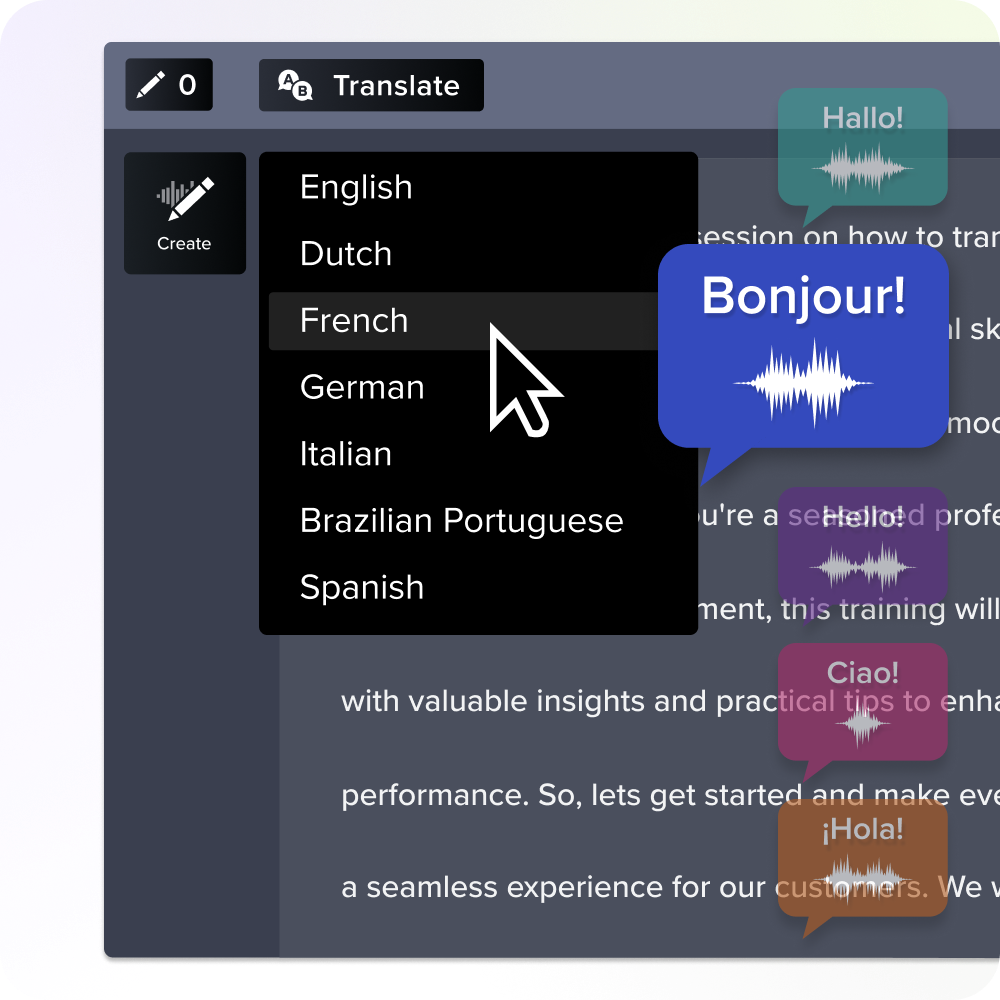
The fragmented toolchain problem
Most training teams script in one tool, record in another, edit in a third, and share drafts over email. Each handoff creates a new opportunity for version confusion.
When a compliance video needs SME, manager, and legal approval, the SME emails feedback on version 2, while legal reviews version 3. Now you’re reconciling conflicting notes across file attachments, rebuilding edits you’ve already made.
Instead, consolidate review inside a single platform. Scattered tools generate rework that compounds with every revision cycle.
What purpose-built L&D tools solve that general AI tools do not
General AI tools generate content. Purpose-built L&D tools help you maintain it. When a quarterly software update requires revising a 10-module course, editable assets, clean narration editing, and LMS-ready export matter more than regenerated drafts.
Look for these capabilities when evaluating tools:
- Editable screen recordings with reusable templates
- Automatic captions for accessibility compliance
- Structured stakeholder review workflows
- One-click LMS export
The Camtasia Product Suite covers all of the above (and more).
Two types of AI tools L&D teams need
There are two different kinds of AI tools that support L&D teams:
- Production AI helps you create content faster.
- Delivery AI personalizes learning after it’s published.
Most roundups mix these together, which leads to mismatched purchases. A team struggling to produce timely screen-based lessons, despite having a capable LMS, needs production AI first.
Your bottleneck tells you which kind of tool to focus on: creation or distribution. That answer narrows your shortlist immediately.
Production-side AI tools: How they reduce time-to-publish for L&D teams
AI editing tools cut the most time in the areas where small teams feel the most pain: Fixing recordings after the fact.
You know the feeling when a SME sends over a product walkthrough full of pauses, filler words, and rough narration. Instead of scheduling a rerecord, open that file in Camtasia Audiate and edit the transcript directly. Delete filler words as text, and the audio removes itself.
Run one existing narrated tutorial through Audiate’s transcript-based cleanup and count how many re-records you eliminate.
Delivery-side AI platforms: How they personalize content once it reaches the learner
Adaptive learning platforms work after your content is published. They recommend sequences, surface reinforcement content, and reroute learners based on performance. For example, someone who misses a quiz checkpoint might automatically receive a refresher module.
Research on adaptive learning systems links them to improved post-test scores across diverse study contexts. But that benefit only materializes when the underlying videos are already well-structured and clearly segmented.
Before connecting to any adaptive platform, audit your videos for clean chapter breaks and consistent pacing. That structure is what the platform uses to route learners.
AI tools for training video production: A workflow-based roundup
Each tool below maps to a specific point in your production workflow: scripting, recording, editing, or publishing. L&D teams maintaining training libraries need tools that reduce handoffs, so ask one question per tool: Does it slot into a step you already own?
Camtasia Editor: Screen recording and AI-powered video editing built for training teams
Camtasia Editor is the production hub for training teams that need full timeline control alongside a clean, LMS-ready export. It handles multitrack recording, branded templates, captions, cursor effects, and SCORM packaging in one place.
With Camtasia Editor, you can record your screen, camera, system audio, and microphone on separate tracks. When a process changes, just swap out the individual track instead of rerecording the whole thing.
For an enterprise onboarding walkthrough that has to stay on-brand and deploy into a corporate LMS, Camtasia Editor handles the entire workflow:
- Capture the software demo.
- Apply a branded template.
- Generate captions for accessibility.
- Export a SCORM package that your LMS accepts without conversion.
If you’re evaluating AI-powered screen recording tools for your team, Camtasia Editor’s combination of real capture, editing depth, and export readiness puts it in a category most general-purpose tools can’t match.
Camtasia Audiate: Transcript-based audio editing and AI narration for narrated video
Camtasia Audiate turns your recording into an editable transcript. Delete a word in the transcript, and the audio and its linked Camtasia Editor video update automatically. You skip manual clip trimming and realignment.
This matters most for narration-heavy training. A non-native speaker recording a product walkthrough can capture a rough take, then clean up mispronunciations and filler words directly in the transcript before anyone decides whether to rerecord.
Import a rough SME recording into Camtasia Audiate and use the filler-word removal tool. You’ll often salvage usable audio in minutes instead of scheduling a re-recording session.
Camtasia Audiate also supports AI-generated voices, avatars, and translation for teams that need multilingual content quickly. Disclose any AI-generated voice or avatar to your audience, since it’s both an ethical baseline and, increasingly, a viewer expectation.
Camtasia Online: The zero-friction starting point for teams new to AI-assisted video
Camtasia Online runs entirely in a browser. You can start immediately without downloading software, submitting an IT request, or waiting for setup. A remote subject-matter expert can record their screen, camera, and microphone on separate layers at up to 1080p resolution across unlimited scenes, each up to five minutes.
One-click layout automatically arranges the camera feed and screen recording into a clean, professional composition. So it’s an ideal first step for SMEs to contribute quick tool walkthroughs. You can move recordings into Camtasia Editor later for deeper editing when the content warrants it.
Need to show your screen?
Skip the downloads. Use Camtasia online to record your screen, camera, and microphone right in your browser for free.
Start Recording
Screencast: Stakeholder review and approval built into the production workflow
Review and approval are often the points at which training projects stall. Screencast eliminates that bottleneck by letting you share a direct link to any Camtasia Online, Camtasia Editor, or Camtasia Snagit output and collect time-stamped, frame-specific comments from reviewers.
So when a compliance reviewer needs to check a safety module before launch, instead of emailing a file and waiting for vague written notes, you can send them a link to comment directly on the video, without an account or paid license.
They click a specific frame, leave a comment, and you see exactly what needs fixing.
Descript, Synthesia, and HeyGen: Alternative formats for teams beyond screen recording
Descript, Synthesia, and HeyGen each serve specific formats well. Descript suits transcript-based editing, while Synthesia and HeyGen work for avatar-led modules, like a policy overview that doesn’t need any screen interaction.
The tradeoff matters most when your core workflow depends on accurate screen recordings. An avatar can’t show the exact clicks inside your LMS or CRM, but a real product demo requires the actual interface.
These tools also add handoffs. You export, import, and re-sync assets across platforms every time content updates.
If screen-based walkthroughs are your primary output, check the full comparison of Synthesia alternatives to see how each tool fits before committing to a stack that adds friction.
AI platforms for adaptive learning delivery
Delivery platforms personalize and route existing content, so evaluate them after you have a reliable production workflow. An enterprise with a large training library but poor content discovery benefits most from this category.
Docebo: AI-powered LMS with personalized learning path recommendations
Docebo handles what happens after your videos are exported, from delivery to assignment and completion tracking. Once you’ve finished editing in Camtasia Editor, upload the content to Docebo and assign it by role.
For example, new hires in a sales role could automatically receive mandatory onboarding modules, while managers track completion via a central dashboard. Docebo’s AI even recommends follow-on courses based on each learner’s progress.
Degreed and EdCast: Learning experience platforms for skills-based content curation
An LMS delivers assigned training, whereas a learning experience platform (LXP) like Degreed or EdCast surfaces relevant content from many sources (internal videos, LinkedIn Learning, articles) based on role and skill gaps.
A customer support team lead, for example, might see optional Screencast-hosted videos alongside curated external resources, all mapped to their career pathway.
These platforms organize content discovery, filling a separate role outside video production workflows.
How to evaluate AI video tools as an L&D team: Five criteria that matter
Score shortlisted tools against five criteria: export compatibility, audio cleanup, stakeholder approvals, update speed, and governance for responsible AI use.
In other words, a distributed training team choosing between two tools should weigh approvals and update speed heavily if subject matter changes frequently. For governance guidance, see the HUMAN Framework for AI training videos.
SCORM and LMS export compatibility
Before evaluating any other features, confirm that the tool exports SCORM packages your LMS accepts. A tool that produces great video still wastes hours on every course launch if its packages are incompatible with your LMS.
Check three things against your LMS documentation: the SCORM version supported (1.2 or 2004), the packaging format, and the completion reporting fields. An annual compliance module that must log completion in Cornerstone or Workday has zero tolerance for export mismatches.
Filler word removal and audio cleanup for non-native speakers and SMEs
Subject matter experts often deliver strong content but record in noisy offices with frequent pauses. Camtasia Audiate removes filler words and background noise directly from the transcript, so teams rarely need to rerecord.
Record a rough two-minute narration, run cleanup in Audiate, and compare that time against a full retake. Most SMEs save significant time immediately. When expert narration is usable on the first pass, it keeps production moving without demanding studio conditions.
Stakeholder review and approval workflow support
Scattered email feedback stalls launches, but a structured, time-stamped review workflow gives every stakeholder a clear place to comment and approve.
Use Screencast to route videos directly to reviewers with timestamped comments. Send a revised safety module to an L&D manager, an SME, and a compliance reviewer simultaneously, each one pinning feedback to the exact moment that needs a fix.
Why L&D teams that already record screens need a connected workflow
For most screen-recording teams, lost time lives in handoffs. Teams record a video, export it, email it, review it in a separate tool, revise it, and export it again. Each transfer adds delay.
Take a team updating monthly software release training across several reviewers. When they can capture in Camtasia Editor, clean narration in Camtasia Audiate, and review via Screencast, that cycle shortens significantly.
But as you expand into AI-assisted workflows, do it responsibly. According to McKinsey research, AI delivers productivity gains for most workers, but governance and human oversight are gaps most organizations haven’t closed.
See what a connected Camtasia workflow looks like for your training team
With the Camtasia Suite, your L&D team can capture video in Camtasia Online or Camtasia Editor, clean narration in Camtasia Audiate, then send the draft to stakeholders via Screencast for timestamped feedback, all before exporting an LMS-ready file.
You stay in one connected workflow from start to finish, and that matters. The teams that get the most from AI-assisted training production are the ones that connect capture, cleanup, review, and delivery into a single workflow.
Workflow design, not tool count, predicts success. Production fit, delivery format, human oversight, and LMS compatibility are the questions that separate tools worth integrating from tools worth skipping.
Start your free Camtasia trial and build your first connected training workflow today.
FAQs
What is the best AI video creation tool for training teams that already use screen recording?
For teams that already record screens, Camtasia is often the best fit because it keeps recording, editing, reviewing, and LMS export connected. Camtasia Editor handles capture and timeline work, Camtasia Audiate speeds narration cleanup, and Screencast simplifies stakeholder feedback without a separate handoff. That connected workflow may help training teams publish more quickly while keeping SMEs, reviewers, and compliance requirements within the same process.
Why do screen recording teams need more than a general AI video tool?
General AI video tools often solve a single task, like avatars or transcript edits, but leave teams stitching together recording, approvals, and packaging. That fragmented toolchain can slow reviews, create version confusion, and make routine updates harder for trainers who publish often. A purpose-built workflow usually works better when your team needs screen capture, AI cleanup, structured feedback, and SCORM-ready output in one place.
What AI tools can help instructional designers and educators?
Most instructional designers need two categories: production tools for making training videos, and delivery platforms for personalizing learning after launch. On the production side, Camtasia Editor and Camtasia Audiate may help with screen recording, transcript edits, captions, and AI-generated narration that should be disclosed. On the delivery side, platforms like Docebo and Degreed focus on recommendations, skills paths, and learner progress, while Cornerstone now offers EdCast capabilities following the acquisition.
What is the difference between an LMS and an LXP in the context of AI?
An LMS manages assigned training, completions, and reporting, while an LXP curates learning from many sources around roles, skills, and interests. With AI, LMS platforms often emphasize personalized paths inside formal programs, while LXPs emphasize recommendations and discovery across broader content libraries. Many training teams need both: a production workflow for video creation, and a delivery platform that surfaces the right module at the right time.
How do adaptive learning platforms personalize training content?
Adaptive platforms adjust sequence, difficulty, pacing, or support based on learner behavior, which may help reduce frustration and improve time on task. For video programs, that can mean recommending a short refresher, extra practice, or a different module after the quiz or viewing results. They work best when the source content is clear, segmented, and easy to export from your production workflow into the LMS.
Share