









Most customer education teams have a favorite format, and video usually wins. A team ships a great onboarding video, watches engagement numbers climb, then starts routing every new customer moment through the same camera and timeline, whether it fits or not. Renewal reminders, policy updates, and quick reference answers all get the same video treatment, even when a screenshot or a short doc would serve the customer faster.
The issue is treating customer education formats (the different content types like videos, documentation, webinars, and interactive guides that teams use to teach customers how to succeed with a product) as one-size-fits-all instead of a decision tied to the moment. Each format solves a different problem, and most programs go wrong when they treat format choice as a preference.
Customer education leaders need a repeatable framework for matching format to moment and segment, so activation speeds up, self-service scales, and production time stops multiplying with every new customer touchpoint.
Key takeaways
- Identifying the customer moment, such as onboarding, activation, adoption, renewal, or launch, has to happen before any format gets chosen, not after.
- The same customer moment can call for different formats depending on account size, technical background, or user experience level.
- Video works best for activation moments involving multi-step, motion-based workflows that static text struggles to show clearly.
- Documentation outperforms video for reference moments because customers want to look up one step, not rewatch an entire explanation.
- A single Camtasia Snagit Step Capture can become a documentation article and a narrated video without a second capture session.
The moment comes before the format
There are five customer moments: onboarding, activation, adoption, renewal, and launch. Before your team chooses video, documentation, or a webinar, figure out which moment you’re creating the content to support. That answer should drive everything else.
Each moment asks customers to do something different:
- Onboarding gets a new customer set up.
- Activation moves them to first value.
- Adoption deepens use of features they haven’t touched yet.
- Renewal reinforces the value they’ve already gotten.
- Launch introduces something new to people who already know your product.
Defaulting to one format without naming the moment first rarely holds up. Adding a video to a moment that calls for searchable reference material doesn’t close the gap, and a static doc for a motion-heavy activation task won’t either.
Match the segment to the moment
Customer moment alone isn’t enough, because account size, technical background, and experience level all change which format will actually work, even for the same moment in the customer journey. Activation looks different for an enterprise account than for a small and medium-sized business (SMB) account, and different again for a technical buyer versus someone who just needs to see the workflow in action.
You’re likely managing several of these segments inside one education program, without the capacity to rebuild every asset for every group. The next three comparisons give you a repeatable way to vary format by account size, technical background, and experience level, without starting from scratch each time.
Enterprise accounts versus SMB accounts
Enterprise accounts justify higher-touch, live formats for a given customer moment, while SMB accounts need self-service, on-demand formats for that same moment. A live webinar, a dedicated documentation set, or a guided onboarding session all take staff time to plan and deliver, and enterprise account value supports that investment.
A product launch shows the split clearly. An enterprise account gets a live session covering the release, followed by dedicated documentation the team can reference afterward. An SMB account gets a recorded video walkthrough of the same release paired with a short reference guide, no scheduling required on either side.
Technical buyers versus non-technical buyers
Technical buyers need searchable, detailed documentation for evaluation, while non-technical buyers respond better to a short instructional video. An IT admin or developer wants to jump straight to a specific configuration step, not sit through a linear explanation to find it. A business stakeholder or end user wants to watch the workflow happen once and repeat it.
You don’t need two separate projects to serve both. Capture the workflow once, turn the precise steps into a documentation article for the technical audience, and use that same source material to produce a short instructional video for the non-technical audience.
New users versus power users
New users benefit from short videos that build confidence during their first workflows, while power users need searchable reference material they can scan without sitting through an explanation they’ve already learned.
Video builds early confidence and gets new users comfortable with a workflow faster than a text description. But once a customer knows the product, the same video becomes friction. They want to search for one step, not rewatch the whole thing.
Plan for both. Pair a short video that walks a new user through their first key workflow with a searchable documentation article covering the same ground. New users get the confidence a video provides, and returning users can search the article for one step instead of rewatching.
Use video for activation moments
Video fits activation moments because it shows a multi-step, motion-based workflow that static text can’t capture as clearly for a first-time user. When a customer has to click through several screens in a specific order, watching the sequence beats reading about it. Skip video when a quick answer solves the task. Save the motion for workflows that need it, and retention follows.
Make great tutorial videos
Camtasia makes it ridiculously easy to make tutorial videos that keep your viewers engaged.
Free Download
Guided visual sequencing shortens time-to-first-value, which is the metric that matters most to leaders tracking activation. In Camtasia Editor, Screentelligence-powered cursor effects draw the viewer’s eye to each step without forcing a full re-record every time the user interface shifts slightly.
Use documentation for reference and adoption moments
Documentation fits reference and adoption moments because customers can search for one step without replaying a full explanation. That’s true for a new user looking up a specific setting and for an experienced user trying to get more out of a feature they’ve already activated.
Adoption moments, where the goal is deepening use of features a customer hasn’t fully explored yet, often call for documentation over video for the same reason. A customer who already knows the product doesn’t need a walkthrough from the beginning. They need a targeted answer to a specific question about a capability they haven’t used.
Screenshots with callouts make that lookup faster. A reader can scan a numbered image and spot the right button, instead of scrubbing through footage to find one moment. Camtasia Snagit’s Step Capture feature turns a process into a static, numbered guide quickly, and the screenshots it captures can also feed a video later if that moment calls for one.
You can measure whether your documentation structure is working. Zendesk’s self-service score, calculated as help center sessions divided by ticketing users, gives you a concrete way to track whether documentation is deflecting support tickets.
Use webinars for launch moments
Webinars fit launch moments because their live, synchronous format creates urgency and real-time engagement around a new feature or release. When you ship something new, customers have questions you can’t fully anticipate in a script. A live session lets them ask about edge cases, integrations, and timing right when it matters, something no pre-recorded video can offer.
Set your attendance expectations before you promote the event. The average webinar show-up rate was 47.7% in 2025 across more than 33,000 sessions, so plan your registration goals with that gap in mind.
Record every launch webinar. The live session creates urgency, but the recording extends that value past the event window, giving customers who missed it a way to catch up on demand. If you host the webinar on Zoom, Camtasia Editor’s direct Zoom integration (available in version 2026.1.0 and later) pulls the cloud recording straight into the timeline, splitting speaker audio, speaker view, and shared screen content into separate tracks automatically and skipping the manual download and re-upload step.
Decide how you’ll repurpose the recording before you go live, not after. A quick edit turns it into a standing reference asset instead of a one-time event that disappears once the calendar invite closes.
Use a light-touch recap for renewal moments
Renewal moments call for something different from the formats that work at earlier stages. A customer approaching renewal already knows the product. They don’t need a walkthrough or a live Q&A. They need a clear, concise reminder of the value they’ve already gotten.
A short personalized recap works well here: a brief recorded summary, a documentation page that highlights usage milestones, or a targeted email with a link to the moments the customer has already completed.
The format is less important than the signal it sends, which is that your team has been paying attention to how they use the product. Keep renewal content lightweight and scannable. A customer who’s already invested in your product doesn’t need to be re-onboarded. They need confirmation that the investment was worth it.
Onboarding as the composite moment
Onboarding is the one moment where the format choice often needs to be both, not either/or. A new customer needs to complete a setup workflow, which calls for video, and then immediately needs a reference point for the steps they just learned, which calls for documentation.
The good news is you don’t have to build both from scratch. One Camtasia Snagit Step Capture session produces the numbered documentation guide and the video source in the same sitting. The documentation article covers the steps a customer can search later. The onboarding video walks them through those same steps in motion for the first time.
That composite approach also sets up the rest of the customer journey. A customer who onboards with both a video and a reference article is better positioned for adoption, because they already know where to look when they’re ready to go deeper.
Turn one Step Capture into a documentation article and a narrated video
One Camtasia Snagit Step Capture guide can produce documentation and narrated video outputs without a second capture session. Instead of rebuilding a walkthrough from scratch for each format, start with Camtasia Snagit’s Step Capture, which produces a static, numbered guide of the process. That same guide can then move into Camtasia Editor, where narration and editing turn it into a finished video.
Go from screen recording to polished video
A screen recording is just the start. Camtasia’s editor helps you add the callouts, animations, and edits you need to create a truly professional video.
Free Download
Produce a documentation article from the capture
Turn on Step Capture in Camtasia Snagit and walk through the workflow once. Each click generates a numbered step with its own screenshot, in order, ready to use.
Keep that numbered structure as the backbone of your documentation article. It’s already organized the way a reference reader scans: one step, one action, one image.
Produce an onboarding video from the capture
Open the Share menu in Camtasia Snagit and send the guide straight into Camtasia Editor’s timeline. That import auto-applies transitions, callouts, cursor motions, and image animations across each step, giving you a working video draft before you’ve recorded a single word.
From there, treat that auto-applied sequence as a starting point. Record narration in Camtasia Editor that talks new customers through each step, matching your voice to the pacing the import already set up.
If the interface changes later, you don’t need to start over — re-record only the segment tied to the changed step, since the guide’s chunked structure keeps the rest of the walkthrough intact.
Produce a webinar asset from the capture
The same walkthrough becomes webinar-ready two ways: as the live screen-share segment a presenter walks through during a launch event, or as the polished on-demand recording that lives in your library afterward.
The presenter shares the original capture live, and tightens that same file in Camtasia Audiate afterward, where cutting filler words and dead air works by editing text transcriptions. If you regenerate narration with an AI voice so the on-demand version stays current after a launch changes, disclose that the audio is AI-generated, following your organization’s disclosure requirements.
Once the on-demand cut is ready, route it through Camtasia Screencast for stakeholder review so feedback lands in one place before publication.
Annotate and edit screenshots with Snagit
Professional mark-up tools and powerful features make it easy to create helpful images.
Try it Free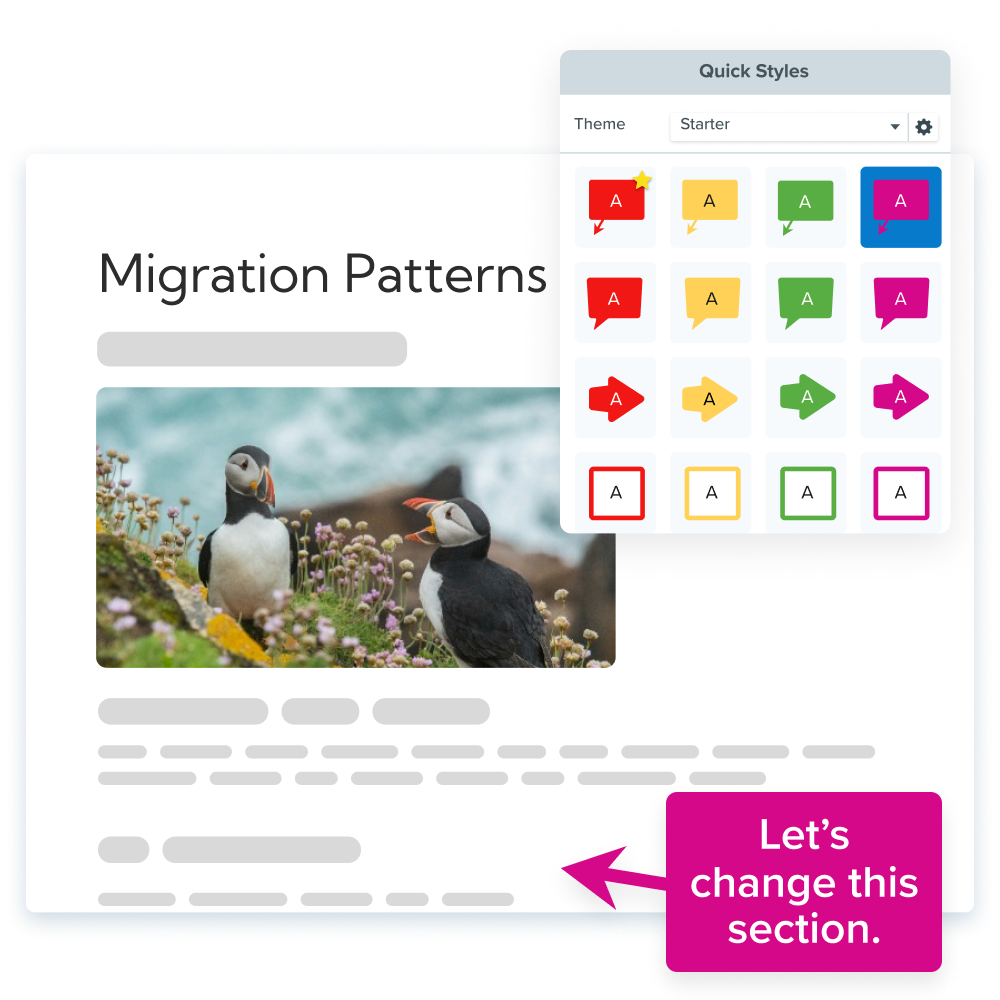
Choose the format, then build it fast
The moment and the segment tell you which format earns attention, whether that’s a quick walkthrough for a trial user stuck on setup or a longer guide for an admin managing a rollout. The production workflow is what makes that call affordable to repeat for the next launch.
Camtasia makes it easy to capture your processes one time, then create multiple assets to fit the right customer education moment. Create one screen capture, then have the flexibility to turn it into a quick-start video for new sign-ups, a step guide for the help center, or a refresher clip that support can send during a ticket with no re-recording for your team.
Let Audiate write your script!
No more blank pages! Instantly generate amazing, customizable scripts in any length, tone, and style!
Get Audiate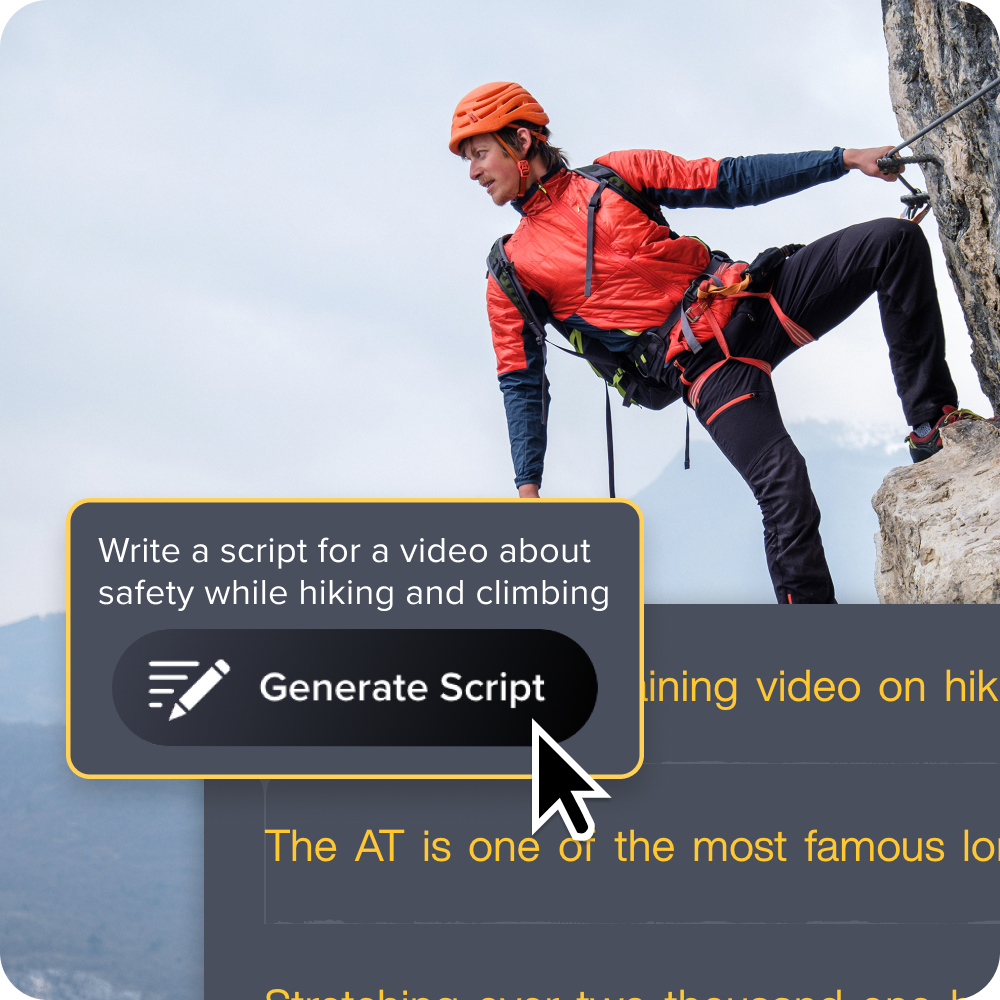
Frequently asked questions
Which format works best for adoption and renewal moments?
Adoption moments benefit from short, feature-specific tutorials or in-app guidance that deepen use of capabilities customers already activated. Renewal moments often call for a personalized recap, such as a webinar-style review or a documentation summary that shows measurable value delivered. Both moments tend to work better as a light combination of formats rather than a single asset.
Where do interactive in-app walkthroughs fit into a customer education format strategy?
In-app walkthroughs and tooltips work best for adoption moments where customers need guidance without leaving the product interface. They complement recorded video and documentation rather than replace them, since they guide a single action instead of explaining a full workflow. Many teams pair a short recorded walkthrough for context with an in-app prompt for the moment a customer actually needs the step.
What should a team do if it only has bandwidth to build one or two formats well?
Prioritize the format that matches your highest-volume customer moment, which for most programs is activation, since that’s where teams decide time-to-first-value. A single, well-produced onboarding video paired with a short reference document often covers more ground than a rushed webinar or course. Recording once and pulling both a video and documentation screenshots from that same capture, rather than producing each from scratch, keeps limited teams moving.
How do you know if a customer education format is actually working?
Each format needs its own success metric, since a webinar and a help article don’t succeed the same way. Track time-to-first-value for activation video, a self-service score for reference documentation, and attendance plus post-event views for launch webinars. If a format isn’t moving its metric, revisit whether it matches the moment, not just its production quality.
How often should customer education content be updated or refreshed?
Update cadence should follow product change frequency rather than a fixed calendar, since a stable feature needs far less maintenance than one under active development. Designing videos with simplified UI graphics, custom cursor control, and small recording segments in Camtasia Editor makes updates faster when only one screen changes. A minor UI tweak rarely requires a full re-record, so plan for chunked, update-friendly production from the start rather than one long, rigid recording.
Share