









Your software development team pushes a minor update. They swap a sidebar menu, tweak a login button, or restyle a dashboard. Suddenly, a dozen training videos are outdated.
Remaking training videos from scratch for every minor user interface change is a systems failure, not a workload problem. L&D backlogs grow because teams lack a repeatable update strategy. To break this cycle, you need a clear decision framework that shows you what to update, when to rebuild, and how to design your assets to handle both scenarios.
By building content with future maintenance in mind and mastering targeted editing techniques, you can keep your training video library organized and up to date without starting over for every change.
Key takeaways
- Your update backlog is often a design problem: videos built in modular chunks are far easier to fix than monolithic recordings.
- Not every UI change requires a remake. If learners can still follow the workflow, the video may be fine until more changes accumulate.
- Simplified UI graphics age better than live screen recordings, making them a smart swap for software that frequently updates its interface.
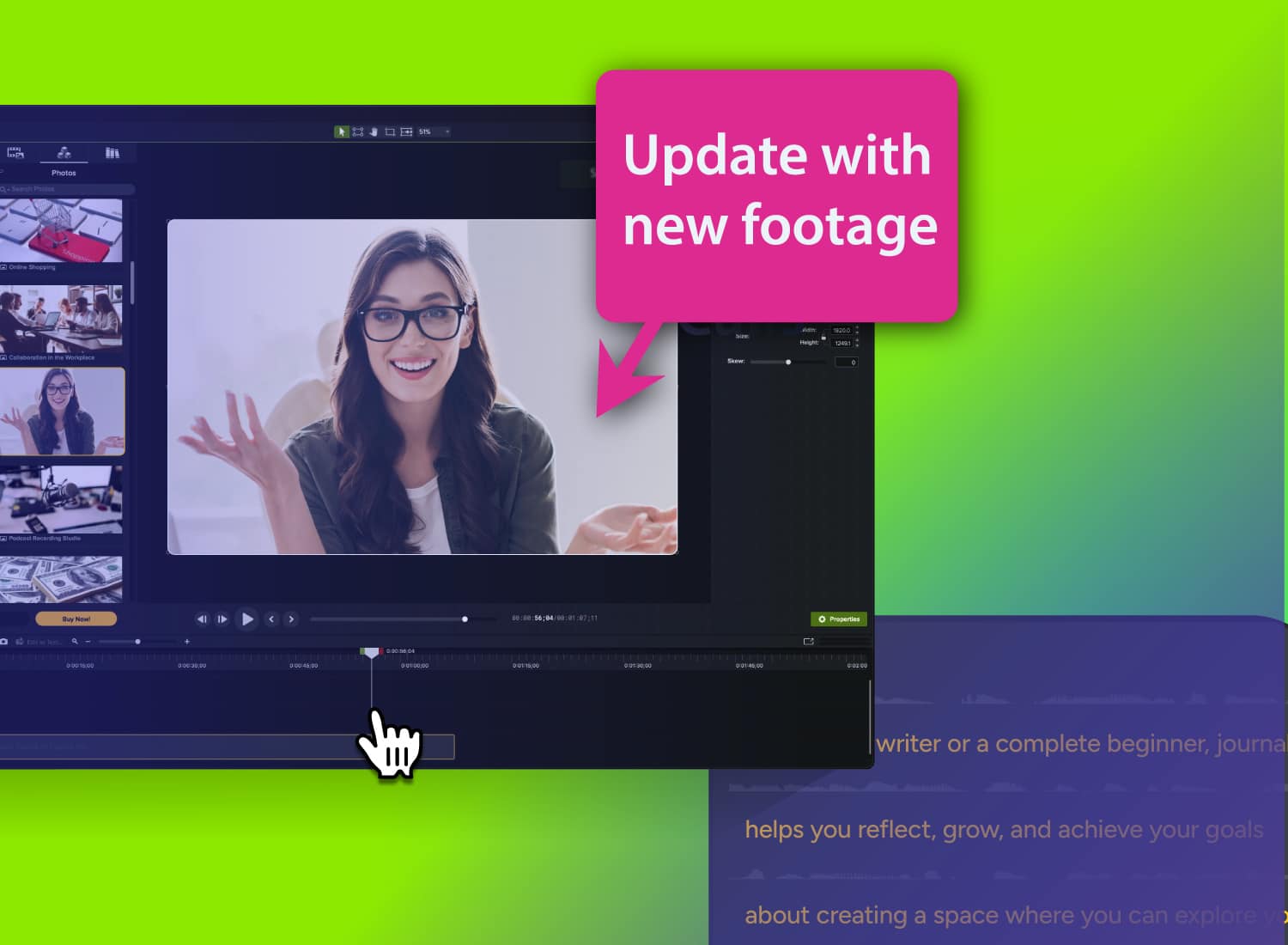
- Overlaying a cropped screenshot in Camtasia Editor can replace outdated UI footage without touching the original recording.
- AI voices in Camtasia Audiate let you update narration by retyping a line and regenerating the audio, eliminating the need for re-recording sessions.
Not every UI change demands a full remake
L&D teams often over-respond to UI changes out of a desire for perfect visual alignment. But updating every visual difference can quickly create an unnecessary video backlog. Instead, distinguish between cosmetic differences and functional gaps.
A cosmetic difference is a visual mismatch that doesn’t impact usability, like a button changing color. A functional gap is a change that disrupts the user journey, such as a renamed menu item or a relocated feature.
Ask yourself if the learner can still successfully complete the task by watching the current video. If the answer is yes, wait. Learners can generally adapt to minor visual differences when the steps and labels remain clear.
Visual consistency still matters, but it does not need to be perfect for learners to complete a task successfully. Save your editing resources for functional gaps that cause confusion, and let cosmetic changes wait for a broader scheduled refresh.
Build for updates before you hit record
The most effective video update strategy starts at production planning, not during the editing phase. Making three upstream decisions during pre-production can prevent hours of future rework and help you keep video training consistent across your organization.
Chunk your recordings into modular segments
Avoid recording continuous, long process walkthroughs. If a step in the middle changes, you may need to re-record a larger portion of video to maintain a seamless transition.
Instead, break your content into short, independent modules. Capturing content in small chunks means updating one segment rather than re-recording everything. This approach also reduces cognitive overload for viewers and follows microlearning best practices.
A 2025 comparative analysis confirms that microlearning structures significantly enhance long-term knowledge retention and post-training job performance compared to traditional, long-form methods.
When you record, capture your screen, camera, and audio on separate tracks. Because Camtasia Editor records these elements on separate tracks by default, you can replace a short screen segment without affecting your existing voiceover or camera tracks. This makes it simple to maintain your video knowledge base over time.
Build your next training video with Camtasia
Record your screen or camera. Then, use the video editor to add polish and clarity.
Learn More
Assign a quality tier before production starts
Run each project through a quick two-question test to assign a quality tier:
- Is this asset permanent or temporary?
- Is this UI expected to change within the next six months?
Skipping the tier decision can lead teams to over-engineering short-lived process guides as though they were permanent onboarding assets. For temporary or frequently changing content, use direct screen recordings, plain narration, and clean cuts.
Save your high-end design, flawless animations, and advanced edits for permanent, high-impact Tier 1 assets. This keeps you from over-engineering short-lived content and lets you apply eLearning video best practices where they matter most.
Replace live UI footage with SUI graphics
For highly visible Tier 1 training videos, live screen captures can become dated quickly. An effective alternative is using simplified user interface (SUI) graphics.
SUI graphics are stylized, tool-agnostic visual representations of software that filter out nonessential details — such as dense text, secondary icons, and avatars — and focus on the key interactive elements.
Because SUI graphics reduce visual noise, they help learners process and retain key steps more quickly. They also tend to age better than detailed live screen recordings. SUI graphics created in design tools like Figma can be swapped without touching the underlying video.
If your designers build SUI templates, you can tweak a button color or text label in your master graphic, import the updated image into Camtasia Editor, and swap it on your timeline without setting up a new live recording session.
Surgical fixes for videos already in your library
If you’re already facing a backlog of older videos, you don’t have to discard your existing files. Two Camtasia Editor workflows let you update your existing footage without re-recording.
Overlay screenshots to replace outdated UI
If a developer changed a single menu layout, you don’t need to re-record the entire sequence. Instead, do a screenshot overlay:
- Take a high-resolution screenshot of the updated interface element.
- Import the screenshot into Camtasia Editor and overlay it onto a track directly above your outdated video clip.
- Use the Crop tool to isolate only the specific button or menu that has changed.
- Scale and position the cropped screenshot directly over the outdated element on the video canvas.
This technique takes little time, requires no screen-recording, and works even if you no longer have access to the original project files.
Edit cursor paths without re-recording a single frame
When a UI change shifts a button from the left side of the screen to the right, your recorded cursor path will point to empty space. Traditionally, this means recording the action again.
Camtasia Editor solves this with the Cursor Path Creator effect. This tool overlays a custom cursor onto existing footage, allowing editors to control movements and clicks.
If a button moves, you can click on the cursor path points on your canvas, drag them to the button’s new location, and adjust the timing on the timeline. With the updated cursor path, your cursor will glide to the correct spot.
Update audio in seconds, not sessions
While editing video clips is relatively straightforward, updating audio can be more time-consuming. If a single line of your video’s script becomes obsolete, you have to find the original speaker, match their microphone setup, and attempt to patch the new line into the existing track without a jarring jump in audio quality.
With Camtasia Audiate, AI-narrated projects can often be updated without scheduling another recording session. Audiate adds generative AI and text-based editing to the Camtasia Product Suite. Instead of editing directly from an audio waveform, Audiate transcribes your audio so you can edit it as text.
If you use one of Camtasia Audiate’s lifelike AI voices to narrate your training content, making an update is simple:
- Double-click the text box in your Audiate script to open Scripting Mode.
- Remove obsolete phrases and enter new instructional text.
- Click Done Scripting to automatically regenerate the AI voiceover to match your new text.
Your updated, professional narration can then be returned to the Camtasia Editor timeline and aligned with the visuals.
Pro Tip: If your company requires human voiceovers rather than AI voices, record a few alternative scripts during your first voiceover session. Keeping those pre-recorded backup lines in the project file makes future updates easier. This is also a great way to personalize training videos.
If you can edit a doc, you can edit a video
Stop fearing the timeline. Camtasia Audiate transcribes your recording so you can edit your video just by editing the text.
Free Download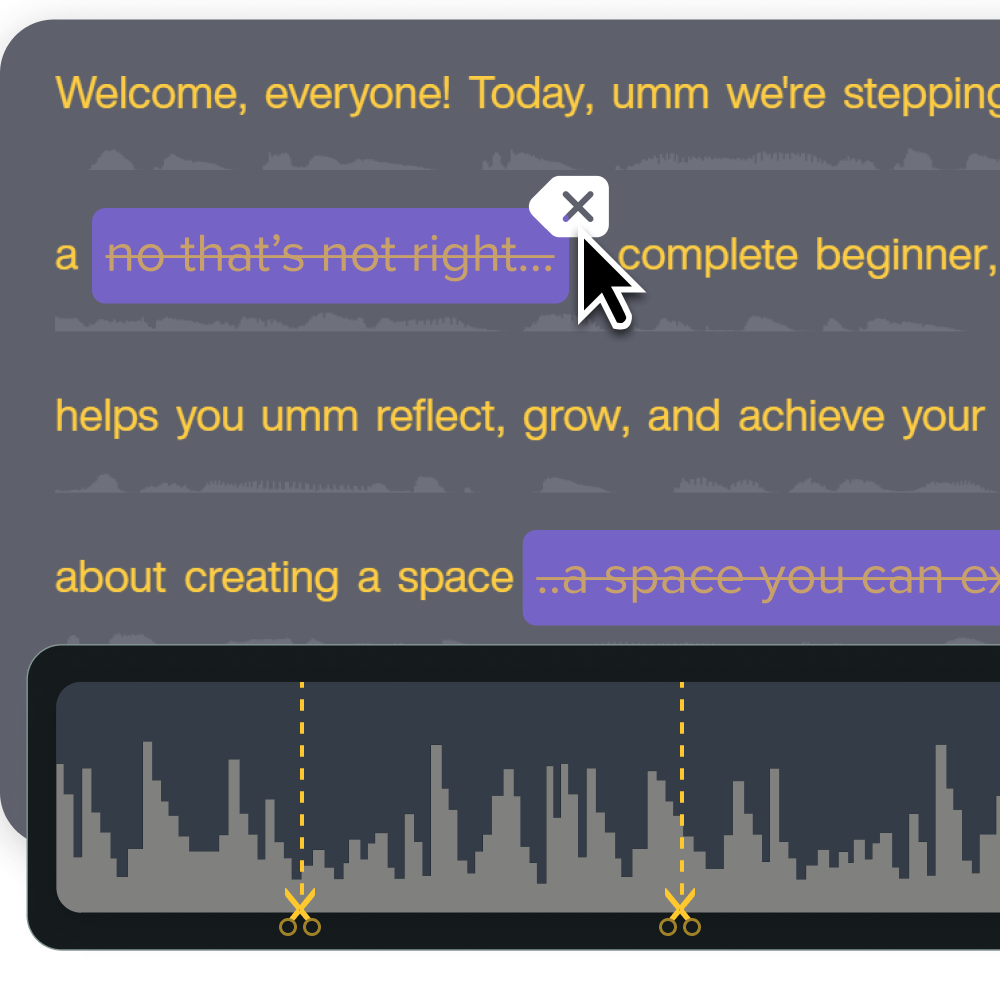
A real team replaced eight videos in weeks, not months
An instructional design team needed to update eight employee onboarding videos after a company-wide software redesign. Under their old workflow, re-scripting, booking voice talent, capturing new screen recordings, and getting approvals would have taken months.
Instead, the team used a modular, SUI-based strategy.
First, they divided production duties. While one writer updated the scripts, a designer built a shared library of SUI assets representing the new interface. Dividing the SUI work across the team prevented the single-person bottleneck that can often stall video updates.
They imported the new SUI graphics with Camtasia Editor and overlaid them onto the existing video project files. They updated the narration using Audiate’s text-based workflow. By combining these targeted techniques, the team completed all eight updates in just two weeks — saving months of production time.
Faster review cycles keep updates from stalling
Even if you can edit your video in 10 minutes, the update process can still stall if your draft gets delayed by a slow or fragmented stakeholder review process. Collecting review notes via scattered emails, chat messages, and spreadsheets can be time-consuming.
To centralize the feedback in one place, use Screencast — the cloud-based review tool integrated directly into your Camtasia Product Suite.
With Screencast, you can share your draft with a single link. Stakeholders can pause the video, write a comment, and use the Conversations feature to draw annotations directly onto the video screen to show you what needs to be fixed. Every piece of feedback is organized, time-stamped, and centralized in one place.
Your update backlog is a design problem, not a workload problem
When training video updates feel overwhelming, it’s almost always because the videos were originally built without an update workflow in mind. By chunking your recordings, leaning on SUI graphics, patching timeline footage, and using text-based audio editing, you turn a time-intensive rebuild into a much smaller editing task.
The Camtasia Product Suite handles every step of this workflow. From screen recording and timeline edits to AI-powered audio generation and centralized team feedback, you have everything you need to keep your content up to date and accurate.
When you design training videos with future changes in mind, maintaining your library becomes faster and more manageable.
Explore the full Camtasia Product Suite to find the tools that support your training video creation and maintenance workflow.
Frequently asked questions
Do I really need to update a training video every time the UI changes?
Not always. If learners can still follow the workflow despite a visual change, it’s often fine to wait until several updates accumulate before remaking anything. The real trigger for an update is a functional gap that blocks comprehension, not a cosmetic difference.
What’s the single most effective thing I can do before recording to make future updates easier?
Record in modular chunks rather than as a single continuous take. When a specific step changes, you replace only that segment, rather than re-recording the entire video. This one decision saves more time than any editing trick you can apply after the fact.
Is it really possible to fix outdated UI footage without re-recording the screen?
Yes, and it’s faster than most L&D professionals expect. Take a screenshot of the updated interface, import it into Camtasia Editor, overlay it on the outdated clip, then crop and reposition it to match the original framing. If the workflow itself changed, the Cursor Path Creator lets you adjust cursor movement across the video without touching the underlying footage.
How do AI voices in Camtasia Audiate actually hold up when I need to update narration months later?
This is a fair concern, and the honest answer is that consistency depends on using the same AI voice and settings each time. When you do, updating narration means editing the script text and regenerating the audio, which is generally much faster than scheduling a new recording session. Note that Camtasia Audiate’s AI voice output is AI-generated, so check your organization’s disclosure requirements before publishing.
Should every training video in my library get the same level of production quality when updated?
No, and treating every video the same is one of the main reasons update backlogs grow out of control. Assign a quality tier before production starts: a permanent onboarding video warrants more polish than a short-term process guide. A lower-tier video can use jump cuts and simpler graphics without sacrificing learner comprehension.
Share