









You’ve got a new hire staring at a CRM they’ve never touched, a sales rep about to walk into a call with outdated talking points, and a compliance deadline that landed on your desk this morning. None of them have time for a 45-minute course.
Microlearning examples are short, self-contained lessons that teach one specific action or decision employees can apply immediately. Think of videos your team can watch in the three minutes before they need the answer, like software walkthroughs, objection-handling scenarios, policy-change explainers, support clips, and frontline task refreshers.
You already know why microlearning works. What you need now is a categorized set of real examples across onboarding, sales, compliance, support, and frontline work, plus a production workflow your team can run without a video background.
Capture quickly in Camtasia Online, polish for clarity and brand consistency in Camtasia Editor, and clean up narration in Camtasia Audiate.
Key takeaways
- Effective microlearning examples focus on one practical objective and often keep video training between two and five minutes.
- Onboarding microlearning helps new hires learn role-specific software, culture, and policies without sitting through long training sessions.
- Sales and compliance examples work best when short scenarios show learners how to handle realistic decisions, objections, or policy changes.
- Frontline task refreshers, customer support clips, and feature walkthroughs provide just-in-time support that employees can revisit when they need to complete a specific task.
- Teams can record short examples in Camtasia Online, then use Camtasia Editor to improve clarity, branding, captions, and pacing.
What makes a microlearning example work
Effective microlearning teaches one action. Every production choice should make that action easier to understand and apply.
A course chopped into shorter clips still asks learners to piece together several objectives. A lesson built around one outcome tells them exactly what to do next.
Before production, assign each example one measurable performance outcome, then check it against five criteria: a single objective, purposeful pacing, focused visuals, accessible captions, and immediate workplace application.
The two- to five-minute sweet spot for video training
A two- to five-minute target works best when that window gives you enough time to teach one task, state its outcome, demonstrate it, and let the learner practice. Treat it as a planning guide rather than a hard rule, since the learning objective should always determine the final length.
A three-minute lesson maps cleanly to four beats, including a 15-second statement of the outcome, a two-minute demonstration, a 30-second practice prompt, and a 15-second recap.
If your objective doesn’t fit that structure without rushing the demonstration or skipping practice, split it into two lessons instead of compressing the pacing.
Need to show your screen?
Skip the downloads. Use Camtasia online to record your screen, camera, and microphone right in your browser for free.
Start Recording
Onboarding microlearning examples that get new hires up to speed
New hires need answers tied to today’s tasks. Short videos reduce searching and support role-specific practice without rebuilding the full program.
Evaluate each example below by learner, moment of need, objective, and update owner. Treat these clips as a supplement to live onboarding and manager coaching, since structured training programs can support retention when paired with real discussion.
Role-specific software walkthrough videos
A role-specific software walkthrough demonstrates one complete CRM task, emphasizes the required clicks, and ends with an immediate practice prompt. For example, a three-minute lesson on logging a new sales opportunity can start on the CRM dashboard and finish with a saved, correctly categorized record.
Show every click needed to get there, in order, and cut anything that isn’t required for the task. Slow down and add cursor emphasis only at decision points, such as choosing the right pipeline stage or opportunity type, where a wrong click changes the outcome.
Close with a direct practice prompt: “Log your next real opportunity using these steps before your next call.” This narrow scope means that when your CRM adds a new field or changes a menu, you can rerecord one three-minute clip instead of rebuilding the entire onboarding course.
Day-one culture and policy explainer clips
Separate, dated clips that connect one culture or policy topic to a concrete behavior and next action work best for day-one explainers. Split the content into four distinct clips: culture, security, benefits, and communication norms. Covering all four in one video makes each topic harder to absorb and revisit.
Each clip must include captions, a visible date, a link to your organization’s authoritative documentation, a warm presenter introduction, one concrete behavior example, and one next action. The behavior example matters most. Showing a new hire exactly how to report a suspicious email teaches more than describing the security policy in general terms.
Close with that single next action instead of reciting the full policy. Save the complete rules for the linked document, and let the video point the way there.
Sales microlearning examples that keep reps sharp
Sales knowledge changes faster than most courses. Focused micro-videos help reps review one message or behavior immediately before customer conversations.
Each clip should reinforce one observable behavior, such as explaining one feature accurately or answering one objection with approved language. A rep can review a two-minute launch clip or objection scenario minutes before a call instead of rewatching an entire product course to find one current talking point.
Schedule short follow-up clips after launches and coaching sessions so reps can refresh the exact message they need before their next conversation.
Feature update walkthroughs for reps
An effective feature-update clip explains what changed, names who benefits, and shows exactly how the updated control works. Skip the changelog language. Reps need to know which customers will care and why before they’ll watch past the first 10 seconds.
Record the workflow in this order:
- State the change
- Name the beneficiary
- Demonstrate the new control from the rep’s screen
Add a short callout on the changed button or field, and use cursor emphasis so viewers can follow exactly where to click without rewatching.
Close with one approved phrase reps can repeat on a call, word for word. Stamp the clip with a visible recording date in the corner or title card so enablement teams know when to retire it once the feature changes again.
Instant lifelike AI voice over
No voice over? No problem. Audiate generates incredibly life-like voice over right from your script!
Get Audiate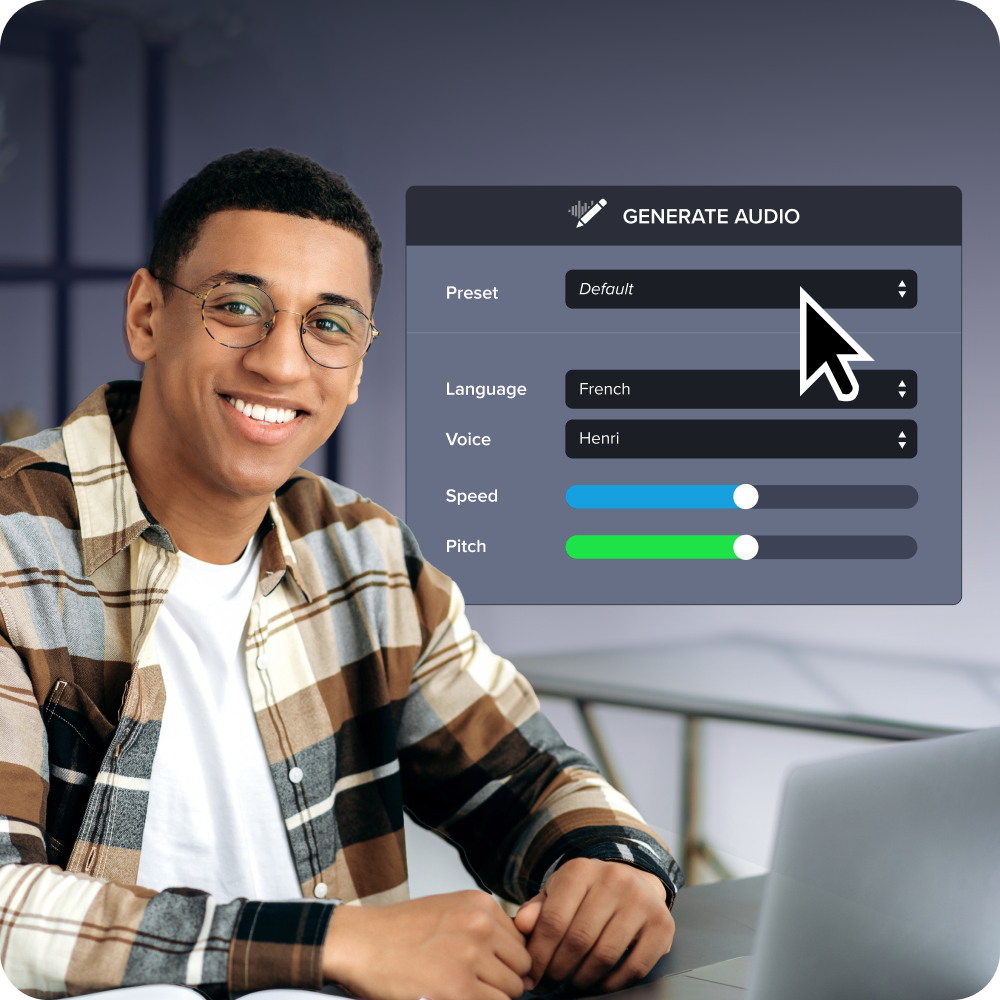
Objection-handling scenario videos
An objection-handling scenario builds judgment by asking reps to choose a response, watch the consequence unfold, and compare that choice with approved messaging. State one realistic buyer concern, such as “Your price is higher than the competitor’s,” and stop the video there. That pause prompts the rep to predict what happens next instead of passively watching a demonstration.
Present two plausible responses on screen, each grounded in a realistic sales conversation. Let the rep pick one, then show the likely consequence: the deal stalls, the buyer pushes back further, or the conversation moves forward.
Close with a short expert debrief of no more than 20 seconds that names the correct response and gives the exact phrase the rep can use in a live call. This turns a talking point in a training deck into a repeatable customer-conversation behavior.
Compliance microlearning examples that reduce risk
Compliance microlearning reduces ambiguity only when each short lesson is reviewed, versioned, accessible, traceable, and linked to the full policy. A clip clarifies one decision or one changed requirement. The complete policy remains the authoritative document.
Apply a consistent control set to every example below: legal or compliance review before publishing, a visible version date, a named content owner, accurate captions, a link to the complete policy, and a knowledge check tracked in your learning management system (LMS).
Policy change explainer videos
A policy-change explainer makes the required behavior and effective date unmistakable, then documents acknowledgment through your LMS. Show the previous behavior and the new required behavior side by side so employees can see what changed, when it takes effect, and where to find the complete policy for context.
Structure the video in this order:
- Name the rule that changed
- Show old versus new behavior on screen
- State the effective date clearly
- Link the full policy
Close with one knowledge check or action confirmation, such as a single question confirming that the employee understands the new requirement.
Record completion in your LMS so the organization has a traceable record that the update was assigned and completed.
Scenario-based compliance simulations
A compliance simulation works best when it centers on one realistic privacy, safety, or conflict-of-interest decision instead of surveying an entire policy area. Pick a moment employees may face, like handling a customer’s personal data request or recognizing a vendor relationship that needs disclosure.
Present two or three plausible choices before explaining the correct response. Show the consequence of each one: a delayed response that breaches a privacy timeline, an unreported conflict that surfaces in an audit, or a safety shortcut that creates an avoidable risk. Then reveal the correct action and briefly explain the rationale.
Route every scenario through the same subject-matter review your organization uses to approve the underlying policy. That review confirms the choices, consequences, and rationale match current legal requirements rather than simply sounding plausible.
Add accurate captions so the simulation is usable without audio, and keep the language measured. Skip dramatic music or worst-case framing that distracts from the required behavior or oversimplifies legal nuance.
More microlearning examples worth stealing
Repeated questions and error-prone tasks become searchable microlearning when employees need the answer close to the moment of work rather than buried in a manual or a course they finished months ago. This kind of just-in-time support strengthens knowledge sharing across teams.
Evaluate the examples below by what triggers the search, how often people watch it, where they watch it, and how you’ll know it worked.
Customer support FAQ video snippets
A useful support FAQ snippet solves one common issue, flags likely mistakes, and tells the viewer exactly when escalation is required. Restate the exact question at the start, using the same wording customers type into search or a support ticket. State plainly whether the fix applies to their situation or whether they need a different clip.
Demonstrate the fix in the fewest steps possible, then call out the two or three mistakes that generate repeat tickets. Close by naming the specific condition that means the viewer should stop and contact support directly.
Give every clip a consistent title format, accurate captions, a recognizable thumbnail, and metadata showing the content owner and review date so outdated clips get retired on schedule. When one setting or screen also needs a quick static reference, add an annotated Camtasia Snagit screenshot alongside the video for viewers who just need to check one thing.
Frontline and retail task refreshers
A frontline task refresher should lead with one action, use large captioned labels, and cut anything that doesn’t help the employee finish the task safely right now. Build it to run about 60 seconds, timed for the minute before a shift starts. Opening equipment, processing a return at the register, or completing a pre-shift safety check are all good candidates.
Design for a phone screen in a loud stockroom rather than a quiet desk. Open on the action itself instead of a title screen, size labels so they are readable at arm’s length, and caption every line of instruction so the message lands with the sound off.
Leave out anything that belongs in formal certification training. Skip policy history, regulatory background, and edge cases. Give the employee only what they need to complete the task correctly.
Go from screen recording to polished video
A screen recording is just the start. Camtasia’s editor helps you add the callouts, animations, and edits you need to create a truly professional video.
Free Download
How to capture and polish your own examples
The fastest workflow separates browser-based capture and scene assembly from deeper desktop editing.
Start there for speed. Move to Camtasia Editor only when the video needs branding, tighter consistency, or more editing control than scene assembly provides.
Start with a fast capture in Camtasia Online
Camtasia Online lets you prototype a focused microlearning lesson without installing anything because you can capture directly in your browser and assemble scenes there. Start by writing down one objective in a single sentence, then record your screen, webcam, and microphone as separate layers so you can adjust or mute each one later.
Next, break that objective into focused scenes instead of recording one long take. A CRM login demo, for example, can become its own scene, separate from a data-entry demo, so you can swap or update one piece without rerecording the whole lesson.
Camtasia Online sets practical boundaries that help keep the lesson focused, including free recording up to 1080p, unlimited scenes, and a five-minute limit per scene. Use that five-minute cap as a prompt to scope each scene around one clear task before moving into deeper editing.
Refine for brand and clarity in Camtasia Editor
A restrained polish pass in Camtasia Editor tightens pacing, arranges tracks, adds captions, and applies visual emphasis so the lesson looks intentional rather than rushed. Work through the polish pass in order:
- Trim pauses and dead air to tighten pacing.
- Arrange video, audio, and callout tracks so nothing overlaps awkwardly.
- Generate automated captions, then review them for accuracy.
- Apply annotations sparingly, using one visual cue per key moment.
- Add cursor effects if needed.
- Save branded callouts as User Styles.
Cursor effects only work if you capture the footage with Camtasia Recorder in Camtasia Editor. Record there when those effects are important to the lesson.
Build a reusable template with your annotation styles and track layout once, and future modules will be faster to update while staying consistent. That same restraint matters when you’re building interactive training videos, too.
Fixing the narration bottleneck with Camtasia Audiate
Audiate speeds narration cleanup by turning spoken audio into an editable transcript, so you fix mistakes without scrubbing through a timeline. Record your voiceover, let Audiate transcribe it, and you get a full text version of your narration on screen.
Find a flubbed line or a stray “um,” highlight the text in the transcript, and delete it. Audiate removes the matching audio automatically, which is faster than searching the waveform for the exact mistake.
Audiate also supports AI voices, avatars, translations, and standard transcription in one workflow. If you publish AI-generated narration or an AI avatar, disclose it according to your organization’s policies and any applicable platform requirements.
Once your narration is clean, return it to your production pipeline right away. Faster cleanup helps you publish a corrected training update while the underlying process or policy is still current.
Your next microlearning video starts with one recording
Strong microlearning starts with one job, not a production wishlist. Open a browser, record the task your team asks about most, and use learner feedback to improve the next version.
Capture quickly in Camtasia Online, tighten the narration in Audiate, and move into Camtasia Editor when the video needs additional polish. Each tool solves one specific problem in that workflow without requiring a production background.
Start your first microlearning video free in Camtasia Online.
Frequently asked questions
What is considered microlearning?
Microlearning is a short, self-contained lesson built around one specific learning objective. It should help someone complete or practice an immediate task, such as following a software workflow, handling a customer objection, or applying a policy change.
What are practical microlearning examples in the workplace?
Role-specific software walkthroughs, product-update clips, objection-handling scenarios, policy explainers, support FAQ videos, and frontline task refreshers count among the most practical workplace microlearning examples. These formats work best when employees can find them on demand and use them close to the moment they need the skill.
How long should a microlearning video be?
Two to five minutes is a practical starting point for video-based microlearning, but the learning objective should determine the final length. Use only the time needed to teach one task, and split broader topics into separate, searchable videos rather than rushing through them.
What makes a microlearning example effective?
A clear focus on one outcome, removal of unrelated detail, and a concrete action to practice or apply make microlearning effective. Purposeful pacing, captions, readable on-screen text, focused visuals, and mobile-friendly framing make short lessons easier to follow and revisit. Scenario choices or brief knowledge checks can reinforce decisions when they directly support the objective.
How can teams create microlearning videos in-house?
Recording the screen, webcam, and microphone in Camtasia Online, then assembling the lesson into focused scenes, lets teams create microlearning videos in-house. Camtasia Editor can then tighten pacing, arrange tracks, add captions, apply branding, and add annotations. Teams that need recorder-dependent cursor effects should record with the Camtasia Recorder in Camtasia Editor. Camtasia Audiate supports transcript-based narration cleanup, while Camtasia Snagit can provide annotated screenshots for supporting reference material.
Share