









A team lead spends weeks building a Tango library of screenshot guides, then leadership asks for a video walkthrough of the same processes. The screenshot guides she built can’t do that. Tango embeds short video clips at individual steps, but there’s no native way to record, edit, or produce a full training video inside the tool. She needs something else.
That’s what sends so many teams searching for Tango alternatives. For IT decision-makers and team leads evaluating what to use instead of or alongside Tango, the question is which tools can actually produce video that holds up once you’re past the first recording.
The Camtasia Essentials subscription tier is the first pick for teams building video-inclusive training, onboarding, or documentation. It bundles access to both Camtasia Editor and Camtasia Snagit, covering video production and screenshot-based documentation in a single plan. For a team that only needs static step-by-step guides, Camtasia Snagit handles that job with less overhead.
Key takeaways
- Tango lets users embed pre-recorded video clips as individual steps, but it has no native tool to record or produce video, so it can’t support the growing need for teams to create their own video-based training.
- Recording a screen once doesn’t guarantee a usable training video; editing depth is what separates true video-capable Tango alternatives from screenshot tools.
- Editable video is still rare among tools marketed as Tango alternatives: Guidde and iorad, for example, stop at auto-generated screenshots or interactive walkthroughs rather than true editable video.
- Static, screenshot-based tools still beat video Tango alternatives for short, reference-only workflows where speed matters most.
- Video and multimedia formats increasingly rank among employees’ preferred training formats, making video capability a core requirement for Tango replacements.
Where Tango’s static guides fall short
Teams look for alternatives to Tango when their guides need more than screenshots, auto-written step text, and short embedded clips, since Tango has no native tool for recording or editing video.
Documentation that starts simple rarely stays simple. A process guide written for one hire turns into onboarding content for a whole team, and a whole team needs more than static screenshots to follow along.
Editing a Tango guide means reworking screenshots and text one step at a time. There’s no timeline to trim footage, no track to layer narration under a screen recording, and no way to brand the result with your own intro, callouts, or lower thirds. When a workflow changes, you’re re-capturing screenshots instead of adjusting a few seconds of video.
Video has also become the expected format for this kind of content. Training and onboarding made up 40.29% of the screen recording software market’s application segment in 2024, the largest single use case tracked. Teams building onboarding programs need software that captures a process once and turns it into a video employees can watch and rewatch, not just a static reference they scroll past.
Video capability across Tango alternatives
Every Tango alternative on this list falls into one of two camps: tools that stop at static screenshots, and tools that also handle real video recording and editing. The table below compares each option’s starting point against how much control you get once that content exists.
| Tool | Capture type | Editing depth | Best fit |
| Camtasia (Essentials tier) | Records screen, camera, and audio, plus Camtasia Snagit screenshots. | Full timeline editing with AI-powered cursor effects and text-based editing. | Teams building branded video training alongside step-by-step guides. |
| Loom | Quick screen and webcam video recording. | Basic trimming only, no multitrack timeline or cursor effects. | Fast, single-take video messages and async updates. |
| Guidde | Auto-records workflow steps into an AI-generated video guide. | AI voiceover and auto-assembly, with limited manual timeline control. | Quick AI-generated how-to videos from one recorded workflow. |
| iorad | Records clicks in an interactive, step-by-step walkthrough. | Step and overlay editing, no video timeline or recording. | In-app interactive walkthroughs rather than standalone video. |
| Scribe | Records clicks in a static, screenshot-based guide. | Text and screenshot editing only, no video recording. | Fast-written SOPs generated from one recording. |
| Trainual | No native screen or click recording; hosts uploaded content. | Organizes uploaded docs and video into training courses. | Centralizing SOPs and onboarding material in one training platform. |
Recording video is only half the job. Editing depth is what determines whether that video stays useful once your product or process changes.
1. Camtasia Essentials
Camtasia Essentials is the subscription plan to choose when your team needs editable training video, not just static screenshots. The plan includes Camtasia Editor, which records screen, camera, and audio together in one session, then places each source on its own track in Camtasia Editor’s multitrack timeline.
Because each source sits on its own track, you can trim the screen recording without touching the narration, swap a camera clip, or adjust audio levels independently. None of that is possible when your only output is a sequence of numbered screenshots.
The workflow starts in Camtasia Snagit with Step Capture, which builds a static, numbered guide as you click through a process. Before you share that guide, run Smart Redact to permanently remove sensitive details (addresses, phone numbers, email addresses, credit card numbers) from any screenshots. Smart Redact works on still images only, so it handles screenshot cleanup before the guide goes out, not video redaction.
From there, you can bring that same guide directly into Camtasia Editor’s timeline through the Share menu, where transitions, callouts, and cursor motion get applied automatically for further editing.
Unlike Tango or Scribe, Camtasia Snagit exports screenshots as standalone image files you can drop into Google Drive, SharePoint, Camtasia Screencast, or an email; wherever your team already stores documentation, not locked to a hosted platform.
Screentelligence-powered cursor effects keep viewer attention on the right spot on screen, and Camtasia Audiate’s text-based editing lets you tighten narration by editing text instead of re-recording audio. That editing relies on an AI-generated transcript, so plan to review it before publishing. Together, these tools cut the production work that usually falls on the person who knows the process, not a video specialist.
What does the Camtasia Essentials plan include?
Camtasia Essentials is a plan that includes Camtasia Editor, Camtasia Audiate, and Camtasia Snagit. That combination gives a team guide-building and video-editing tools working together in one workflow, not separate products to choose between.
In the Camtasia Editor tier structure, Essentials sits between Starter and Create. It removes the export watermark that comes with Starter and adds Camtasia Audiate text-based editing, so trainers can update narration by editing a transcript instead of manually editing waveforms.
For teams whose documentation is entirely screenshot-based, Camtasia Snagit is also available as a standalone purchase. It’s the most cost-effective pick in this comparison for teams that don’t need video at all — Step Capture, Smart Redact, annotations, and portable file export without the video editing tier.
If you’re still weighing where Camtasia Editor and Camtasia Snagit each fit into your broader documentation stack, this comparison of Snagit and Camtasia alternatives covers that decision in more depth.
Streamline workflows with Snagit Assets
Transform your screenshots with ready-made templates, custom themes, and unique stamps.
Get Started
2. Loom
Loom is built for fast, single-take screen and webcam messages, not for training videos that need editing after the fact. Record your screen, your face, or both in one pass, then send the link. For a quick async update or a two-minute explanation, that’s often enough.
Atlassian finalized its acquisition of Loom in January 2024. Loom is still sold through both loom.com and atlassian.com, and billing and feature access are still being unified between the two platforms as of 2026.
Loom gives you one recording with light trimming, but it doesn’t offer a multitrack timeline, so you can’t arrange and edit screen, camera, and audio independently after recording. Camtasia Essentials does. It also includes cursor-editing tools that let you fix or refine mouse movement after recording, something Loom’s single-take model can’t do.
If you’re weighing Loom against other tools built for the same kind of async recording, this comparison of Loom alternatives can help you decide. See what a full editing timeline adds on top of that with Camtasia Editor’s features.
3. Guidde
Guidde fits teams that want a workflow recorded once and turned automatically into a finished how-to video, without manually building out a timeline.
Its speed comes from automation. Guidde auto-captures the steps you take in a browser or app, then assembles those steps into an AI-generated video guide, complete with AI voiceover, without asking you to record narration, cut clips, or arrange a sequence yourself.
The tradeoff shows up once you need more control. Guidde’s auto-assembly leaves you with limited manual timeline control, so adjusting pacing, swapping in a different clip, or building a consistent branded look across many videos gets harder.
Camtasia Essentials works from the opposite end: a full editing timeline where you place clips, callouts, and cursor effects where you want them, then save those styles as reusable assets for the next video. If written SOPs are more your speed than auto-generated video, the same tradeoff between speed and control shows up in Scribe alternatives.
Let Audiate write your script!
No more blank pages! Instantly generate amazing, customizable scripts in any length, tone, and style!
Get Audiate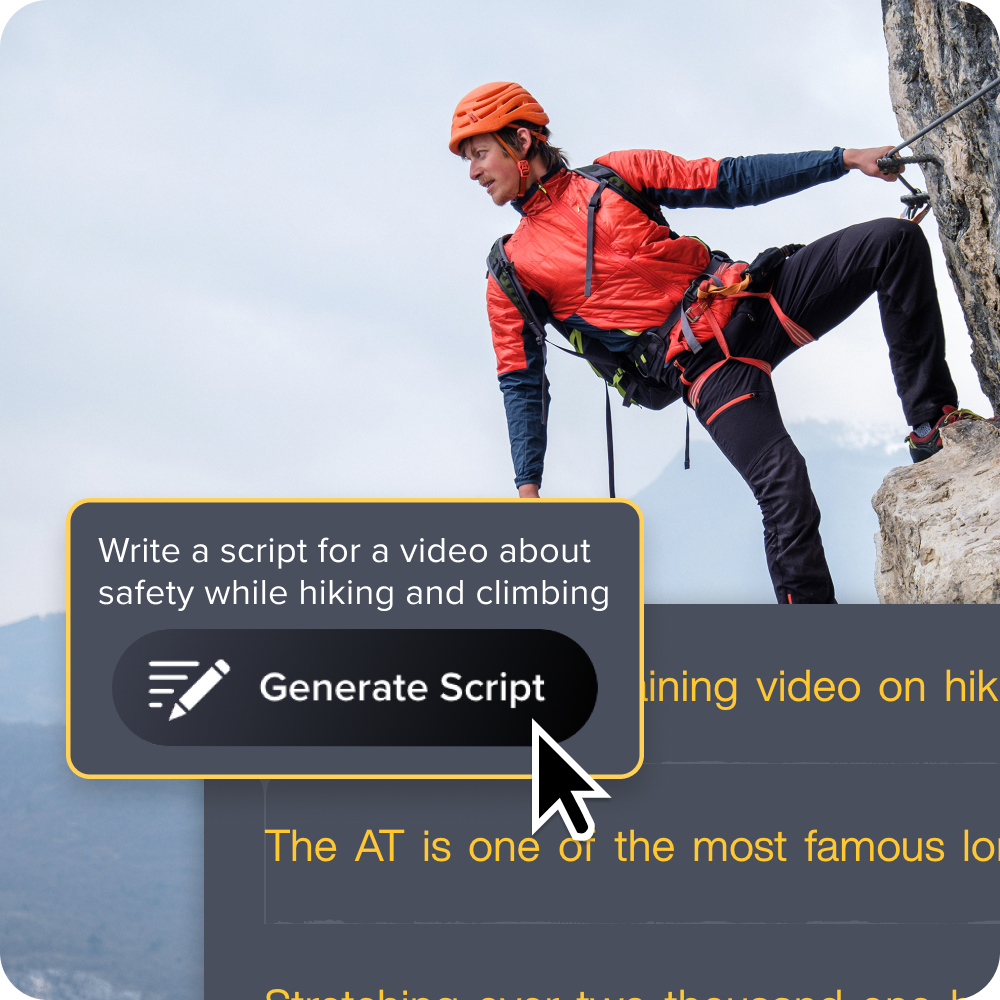
4. Iorad
Iorad records clicks as you move through an app or website and turns them into an interactive, in-app walkthrough that a learner clicks through step by step, rather than watches. There’s no recording or video timeline behind it.
What you get instead is step editing and overlay editing on top of those recorded clicks. You can adjust the text on each step, reposition overlays, and reorder the sequence, but you’re editing a series of interactive steps, not trimming footage or arranging clips on a track.
Iorad is a strong fit when the goal is letting someone practice a workflow inside the actual software, clicking through prompts in something close to the real interface. It’s a different job than producing a standalone training video someone can watch start to finish, narrate over, or reuse in interactive training videos built around footage. Teams that need both an in-app walkthrough and a recorded, editable video asset for onboarding will find Camtasia Essentials better suited to the video side of that pairing.
5. Scribe
Scribe generates a static, screenshot-based standard operating procedure (SOP) from one recorded workflow, with no video recording. You click through a process once, and Scribe records each step as a screenshot with generated text describing the action, similar to Tango.
Editing in Scribe is limited to that same format. You can rewrite the generated text, swap out a screenshot, or reorder steps, but you’re still working with a stack of images and captions, not a timeline. There’s no track for narration, no cursor effects, and nothing to trim, arrange, or layer the way you would in a video editor.
Scribe is a reasonable pick if your only goal is faster written SOPs. If your team needs both a quick reference guide and a training video from the same workflow, you’ll want a tool built to record the process once and produce more than a static guide.
6. Trainual
Trainual centralizes uploaded SOPs and video into structured training courses, and it has no native screen or click capture of its own. It’s built to organize training content, not create it.
That’s a difference from Tango, which records your clicks as you work and turns them into a step-by-step guide. Trainual works the other way around: it’s a course-building and hosting platform where you upload documents, videos, and PDFs, then arrange them into onboarding paths, assign them to employees, and track completion. It doesn’t have a built-in workflow recorder.
Teams still need a separate recording tool to create the SOPs and videos before they reach Trainual. Camtasia Essentials fills that gap. Record the workflow, edit it into a clear training video, and export it. From there, upload the finished video into Trainual to slot it into a course alongside your other onboarding material. If you’re building out a broader training library and want a fuller look at what makes a video teach well, this breakdown of training video software is a useful next stop.
When static screenshots beat video recordings
A screenshot-based guide beats video when the workflow is short and the learner only needs a reference, not an explanation. Video adds setup, recording, and editing time that a quick guide doesn’t need, and none of that extra work improves comprehension for a task that’s already simple to follow.
The test is whether motion or narration clarifies something a still image with a callout can’t. If a step is just “click this button” or “enter this value here,” a screenshot answers it instantly. When a viewer needs to see timing, sequence, or a reaction on screen, not just a location to click, video is the solution.
Camtasia Snagit is built for this: record the screen, add callouts, and share a numbered guide in minutes. Use it for quick reference guides and job aids, not full training modules. That distinction matters for clear process documentation that stays fast to scan and easy to update.
Turn your Tango workflows into video training with Camtasia Essentials
A short screenshot guide and a full training video solve different problems, and that’s the test to apply once Tango stops covering what your team documents. If your process still fits in a numbered list of screenshots, a targeted recording tool does the job. If it now includes a live walkthrough, a voiceover, or a step someone needs to see in motion, you’ve outgrown static screenshots, no matter how many annotation styles it offers.
Pull up the last process guide your team rebuilt because a UI update broke it, and ask whether a video walkthrough would have aged better than a screenshot stack. If the answer is yes, that’s your signal to test the video-inclusive workflow instead of patching another static tool.
Need to show your screen?
Skip the downloads. Use Camtasia online to record your screen, camera, and microphone right in your browser for free.
Start Recording
Frequently asked questions
Is there a free Tango alternative that includes video recording?
Camtasia Online offers free, browser-based screen recording with no download required, making it a genuine no-cost starting point for video recording. For full editing depth, like multitrack timelines and Screentelligence-powered cursor effects, Camtasia Essentials starts at $179 per year, according to Camtasia’s store pricing page. It removes the export watermark that free trials carry, so exported videos look fully professional.
Does Camtasia Essentials replace Tango’s in-app Guide Me walkthroughs?
Camtasia Essentials doesn’t recreate Tango’s in-app Guide Me overlay, since that feature layers instructions directly on top of a live application interface. Instead, it produces a standalone training video that walks a learner through the same process step by step. Teams can host that video in an LMS or share it via a link, without needing Tango’s live overlay.
Can I migrate my existing Tango guides into a video-based workflow?
Tango’s guides are built from screenshots, text, and any embedded video clips, but none of that exports into an editable video timeline, so there’s no direct import path from Tango into a video project. The practical path is to use an existing guide as an outline, then re-record that workflow natively in Camtasia Editor. Recording natively captures screen, camera, and audio on separate tracks and unlocks Screentelligence-powered cursor effects that imported footage can’t access.
How long does switching from Tango to a video-capable alternative typically take?
Most teams can start recording native video the same day they install Camtasia Editor, since trial and paid tiers work immediately after download. Rebuilding a full library of guides into video typically takes longer and depends on how many workflows need conversion, not on any tool limitation. Many teams prioritize their highest-traffic or most complex workflows first, then convert simpler reference guides over time as capacity allows.
How do teams keep training videos consistent across multiple creators after switching from Tango?
Customized callout, title, and lower-third styles can be saved as Library assets in Camtasia Editor. You can export and import those asset files so other team members can reuse the same branded look. Camtasia doesn’t offer a centralized library across an organization yet, so many teams designate one person to maintain the master style files.
Share