Step Capture to Video
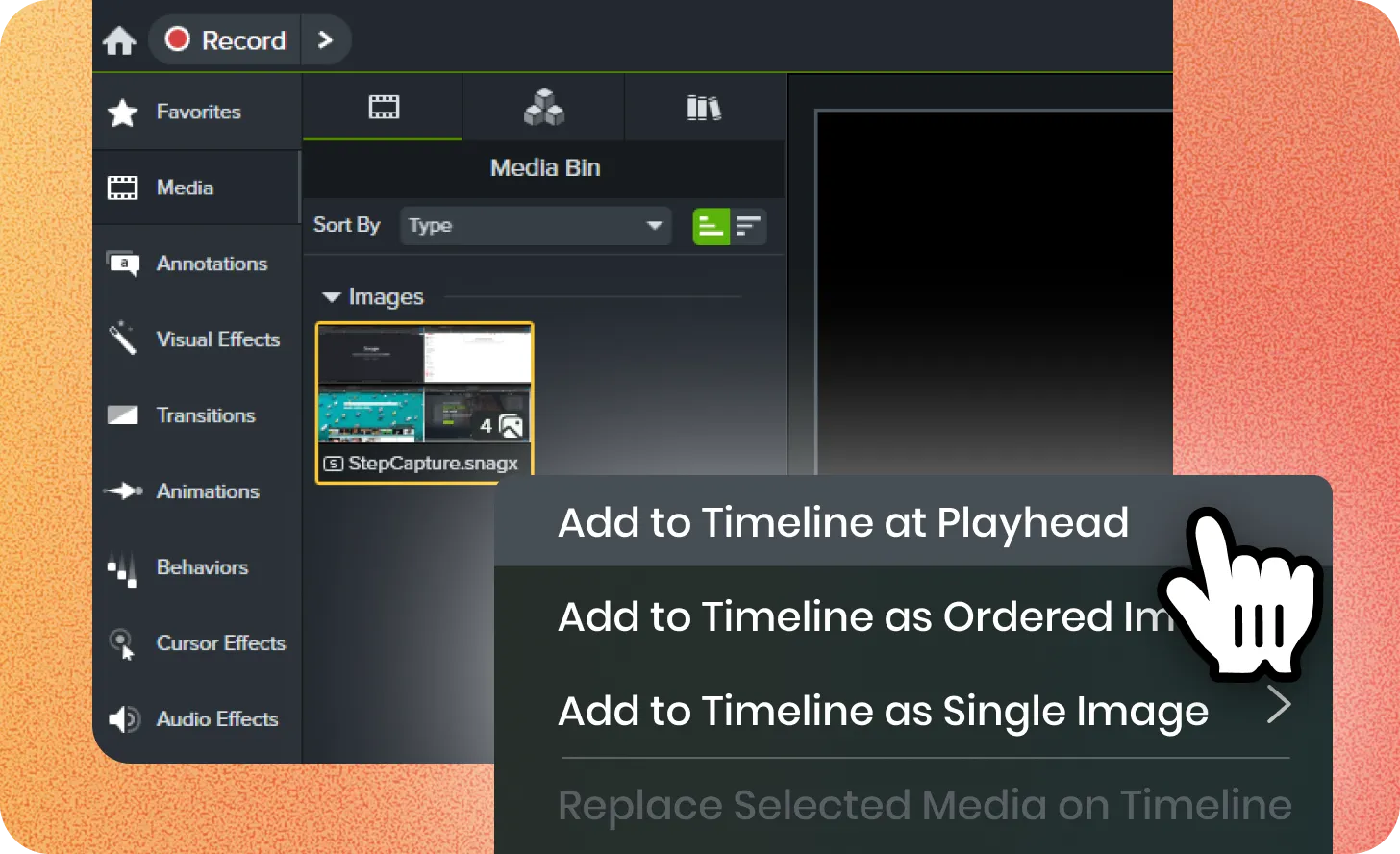
Automatically turn Snagit step captures into videos in Camtasia Editor. Each step is added as its own clip on the timeline with transitions and lower-third titles. Create both a guide and tutorial in a fraction of the time!
THE CAMTASIA SUITE
EXPLORE
SOLUTIONS
USE CASES
EDITOR FEATURES
SNAGIT FEATURES
AUDIATE FEATURES
Learn
Support
Filter posts
Clear filtersAugust 2026
Automatically turn Snagit step captures into videos in Camtasia Editor. Each step is added as its own clip on the timeline with transitions and lower-third titles. Create both a guide and tutorial in a fraction of the time!
April 2026
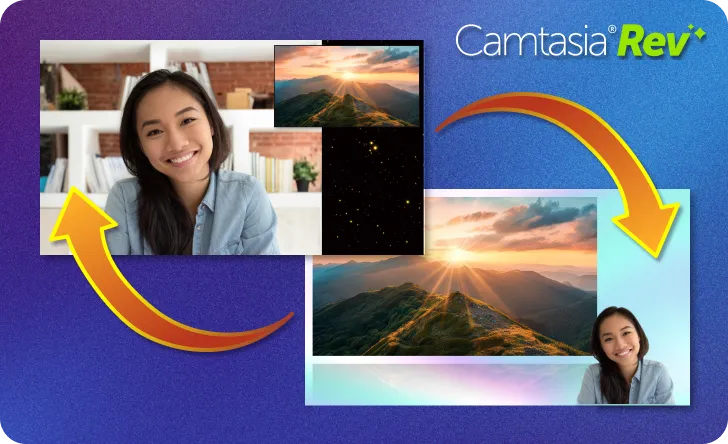
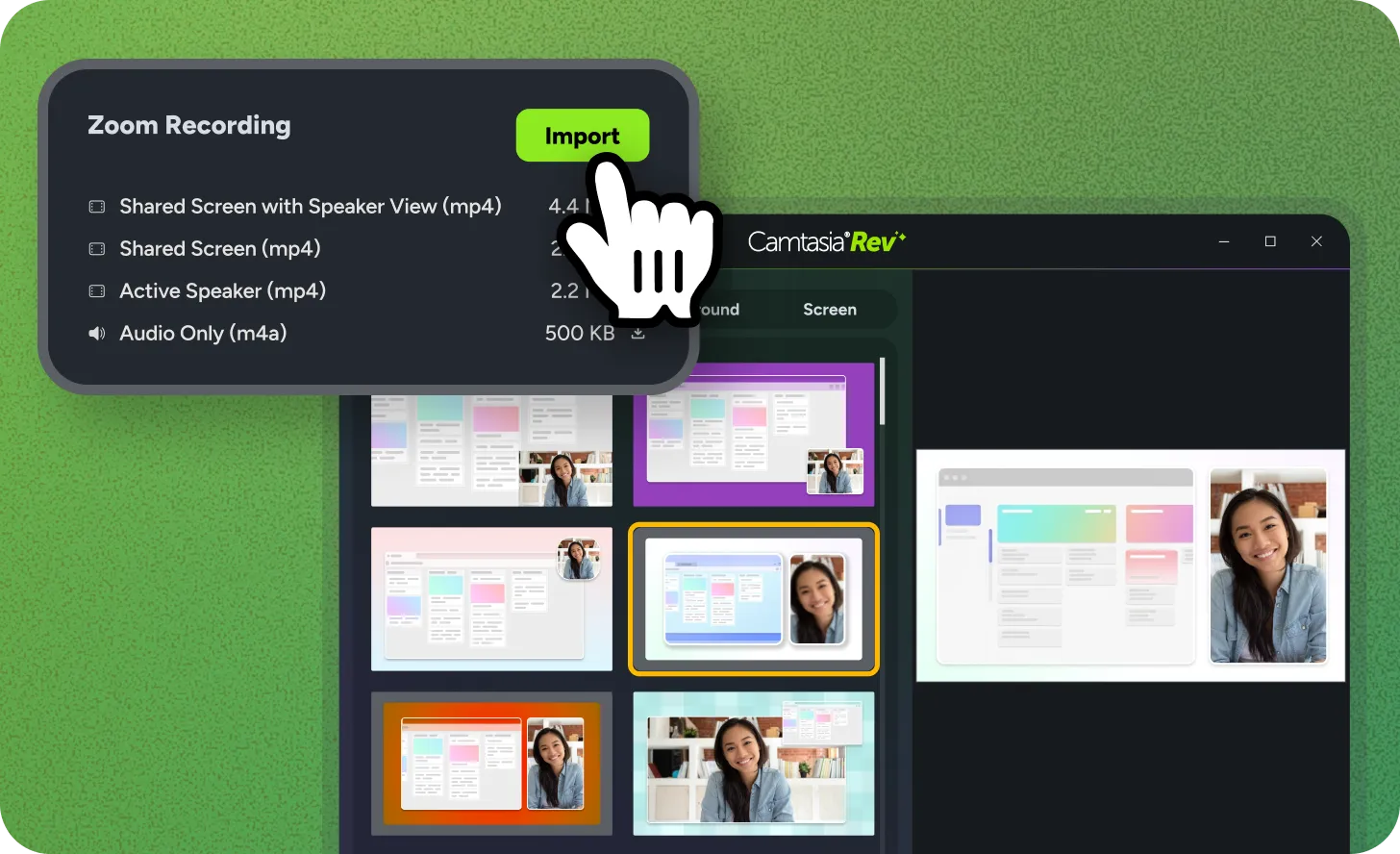
Turn your Zoom recordings into professional tutorials without the manual effort. Connect your Zoom account to Camtasia Editor to pull recordings directly into your bin. Use the Rev workflow to automatically apply layouts, remove backgrounds, and polish your video in seconds.

November 2025
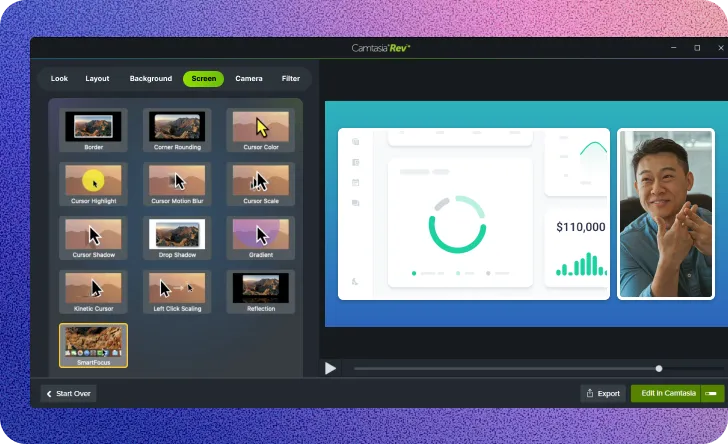
Use SmartFocus to automatically add zoom and pan animations to your Camtasia Rev recordings. SmartFocus is now available as a screen effect in Rev. Apply it to any Rev recording or media on the timeline to guide viewer attention. This feature analyzes your screen recording and adds motion to follow your cursor or focus on active windows.
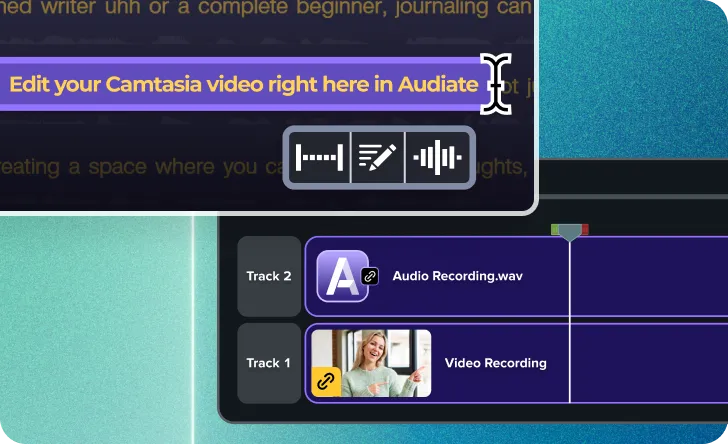
Use text-based editing to speed up your video editing. A new button sends your timeline media directly to Camtasia Audiate, which transcribes your audio. You can then edit your video recording by editing the text transcript. This is a fast way to remove mistakes, filler words, or silence. You can also use Audiate’s professional audio effects to clean up your narration.
July 2025
Isolate your screen and audio recording to a single window without the distraction of anything else popping in to steal the focus.
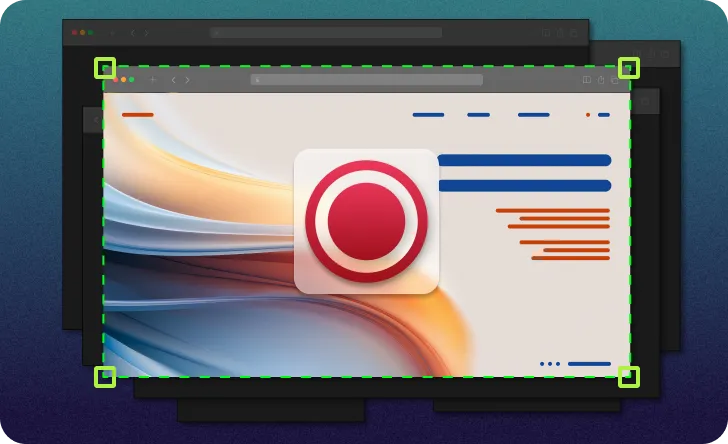
Worried about distracting notifications showing up in your recording? Put the worries aside, Camtasia’s flexible recorder blocks out the noise and only records what you want. Choose a specific window in the Recorder and only record what is related to the window. This includes any window application audio. Able to resize window recordings during editing without any loss of quality.
Instantly make adjustments to Rev recordings right on the timeline. Quickly and effortlessly modify the look, layout, and effects for entire recordings or split sections of your video.
Recording with Rev now creates Rev Media on timeline (user-toggleable in preferences) to provide flexibility in how you shape the look and feel of your video, with easy access to:
February 2025
Camtasia’s AI Background Noise Removal filters out distractions like fans, chatter, and clicks—keeping the focus on your voice.
Background noise is unpredictable—whether it’s a lawn mower outside, a noisy fan, or unexpected interruptions at home. With AI background noise removal in Camtasia, you can isolate your voice and remove distractions without worrying about your recording environment.
Unlike other tools, Camtasia’s AI noise removal effect isn’t permanent—you can adjust it anytime or revert to the original audio if needed.
💡Ways to use AI background noise removal:
Forget the hassle of re-recording due to unexpected noise. Record first, fix the audio later, and let Camtasia keep the focus on your voice.
Camtasia’s new cursor effects add motion blur, dynamic movement, and elevation to make your cursor clearer and more engaging in screen recordings.
Your cursor is one of the most important tools in a screen recording—now, Camtasia gives you even more control over how it moves and appears with three new cursor effects designed to enhance clarity and engagement.
New cursor effects:
Why you’ll love these new cursor effects:
With these new effects, your cursor is more than just a pointer—it’s a storytelling tool.
Try them out today and make your videos more engaging than ever!
December 2024
Sync updates from Audiate’s Generate Avatar feature in Camtasia to integrate dynamic avatars into your videos.
Camtasia now supports receiving and synchronizing updates from Audiate’s Generate Avatar feature, enabling seamless integration between the two tools. Easily incorporate avatars into your videos and keep everything perfectly synced as you edit.
💚 Why you’ll love this new feature:
Try syncing updates from Audiate’s Generate Avatar feature to bring a new level of creativity to your videos!
June 2024
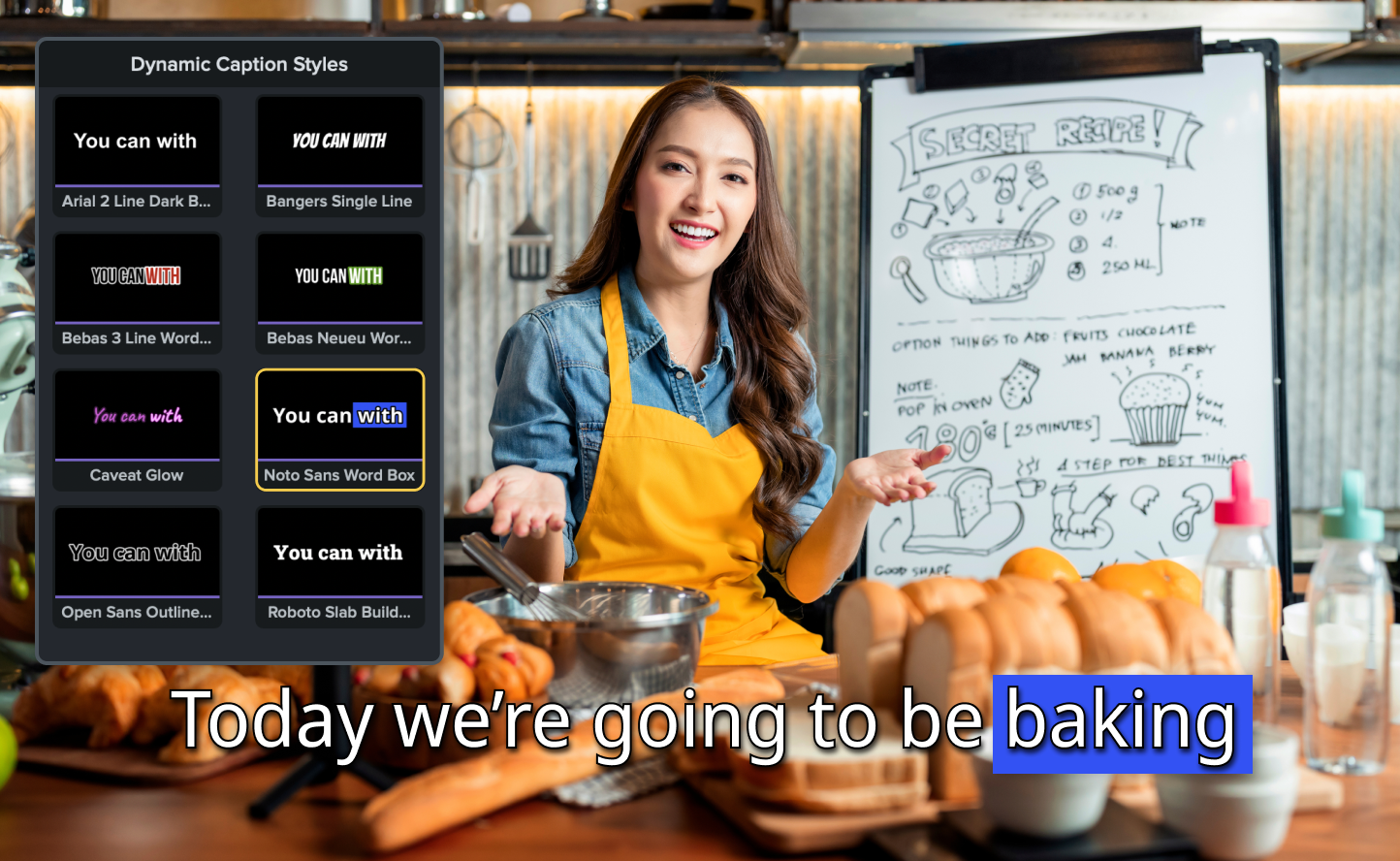
Use AI-powered live captions in Camtasia to display spoken words on the screen in real-time, with customizable styles and multilingual support.
Camtasia’s new Dynamic Captions feature, powered by AI, transforms how you connect with your audience by showing every spoken word on-screen as it’s spoken. This real-time captioning not only enhances comprehension but also ensures your content is accessible to a broader audience.
Customize your style
Use preset designs for instant captions or adjust the properties panel to create captions that perfectly match your brand’s aesthetic.
Support multiple languages
Reach global audiences with captioning options in a variety of languages.
Streamline your workflow
Skip the time-consuming manual process of adding captions and let AI handle it for you.
💡 Ways to use dynamic captions:
Whether you’re crafting instructional videos, professional presentations, or educational content, dynamic captions ensures your message is clear and captivating—every time.