CHANGELOG

What’s new in Camtasia?

Turn on your auto-updates because our team is always cooking up something fresh.

Filter posts

Clear filters

Release Type

Operating System

Tags

April 2026

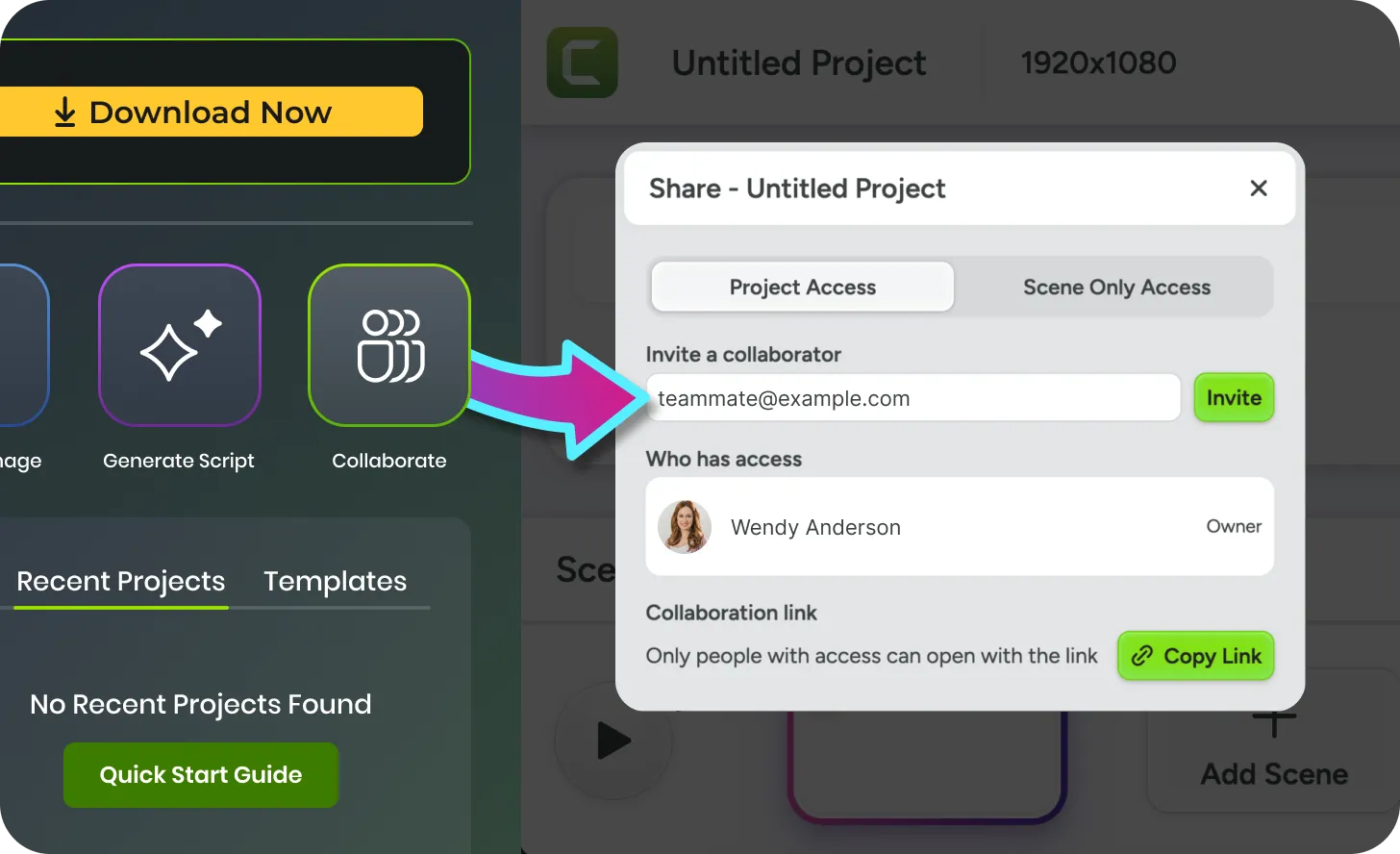
Collaborate button in Camtasia Editor Home opening up a project in Camtasia Online

Collaborative Recording

Gather content from your team without the back-and-forth. Use the Collaborate button in Camtasia Online to send a recording request to your subject matter expert. Once they finish, import their footage directly into Camtasia Editor. Add your final polish and professional effects in one streamlined workflow.

Ready to try it for yourself?
View Tutorial
Camtasia
MacOSWindows
Screen RecordingEditingCollaboration
2026.1
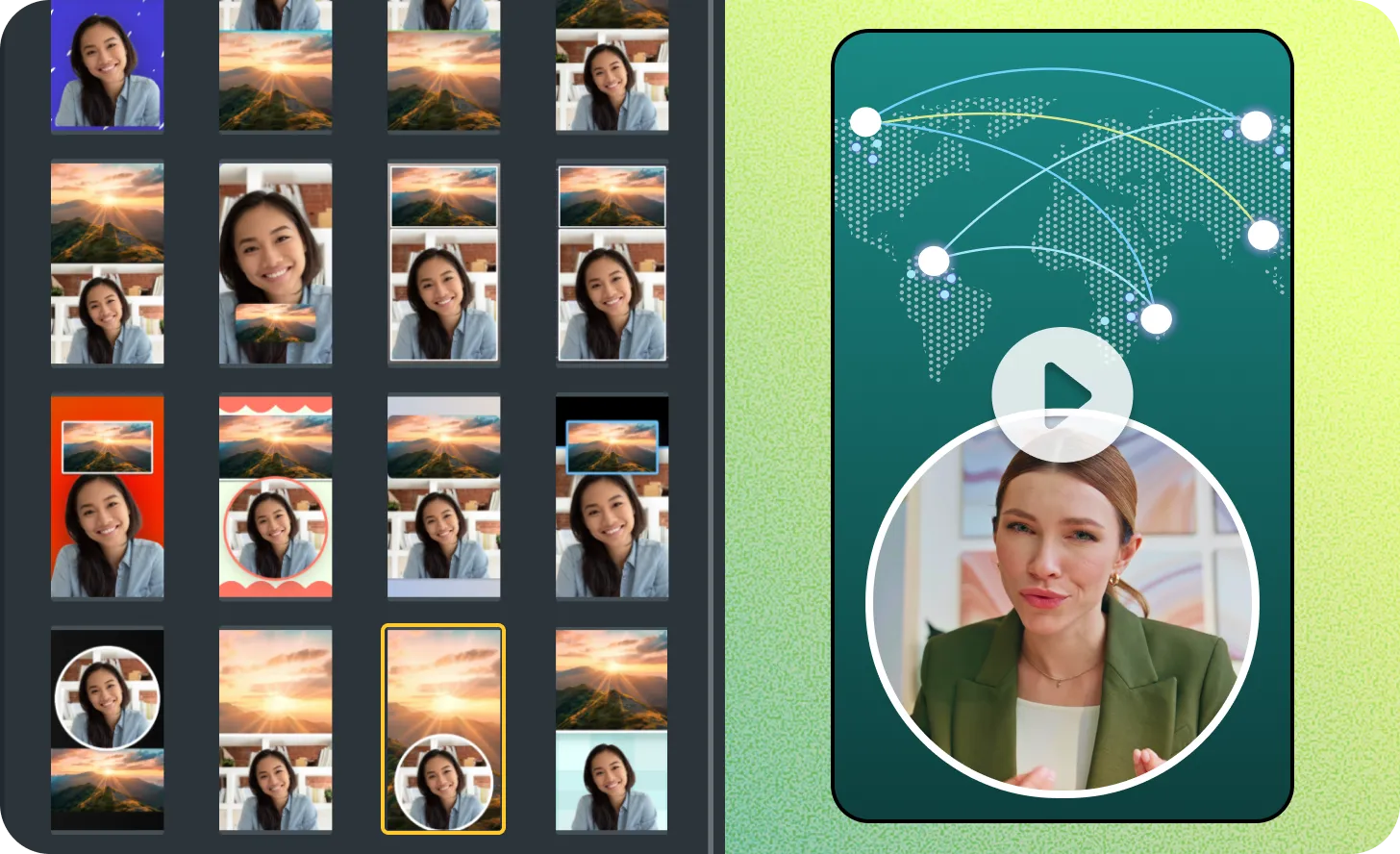
Vertical looks options in the Camtasia Rev screen.

Vertical Looks in Rev

Turn your desktop recordings into vertical videos instantly. The Rev workflow now includes dedicated layouts for portrait-oriented content. Choose a look that fits your brand and let Camtasia handled the framing. Use these templates to reach your audiences on the devices they use most.

Ready to try it for yourself?
View Tutorial
Camtasia
MacOSWindows
Editing
2026.1
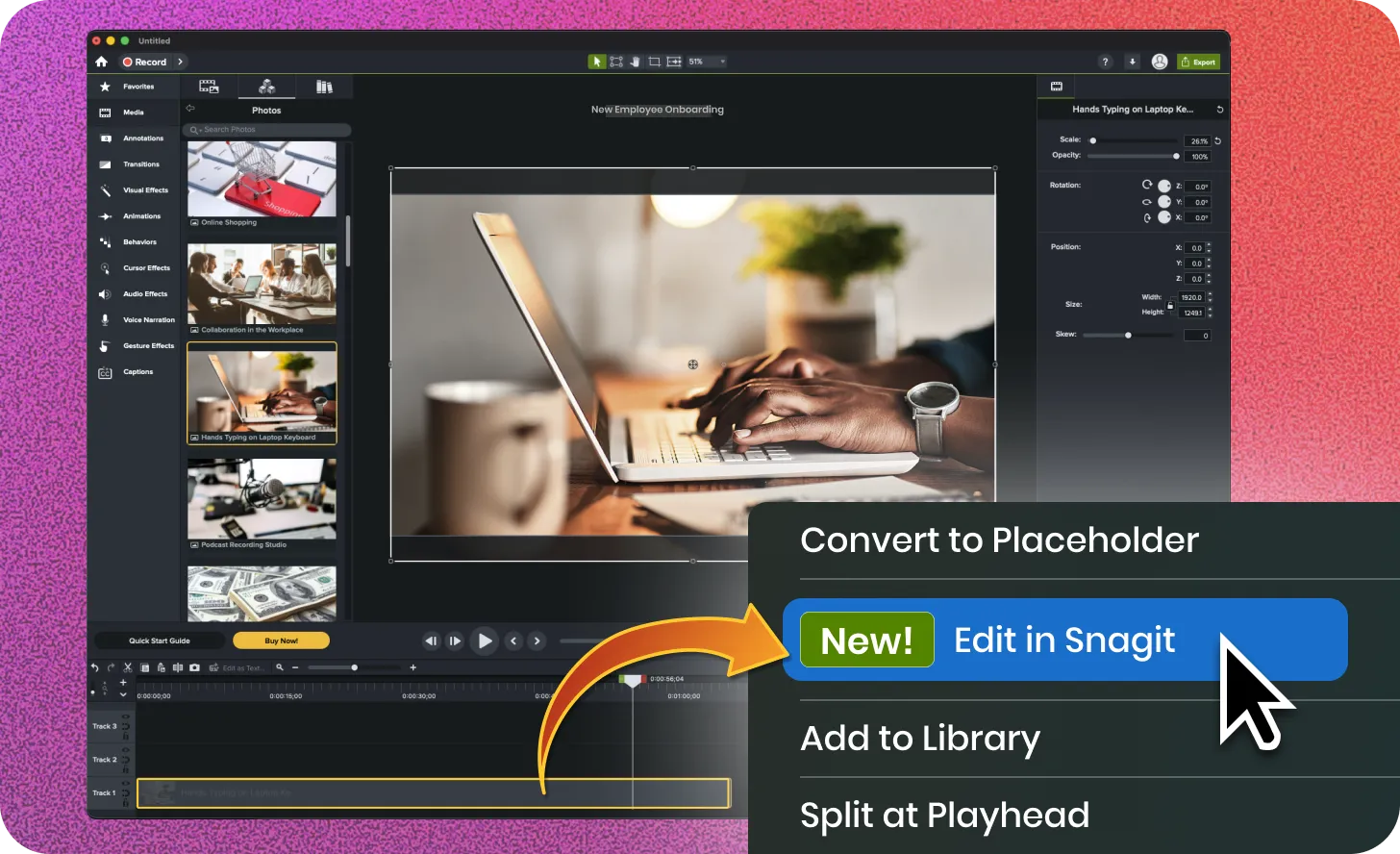
Edit in Snagit button being accessed from the Camtasia Editor timeline

Edit in Snagit from Timeline

Maintain your training videos as your software evolves. Use the Snagit integration to modify existing images on your Camtasia timeline. Change text, swap icons, or adjust markup with Snagit. The updated file replaces the old version on your timeline instantly. This workflow ensures your tutorials remain accurate with minimal effort.

Camtasia
MacOSWindows
Editing
2026.1

November 2025

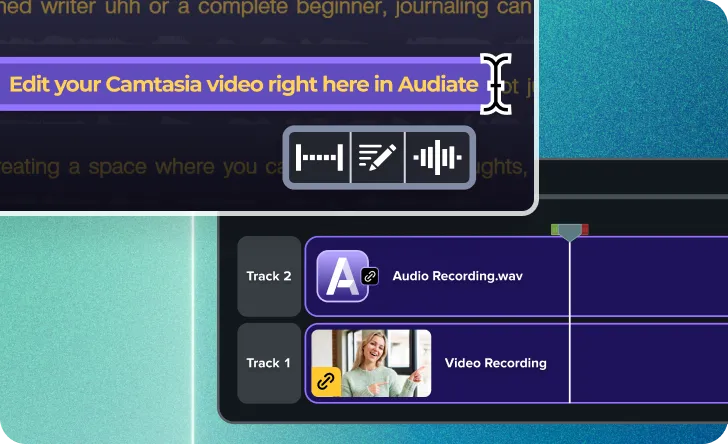
Text being edited in Audiate and edits being synced on Camtasia Editor timeline.

Edit video by editing text with Camtasia Audiate

Use text-based editing to speed up your video editing. A new button sends your timeline media directly to Camtasia Audiate, which transcribes your audio. You can then edit your video recording by editing the text transcript. This is a fast way to remove mistakes, filler words, or silence. You can also use Audiate’s professional audio effects to clean up your narration.

Ready to try it for yourself?
View Tutorial
Camtasia
MacOSWindows
AudioEditing
2026
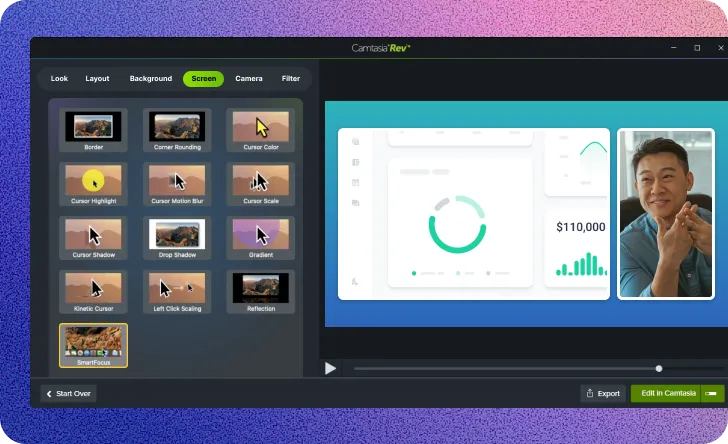
A SmartFocus screen effect option in the Camtasia Rev window.

Apply SmartFocus to Rev media for automatic zooms

Use SmartFocus to automatically add zoom and pan animations to your Camtasia Rev recordings. SmartFocus is now available as a screen effect in Rev. Apply it to any Rev recording or media on the timeline to guide viewer attention. This feature analyzes your screen recording and adds motion to follow your cursor or focus on active windows.

Ready to try it for yourself?
View Tutorial
Camtasia
MacOSWindows
Screen RecordingEditing
2026
Dynamic captions on top of a screen recording that include camera recording.

Add dynamic captions directly to Rev media

Make your Rev media more accessible with animated captions. Drag any Dynamic Caption style from the Captions tab directly onto your Rev media clip on the timeline. The captions are applied without needing to unpack the Rev group. This is a fast way to add professional, accessible captions to your Rev recordings.

Ready to try it for yourself?
View Tutorial
Camtasia
MacOSWindows
AudioEditing
2026
Adjusting camera and screen recordings in the Camtasia canvas

Adjust Rev media directly on the canvas

Directly edit the components of your Camtasia Rev media. You can now fine-tune the position, scale, and properties of your screen recording, camera video, and background. Make adjustments on the canvas or in the properties panel. This saves time and simplifies editing, as you no longer need to unpack the Rev media group to make small changes.

Ready to try it for yourself?
View Tutorial
Camtasia
MacOSWindows
Editing
2026

July 2025

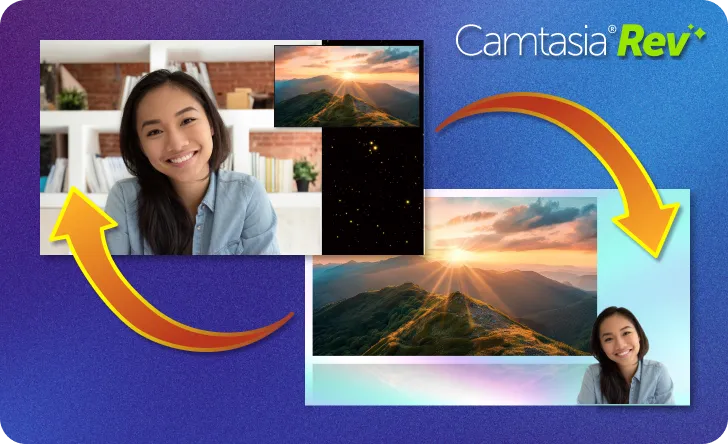
One layout of a video with screen and camera recording switching to a different layout.

Rev Media now editable on timeline (Beta)

Instantly make adjustments to Rev recordings right on the timeline. Quickly and effortlessly modify the look, layout, and effects for entire recordings or split sections of your video.

Recording with Rev now creates Rev Media on timeline (user-toggleable in preferences) to provide flexibility in how you shape the look and feel of your video, with easy access to:

  • Modify Rev Media
  • Split Rev Media
  • Unpack Rev Media
  • Ready to try it for yourself?
    View Tutorial
    Camtasia
    MacOSWindows
    Screen RecordingEditing
    2025.2
    Image showing the Camtasia editor UI as dark and light versions.

    Light Mode for Camtasia Editor UI (Beta)

    Not a fan of the dark side of Camtasia? Now you can brighten things up with the new Light Mode. Currently only available for Windows.

    Ready to try it for yourself?
    View Tutorial
    Camtasia
    Windows
    Editing
    2025.2
    An image showing new video layouts, backgrounds, and effects.

    Updates to Rev editing options

    The Rev editing workflow has been updated to include new looks, backgrounds, and effects. Your video will look better than ever in no time.

    Ready to try it for yourself?
    View Tutorial
    Camtasia
    MacOSWindows
    Screen RecordingEditing
    2025.2