Learn what Snagit can do for you and get familiar with the application.
So Much More Than Screenshots
Take a peek at the amazing things you can do with Snagit.
Quick Tour
Snagit Capture Window
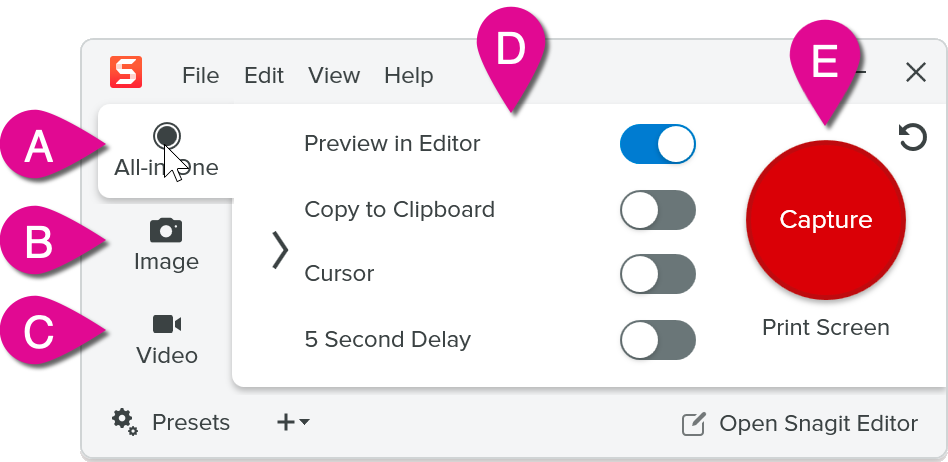
The Capture Window is where you select how to capture your screen.
All-in-One tab: Allows you to easily switch between image, video, and scrolling captures.
Image tab: Includes settings to take customized screenshots.
Video tab: Record your screen, camera, microphone, and/or system audio.
Capture settings: Adjust basic settings on the All-in-One tab, or customize more specific settings on the Image or Video tab, to set up the exact capture you want.
Capture button: Click to start a capture with the settings selected on the current tab.
Selecting the Capture Area
Most captures require you to specify what part of the screen you want to capture or record. Once you click Capture, crosshairs appear on the screen. Click and drag on the screen to select the area to capture.
Snagit Editor
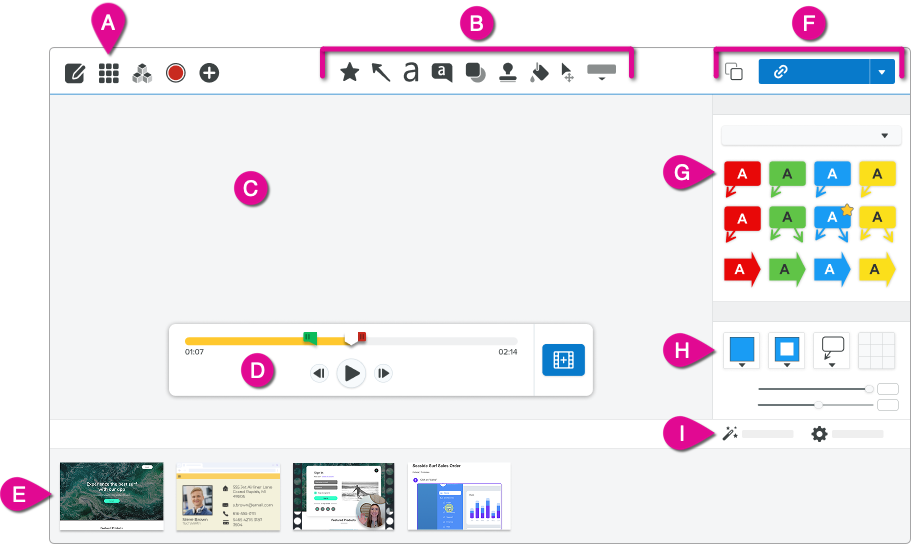
Your capture opens in the Editor to preview, edit, and share.
Note: Some options may be hidden depending on whether an image or video is open in the Editor.
Snagit Library: Access your entire history of Snagit captures.
Toolbar: Tools to annotate, edit, and enhance images.
Workspace: The workspace is the area to preview and edit captures.
Video playback and editing options: Review, trim, and cut out unwanted segments of your video. Combine multiple clips, create an animated GIF, or save a frame as an image.
Recent captures: View and select recent captures and recently opened files.
Share options: Copy, share, or export your capture to another application or file location.
Quick Styles: Apply premade tool styles or save custom-made styles.
Tool Properties: Adjust tool properties such as color, font size, or shape to customize the selected tool.
Effects: Apply effects to images, such as borders, torn edges, color adjustments, and more.
Learn How
Inspired by the video above? Check out these tutorials with videos and written step-by-step instructions: