









A 45-minute discovery call sits in Gong with one sharp objection response buried at minute 32, and your sales manager isn’t going to scrub through the rest to find it. Enablement teams edit recorded sales calls by changing what viewers hear and see: trimming irrelevant discussion, isolating the exchange that matters, adding coaching context, protecting customer details, and packaging the result into a clip someone will actually watch.
Renaming that file “Acme Discovery” or tagging it organizes the recording. Turning it into coaching material takes content edits.
That gap between a well-labeled call and a usable one is where most enablement teams stall.
This repeatable record, trim, annotate, share, and archive workflow is built around tools that turn one buried moment into a clip your manager will open.
Key takeaways
- Editing recorded sales calls means changing the content itself, separate from updating titles, tags, or other recording details.
- A repeatable record, trim, annotate, share, and archive workflow can turn raw sales calls into focused coaching assets.
- Camtasia Editor helps teams isolate objections, pricing discussions, and discovery moments without sharing an entire call.
- Annotations, callouts, and saved User Styles make coaching points clear while keeping clips consistent across the team.
- Teams can use Camtasia Snagit’s Smart Redact to protect sensitive customer details in supporting screenshots, then collect time-stamped feedback from managers and stakeholders in Screencast.
Why editing a recorded sales call means more than renaming a file
Renaming a recording organizes it. Editing the content turns it into focused coaching material.
Titles, tags, participants, and ownership fields fall into one category: organization. Trimming, annotations, captions, static-image redaction, and exports fall into another: content.
Take that same buried objection response from the intro. A manager coaching a rep on objection handling won’t rewatch the whole recording. They’ll use the three-minute clip built from it.
If you can edit a doc, you can edit a video
Stop fearing the timeline. Camtasia Audiate transcribes your recording so you can edit your video just by editing the text.
Free Download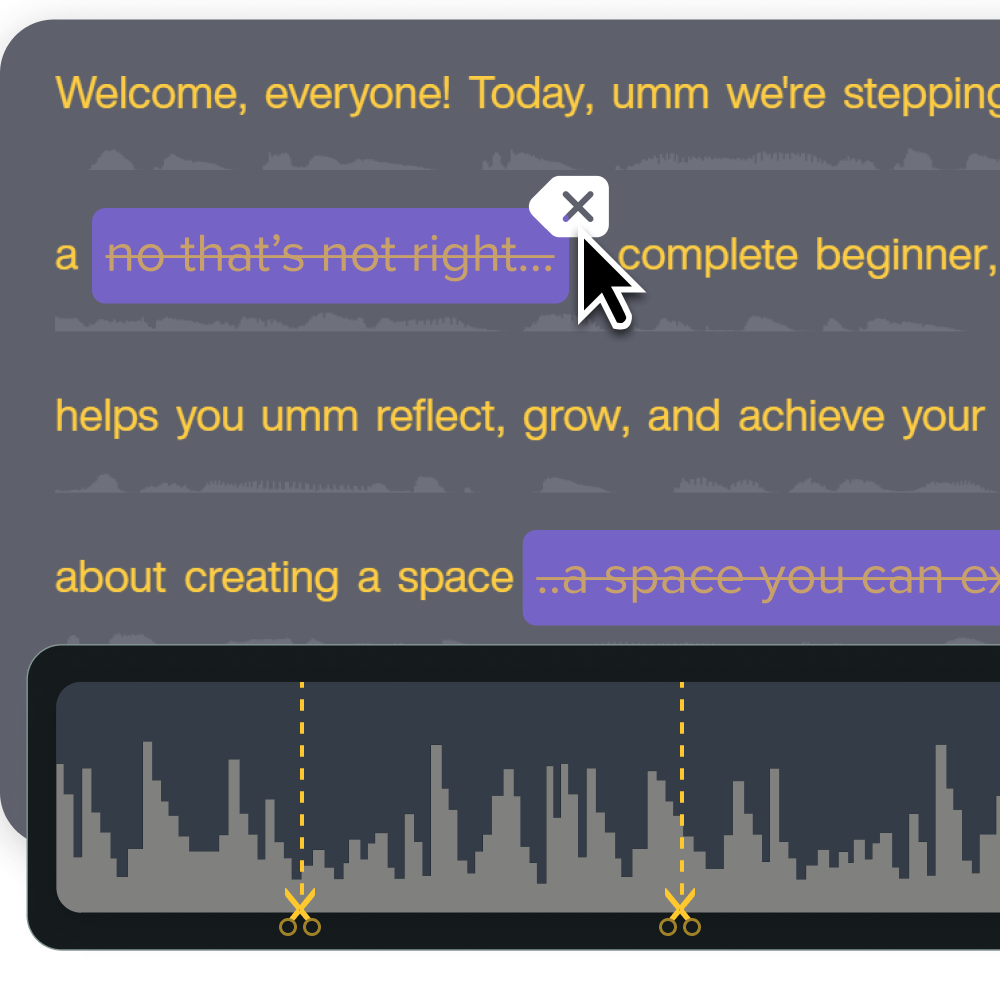
The gap between editing a recording’s details and editing its content
Recording details live in your call platform. Renaming, tagging, or assigning ownership only changes how a file is found later.
Content edits happen after export inside Camtasia Editor, and they change what a viewer sees and hears.
Picture the Acme discovery call renamed in Salesloft for easier searching. That label helps the team find it next quarter. It does nothing for a manager who needs the two-minute objection exchange, with coaching notes attached, ready to share today.
A simple framework for turning raw calls into coaching-ready clips
A useful sales call clip follows a repeatable workflow. Each stage protects clarity, review speed, and future reuse.
- Record: The rep captures the call with consent confirmed, producing a raw file ready for review.
- Trim: The editor isolates one objection or pricing exchange.
- Annotate: The editor marks the coaching moment.
- Share: The manager approves the clip through a time-stamped review.
- Archive: Enablement stores it with permissions and consent status attached.
Each stage has an owner and a quality check, so enablement teams can turn it into a checklist without slowing sales reps down.
Record: Capturing the conversation you will use
Start by naming the coaching or deal-review outcome you want, then capture only the sources that support it. In a discovery call, the shared screen usually carries the lesson, while the camera feed adds little value.
- Define the outcome.
- Capture screen, camera, and audio selectively.
- Confirm consent and policy beforehand.
- Confirm redistribution rights for coaching or onboarding.
A recorded call reaches few people. A shared clip reaches many. See tips for editing recorded meetings for related guidance.
Trim: Cutting the call down to what matters
A useful trim keeps one decision point and cuts everything around it that doesn’t help a manager judge it fairly.
- Pick one moment: an objection, a pricing exchange, a discovery sequence, or a next-step agreement.
- Cut greetings, scheduling chatter, dead air, and unrelated tangents.
- Leave enough lead-in and response so the rep’s choice makes sense in context.
- Use transcript-based cuts and filler-word removal in Camtasia Audiate where your current plan supports it.
- Finish visual refinement in Camtasia Editor.
Take a 45-minute discovery call. Instead of sharing the whole recording, isolate the two-minute objection-handling exchange, keeping the buyer’s concern and the rep’s response intact.
Annotate: Marking up the moments worth coaching
One clear annotation per clip keeps the coaching point visible without pulling focus from the conversation itself.
- Pick one coaching behavior for the clip.
- Add a short label, arrow, or callout at that exact moment.
- Pair praise or correction with visible evidence in the call.
- Show one alternative response when a rep misses a discovery question or fumbles an objection pivot.
Label a clip “Strong discovery question,” for example, then add a brief note showing how the buyer opened up in response. That evidence makes the lesson concrete.
Share: Getting the right eyes on the clip
Sharing through Screencast keeps every comment attached to the exact frame instead of scattered across email. Upload the finished draft, then assign each reviewer one job: coaching approval, compliance review, onboarding placement, or deal strategy.
A sales manager can approve the objection handling in one comment while a compliance reviewer checks the disclosure language in another, both pointing at the same time-stamp.
Archive: Keeping clips findable for the next rep
A consistent archive record means enablement teams reuse approved clips without digging through raw calls or guessing what’s safe to share.
- Name each clip using call type, skill, product, region, and date.
- Tag it by coaching or onboarding use.
- Store the source file, edited version, permissions, consent status, and review date together.
- Set a future review date so outdated examples don’t get reused.
Example: Discovery_PricingObjection_ProductX_EMEA_2024-03. Anyone scanning the archive knows exactly what it is and whether it’s still current.
Trimming long sales calls down to the moments that matter
Long calls slow coaching. Short clips let managers focus on one behavior, decision, or deal risk.
Keep one moment per clip, with enough surrounding context so the representative gets a fair review rather than a highlight reel.
Native call tools record, search, and rename calls well, but they aren’t built for precise cuts. A manager building a weekly coaching review needs frame-accurate control over where a clip starts and stops. Camtasia Editor’s timeline gives you that control, turning a 40-minute call into one three-minute clip worth discussing.
Isolating objections, pricing, and discovery moments with Camtasia Editor
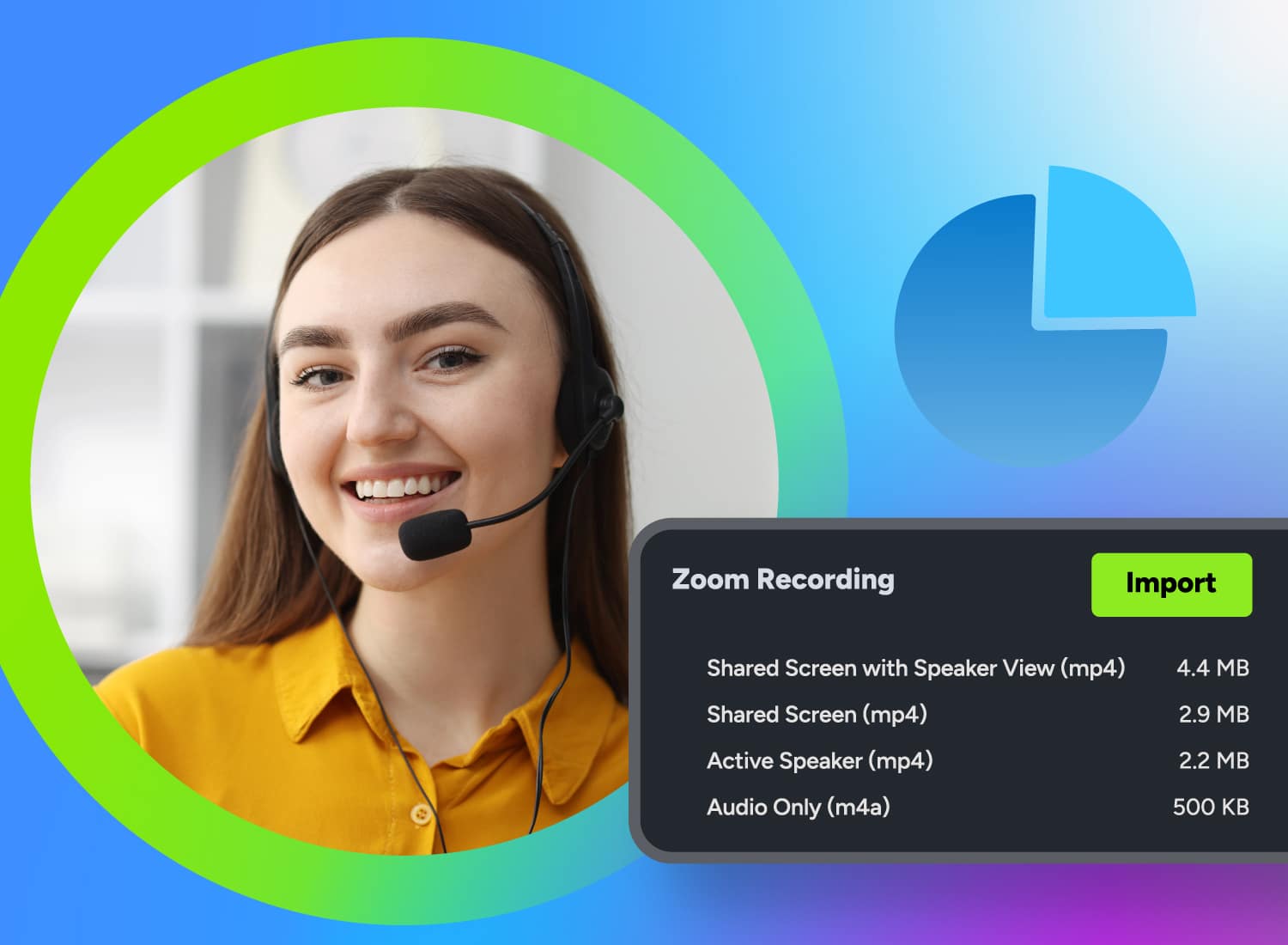
Camtasia Editor lets you split a call around one exchange and cut everything else while keeping the surrounding context a fair coach needs. If your team records in Zoom, Camtasia Editor’s Zoom integration lets you import cloud recordings directly into the timeline, so you skip a separate export step entirely.
Follow this sequence for any call:
- Import or export the approved recording.
- Drop it on the Camtasia Editor timeline.
- Scrub to find the target exchange.
- Split at clean pauses before and after it.
- Delete the surrounding material.
- Preview both transitions to confirm context survived the cut.
For a discovery sequence, split before the representative’s question and after the buyer’s full answer. Cutting mid-answer leaves reviewers guessing what the buyer said.
For a pricing objection, keep the buyer’s concern and the representative’s pivot together in one clip. Trimming only the pivot makes a smooth save look unearned.
If you’re editing a longer session first, this webinar trimming guide covers similar cut-and-preview mechanics in greater depth.
Go from screen recording to polished video
A screen recording is just the start. Camtasia’s editor helps you add the callouts, animations, and edits you need to create a truly professional video.
Free Download
Annotating clips so coaching points land immediately
Good annotations make the coaching point visible before a manager says a word. Use them to direct attention, not decorate the clip.
Use annotations for three jobs only:
- Identify the specific behavior worth coaching.
- Show the buyer’s response to that behavior.
- Present a better alternative when the moment calls for it.
Keep callouts off faces, slides, captions, and any visible CRM detail. Add accurate closed captions, and always review auto-generated captions before publishing. Picture an onboarding viewer watching with the sound off in an open office: reviewed captions and a clear label are what let that person learn the lesson without audio. For more ways to strengthen a clip’s clarity, see these ways to enhance video.
Highlighting key moments with callouts and saved User Styles in Camtasia Editor
Saved User Styles give every editor on your team the same callout look, so a coaching clip from one region reads the same as one from another.
Build the style once in Camtasia Editor:
- Set your approved callout colors, fonts, and borders.
- Save that combination to User Styles.
- Add it to favorites so it’s the first option every editor sees.
- Apply short, high-contrast labels that make sense with the sound off.
Standardize your labels across every clip. Use terms like “Discovery question,” “Pricing objection,” and “Coach’s note” every time, rather than letting each editor invent new wording.
This matters most when multiple enablement editors or regional teams contribute clips to the same library. If the EMEA team uses yellow callouts for objections and the US team uses red, managers reviewing both waste time decoding the system instead of coaching the rep.
One saved style set removes that guesswork entirely.
Sharing edited clips for review without losing control of customer data
A polished coaching clip still contains customer data. Share it through a controlled review workflow, with only necessary details visible.
Before review, work through these steps in order:
- Confirm consent, retention, redistribution, and access rules with privacy or legal.
- Remove sensitive segments that don’t support the coaching point.
- Redact sensitive details in static supporting images.
- Inspect the final video frame by frame.
- Share only through your approved review workflow.
Requirements vary by location and purpose. A UK enablement team, for example, should check ICO guidance on monitoring workers to determine whether a DPIA is required before distributing the clip.
Getting time-stamped feedback from managers and stakeholders in Screencast
Screencast pins each reviewer’s note to the exact frame it references, so feedback stays attached to the moment instead of drifting into a separate email thread. Upload the approved draft to Screencast, then send the share link to named reviewers, such as a sales manager and a deal desk stakeholder.
Ask each reviewer to comment at the specific frame rather than writing a general summary. A comment like “Strong pricing pivot at 2:14” tells the rep exactly what worked and where, instead of a vague email saying the call “sounded good.”
Turn each comment into a clear action: revise, approve, or coach. Resolve all comments and obtain document approval before publishing, using the same review discipline from the demo recording review process.
Redact sensitive customer details with Snagit before you share
Camtasia Snagit protects sensitive data in screenshots and static supporting images, but it won’t touch moving video automatically. Say a coaching clip includes a CRM screenshot showing a customer’s email address and account number.
- Capture or open that screenshot in Camtasia Snagit.
- Run Smart Redact on names, account numbers, email addresses, and other CRM fields.
- Inspect the redacted image manually to confirm nothing sensitive slipped through.
- Remove or replace any unnecessary sensitive segment in the broader project.
- Inspect every frame of the actual video before sharing.
That last step matters most: Smart Redact covers only static images, while video footage needs separate handling directly in the timeline. If the same account number appears on screen during a screen recording, trim or blur it directly in the video.
Annotate and edit screenshots with Snagit
Professional mark-up tools and powerful features make it easy to create helpful images.
Try it Free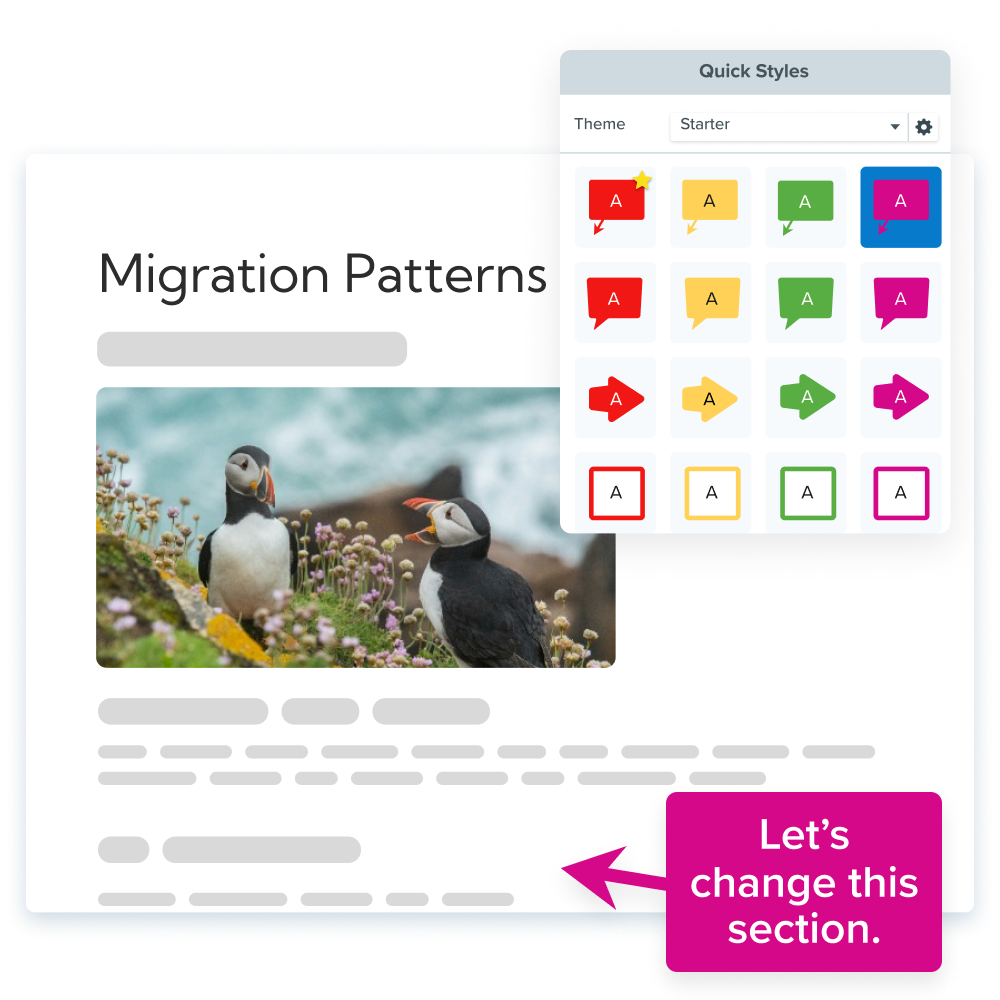
Turn every recorded sales call into a coaching asset your team will use
Raw calls become useful when teams edit for one coaching outcome. Camtasia Editor, Snagit, and Screencast connect precise editing, visual context, controlled review, and reuse.
This week, pick your next approved call, drop it into Camtasia Editor, trim to the single coaching moment, redact anything customer-specific with Camtasia Snagit, and push it to Screencast for time-stamped feedback before it reaches the team. Cut, protect, review, reuse.
Camtasia Audiate handles the transcript-level cleanup so the clip sounds as sharp as the insight inside it. Once that habit sticks, coaching clips stop being a special occasion and show up every week.
Start your free trial of Camtasia Editor and turn your next sales call recording into a coaching clip.
Frequently asked questions
Can I edit recorded sales calls?
Yes. Export the recording from Zoom, Gong, Salesloft, or another recording platform, then import the approved file into Camtasia Editor to cut a long conversation into focused coaching clips, add annotations, and prepare the result for review. Zoom users can also import cloud recordings through Camtasia Editor’s Zoom integration.
How do I trim a recorded sales call?
Import the recording into Camtasia Editor, place it on the timeline, and split the clip immediately before and after the objection, pricing exchange, discovery sequence, or other target moment. Delete the sections you don’t need, then review both cuts to confirm the clip preserves enough context for fair and useful coaching.
What is the difference between editing recording details and editing recorded content?
Editing recording details changes administrative fields such as the title, tags, participants, or owner. Content editing changes what viewers hear and see. Content-level work includes cuts, annotations, reviewed captions, audio cleanup, exports, and the removal or protection of sensitive material. Native sales platforms often support organizational changes, while dedicated production tools create focused coaching assets.
How can I annotate sales call clips for coaching?
Add brief callouts, arrows, or labels at the exact moments that demonstrate a strong discovery question, missed follow-up, pricing objection, or effective pivot. Keep each clip focused on one behavior, connect the annotation to visible or audible evidence, and use saved User Styles to maintain consistent colors, fonts, borders, and labels across the enablement team.
How should teams share edited sales calls securely?
Confirm recording consent, retention rules, redistribution rights, and access requirements with the appropriate legal or privacy team before sharing an edited call. Remove unnecessary sensitive segments, use Camtasia Snagit to redact customer details in screenshots or static supporting images, and inspect the moving video separately because Smart Redact does not automatically redact video frames. Share the approved draft through Screencast for time-stamped review while following the organization’s access controls.
Share