






Eighty-eight percent of organizations report regularly using AI tools in at least one business function. But if we had to guess how many are maximizing its efficiency, the number would be a lot lower.
ChatGPT is one of the most popular go-to large language models (LLMs) for consumers and business users. Most use ChatGPT the same way: open a tab, type a prompt, copy the output, and paste it somewhere else. That works fine until that “somewhere else” is your project tracker, your design tool, or the video you’re already halfway through building. The copy-paste loop is where AI assistance sneakily adds more work to your plate.
The apps in this list cut that loop short. Each one connects ChatGPT to a specific kind of work so you get the output you actually need, without an extra trip through your clipboard.
Whether you’re drafting a complex training manual or trying to turn a series of screenshots into an instructional video, the best ChatGPT app is the one that fits into your existing workflow and helps you move from idea to output faster.
Key takeaways
- The best ChatGPT app for your workflow depends on what you’re making and where your work lives. An app that’s ideal for structured data operations will be a poor fit for someone building training videos, and vice versa.
- Privacy controls and data-handling policies vary significantly between apps, so review the terms before connecting any app to sensitive work content.
- Reusable prompt templates turn any ChatGPT app into a personal productivity system that improves with each use.
What is a ChatGPT app?
A ChatGPT app is a mobile or desktop application that connects to OpenAI’s language models to help users write, research, brainstorm, and automate tasks. Some are official products from OpenAI, but others are third-party tools that layer GPT capabilities on top of their own features.
The core mechanic is the same across all of them: you write a prompt in plain language, and the model returns a response. What differs is what happens to that response.
In the official ChatGPT interface, the output stays in the chat. In a connected app, it can land directly in a database, a design canvas, a project board, or a finished video, depending on which tool you’re using.
Which ChatGPT app is best for work productivity?
There’s no single answer. The right choice depends on what you produce, which tools you already use, and what kind of tasks eat the most time in your day. A marketing team creating visual assets needs something different from an operations manager tracking project status. Both will get more value from a tool matched to their workflow than from the most feature-rich app on the market.
How to choose the best ChatGPT application for your workflow
Before downloading a new tool, use this checklist to see whether the tool will actually improve your productivity or just add another tab to your browser.
Check model access and update cadence
ChatGPT apps vary in which model versions they offer. Some ship with the newest release within days of launch; others run on older versions that handle complex, multi-step tasks less reliably. Before committing to any app, verify which model it uses and how frequently it updates. The gap between GPT-3.5 and the current generation is meaningful on tasks that require reasoning, nuanced writing, or structured output.
Look for integrations with your existing stack
Real-time savings happen when you reduce the “toggle tax” — the time lost switching between apps. Look for ChatGPT integrations that integrate with:
- Communication: Email and Slack
- Organization: Calendars and project management
- Content creation: Video editors and design tools
- Storage: Cloud drives and internal knowledge bases
You can conduct a self-audit by listing four or five tools you use every day. Then shortlist ChatGPT apps that connect directly to them. Strong integrations preserve context across threads, files, and meetings, which cuts down on rework and keeps your team aligned without extra coordination.
Match the app to your primary workflow
Different ChatGPT apps are built around different kinds of work. Using one optimized for documentation when your primary need is visual asset creation adds friction at every step. Before choosing, identify the one or two task categories that account for most of your time:
- Writing and communicating? Look for an app that can create emails, scripts, and documentation.
- Building standard operating procedures and training? Look for tools that turn text into visual storyboards.
- Managing operations? Choose an app that can update records and track projects.
- Performing research and gathering information? Look for tools that can source, summarize, and verify information.
- Creating marketing assets? If you’re creating visuals, presentations, or video workflows, use a visual-first GPT app that generates editable designs.
Using the wrong tool for your workflow can lead to friction, extra steps, and lower quality output. For the best results, start with one primary use case (like training content or reporting documentation) and select an app that directly supports it.
The 5 best ChatGPT apps for productivity
Whether you’re looking to automate data entry, generate on-brand visuals, or turn a messy brainstorm into an organized project plan, these five apps represent the gold standard for workplace productivity. We selected each for its ability to reduce manual tasks and keep you focused on high-level strategy.
1. Camtasia
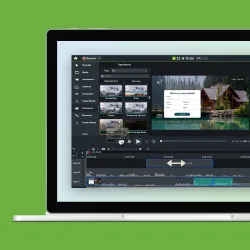
Camtasia’s ChatGPT app turns screenshots into narrated instructional videos without requiring any recording setup or video editing software. The workflow is straightforward: upload your screenshots inside ChatGPT, describe what you want to teach, and the app generates a storyboard, writes a script, and produces an animated screencast with synthetic narration. From there, you can open the result in Camtasia Online for further editing or share it directly.
Key capabilities:
- Generative screencast: Upload screenshots of a process, and the app helps you generate a structured storyboard. It transforms static images into a clear, instructional flow.
- Automated video structure: Create video content complete with natural sounding AI narration, cursor movements, and automatic zoom and pan effects.
- Smooth workflow: Open the finished video in Camtasia Online or pull it into the Camtasia Editor for more advanced multi-track editing.
Strengths:
- Free to use and accepts most standard image formats
- Designed for training, onboarding, and tutorials
- Significantly faster than recording and editing a tutorial from scratch
- Perfect for repurposing existing documentation or screenshots into high-quality video
- Combines AI and live workflows
Tradeoffs:
It’s purpose-built for instructional content, so may not be ideal for general-purpose video production.
Best for:
Trainers, instructional designers, enablement teams, and anyone producing software tutorials, onboarding walkthroughs, or process documentation at volume.
Go from screen recording to polished video
A screen recording is just the start. Camtasia’s editor helps you add the callouts, animations, and edits you need to create a truly professional video.
Free Download
2. Airtable
The Airtable ChatGPT app connects your Airtable databases directly to the ChatGPT chat interface. You can query your data, generate content from it, and push updates back to your base without leaving ChatGPT.
Key capabilities:
- Prompt-to-record: Create and update records directly from a ChatGPT prompt.
- Natural language queries: Ask questions like, “Which projects are currently over budget?” or “Summarize the status of our Q3 marketing campaign,” and get instant answers from your structured data.
- Workflow automation: Connect ChatGPT outputs to automated sequences, such as sending a Slack notification when a data threshold is met.
Strengths:
- Turns a static database into a dynamic operations hub
- Reduces the technical barrier for team members who aren’t comfortable with complex database logic
- Supports operations and project tracking
Tradeoffs:
The integration currently works only with data accessible through Airtable’s public API, which means no access to automations or interface-level views. It also assumes you already have an organized Airtable workspace: it surfaces your existing data more effectively, but it doesn’t replace the need to structure that data well in the first place.
Best for:
Operations teams, project managers, and cross-functional teams who need to query and update structured data without leaving their AI workflow.
3. Canva
The Canva ChatGPT app lets you generate presentations, social media graphics, and marketing assets from a prompt, preview them full-screen in the chat window, and then open them in Canva to refine.
Key capabilities:
- Prompt-to-design: Describe a social media post or a presentation slide, and the app generates a fully editable design.
- Iterative editing: Refine designs by chatting with the AI — for example, “change the background color to corporate blue” or “add a placeholder for a 16:9 video.”
- Visual asset generation: Quickly create icons, backgrounds, and layouts that align with your brand’s aesthetic.
Strengths:
- Fast, ideal for high-volume content creation
- Brand Kit feature that ensures that newly generated graphics align with your existing brand colors and fonts
Tradeoffs:
Full design creation requires a ChatGPT Plus, Pro, or Team plan; free-tier users get a more limited experience. The output is a strong starting point, but detailed layout control still happens in Canva itself. Advanced collaboration features within Canva’s own platform are also not accessible directly through the ChatGPT integration.
Best for:
Marketing teams, content creators, and anyone who needs to move from a written brief to a visual asset quickly, especially where brand consistency matters.
4. Notion
Unlike the other apps in this list, Notion doesn’t currently have a native ChatGPT app in the same sense. The closest equivalent is Notion MCP, which allows ChatGPT Pro users to connect directly to their Notion workspace and read from or write to pages in real time.
For teams without ChatGPT Pro, the most common path is a third-party automation tool like Zapier or Make, which routes content between the two platforms based on triggers you configure.
Key capabilities:
- Contextual summarization: Use the /summarize block to instantly create executive summaries of long meeting notes or project specs.
- Action item extraction: Automatically pull a list of next steps from a messy brainstorming session transcript.
- Inline editing: Highlight any text and ask the AI to fix grammar, change the tone to “more professional,” or translate it for a global team.
- Update documents: Generate and update documents, notes, and wikis.
Strengths:
- Eliminates the “toggle tax” by keeping the AI where your documentation lives
- Supports ongoing knowledge workflows
- Works well for maintaining and updating standard operating procedures
Tradeoffs:
The configuration step is more involved than connecting a native app. Notion MCP requires a ChatGPT Pro subscription — without it, you’ll need to set up a Zapier or Make workflow, which adds setup time and an additional subscription.
Best for:
Knowledge workers and internal teams with documentation-heavy workflows, provided they’re on ChatGPT Pro or comfortable with a no-code automation tool.
5. Asana
The Asana ChatGPT app lets you work with your Asana tasks, subtasks, comments, due dates, and project details from inside ChatGPT. You can create tasks from natural language, pull current project status into a conversation, and move items forward without switching tools.
Key capabilities:
- Brainstorm-to-project: You can plan a full project — like a software launch or a webinar — within ChatGPT and then prompt it to “Turn this into an Asana project.” It will instantly build sections, tasks, and timelines.
- Task management via chat: Assign owners, set priorities (high, medium, low), and update due dates directly within the chat interface.
- Visual timelines: Switch between a list view and a Gantt-style chart inside the chat to see how your project timeline flows before you commit it to your workspace.
Strengths:
- Reduces manual data entry and “copy-paste” fatigue between ChatGPT and project tools
- Preview AI allows you to review and tweak the project structure before it goes live
- Allows you to turn ideas into actionable work
- Keeps tasks organized and visible across different teams
Tradeoffs:
It requires an existing Asana workspace and is less useful for creative or unstructured workflows. It also can’t change high-level project settings (like ownership) once created. For those, you’ll need to hop into the main Asana app. There is also a bit of a learning curve — setup and workflow design may take time for new users.
Best for:
Project managers, operations teams, and cross-functional teams who need to move from planning to execution quickly, without losing context between their AI conversations and their task management system.
Tips to get more from any GPT app
While ChatGPT is an incredible drafting tool, written communication can sometimes get lost. Utilizing video for business communication helps ensure your message is received and understood, reducing the need for long email threads.
Regardless of which app you choose, these three strategies will help you transform a basic AI chat into a repeatable productivity system.
Craft role-based prompts for faster drafts
AI works best when it has a persona. Instead of saying “Write an email,” give the AI a specific role, the necessary context, and the output format. Specificity is better than vague requests, especially for work writing.
- Recipe: Role + context + task + output format
- Example: “You’re a corporate trainer (role). We’re launching new HR software next week (context). Write a 100-word announcement email (task) in a friendly, professional tone (format).”
Pair AI output with visuals for clarity
The real power of AI tools in the workplace is their ability to summarize complex processes. But reading a summary isn’t the same as seeing a process in action. To maximize knowledge retention with video training, use AI to script your lessons, then pair the script with screen recordings to give your team a visual roadmap to refer to.
While artificial intelligence is great at generating text, the human brain processes visual information much faster. Research highlights that 91% of business leaders agree that visuals directly enhance workplace efficiency, helping teams move through projects faster and with fewer errors.
To reduce follow-up questions and back-and-forth emails, pair your AI-generated drafts with visuals. For example, if you use ChatGPT to help you write a script for a new software feature, use the Camtasia Product Suite to turn that script into a polished walk-through video. Visuals improve comprehension and ensure your message sticks.
Save reusable prompt templates
Most teams have recurring AI tasks: weekly summaries, project briefs, email templates, meeting agendas. If you’re writing those prompts from scratch each time, you’re leaving time on the table. Build a small library of prompts for your most frequent use cases and store them somewhere accessible, whether that’s a saved document, a prompt bank in your AI tool, or a note in your project management system.
These templates compound leverage: each reuse saves time and improves consistency. Consider revisiting and refining templates based on what produces the least editing.
Use the Chat GPT app that fits your productivity needs
The “best” app isn’t the one with the most features — it’s the one that fits your workflow and constraints.
Whether you’re managing data in Airtable, designing in Canva, or turning complex ideas into instructional videos with the Camtasia Product Suite, the right tool should help you move from idea to output without getting in your way.
If you’re ready to see how AI can transform your screen content into professional tutorials, training videos, and presentations, explore the full Camtasia Product Suite today.
Looking for professional screen recording software?
From simple screen captures to polished video editing, TechSmith has everything you need to create professional-quality content.
Learn More
FAQs
What’s the difference between the official ChatGPT app and third-party options?
The official ChatGPT app offers direct access to OpenAI’s models with consistent updates, while third-party apps typically add differentiators like deeper integrations, multi-model access, or team collaboration features.
Is there an app for ChatGPT that works offline?
Most ChatGPT apps require an internet connection because prompts are processed on cloud servers, though some may allow limited offline access to previously loaded conversations.
Which ChatGPT app is free for commercial use?
Several apps offer free versions that can be used for commercial work, but limits and allowed use vary, so you should confirm the terms of service for the app and plan you choose.
Share