










We have all been there. You try to explain a complex process over chat, and ten minutes later, you are still typing. Or worse, you schedule a 30-minute meeting for a 2-minute explanation.
There is a better way. When you create a video link, you capture your screen, send a URL, and get back to your actual work. No “file too large” errors. No waiting for uploads. Just click and go.
Use Camtasia Snagit for an instant video link
If you need to show a teammate a quick bug or a “how-to” workflow, Camtasia Snagit is your best friend. It turns your screen capture into a video link before your coffee even gets cold.
- Record: Hit the red button and show what you see.
- Share: Click the “Share Link” button.
- Send: Paste the URL into Slack, Teams, or an email.
Snagit automatically uploads your capture to Screencast. Your teammate gets a video link they can watch instantly. They can even leave comments at specific timestamps so you know exactly what they are asking about.
The best snipping tool for Windows and Mac
Don’t let clumsy built-in tools hold you back. Take and edit screenshots with Snagit!
Get Snagit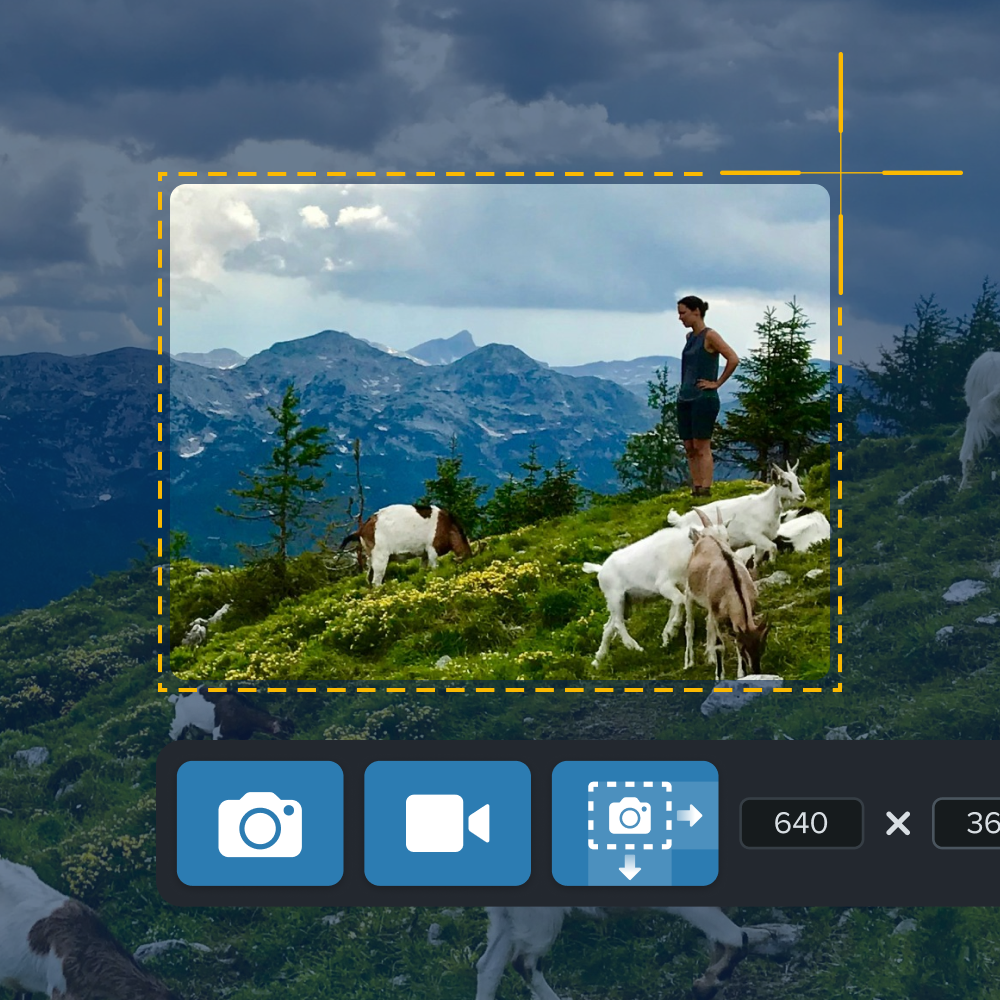
Use Camtasia Editor for a polished video link
Sometimes a quick capture isn’t enough. When you need to create a tutorial for a client or a presentation for the whole department, use Camtasia Editor. It gives you the power to edit out the “ums,” add professional arrows, and still produce a simple video link.
- Edit: Trim your footage and add highlights to direct the eye.
- Export: Select the Screencast destination.
- Link: Copy your unique video link and share it anywhere.
Editor ensures your high-quality content is accessible via a simple URL. You get the polish of a pro video with the simplicity of a text link.
Crystal-clear screen recording
Why settle for blurry screen content? Camtasia Editor’s screen recorder captures everything at up to 4K!
Free Download
Why you should send a video link instead of a file
Sending a raw MP4 file is like sending a physical letter in 2024. It works, but why bother? A video link is superior for three reasons:
- Zero Upload Wait: Your viewers don’t have to download 200MB just to see your screen.
- Easy Updates: If you need to fix the video, the video link stays the same while you replace the content.
- Security: Passphrase protect your video link or set it to expire so your data stays safe.
FAQ: Everything you need to know about video links
You can use the free trials of Camtasia Snagit or Editor to create and share a video link immediately. Screencast provides the hosting for your link at no extra cost.
Yes. When you share a video link through Screencast, you can see view counts and interact with comments from your audience.
Absolutely. Any video link created with TechSmith tools is optimized for playback on desktops, tablets, and smartphones.
Share