









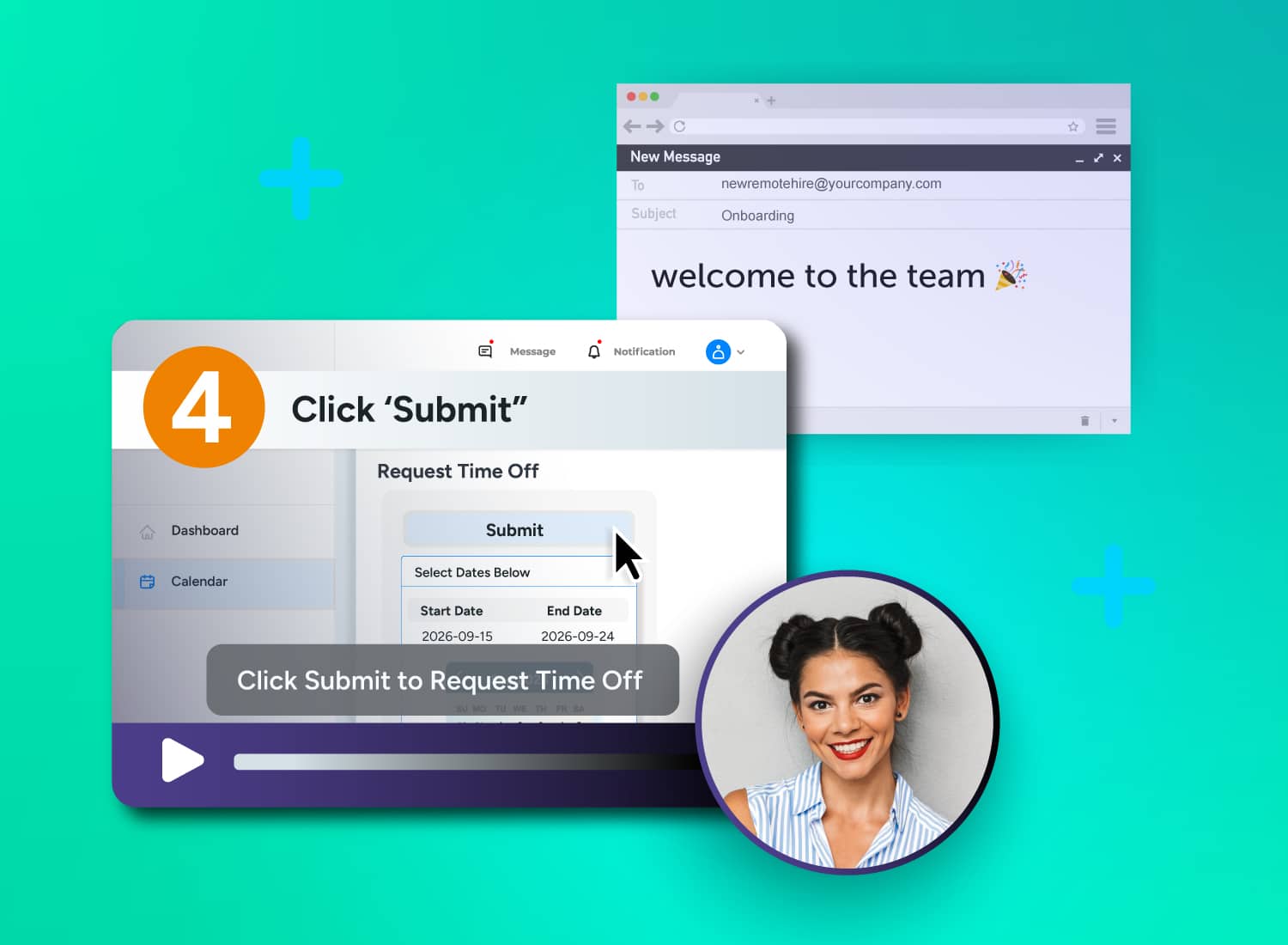
A new hire in Manila logs in at 9 a.m. her time, six hours before anyone on her U.S.-based team wakes up. Her welcome email points to three different tools, none of which she has access to yet.
This is what remote onboarding looks like when no one accounts for time zones, missing logins, or the informal cues employees usually pick up in a shared office. Onboarding remote employees means giving distributed new hires the access, instruction, relationships, practice, and milestones they need without relying on a shared location or overlapping work hours.
For fully distributed teams, that requires an asynchronous, video-first system supported by written references, human check-ins, and measurable learning goals.
This guide provides a phased framework covering pre-boarding through day 90, a way to sort content into video, live, or coaching formats, and a clear map of which Camtasia tool fits each production task.
Key takeaways
- Video-first remote onboarding gives distributed hires consistent, repeatable guidance they can access across time zones and revisit as needed.
- A phase-based plan organizes remote onboarding into pre-boarding, first-week modules, and 30-, 60-, and 90-day milestones.
- Use Camtasia Online for quick, role-specific walkthroughs, Camtasia Snagit for lightweight step-by-step visuals, and Camtasia Editor for polished, branded training modules that require deeper editing.
- Screen recordings can pair with small AI-generated avatars, keeping the presenter visible without competing with instructional content.
- Use Shareable Content Object Reference Model (SCORM)-compatible learning management system (LMS) delivery to track completion and use comprehension checks to assess learning. Camtasia doesn’t support xAPI.
Build your next training video with Camtasia
Record your screen or camera. Then, use the video editor to add polish and clarity.
Learn More
Why remote onboarding is not the same as in-office onboarding
Remote employees need a different onboarding approach because they don’t have a shared office automatically providing access, context, relationships, or feedback.
As outlined in this onboarding guide, human resources (HR) and learning and development (L&D) teams should evaluate each part of the experience separately instead of simply digitizing an office orientation.
How remote onboarding differs from onboarding in a shared office
Remote onboarding must deliberately offer what a shared office often supplies informally. Consider a globally distributed software hire waiting for system credentials before day one.
- Equipment: IT ships hardware before the employee starts.
- Access: IT verifies logins so the new hire doesn’t spend their first day waiting.
- Overlap: Managers plan around limited or zero shared working hours.
- Informal cues: A manager records the team’s communication protocol.
- Observation: Managers schedule check-ins instead of relying on informal interactions.
- Support: Documented answers replace tapping a colleague on the shoulder.
Where live-only onboarding breaks down for distributed teams
Live-only onboarding fails when a hire has no working hours in common with the trainer. A trainer who walks one employee through software access at 9 a.m. may have to repeat the same session at midnight, 4 a.m., and again the following week for another cohort. Eventually, sessions get shortened, skipped, or rescheduled to hours that don’t work well for anyone.
Instead, sort each onboarding activity into one of four categories:
- Repeatable instruction
- Live connection
- Sensitive discussion
- Coaching
Record repeatable instruction for on-demand access. Reserve live time only for the last three.
Why video-first onboarding fits distributed, async teams
Video gives every hire reliable instruction during their own workday, so no one has to attend a 2 a.m. tool-training session to catch the only available live slot. It becomes the operational backbone for repeatable instruction while written references, practice activities, peer support, and scheduled conversations provide context and human connection.
This video-versus-live comparison explains where each format works best. Fully distributed teams should start by reviewing recurring live sessions and identifying which ones could become searchable modules.
Asynchronous access across time zones
On-demand video lets a remote hire learn during their local working hours instead of waiting for a trainer’s calendar to open. A hire in Singapore can pause a system-access walkthrough, complete the login steps, and then replay part of the video to confirm a setting before moving on. That flexibility supports the broader benefits of async video training.
Use Camtasia Online for short, role-specific walkthroughs. Reserve Camtasia Snagit for single-step visual guides, such as an annotated screenshot showing where to select “Request Access.”
Need to show your screen?
Skip the downloads. Use Camtasia online to record your screen, camera, and microphone right in your browser for free.
Start Recording
Consistent, repeatable delivery for every new hire
An approved baseline module delivers the same required information to every hire, regardless of which manager onboards them or where they work. For example, a security training video reviewed and approved by L&D can communicate the same rules across regions.
Managers can then add short, role-specific clips explaining how their teams work. Evaluate each module against five criteria:
- Maintainability
- Accessibility
- Branding
- Version control
- Measurable completion
Assign one owner to each module to keep updates current.
A phase-based video onboarding framework for remote hires
Zero-overlap teams need a repeatable sequence covering pre-boarding, day one and week one, 30/60/90-day milestones, and peer-buddy reinforcement. At every stage, assign one video, one human touchpoint, one practice task, one owner, and one success measure.
For a global software hire, that framework might look like this:
- Video: A setup walkthrough from IT
- Human touchpoint: An async welcome message from the manager
- Practice task: A successful login
- Owner: IT
- Success measure: Confirmed system access
This video onboarding program framework can carry through each phase of the employee’s first 90 days.
The future of work is async
Survey shows more than half of workers would rather watch a video update than attend a meeting.
Get the Full Report
Pre-boarding videos for role-specific walkthroughs before day one
Pre-boarding videos should only explain what a hire needs to know after the physical and security requirements are in place. Complete these steps in order:
- HR confirms paperwork and eligibility.
- IT ships equipment and provisions secure account access.
- Owners record short videos covering the welcome process, setup, login, first-week schedule, and communication protocols.
- The hire confirms access before day one.
Video supports this process, but it can’t replace shipping logistics, identity verification, account creation, or secure access controls.
Consider a manager recording a two-minute overview of the employee’s first-week schedule after IT confirms that the hire can log in. Sending that video before access is confirmed only creates confusion and additional support tickets on day one.
First-week video modules for tools and culture
First-week modules should teach one task or norm at a time instead of packaging everything into one long orientation video. A practical sequence might cover:
- Essential tools
- Security practices
- Team norms
- Decision paths
- Communication channels
- Remote culture cues
Pair each module with a practice activity, a captioned reference resource, and a named contact for questions.
For a communication-channels module, show the new hire which channel to use for urgent questions and which to use for non-urgent updates. Then ask them to complete a sample task in the appropriate channel. This turns a vague policy into a practical skill within the first week and gives the named contact a clear, low-stakes opportunity to build trust early.
Milestone videos and async check-ins for the first 90 days
Thirty-, 60-, and 90-day video check-ins turn remote onboarding into progress you can actually see. At each milestone, ask the hire to record a short video summarizing their progress, demonstrating a task, identifying a gap or blocker, and requesting specific manager support.
| Milestone | Primary focus |
| Day 30 | Review expectations and early blockers |
| Day 60 | Assess role-specific performance and support gaps |
| Day 90 | Review milestones and set next-step goals |
Before a day-60 review, a remote employee might record a short demonstration of a core workflow, explain where they got stuck, and request clarification. Reviewing these clips across a cohort can help managers spot patterns, adjust training, and identify opportunities to improve ramp-up time.
Pairing video modules with a peer buddy system
A peer buddy should reinforce what a video module teaches rather than repeat it. Assign the buddy four clear jobs:
- Explain unwritten norms
- Answer low-risk questions
- Model communication habits
- Build social connection
Schedule buddy touchpoints after specific modules instead of relying on an open-ended standing invite. This keeps the relationship purposeful instead of turning it into an informal, inconsistent substitute for documented training.
For example, after a hire completes the team-norms module, pair them with a buddy in a closer time zone who can answer follow-up questions while the direct manager is offline. This gives the hire a real person to ask “Why do we do it this way?” without waiting days for a response.
Building a remote onboarding video library with Camtasia
Match each onboarding asset to the tool best suited to its lifespan, complexity, and review needs. Use Camtasia Online for quick async walkthroughs and Camtasia Snagit for single-step visual guides. Reserve Camtasia Editor for durable, branded modules and Camtasia Audiate for narration and avatar work.
For stakeholder review across time zones, use Screencast. A subject matter expert (SME) in one region can review a trainer’s draft while the trainer is offline and leave time-stamped comments instead of waiting for a live call. See this scalable onboarding workflow for the full production process.
| Tool | Primary use | Ideal asset type | Audience | Key limitation |
| Camtasia Online | Fast, browser-based async walkthroughs | Short, role-specific screen recordings with scenes up to five minutes each (per Camtasia Online’s session settings) | Managers and SMEs recording without installing software | Best for quick capture; deeper editing requires a handoff to Camtasia Editor |
| Camtasia Snagit | Lightweight, single-step visual guides | Annotated screenshots | Any team member documenting a single action | Not built for multi-step video editing |
| Camtasia Editor | Polished, branded training modules | Multi-track videos with captions, callouts, and knowledge checks | L&D teams building reusable modules | Requires more setup and editing time than Camtasia Online or Camtasia Snagit |
| Camtasia Audiate | Narration, script edits, and AI avatar generation | Voiceover tracks and avatar clips | L&D writers updating language across cohorts | AI-generated narration and avatars require disclosure per organizational and platform requirements |
| Screencast | Asynchronous stakeholder review | Draft videos awaiting time-stamped feedback | SMEs and reviewers working across time zones | Designed for review workflows rather than employee-facing training delivery |
Capturing fast walkthroughs with Camtasia Online
Camtasia Online lets a manager record and share a short walkthrough in a browser. Neither the creator nor the viewer needs to install software.
Consider a manager whose new hire works nine time zones away. Instead of scheduling a live login demonstration, the manager can record the screen, camera, and microphone in one session. Each remains on a separate track, so the camera and audio aren’t embedded in the screen recording.
Scenes can run up to five minutes each, and creators can string several scenes into a longer video. This makes it easier to record a multi-step login process in manageable sections. Once the video is finished, the manager can share a viewer link that anyone can watch without an account or send the project to Camtasia Editor for further editing.
Producing polished, branded training modules with Camtasia Editor
Camtasia Editor is the right tool when a module will be reused across cohorts and needs formal sign-off before it ships. A companywide compliance module or core-system walkthrough is a good example. Multiple stakeholders may review it, legal or security teams may weigh in, and the finished video must remain consistent for every new hire.
Tracks: Keep the screen recording, camera, callouts, and audio on separate timeline tracks.
Editing tools: Add captions, cursor emphasis, annotations, and knowledge checks without disturbing the base recording.
Templates: Reuse intros, colors, lower thirds, and other branded elements across modules.
Version control: Store the original project file and assign a named owner. When a policy or a login step changes, the owner can update the existing timeline instead of rebuilding the video from scratch.
Make great educational videos
Create engaging videos that drive student success with Camtasia’s easy drag-and-drop editing.
Free Download
Combining screen recording and avatar video for culture content
A small AI-generated avatar next to a screen recording can give remote hires a human presence when they can’t absorb culture through office tours, hallway conversations, or in-person observation. Generate the avatar in Audiate, then assemble it with the screen capture in Camtasia Editor.
Keep the avatar small and position it so it doesn’t cover menus, fields, or text the hire needs to read. In a leadership module, the avatar might introduce where decisions and team updates are documented, then become less prominent while the screen walks through that system.
Always disclose that the avatar is AI-generated, in accordance with your organization’s policies and any applicable platform or industry requirements.
Scaling narration for rolling remote hire cohorts
Text-based narration editing in Audiate lets L&D teams update onboarding language for new cohorts without rebuilding every module. Audiate supports transcription, script edits, AI voices, translations, and avatar generation within a single workflow.
Suppose a benefits term changes between hiring cohorts in two countries. Instead of rerecording, the content owner can update the transcript and regenerate the affected audio.
Cleaning up filler words without re-recording
Audiate lets trainers remove filler words and narration mistakes by editing the transcript instead of the audio waveform.
- Record the narration once, mistakes and all.
- Transcribe it automatically in Audiate.
- Delete “ums,” stumbles, or incorrect phrases from the transcript.
- Review the cleaned audio before publishing.
A corporate trainer who mispronounces a menu name three times can delete those errors from the transcript and send a polished file for review that same afternoon.
Updating scripts and voiceover as onboarding content evolves
Remote onboarding narration stays reliable when a named content owner follows the same update process whenever policy, software, or benefit language changes.
- Flag the outdated language, such as a payroll-system label that shifted between remote cohorts.
- Revise the text in Audiate.
- Sync the edited narration with Camtasia Editor.
- Complete stakeholder review.
- Publish the module with a new version date.
Set a regular review interval and maintain a change log for each module. Disclose AI-generated narration in accordance with your organization’s requirements.
Proving a remote onboarding program actually works
A remote onboarding program works only when completion data show that hires understand expectations, perform key tasks, and get help quickly. Build a scorecard with these signals:
- Completion (LMS records)
- Comprehension (quiz scores)
- Confidence (self-rating)
- Task performance (demonstration)
- Support load (help requests)
- Milestone attainment (manager observation)
- Content freshness (audit date)
A cohort that finishes every module but keeps asking the same system question signals a comprehension gap rather than a completion problem.
Tracking completion with SCORM-compatible LMS delivery
SCORM-compatible LMS delivery lets you track which remote hires completed an assigned module and how they scored on any built-in assessment. That matters when you’re rolling out a compliance module to cohorts across several regions and need proof that everyone completed it rather than relying on video views.
Camtasia supports SCORM export for this kind of tracking. It doesn’t support xAPI, so if your LMS or reporting strategy depends on xAPI or a learning record store, plan around that limitation.
Before production, confirm your LMS’s SCORM version and reporting requirements with your LMS administrator. Catching a mismatch early prevents unnecessary work.
Measuring comprehension and engagement, not just views
Measure whether a hire understood the material and can perform the work, not just whether they watched a video to the end. Combine several signals:
- Short knowledge checks after each module
- Task demonstrations showing the hire performing the skill
- Self-reported confidence ratings
- Manager observations during regular check-ins
- Buddy feedback on informal questions and gaps
- 30-, 60-, and 90-day milestone reviews
Compare results by role, region, and cohort to spot patterns a single completion report may hide.
Say a tool-training video shows high completion but low task-demonstration success. That gap tells you to revise the module, add a practice step, or shorten the instruction rather than assume the training worked.
Making remote onboarding consistent, scalable, and measurable with video
Remote onboarding works best when video, written references, human support, and clear milestones work together. Start small by recording one process with Camtasia Online, then use it as the first entry in a reusable onboarding library.
The Camtasia Product Suite helps that library with less production friction: captions generated automatically, filler words cut in a click, screenshots turned into step-by-step guides, and videos shared without a single email attachment. Once you see how little friction it takes, the next step is easy.
Start building your onboarding library free with Camtasia Online. Record and share your first walkthrough in your browser, with no download required.
Frequently asked questions
What is remote onboarding?
Remote onboarding integrates new employees into company culture, systems, and workflows through digital channels without relying on a shared office. For distributed teams, structure it around pre-boarding, the first week, and 30-, 60-, and 90-day milestones. Combine asynchronous modules with manager check-ins and a peer buddy so new hires receive clear instruction, practical context, and human support.
What are the four stages of remote onboarding?
The four practical stages are pre-boarding, day one, the first week, and the first 90 days. Before day one, complete paperwork, ship equipment, and provision access so the employee can start without avoidable delays. Then sequence orientation, tool training, culture content, buddy support, and 30-, 60-, and 90-day check-ins around role-specific goals.
Why should distributed teams use video-first onboarding?
Video-first onboarding gives distributed employees consistent instructions they can access during local working hours and revisit while completing real tasks. It reduces repeated live delivery without removing human support. Reserve scheduled conversations for introductions, coaching, clarification, and sensitive discussions, and add captions and comprehension checks to support accessibility and learning quality.
Which Camtasia tools support remote onboarding videos?
Camtasia Online supports fast browser-based walkthroughs, Camtasia Snagit supports quick step-by-step visual guides, and Camtasia Editor supports polished, branded modules that need full timeline control. Camtasia Audiate supports text-based narration editing and AI-generated avatars, while Screencast routes asynchronous stakeholder feedback. When pairing an avatar with a screen recording, keep it small enough to preserve instructional detail and disclose AI-generated output according to applicable organizational, platform, and industry requirements.
How can L&D teams prove remote onboarding works?
L&D teams can evaluate remote onboarding by combining module completion data with knowledge checks, task demonstrations, confidence ratings, manager observations, buddy feedback, and milestone progress. SCORM-compatible LMS delivery tracks completion and assessment results, but Camtasia doesn’t support xAPI, so teams should confirm LMS requirements before production. Compare results across roles, regions, and cohorts, then revise modules linked to low comprehension or repeated support requests.
Share