








Video documentation means using video as the main way to record and explain a process, procedure, or concept. Here, text plays a supporting role by meeting navigation, search, accessibility, and localization needs, like closed captions and translation.
Tools aren’t the bottleneck anymore; capacity is. Screen recording, narration editing, and caption generation have all gotten faster, and the tools to do them are within reach of most documentation teams. The decision facing a documentation lead today is a design question: Does video serve this piece of content, or does it work against it?
Format decisions made without clear criteria tend to produce assets that cost more to maintain than they’re worth. This article gives you a concrete, criteria-based way to make that call, covering both when video should lead and when it shouldn’t.
Key takeaways
- Video should lead documentation when sequence, timing, or visual state is part of the instruction itself.
- Reference content that people scan mid-task is a poor candidate for video-first documentation. So are fast-changing processes without modular recording design.
- Without a transcript, video documentation is hard to find through the keyword search most documentation users rely on.
- Recording each process step as its own short, swappable segment can dramatically cut the maintenance burden when workflows or interfaces change.
- “Who does the work” is the question that blocks most video-first shifts, which is why narration editing tools that need no timeline expertise matter more than people expect.
What video documentation means
Choosing video as your lead documentation format shapes how everything else in your system gets built. Transcripts, navigation, accessibility, and modular updates all follow from that one decision.
A few terms are worth defining:
- Video-first documentation means video is the primary instructional layer.
- Modular video documentation means each recording covers a single process step, so individual segments can be updated without rebuilding the whole library.
- A transcript layer is the reviewed text version that makes recordings searchable and accessible.
- The primary format is the format that carries the core instruction, whether that’s video, a written procedure, or a static visual guide, with the other formats supporting it.
That last definition is what separates a documentation system from a one-off training video. A single training video is a finished asset. A documentation system is a structural decision about how knowledge gets organized, found, and maintained across your entire process library.
Mordor Intelligence puts training and onboarding at 40.29% of the screen recording software market by application, supporting the view that workforce knowledge transfer is the largest real-world use case for these tools.
When video should lead your documentation
Video should lead only when the process itself, the audience, or the realities of your team make motion or consistent delivery essential to understanding the work. Check for these things:
- Does the process involve sequence, timing, or visual complexity that text can’t convey?
- Is your audience distributed or watching async?
- Does a compliance requirement call for demonstrated steps?
- Does the workflow depend on consistent delivery, like onboarding?
The sections below cover those four conditions. For broader context, our guide on improving process documentation covers format decisions across the full range.
Processes where sequence and timing are essential
Video should lead when getting the process right depends on precise order, timing, or what the screen looks like at each step.
An electronic health record (EHR) workflow is a good example. A clinician clicks through a specific sequence of screens, and how the system responds to each click is part of the instruction. Text can list the steps, but it can’t show what the screen looks like between them.
That’s different from any process that just happens to have multiple steps. A numbered list handles those fine. The signal for video is when timing between steps matters, or when a step involves an ambiguous wait. Video can show people what “still loading” looks like so they don’t abandon a process that’s actually working.
Distributed teams consuming content asynchronously
A distributed team that can’t all sit in a room together is a strong case for video-first documentation, since relying on trainer availability means some people get consistent instruction and others don’t.
A short screen recording shared through Camtasia Screencast can reduce the scheduling dependency. Someone in a different time zone can get the same instruction a colleague would have gotten live, without waiting for the next available trainer.
Closed captions and translated subtitle tracks extend that consistency further. A distributed audience is usually one that’s diverse in both language and ability, and captions make the same recording work for both.
Compliance contexts requiring demonstrated steps
Video can lead the instructional layer of compliance documentation when people need to see the approved sequence done correctly. A text procedure leaves room for interpretation. A recording of the correct steps can reduce that ambiguity for safety procedures, regulated software workflows, and audit-relevant processes.
That said, the video only handles instruction. Completion records, version history, and approval evidence belong in your LMS, GRC platform, or other system of record.
Onboarding workflows needing consistent delivery
Video should lead onboarding documentation when trainer availability is the bottleneck to consistent delivery. If a new hire’s first week depends on whether the right person happens to be free, some people get a thorough walkthrough, and others get a rushed one.
A reusable recording removes that dependency. Every new hire sees the same demonstration, on their own schedule, without waiting on a trainer’s bandwidth.
Crystal-clear screen recording
Why settle for blurry screen content? Camtasia Editor’s screen recorder captures everything at up to 4K!
Free Download
When video should not lead
Video shouldn’t lead when it works against how people find information, or when your team can’t realistically keep the recording current. The following conditions rule it out:
- Content people need to scan mid-task
- A process that changes faster than you can re-record it
- Search as the main way people find it
Reference content users scan mid-task
Text or a static visual guide should lead when people need to look up a specific field name, keyboard shortcut, or API parameter without pausing their task to watch a recording. A recording forces them to scrub through a timeline to find one value, a format mismatch that slows work down. A field-by-field glossary or shortcut reference fails as video for exactly this reason.
When procedural visuals still help, a static numbered guide from Camtasia Snagit’s Step Capture is the right choice. People can jump to the step they need without interrupting their work.
Frequently updated processes with high re-record cost
Video shouldn’t lead when a process changes faster than your team can afford to update the recording. A process that shifts quarterly and takes two hours to re-record will go stale almost immediately, turning the video into a liability. The cost of updating training videos compounds fast at that pace.
Modular recording changes that math. When each step lives in its own short segment, only the changed segment needs replacing.
This exclusion hits hardest for teams that haven’t adopted modular design yet. AI-assisted editing is gradually lowering the maintenance bar, so more frequently updated processes will clear the threshold for video-first treatment as these workflows mature.
Documentation where search is the primary access pattern
Video without a text layer is hard to find through keyword search. Someone who types a term into your knowledge base search bar may not find a recording with no transcript or caption file attached, even if that recording answers their question exactly.
Add a reviewed transcript or caption file, and the recording becomes findable. Camtasia Pro includes caption export through Camtasia Audiate for easy access to transcripts for each recording. Where the hosting platform indexes captions, multilingual closed captions extend that discoverability to people consuming the documentation in a different language than it was recorded in.
Create how-to guides in seconds with Snagit
Document any internal process as you do it. Step capture organizes the screenshots, numbers, and steps into a clear, shareable visual.
Learn More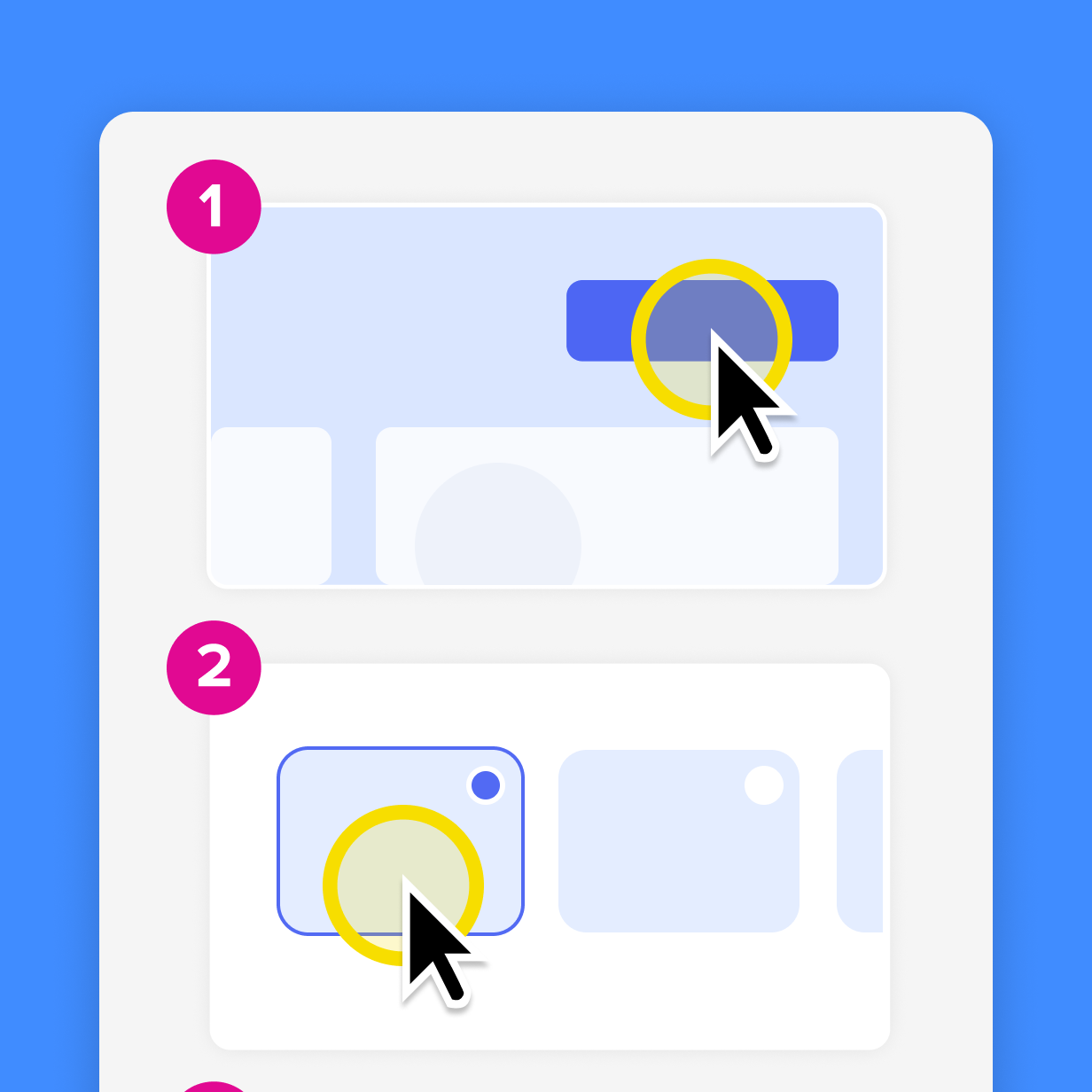
Keeping video documentation searchable
A reviewed text layer is the fix for search-driven access. The video itself isn’t indexable, but a transcript attached to it is. That doesn’t mean abandoning video as your lead format. It means adding the layer that makes the content findable.
Here’s how:
- Export an SRT caption file from Camtasia Audiate and publish it alongside the recording in Camtasia Screencast or your LMS, creating a text layer the platform can index.
- Add chapter markers so people can jump to the step they need without watching the whole thing.
- Write titles and metadata using the language your audience searches with.
A well-structured document management system gives that reviewed text a consistent home.
Keeping video documentation maintainable
Recording each process step as a small, independently replaceable segment is the structural decision that determines whether your video documentation library stays current or goes stale. When a step changes, you update only that clip.
A native Camtasia Editor recording puts screen, camera, and audio on separate tracks from a single session. That means you can update narration for a changed step without re-recording the screen content, and vice versa. Cursor position and movement can also be adjusted in post-production, so you don’t need to re-record just to fix that.
Using Simplified UI (SUI) graphics instead of real screenshots cuts down how much visual content needs updating when an interface changes.
For narration, Camtasia Audiate’s AI-generated voice updates let you revise a script instead of re-recording.
Make narration updates as simple as tweaking the transcript. Try Camtasia Audiate’s text-based video editing on your next project.
Lowering the production barrier for your team
The reason documentation teams hesitate to commit to video-first work is rarely skepticism about video’s value. It’s uncertainty about whether their team can sustain the production work.
Camtasia Audiate doesn’t replace the expert’s judgment. It just removes the part that slows them down. Camtasia Audiate removes the audio editing bottleneck by letting a technical writer or subject matter expert (SME) edit narration by deleting words in a transcript instead of scrubbing a timeline. Transcripts are generated with AI, so review them before publishing.
For teams starting with static documentation, Camtasia Snagit’s Step Capture is a natural entry point, since its one-recording, two-output path means you don’t have to choose between a static guide and a video up front. This is the workflow that makes video documentation sustainable for teams without dedicated production staff.
If an SME is uncomfortable on mic, Camtasia Audiate supports two paths: clean up and keep their original voice, or generate an AI voiceover from the transcript. If you go the AI route, be sure to include a disclosure telling viewers the video uses AI-generated narration.
Measuring whether video documentation works
Track the following signals:
- Support ticket volume for documented processes
- Video completion rates
- Time-to-competency for onboarding cohorts
- Direct feedback from people who used the documentation
Support tickets are an easy signal to track, because each one marks a question the documentation didn’t answer. Interruptions like these carry a cost: TechSmith’s 2024 Workplace Flexibility Trends Report puts the lost productivity cost of six unwanted interruptions at roughly $1 million a year for a 1,000-employee company. That’s the cost video documentation is working against every time it answers a question before it becomes a ticket.
Completion and view data become more useful when they live in a system connected to your employee or customer records, like an LMS. Without that connection, it’s harder to compare trained versus untrained groups, so the data tells you less about behavior change.
Add quizzes and feedback prompts inside Camtasia Editor to test whether people can perform the documented task. A drop in support tickets for a documented process, or a shorter ramp to independent performance for a new hire, confirms the documentation is working.
Experiment with one high-impact process
Start with one process. Look at what you’re currently maintaining and find a single candidate that meets at least two of the inclusion criteria covered above:
- Sequence-dependent steps
- An asynchronous audience
- A compliance requirement
- A consistency-critical workflow
That process is your pilot.
If you’re not sure where to start, our process documentation guide can help you think through what belongs in video versus a static format before you record anything.
Once you’ve picked your pilot, build it as if you’ll need to update it in six months, because you probably will. Keep recordings modular, and use the Camtasia Snagit Step Capture workflow described above. That’s the workflow that stays maintainable and searchable as your library grows.
If your team doesn’t already have a home for finished videos, Camtasia Screencast’s review-and-comment step is a natural landing point before publishing to your LMS, internal library, or public site.
Camtasia Pro gives you the full connected workflow, from recording to editing to sharing, without needing a production team behind it. When you’re ready to build that workflow around your pilot process, see what a connected documentation toolkit can do.
Make great tutorial videos
Camtasia makes it ridiculously easy to make tutorial videos that keep your viewers engaged.
Free Download
Frequently asked questions
What is the difference between video documentation and a training video?
A training video is a standalone asset designed to teach a concept or skill in one viewing. Video documentation is a format strategy, a decision about how an entire documentation system is structured, with video carrying the primary instructional content and text serving as a supporting layer for navigation and search. That distinction matters when a documentation lead is deciding whether to shift an entire process library toward video.
How do you make video documentation accessible to users who can’t watch or listen?
Adding a transcript layer is the most direct path. Exporting captions from a tool like Camtasia Audiate produces an SRT file you can embed alongside the video in an LMS or sharing platform, making the content both findable and readable without watching. Because caption export in Camtasia Audiate works from an AI-generated transcript, teams should review that transcript for accuracy before publishing to meet Web Content Accessibility Guidelines (WCAG) captioning requirements and keep instructional precision intact. Chapter markers that break a longer recording into labeled segments also help people jump straight to the step they need, which lowers the barrier for anyone who can’t or won’t watch from the start.
Blind and low-vision users need more than captions, because screen recordings are highly visual. Provide a transcript that describes on-screen actions, and plan for audio description, which WCAG calls for at Level AA (Success Criterion 1.2.5).
Can a single process recording produce both a static guide and a video without recording twice?
With Camtasia Snagit’s Step Capture workflow, one session can produce both. The Step Capture guide becomes a static, numbered reference document, and the underlying project file can be imported directly into Camtasia Editor’s timeline, where transitions, callouts, and image animations get auto-applied and ready for further editing. Generating the video uses the project file itself, not the exported guide, so whoever builds the video needs access to that file. This one-process path means a technical writer or subject matter expert doesn’t need to run a separate screen recording session to get a video version of the same documentation. Two outputs from a single session significantly cut the production burden for teams building both reference and training content for the same process.
What does modular video documentation mean in practice, and why does it matter?
Modular video documentation means recording each process step as its own independently re-recordable segment instead of one long continuous recording. When a process changes, a modular structure means the team only re-records the affected segment, which is the main way documentation leads keep a handle on the long-term maintenance cost of a video-first library. Camtasia Editor’s multi-track structure supports this directly. Since screen, narration, and camera get recorded on separate tracks in a single session, you can update narration for a changed step without re-recording the screen content.
How does video documentation fit into a knowledge base that relies on keyword search?
Video without a transcript is hard to find through keyword search, because search engines and internal knowledge base tools typically index text. Attaching a transcript, exported as an SRT file and embedded alongside the video, creates a searchable text layer that makes the video’s content findable through the same search patterns people already use. Adding descriptive titles and chapter markers that match the language people search with further closes the gap between how video documentation is structured and how knowledge base users find what they need.
Share