









Your team already uses artificial intelligence (AI) to create learning and development (L&D) content. But if nobody owns the review step, quality, trust, and compliance can start to feel risky fast.
The risk is not just legal. Training materials have to be accurate to be useful. A wrong step in a software walkthrough, an outdated policy detail, or an unclear safety instruction can lead to costly mistakes and erode learner trust.
Technology alone can’t close workforce skills gaps. Effective skill development also needs human judgment, clear accountability, and repeatable processes for working with AI. For L&D teams, that means building a practical workflow: draft with AI, review with humans, document where AI touched the project, and publish training content your stakeholders and learners can trust.
Key takeaways
- AI in learning and development works best when it supports the training workflow, not when it replaces subject matter expertise or final editorial judgment.
- A strong AI review process checks more than accuracy; it also helps protect brand consistency, accessibility, and compliance before training content goes live.
- In many cases, AI can help L&D teams draft scripts and storyboards more quickly, giving reviewers more time to improve clarity and learner comprehension.
- The Camtasia Product Suite fits into AI in learning and development as the video creation and production step, where teams can generate scripts, voices, and presenters for polished, review-ready training videos.
- Documenting where AI was used in a training project can support transparency, stakeholder trust, and clearer review decisions as governance expectations continue to grow.
Why reviewing AI-generated training content is now a core L&D skill
AI in L&D touches production work daily. Reviewing AI-generated content has become a fundamental part of the job. As noted in Camtasia’s training predictions, building repeatable validation systems helps teams scale content production without sacrificing quality. While technology can accelerate output, humans still need to ensure training remains accurate, relevant, and useful.
The real gap in many organizations is a lack of guidance, not interest. Teams often start using generative tools before review expectations, quality standards, and approval processes are in place. Establishing a formal review process helps close that gap and gives teams a more consistent way to use AI as adoption grows.
Keep training videos accurate. Avoid “AI slop.”
Build training content faster without sacrificing quality. The HUMAN Framework is a 5-step strategy for integrating AI effectively.
Get the Guide
What a structured AI review process actually covers
A strong review process checks more than factual errors. It also protects your brand, accessibility standards, and regulatory compliance. You can reuse this checklist across videos, simulations, microlearning modules, and screen-recorded walkthroughs.
Assign ownership to subject matter experts (SMEs), brand reviewers, accessibility reviewers, and compliance partners before production starts. Clear responsibilities help prevent the review process from becoming a last-minute scramble.
Accuracy and subject matter correctness
Always verify prompts, scripts, on-screen text, and examples against your current source material. AI tools often sound confident even while introducing subtle errors or hallucinations.
Training content needs to be accurate to remain effective, close knowledge gaps, minimize costly mistakes, and maintain learner trust. Require SME sign-off for technical procedures, product details, and policy language, especially when training affects performance, safety, or customer outcomes.
Brand alignment and visual consistency
AI can speed up early drafting, but humans still need to align the tone, terminology, screenshots, colors, templates, and lower-third styles across every asset.
To create a more consistent experience across training teams, use repeatable templates in the Camtasia Product Suite for intros, outros, callouts, and cursor treatments. Standardized assets help maintain brand consistency as content volumes grow and make it easier for multiple contributors to produce cohesive training content.
Accessibility and caption quality
Treat accessibility as a baseline requirement for production quality. Review all captions for speaker accuracy, timing, punctuation, acronyms, and industry terminology instead of trusting auto-generated text blindly.
Captions can improve comprehension, searchability, and the overall learning experience. Well-reviewed captions help learners follow along more easily, whether they’re watching with sound or relying on captions as a primary accessibility tool.
The same principle applies to other AI-generated elements. If your workflow includes AI voices and avatars in training videos, review them with the same level of scrutiny you apply to captions to ensure they support clarity, accessibility, and learner trust.
Compliance and regulated-industry requirements
Review needs to expand significantly in healthcare, finance, manufacturing, and other regulated environments. In these fields, outdated wording or unsupported claims can create compliance and audit risks.
Confirm local disclosure rules, data retention requirements, privacy limits, and approval chains with your internal counsel or compliance leads before publishing any AI-assisted training content.
Where AI fits in the training video production workflow
AI works best inside a defined workflow. It should speed up production steps, not replace your instructional judgment. A balanced video production path follows a clear sequence: draft with AI, refine with Camtasia tools, and run a human review gate before publishing.
This human-in-the-loop approach aligns closely with the HUMAN framework for AI training videos, which emphasizes oversight, accountability, and quality control throughout production.
Record once. Deploy globally.
Create your training video in English. Audiate can then translate your edited script and generate a new audio track in Spanish, German, French, and more.
Free Download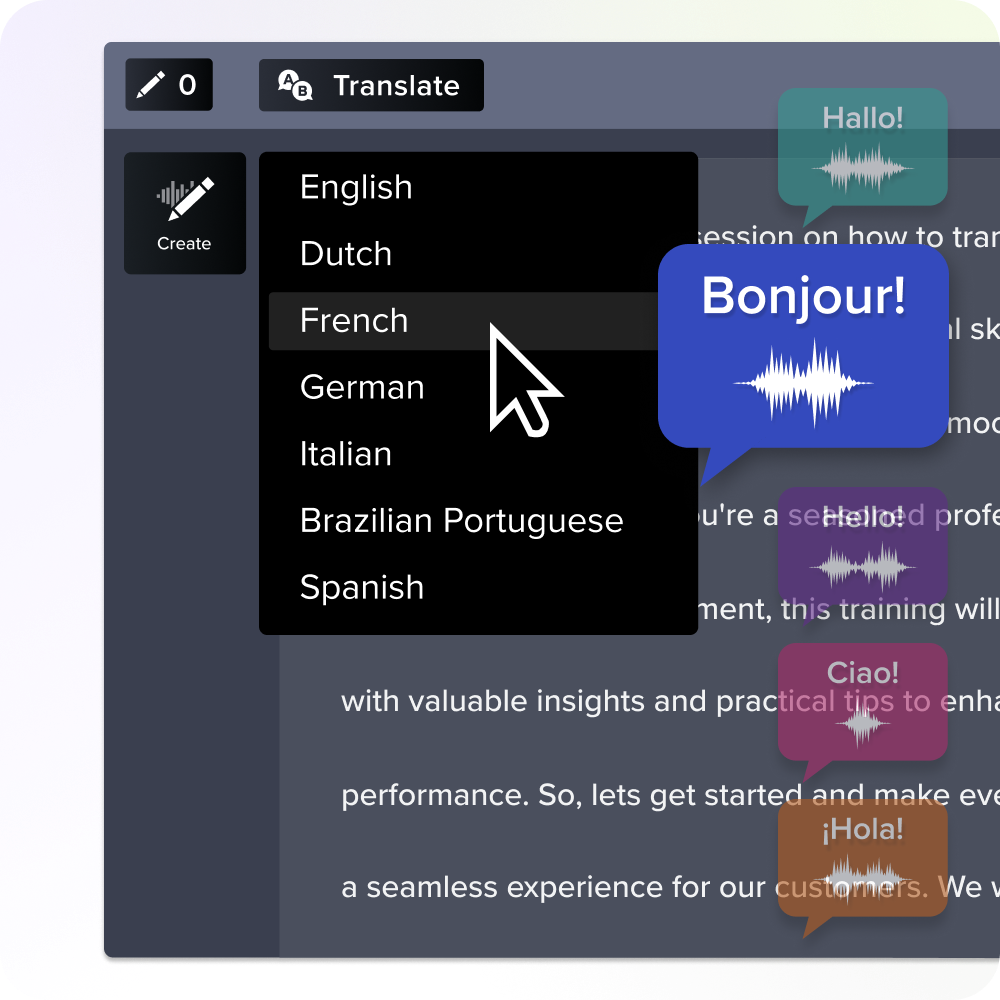
Using AI to draft scripts and storyboards
AI tools can quickly turn raw learning objectives into rough scripts, outlines, and storyboards. However, instructional designers must still define the target audience, lesson sequence, real-world examples, and desired performance outcomes. Treat AI-generated copy as a starting point rather than a publish-ready source.
To get better results during early ideation, provide specific prompt guardrails tailored to your training format:
- Scenario-based training: Instruct the AI to build a realistic branching narrative. For example: “Write a training script scenario where a customer service representative handles an upset client. Provide three response options (ideal, average, and poor) and outline the consequences for each choice.”
- Software demos: Direct the AI to focus on visual pacing and user interface (UI) actions rather than generic narration. For example: “Draft a two-column storyboard for a 60-second software walkthrough. The left column must detail physical on-screen actions like clicking the ‘Export’ menu, and the right column must contain the matching spoken voiceover explanation.”
- Microlearning modules: Keep the AI tightly constrained to a single learning objective to prevent scope creep. For example: “Create a 90-second microlearning script explaining the concept of multi-factor authentication. Structure it with a 15-second hook, one clear real-world analogy, and a single actionable takeaway.”
Once you have a draft script or storyboard, refine the language and map out your visual cues. You can then use the scripting features in Camtasia Audiate to prepare your narration before recording.
AI-assisted recording and editing in Camtasia Editor
Once your draft is ready, capture your screen and camera layout in Camtasia Editor. The editor keeps your screen recording, camera feed, and audio on separate tracks while capturing cursor metadata, making it easier to adjust or move elements later without re-recording.
For L&D professionals, AI can help streamline production and reduce repetitive editing work. Tasks that once required manual cleanup, revisions, or re-recording can often be completed more efficiently, making it easier to create, update, and scale training content.
In Camtasia Editor, AI-powered tools such as background noise removal, audio leveling, and automatic hesitation detection help reduce editing time. For more advanced workflows, use Audiate for synthetic voices, avatars, translations, and transcriptions, then bring the finished media back into Camtasia Editor for final timeline edits.
The human review step before you publish
A human review step is a requirement, not an option. AI tools may accelerate early drafts, but they can’t understand the organizational context, learner risks, or the consequences of inaccurate training. If your video includes synthetic elements such as AI voices or digital avatars, ensure your review process includes any required on-screen disclosures.
To simplify feedback and approvals, share near-final videos through Screencast. Reviewers can leave time-stamped comments directly on the video timeline, keeping discussions attached to the content instead of scattered across email threads.
How to document AI use in your training projects
Documenting AI use keeps projects transparent. It also makes reviews more repeatable when teams revisit or update content later. Your documentation should note where AI tools were used throughout the project, including prompt drafting, script edits, voice generation, captions, translations, visuals, and approvals.
A simple project note, review checklist, or metadata field is usually enough. For small L&D teams, lightweight documentation is often easier to maintain than complex governance processes. Keeping a clear record helps answer stakeholder questions, supports future updates, and promotes consistent standards as your content library grows.
Build a review habit now so your team scales with confidence
AI can speed your training production, but trust comes from repeatable human review. By implementing a structured quality-control process and focusing on continuous upskilling, your team can scale content creation across training programs while maintaining the quality and credibility that learners expect.
The Camtasia Product Suite supports that workflow by helping teams move from AI-assisted drafts to polished, review-ready training videos. From scripting and narration in Audiate to editing in Camtasia Editor and stakeholder feedback in Screencast, the suite helps streamline training video production without adding unnecessary complexity.
Explore the Camtasia Product Suite to see how it can support your training content workflow.
FAQs
How is AI used in learning & development?
AI in learning and development often helps teams draft outlines, scripts, quizzes, and storyboards faster. It can also support personalized learning paths, searchable knowledge support, and quicker video production for software training or process documentation. The best results usually come when a human expert reviews the output for accuracy, clarity, accessibility, and brand fit before publishing.
Where does AI fit in a training video workflow?
In many teams, AI fits best at the start and middle of production, not at the final approval stage. Use it to turn source material into a first script, rough storyboard, or editing plan before you record in Camtasia Editor. After recording, AI may help create or clean audio, suggest edits, or speed repetitive tasks, while your reviewer checks meaning, risk, and learner impact.
How do you review AI-generated training content before publishing?
Start with subject-matter accuracy, because small errors in steps, labels, or policy language can quickly undermine trust. Then check the visuals, captions, and tone to ensure the video matches your brand standards and remains accessible to every learner. For team review, share drafts in Screencast so reviewers can leave time-stamped feedback before anything goes live.
How should teams document the use of AI in training projects?
Keep a simple record of which assets used AI, which prompts shaped them, and who approved each revision. That log may help with compliance reviews, internal governance, and future updates when someone needs to explain why a training choice was made. It also sets a clear human-in-the-loop step, which matters when training covers regulated topics or high-risk procedures.
Which Camtasia tools support AI in learning and development?
Camtasia Editor can help you turn screen recordings into polished lessons faster, especially when you need repeatable layouts and clean visual emphasis. For still images, annotations, or quick visual callouts, Camtasia Snagit lets you capture and mark up screenshots without interrupting your editing workflow. For narration, transcription, or AI voices and avatars, use Camtasia Audiate, then bring approved audio back into your editing workflow. If you want a simple review loop, pair Camtasia Editor with Screencast so stakeholders can comment clearly, and your team can publish with more confidence.
Share