









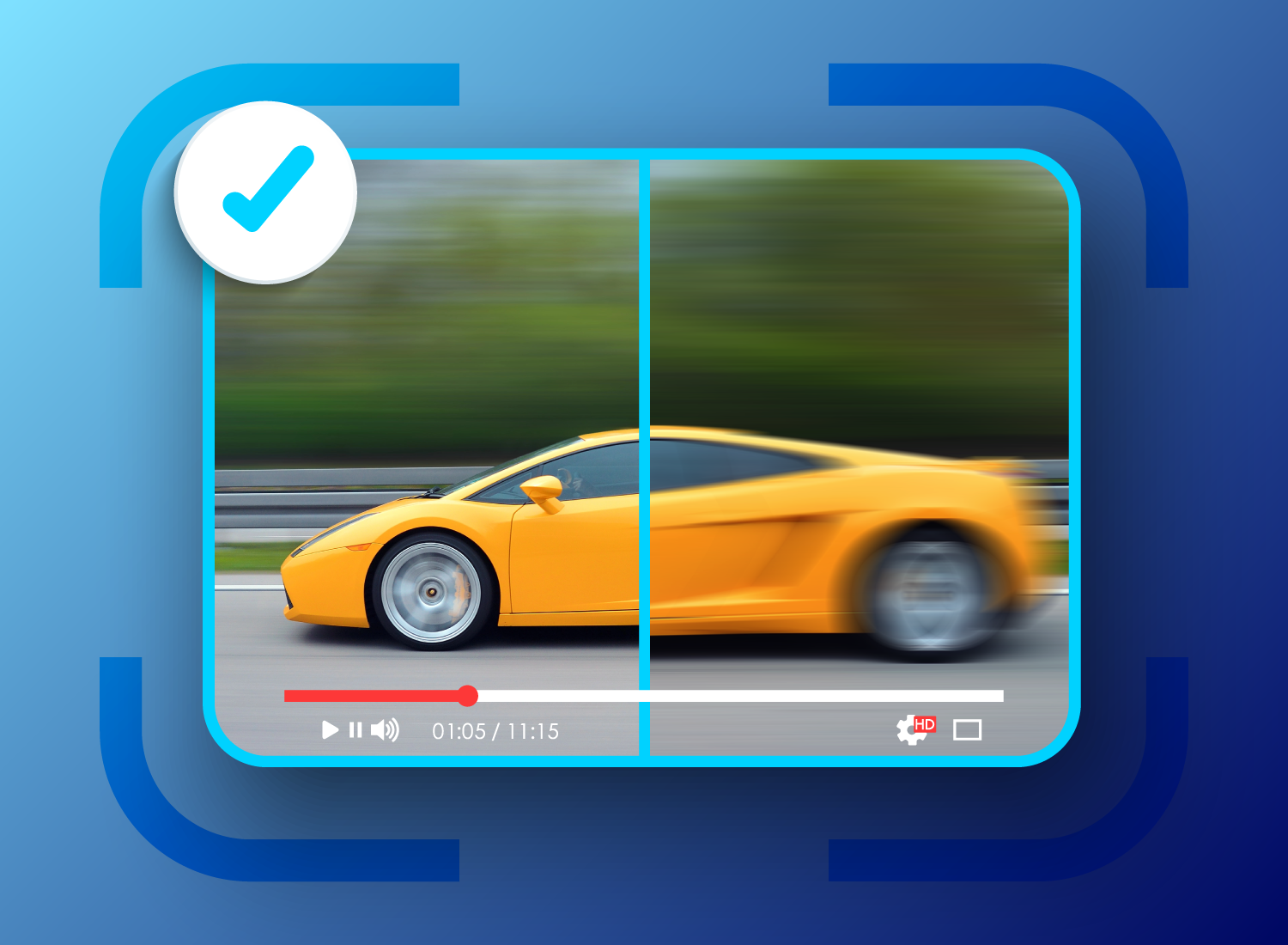
Video stabilization reduces unwanted camera movement so footage looks smoother and is easier to watch. To stabilize shaky video, start with steadier filming habits, trim the most unstable sections, and then use Camtasia Editor’s zoom, pan, crop, and preview tools to keep the subject steady in post-production.
Mobile devices and handheld cameras have made it easier than ever for creators and filmmakers to capture video on the go, but they’ve also made shaky footage more common. Even a small amount of unwanted movement can distract viewers and make otherwise great content look unprofessional.
The good news is that Camtasia Editor gives you practical editing tools to smooth out unsteady footage and create cleaner videos — no advanced skills required.
Learn how to stabilize video both during filming and in post-production, so every clip looks steady, clear, and ready to share.
Key takeaways
- Steadier footage starts during filming with good posture, planned framing, slow movement, and a stable camera position.
- Camtasia Editor can help steady shaky clips with subtle zoom, pan, crop, and preview adjustments.
- Stabilization works best when you apply it selectively to the clips that need it most.
- Add annotations, callouts, cursor effects, and audio edits after the motion looks balanced.
Why does video stabilization matter?
Stable video keeps attention on your message and makes content easier to watch. Instead of focusing on what’s being said, viewers notice the motion and may scroll away before your point lands. Smooth motion keeps the focus where it belongs and helps your videos stand out on crowded social media feeds by improving viewer engagement.
In more extreme cases, shaky video footage can cause discomfort or even visually induced motion sickness. Stabilizing your footage helps prevent that, making your content easier and more enjoyable to watch.
Beyond comfort, stable video signals quality. It instantly makes your content feel more credible and professional, especially in marketing materials, product demos, and training videos, where clarity and communication are key.
What causes shaky video?
Shaky footage usually comes from handheld filming, movement, wind or vibration, unstable surfaces, and long zooms. Knowing what causes it makes it easier to avoid (or fix) in future shoots.
- Handheld filming: Holding a camera without a stabilizer introduces small movements caused by natural breathing and muscle tension. This is especially noticeable when shooting with a smartphone camera.
- Filming while moving: Walking or turning with the camera often results in shaky or blurry video, even if you’re using basic stabilization gear.
- Environmental conditions: Wind and vibration from nearby movement can cause subtle camera shake during outdoor shoots.
- Uneven surfaces: Setting your camera on a slanted or unstable surface can lead to small wobbles that show up in playback.
- Long zooms: The more you zoom in, the more noticeable every slight hand movement becomes — even if the camera feels steady in your hands.
Recognizing these common culprits helps you capture smoother, steadier footage before you even start editing.
How can you reduce camera shake before editing?
The best stabilization starts with steady raw footage and planned camera movement. Small adjustments while filming can make a big difference later in editing.
When planning your shoot, minimize external factors that might cause shake. For instance, if it’s windy, record indoors or find a sheltered location.
Go from screen recording to polished video
A screen recording is just the start. Camtasia’s editor helps you add the callouts, animations, and edits you need to create a truly professional video.
Free Download
Instead of zooming or panning mid-shot, plan your framing in advance. Capture each angle as a separate clip and vary your distance from the subject rather than relying on the zoom feature. This approach gives you more control over composition and results in smoother transitions when you edit the clips together in Camtasia Editor.
Go from screen recording to polished video
A screen recording is just the start. Camtasia Editor helps you add the callouts, animations, and edits you need to create a truly professional video. Free Download
Which filming techniques improve video stability?
Two-handed support, steady posture, slow movement, and bracing reduce camera shake. Try these simple techniques:
- Use both hands to support the camera for steadier control.
- Keep your elbows close to your sides to minimize arm movement.
- Maintain good posture — stand tall with your feet shoulder-width apart to stay balanced.
- Move slowly and deliberately if you need to walk while filming. Quick or jerky movements increase camera shake.
- Brace against a stable surface, such as a table, wall, or railing, for extra reinforcement.
What gear helps create smoother shots?
Tripods, gimbals, and smartphone stabilizers can reduce shake when the shot or setup allows it. If you want to reduce camera shake even further, a few tools can help steady your shots:
- Tripods: Three-legged stabilizers that work well for static studio setups or green screen work.
- Gimbals: Stabilizers that let you pivot and rotate the camera smoothly, keeping motion natural. They’re available in both handheld and mounted versions.
- Smartphone stabilizers: Compact tools designed for mobile devices that function like small gimbals — especially useful when filming while walking.
That said, specialized gear isn’t required to create a steady, polished video. You can always refine unsteady clips later.
How do you stabilize shaky video in post-production?
Editing tools can smooth footage by correcting unwanted frame movement and letting you crop, zoom, and refine the shot. If your footage turns out shaky, don’t worry — a video editor with stabilization features can quickly fix it. These tools analyze frame movement and realign the image to counter unwanted camera motion, producing smoother, more natural-looking footage. You don’t need advanced editing experience to get great results; just a few quick adjustments can make your video feel refined and ready to share.
Stabilization can happen during filming, inside editing software, or through a manual workflow like the Camtasia steps below. For handheld training videos, product demos, and smartphone clips, start with the least aggressive correction that keeps the subject steady.
How do you stabilize footage in Camtasia Editor?
If your video footage is shaky, you can make a few manual edits in Camtasia Editor to fix it. While Camtasia Editor doesn’t include an automatic stabilization effect, it offers several tools that work well for steadying video clips. The intuitive platform is accessible for all skill levels, with no external plug-ins required.
Here’s a step-by-step breakdown of the stabilization process in Camtasia Editor :
- Import your video into the Camtasia timeline.
- Identify the segments where camera shake is most noticeable.
- Apply subtle zoom and pan animations on the main subject of the clip to keep movement steady and natural.
- Crop out any shaky frame edges if needed.
- Preview on the canvas, then drag the ends of the animation arrow and adjust the scale and position properties until the movement feels balanced.
Camtasia Editor’s real-time preview feature helps you visualize changes as you work. Its track-based editing also separates video and audio for a smoother workflow, saving you from time-consuming manual adjustments in other editors. Once your footage feels stable, you can layer on annotations, callouts, and other elements to create a clean, professional final video.
How should you combine stabilization with other edits?
Stabilization should come before annotations, callouts, cursor effects, and audio adjustments so the final video feels clear and consistent. After smoothing out your footage, you can use Camtasia Editor’s other built-in video editing tools to enhance clarity and consistency. Try these techniques to give your video a more professional finish:
- Animations: Add cursor effects or spotlight animations to draw attention to key content. These subtle movements make tutorials and product demos more engaging.
- Text features: Use overlays, annotations, or callouts to emphasize important information and make your video more accessible.
- Audio enhancement: AI Noise Removal for background noise removal and Audio Compression to improve sound quality, then confirm your audio and visuals stay in sync.
When your edits are complete, preview the full sequence to check pacing, transitions, and overall flow. If everything feels smooth and balanced, you’re ready to publish.
Looking for professional screen recording software?
From simple screen captures to polished video editing, Camtasia Editor has everything you need to create professional-quality content. Learn More
How can you improve stabilization results?
Better stabilization results come from applying corrections selectively, trimming unstable footage, and checking the final motion before publishing. If you already have some editing experience, try these tips to refine your motion correction workflow even further. They take a bit more time, but the payoff is more controlled, higher-quality footage that stands out.
How much stabilization should you apply?
Apply the smallest correction that makes the clip comfortable and natural to watch. Overusing stabilization effects can introduce distortion and make your video look unnatural. Rather than applying the same editing functions across your entire project, adjust the stabilization for each individual clip. Handheld footage will usually require stronger correction than static shots.
Always consider the context of your content, too. A product tutorial or demo benefits from steadier visuals, while an informal vlog can feel more authentic with a bit of natural movement.
Why should you trim unstable clips before stabilizing?
Trimming limits correction to the moments that need it and helps avoid overprocessing stable footage. If you notice that certain clips are particularly shaky, try trimming them down to only the most important footage before applying motion correction afterward. This keeps the adjustments focused on the sections that need them most and prevents overprocessing stable areas.
Trimming your video also improves its processing speed, making it easier to export in different formats or upload to online video platforms like YouTube without long rendering times.
If stabilizing a clip requires heavy cropping or makes the motion look unnatural, trim to the most useful moment, cover the cut with supporting visuals when appropriate, or consider reshooting.
Looking for professional screen recording software?
From simple screen captures to polished video editing, TechSmith has everything you need to create professional-quality content.
Learn More
What should you add after stabilizing video?
After stabilizing video, add cursor effects, annotations, and slow motion only when they support the message without adding visual noise. Editing techniques such as cursor effects, annotations, and slow motion can also help guide attention and reinforce key points.
Focus on what matters most to your viewers, then use effects to highlight that information without adding visual noise. Camtasia Editor makes it easy to layer these elements for a cohesive, engaging final result.
The finishing touch for smooth, credible video content
Stabilizing video helps viewers focus on your message and makes the final content feel more polished and credible. With a few small adjustments during filming and in post-production, you can transform uneven clips into steady, camera-ready visuals.
Camtasia Editor gives you all the tools you need to smooth out motion, fine-tune color and sound, and add clarity-enhancing effects — all within a single, intuitive editor. Whether you’re creating tutorials, marketing videos, or on-screen demos, Camtasia Editor enables you to produce videos that look sharp and communicate clearly, no matter your experience level.
Frequently asked questions
How do you stabilize shaky video?
To stabilize shaky video, start by trimming the most unstable parts of the clip so you only fix the footage you need. Then use editing tools such as zoom, pan, and crop tools, previewing on the canvas as you go. If the clip still looks distracting after careful edits, use supporting visuals or consider reshooting the section.
How can you stabilize smartphone footage?
You can stabilize smartphone footage by holding the phone with both hands, keeping your elbows close to your sides, and moving slowly when you walk. If possible, brace the phone against a stable surface or use a small tripod or smartphone stabilizer. After filming, review the clip and use Camtasia Editor’s manual zoom, pan, and crop workflow.
Does Camtasia Editor have automatic video stabilization?
Camtasia Editor does not include an automatic stabilization effect. You can still steady shaky clips manually by adding a Scale Up or Zoom-n-Pan animation to reframe the subject, switching the canvas to Crop mode to trim unstable edges, and previewing on the canvas as you adjust the animation arrow. This approach gives you control over what stays in frame and how natural the motion feels.
What should you do when footage is too shaky to fix?
If footage is too shaky to fix cleanly, trim it down to the most useful moment first. Heavy correction can force a large crop or make the shot look warped, so preview the full sequence before you commit. When the clip still distracts from the message, cover the moment with supporting visuals or reshoot the section if you can.
Can stabilization reduce blur?
Stabilization can make camera movement feel smoother, but it cannot fully repair blur that was recorded into the original footage. Motion blur often happens when the camera or subject moves too quickly during capture. If a clip is both shaky and blurry, stabilize only the parts that still look clear enough to support your message.
When should you reshoot instead of stabilizing video?
Reshoot when the footage is so unstable that fixing it would remove important content from the frame. You should also reshoot if the motion makes the clip uncomfortable to watch or if the subject is too blurry to understand. A quick reshoot often takes less time than trying to save a clip that needs heavy cropping, awkward motion edits, and extra cover-up work.
Share