






Polished training videos help your entire organization get up to speed quickly with new processes and technology. But creating an effective training video with traditional production methods takes time. When every video has to be scripted, shot, and edited by hand, it creates a roadblock to true productivity.
With the right AI tools, you can speed up the production process without compromising the quality of your training videos. AI handles the most time-consuming manual tasks, eliminating some of the biggest bottlenecks to high-quality instructional video production at scale.
In this article, we’ll break down how to create AI training videos using the user-friendly Camtasia Product Suite, showing you, step by step, where each tool fits into the process.
This practical workflow applies across all types of training videos, from onboarding and software training to compliance, while maintaining your quality standards and brand voice.
Key takeaways
- AI training videos can reduce the time, cost, and scheduling overhead that often slow down traditional training video production.
- The most effective AI training video workflow starts with a clear learning goal and then uses AI to speed up scripting, narration, editing, and captioning.
- For software and process training, AI-enhanced screen recordings may deliver more accurate, trustworthy instruction than fully generated avatar videos.
- Tools like Camtasia Audiate can help you clean up narration by editing text, which may reduce the need for re-recording and speed up revision cycles.
- AI training videos are often easier to update at scale, helping teams keep training libraries current as tools, policies, and workflows change.
Why AI is changing how training videos get made
Studio-level polish isn’t always necessary when creating educational video content. It’s more important to convey information clearly and accurately.
AI technology helps busy workplace training teams create and update videos faster to keep employees in the loop.
The real cost of traditional training video production
Producing training videos manually is both time- and cost-intensive. The process of writing a script, scheduling shoots and re-shoots, editing the output, and getting approvals from leadership can take weeks, even for a short tutorial video. If you need to make any updates down the road, it means scheduling an entirely new shoot.
Many organizations also don’t have in-house video production teams. If that’s the case for you, you’ll need to outsource if you’re using traditional production methods. And fully produced educational videos can run thousands of dollars per finished minute, making them cost-prohibitive for organizations on a budget.
What AI actually automates in the production process
AI tools can automate the parts of the video production process that are most likely to slow you down:
- Drafting scripts
- Transcribing videos
- Removing filler words and cleaning up background noise
- Generating voiceovers and captions
- Making initial edits based on prompts
That said, AI tools can’t handle the entire instructional design process for you. It’s essential for human trainers to stay involved every step of the way. For AI-powered video creation to succeed, you’ll need to set your own learning objectives and verify the output to ensure it aligns with your needs.
Two approaches: generative AI video vs. AI-enhanced screen capture
There are two ways to incorporate AI into the video creation process. The first is to use generative AI to create the entire video using a prompt. The second is to take your own screen recording, then use AI to enhance the final result.
Generative AI video can be effective in certain situations. For example, AI-generated avatars work well for simple explainer videos. Instead of scheduling a shoot and memorizing a script, you can create a presentation in minutes, then use text prompts to edit it.
But AI-enhanced screen capture tends to work better for product demonstrations, process walkthroughs, and other digital adoption videos. Real software footage feels more trustworthy (and may be more accurate) than AI-generated video in these use cases.
With screen capture, learners will see the exact clicks, menus, and workflows they’ll be using, minimizing confusion. After you’ve recorded your screen capture, you can use AI to enhance the final product.
How to create AI training videos: A step-by-step workflow
AI tools speed up the slowest parts of the content creation process, so you can ship your employee training videos faster. Here’s a step-by-step breakdown to help you incorporate AI video tools into your workflow.
Record once. Deploy globally.
Create your training video in English. Audiate can then translate your edited script and generate a new audio track in Spanish, German, French, and more.
Free Download
Step 1: Define your learning objective and video scope
The first step in the AI video generation process doesn’t actually involve AI at all. Before you get started, identify 1–3 learning outcomes you want to focus on in the video.
For example, if you’re incorporating new software into your tech stack, you could create a tutorial teaching beginners how to set up their account or use a specific feature. Instead of trying to fit several learning outcomes in one video, break them up into a series of short videos.
Learners often retain information better when videos have a narrow focus. On top of that, short videos are easier to update as your business grows and changes.
After you’ve chosen your learning objective, decide what format you want to use. Screen demos tend to work well for step-by-step tutorials, but a narrated explainer video might be better for big-picture concepts.
You’ll also need to decide if you want to incorporate AI avatars anywhere in the process. The format you choose will determine which editing tools you need.
Step 2: Generate your script with AI
If you already have a video script or want to write one yourself, you can skip this step. But if you don’t have a script, you can create one using Camtasia Audiate.
With Camtasia Audiate, you can use text prompts to describe exactly what you want from your script, then let AI do the writing. If you have existing documents or slides related to the video, you can use them to provide more context.
After Camtasia Audiate generates the script, be sure to have subject matter experts review it for accuracy and compliance before you record the video. You may also need to edit the script to align with your brand voice and tone. Reviewing your script now can eliminate the need for re-shoots later.
Step 3: Record your screen or create your narration
Depending on the type of video you’re producing, you’ll need to either create a screen recording or a narration with an AI avatar.
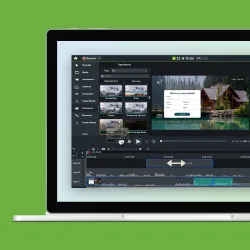
If you’re creating a screen recording, use Camtasia Editor to capture your content. Instead of recording the entire video on the same track, use separate tracks for your screen, camera, system audio, and microphone.
This simple step makes editing your video much easier later on. If there’s an error in your screen recording or audio, you can update without having to re-record the entire session.
If you’re using AI narration, start by choosing a voice and, if needed, an avatar. AI avatars and voiceovers are also helpful when your subject matter experts don’t feel comfortable on camera.
Step 4: Clean up narration by editing the text
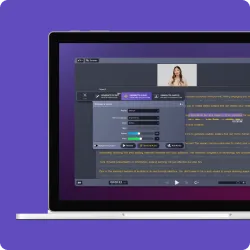
Next, edit your video using Camtasia Audiate’s text-to-video features. Instead of editing a complex video timeline to remove mistakes or fix pronunciation issues, you can delete words directly in the transcript.
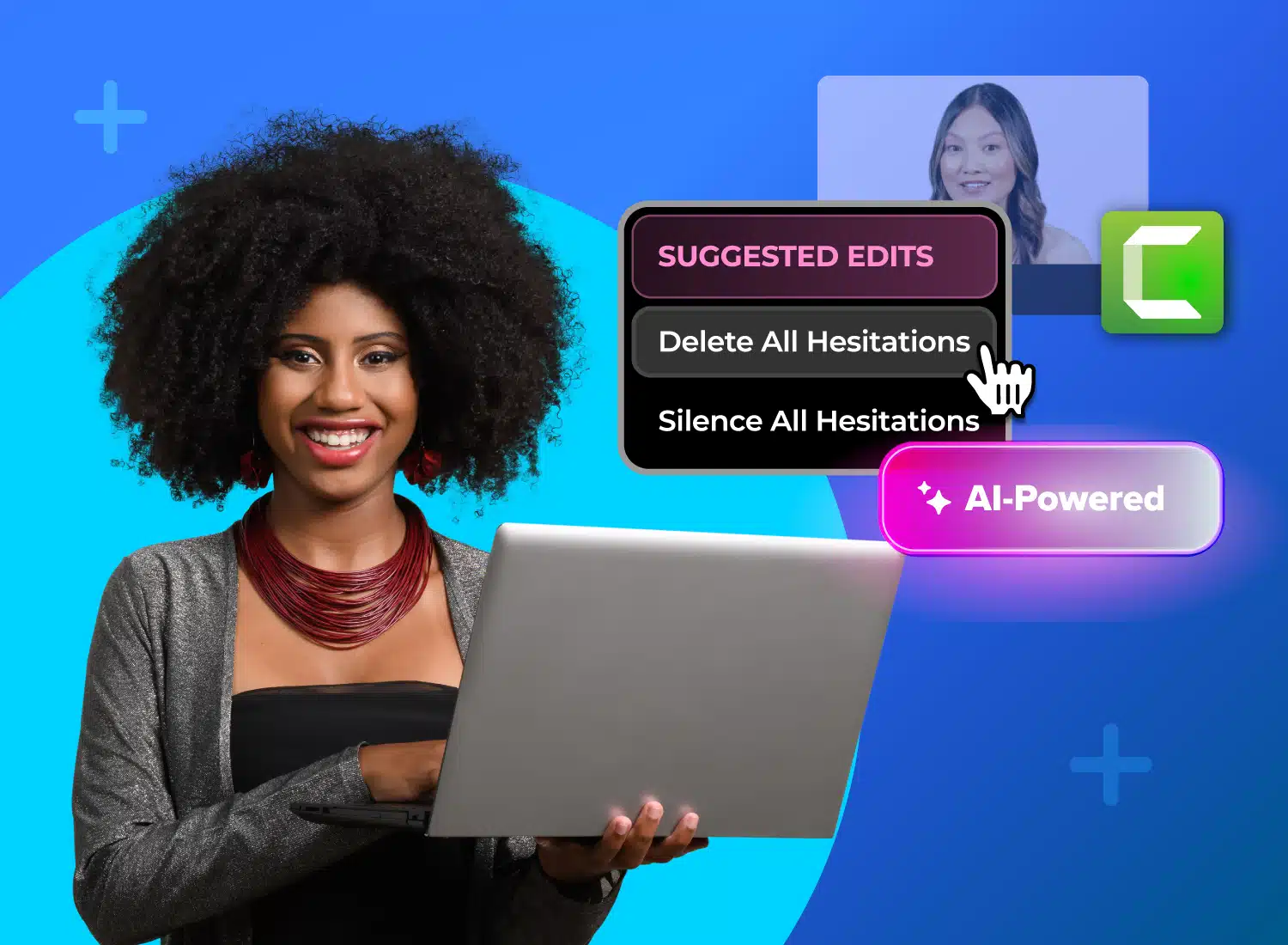
With Camtasia Audiate’s AI features, you can also automatically remove filler words, background noise, and video gaps, rather than having to cut them out manually.
This step is a huge time-saver for busy training teams trying to produce video content at scale. AI editing features are also very helpful if you’re a non-native speaker, as you can correct your pronunciation without losing the tone or structure of the video.
Step 5: Edit and polish your video
Now that you have your footage and your script, use Camtasia Editor to turn it into an engaging training video. Camtasia Editor lets you easily add cursor effects, zooms, and animations to emphasize key information.
You can also automatically add captions when you sync your video from Camtasia Audiate to Camtasia Editor. Captions and visual labels are a must-have in any training video, as they make the information more accessible to all viewers.
And you don’t need professional video-editing skills to polish your training videos. Instead of aiming for perfection, focus on conveying information clearly, maintaining tight pacing, and emphasizing the most important details to keep viewers engaged.
Step 6: Export and publish to your LMS or video platform
Once your video is finished and approved, you can export it to its final destination. Depending on the context, this could be your LMS system or internal knowledge base. Stick to secure video platforms where you can stay in control of the content.
In addition to sharing the video with your team, make sure to save editable video files, transcripts, and captions. It’s likely you’ll need to update the videos later as your operations change, and having the files on hand will make the process easier.
Where AI saves the most time in training video production
AI tools save your team time by eliminating frustrating production bottlenecks, especially in editing and revisions. Here’s where they make the biggest impact in creating and managing a growing training library.
Cleaning up narration without re-recording
Traditional production methods require near-perfect performance to produce a usable audio track, which often means endless retakes. With AI tools, “usable” expands considerably, since you can adjust the narration with text-based audio editing. This means less time re-recording videos while still getting a final product that’s professional and easy for audiences to understand.
On top of that, you won’t have to rely on professional voice talent for every video. Instead, you can have your in-house subject matter experts explain important training concepts in their own words.
If your SMEs aren’t feeling confident on camera, you can use AI voiceovers and avatars to get the job done. This approach also works well for localization and generating videos in different languages.
Automated captions and ADA compliance
Captions are a must for ADA compliance and general accessibility, and 80% of video viewers now say they use captions at least sometimes. With AI tools, you can generate captions automatically instead of manually transcribing every video.
That said, you’ll still need to edit your AI-generated captions to make sure they’re accurate. In particular, review names, acronyms, and technical terms for accuracy. If captions aren’t correct, you could lose trust with viewers, so this step goes a long way.
Updating existing videos when content changes
Training videos aren’t evergreen. Your library will need to be updated when policies, procedures, and tech stacks change. AI tools make it much easier to keep your content library up to date without having to shoot new videos from scratch.
For quick tweaks, you can go back into each video’s transcript and make changes in just a few minutes. If the narration was created with a Camtasia Audiate AI-generated voice, the audio regenerates to match those transcript updates, so you do not need to re-record the voice-over.
If other parts of the video need adjusting, you can edit just the section that changed instead of remaking the whole thing.
Scaling training video production across your team
AI tools help your training team produce more content without added stress. The result is a more comprehensive content library that helps your team do their best work.
Enabling subject matter experts to create their own videos
With AI tools, you no longer have to be a video professional to shoot training content, especially if you’re just creating a rough first draft. That means you can work with your internal SMEs to have them create their own videos.
Just have your SMEs record their screen with Camtasia Online, so they can contribute from anywhere without downloading software. Then your instructional design team can move the project into Camtasia Editor to refine the structure and polish the final video. If leadership needs to review and approve the video, they can leave comments using Screencast.
Looking for professional screen recording software?
From simple screen captures to polished video editing, TechSmith has everything you need to create professional-quality content.
Learn More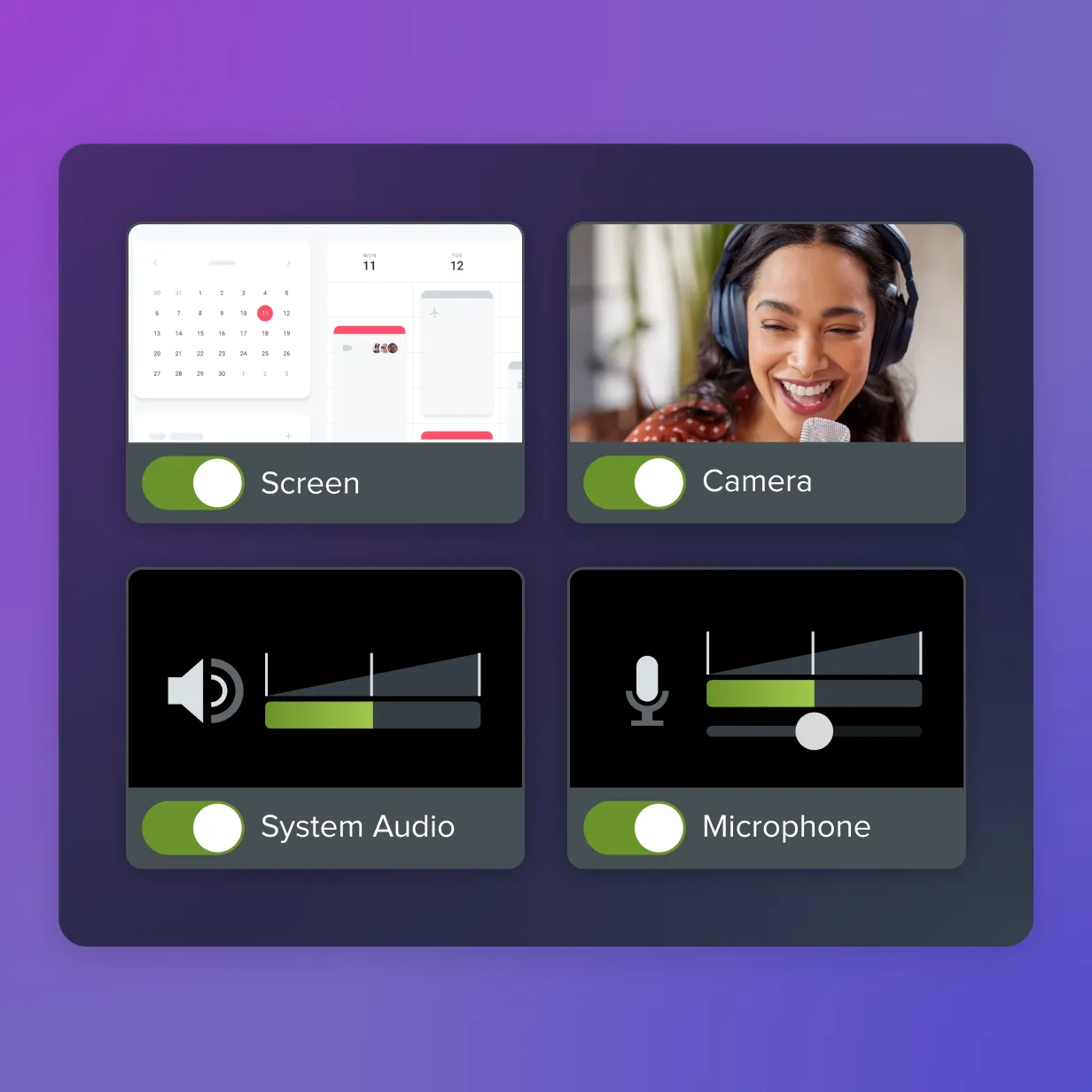
Maintaining brand consistency at volume
Video templates and brand assets ensure that every video aligns with your brand guidelines, no matter who’s creating it.
To make your video library feel cohesive, generate reusable intro slides, lower thirds, color presets, and caption styles that your team can access anytime. These small details instantly make any video feel like a part of your brand.
Camtasia offers pricing plans for both individual content creators and teams. You can also purchase individual product licenses if you want more control over each seat.
Start creating better training videos today with Camtasia
AI video production tools like automated script and caption generation, text-based editing, and even AI voiceovers and avatars can enhance your workflows to help you create engaging videos faster and maintain your training content library long term.
The Camtasia Suite works together to streamline the entire production and editing process. Camtasia Editor handles screen recording, audio cleanup, and detailed editing, while Camtasia Audiate delivers text-based editing, caption generation, and AI voiceovers.
Explore the Camtasia Suite today to see how AI tools can transform your training videos.
FAQs
Can you use AI to create training videos?
Yes, AI can help create training videos by speeding up scripting, narration, audio cleanup, captioning, and first-pass editing. For software or process training, AI works best when it supports real screen recordings. Camtasia Audiate and Camtasia Editor then help you polish the final lesson quickly.
How do you create AI training videos from start to finish?
Start with one clear learning objective, then use AI to draft a short script for a focused video segment. Record your screen or narration, clean the audio in Camtasia Audiate, and finish visuals, branding, and exports in Camtasia Editor.
What is the fastest way to create training videos with AI?
The fastest workflow usually starts with a rough brief, an AI-generated script, and a reusable template for intros, lower thirds, and outros. You save more time when AI removes filler words, trims pauses, generates captions, and helps you update only the changed sections.
Are AI avatars or screen recordings better for training videos?
AI avatars may work for general onboarding or policy overviews, especially when you need a quick voiceover in multiple languages. For software training, real screen recordings are usually more accurate, more trustworthy, and easier to update when interfaces or steps change.
How does AI reduce training video production time?
In practice, AI reduces production time by handling the slowest tasks first: drafting scripts, cleaning narration, creating captions, and assembling a strong first cut. That matters most for teams maintaining large training libraries, because small process changes no longer require new recordings or outside production support. If you want a practical workflow, Camtasia Audiate and Camtasia Editor can help your team move from draft to publish with fewer handoffs.
Share