









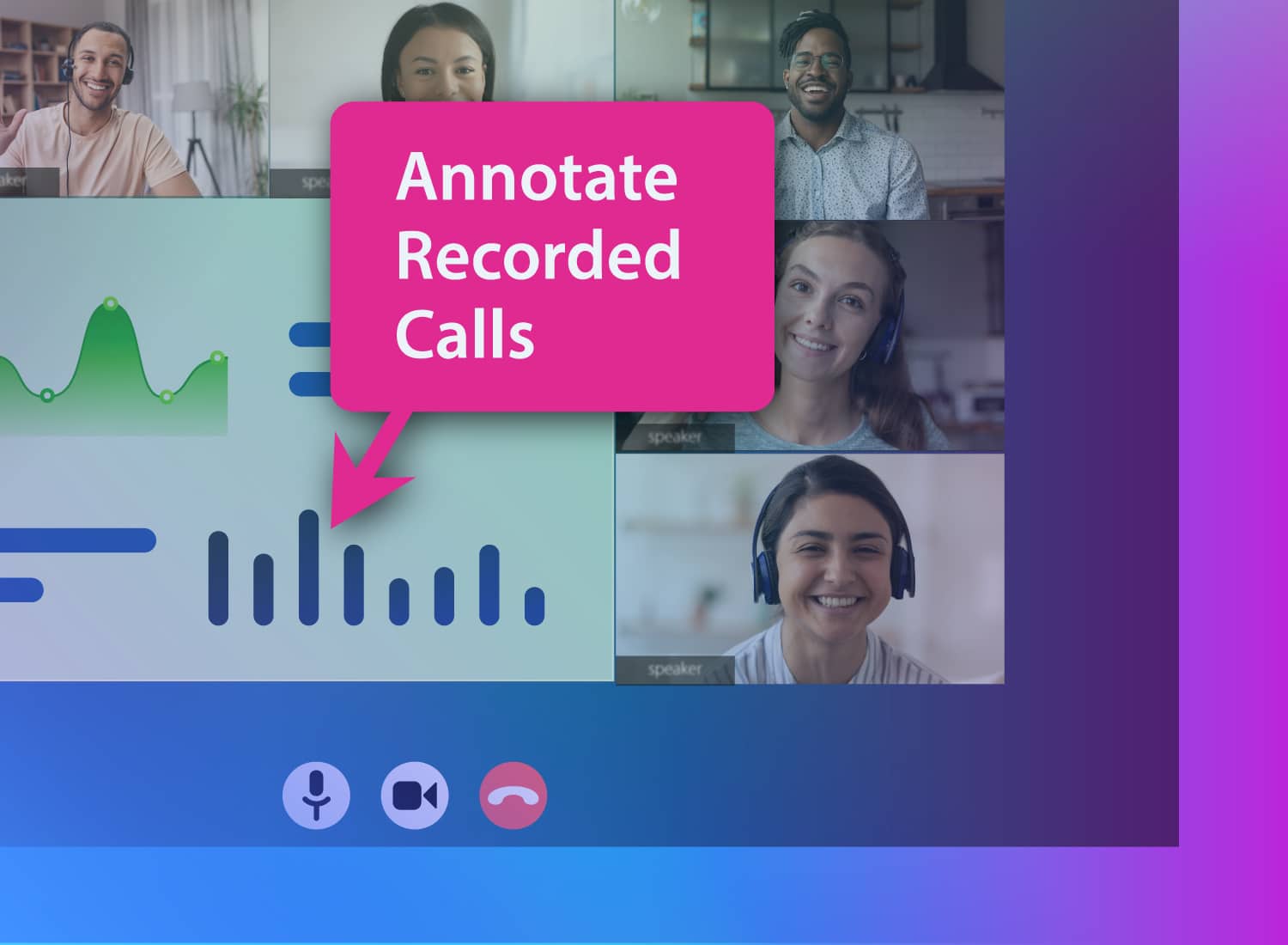
A recorded sales or support call can be packed with useful information, but teammates may not know where to focus. Instead of asking teammates to search the full call recording, annotate key moments to guide their attention and make the call a more effective training resource.
Camtasia makes it easy to turn your call recordings into guided training assets with callouts, captions, cursor highlights, and visual annotations that draw attention to key learning points.
Key takeaways
- Annotating recorded calls in Camtasia can turn long conversations into focused coaching clips by showing viewers where to look and what to notice.
- Before you repurpose and annotate recorded calls, confirm consent, recording settings, and access rules to ensure your training workflow remains aligned with internal compliance requirements.
- A clean workflow starts by importing the call file, trimming distractions, and improving audio, which can make later annotations clearer and easier to place.
- Callouts, arrows, zoom-and-pan, and spotlights each help annotate recorded calls differently, from labeling key moments to isolating the exact action on screen.
- Captions and consistent annotation styles can make recorded calls easier to reuse across onboarding, coaching, and enablement, while supporting accessibility and team-wide consistency.
Why annotating recorded calls makes them more useful
Recorded calls become more valuable when they include context, not just conversation. Annotations highlight the moments that matter, turning recordings into guided learning resources for coaching, onboarding, and knowledge sharing.
For sales teams, managers can call out effective questions, pricing discussions, objection handling, or closing techniques to create reusable coaching examples. Annotations also help onboard new employees by highlighting important steps in product demos and internal workflows.
Unlike transcripts, AI transcription tools, or conversation intelligence summaries, visual annotations explain why a moment matters and where viewers should focus. A callout can spotlight a pricing objection, an arrow can emphasize a key feature, or a zoom effect can highlight a compliance statement, making recordings easier to review and learn from.
A quick note on consent before you repurpose a recorded call
Before you annotate and share a recorded call, confirm that you have permission to use the call recording for training or internal knowledge sharing. Review your organization’s retention policies, customer agreements, and access rules to ensure only approved viewers can access the training copy.
Recording consent requirements can also vary by state, industry, and region. Organizations in healthcare, finance, and other regulated sectors, as well as global teams, may need to comply with additional privacy, consent, or data handling rules before distributing annotated recordings.
How to import a recorded call into Camtasia Editor
Whether your recording comes from Zoom, Microsoft Teams, Gong, Chorus, or another platform, the process is simple: download the recording, import it into Camtasia Editor, remove any unnecessary sections, and start annotating the moments that matter most. That way, instead of sharing a raw, hour-long conversation, you can trim away waiting time, technical issues, or off-topic discussion before adding callouts, captions, and visual highlights that guide viewers through the recording.
Pro tip: If your call recording is stored in the Zoom cloud, Camtasia Editor can import it directly, helping you move from recording to editing even faster.
Crystal-clear screen recording
Why settle for blurry screen content? Camtasia Editor’s screen recorder captures everything at up to 4K!
Free Download
Supported file formats and where to find your recording
Camtasia Editor supports the file formats that most meeting and conversation platforms export, including MP4, MOV, and audio-only files like M4A. After a meeting ends, call recordings are typically available through your platform’s cloud storage or downloaded to a local recordings folder, depending on your settings.
Before importing the file, give it a descriptive name that includes the date and topic, like 2026-06-15_ProductDemo_Acme.mp4. A consistent naming convention makes recordings easier to search, organize, and reference as your team’s training library grows.
Cleaning up audio before you annotate
A clean recording makes your annotations more effective. If viewers struggle to hear the conversation, they’re more likely to miss the coaching points you’re trying to emphasize.
Before adding callouts or captions, trim long pauses, reduce background noise, and balance audio levels so every speaker is easy to understand. If you also want to edit the transcript by deleting filler words or making text-based audio edits, move the recording into Camtasia Audiate before returning it to Camtasia Editor to finish your annotations.
How to add visual annotations to a recorded call in Camtasia Editor
Once your recording is cleaned up, it’s time to guide viewers through the conversation. The goal isn’t to annotate every minute of the call — it’s to highlight the moments that help viewers learn faster. Effective annotations reduce the need to rewatch by directing attention to where it’s needed.
For example, when you analyze a call recording, you might notice that a sales rep addresses a customer’s pricing objection at the 2:14 timestamp. That’s where you can add a callout, zoom in on the shared pricing slide, and highlight the customer’s response or follow-up action items. In just a few seconds, viewers understand what happened, why it mattered, and what they should learn from it.
If an annotation doesn’t improve comprehension, reinforce a teaching point, or speed up coaching feedback, it probably isn’t necessary.
Adding callouts to highlight key moments
Callouts work best when they explain why a moment matters. Rather than labeling a section “Pricing Discussion,” use a concise teaching point like “Handles pricing objection well,” “Strong discovery question,” or “Required compliance disclosure.”
When you add text to a video, keep it to five to eight words whenever possible. Short on-screen callouts reinforce the conversation without distracting viewers from listening to the speaker.
Using arrows and shapes to direct viewer attention
Arrows and shapes are helpful when viewers need to focus on something specific. Use them to point out cursor movements, CRM fields, pricing details, chat messages, or buttons clicked during a product demo.
To keep training videos consistent, use the same arrow colors, shapes, and styling across your projects. Consistent visuals make training videos feel cohesive, regardless of who creates them.
If you can edit a doc, you can edit a video
Stop fearing the timeline. Camtasia Audiate transcribes your recording so you can edit your video just by editing the text.
Free Download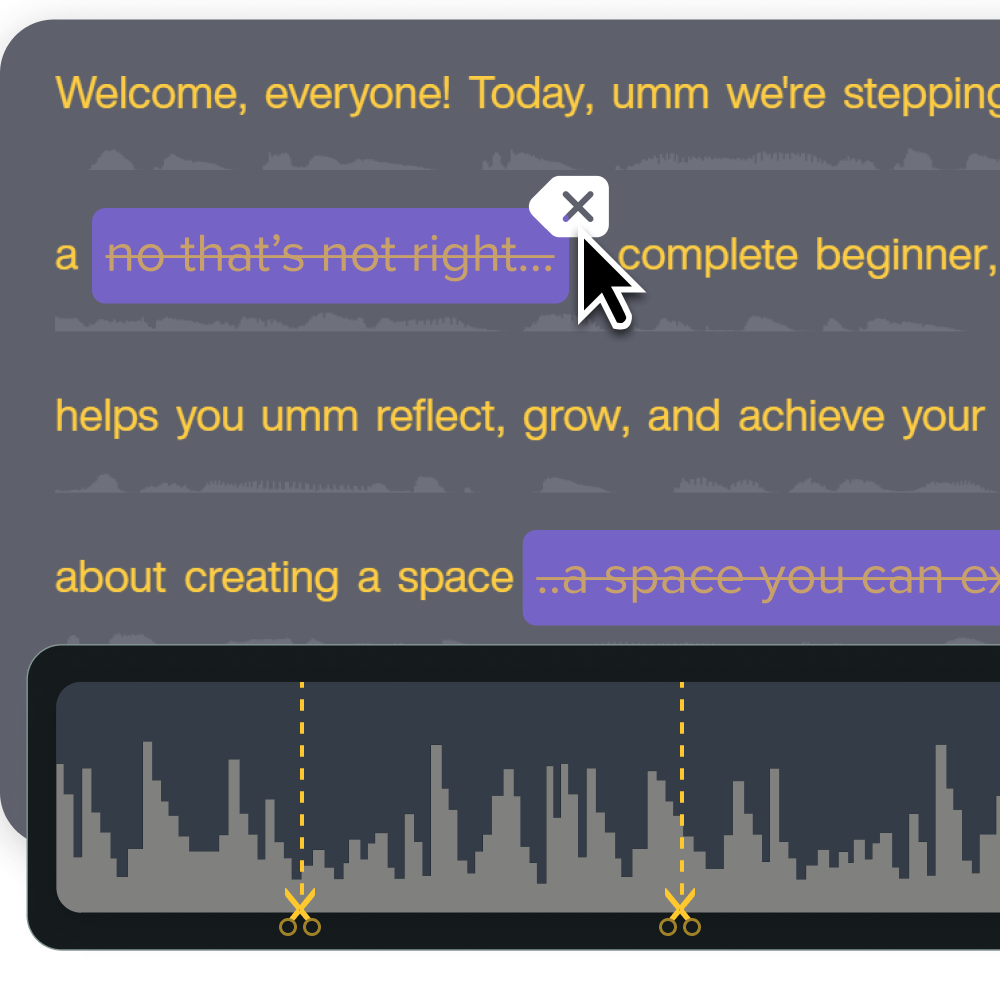
Applying zoom-and-pan to focus on what matters
Zoom-and-pan helps viewers see small interface details without pausing the video. If the presenter references a pricing field, customer note, or chat response, briefly zoom in so viewers can follow along naturally.
Keep movements smooth, subtle, and easy to follow. The goal is to support the lesson, not distract from it with unnecessary animation.
Using spotlights to isolate critical on-screen areas
Sometimes viewers need to see the entire screen while focusing on a single element. Spotlights dim the surrounding interface while emphasizing an important button, menu, notification, or quoted message.
This technique is especially useful in software demos, support recordings, and process walkthroughs, where complex interfaces can make it harder to know where to look.
Adding captions to meet accessibility requirements
Captions should be a standard part of every recorded call. Many people watch training videos at low or no volume, while others rely on captions for accessibility. Captions also improve comprehension when speakers talk quickly, use technical terms, or speak over one another. Those are all common occurrences in sales calls, support conversations, and team meetings.
When creating captions for prerecorded video content, pay attention to both readability and accuracy. Use high-contrast text that’s easy to see, make sure captions stay on screen long enough to read comfortably, and verify that they’re synchronized with the dialogue. If you use auto-generated captions, always review and edit them before sharing the recording.
Building a consistent annotated call library for your team
Annotated calls become even more valuable when they’re organized into a shared library. Instead of creating one-off training videos, build a collection of reusable call recordings that support coaching, onboarding, and knowledge sharing across your team. Over time, that library can also help you measure employee training engagement and identify which examples are most useful.
Keep the library easy to navigate by using consistent file names, annotation styles, and topic tags such as pricing, discovery, renewals, product demos, and escalations.
Before publishing recordings to your LMS or knowledge base, use Camtasia Screencast to gather feedback from managers and subject matter experts. Reviewing annotations before sharing ensures each recording is accurate, consistent, and ready for broader team use.
Start turning your recorded calls into real training assets
With the right workflow, a call recording becomes a reusable training asset. By cleaning up the audio, adding purposeful annotations, and including accurate captions, you can create videos that help teams learn faster without requiring advanced video editing skills.
Whether you’re coaching sales reps, onboarding new employees, or documenting internal processes, Camtasia Editor gives you the tools to highlight the moments that matter most and build a library your team can use again and again.
Create clearer, more effective training videos: Explore the Camtasia Suite and start turning recorded calls into guided learning resources your team can reuse.
FAQs
How do you annotate recorded calls in Camtasia Editor?
Import the call recording into Camtasia Editor, trim dead space, and place callouts, arrows, or text overlays at the exact timestamps where you want viewers focused. This turns a passive recording into a coaching asset that may help sales, enablement, and L&D teams explain what happened and why it matters.
How do you import a recorded call into Camtasia Editor?
Download the recording from Zoom, Teams, Gong, or a similar platform, then drag the video file directly onto the Camtasia Editor timeline. Before you annotate, clean the audio, remove pauses, and verify that the source file, storage location, and access settings match your organization’s policy.
Can you import a Zoom recording directly into Camtasia?
Yes. Camtasia Editor includes a direct cloud import integration with Zoom, so you can pull recordings straight from your Zoom account without downloading and re-uploading files manually. Open Camtasia Editor, connect your Zoom account, and select the recording you want to annotate. The file imports directly to your timeline, ready for trimming, audio cleanup, and annotation.
What annotations work best on recorded calls?
Callouts work well for brief explanations, while arrows, shapes, zoom and pan, and spotlights help direct attention to specific objections, handoffs, or screen activity. Use each annotation only when it adds context, because crowded visuals can slow comprehension and make important moments harder to review.
Do you need consent to annotate recorded calls?
In many cases, yes, because recording, storing, and repurposing calls for training can trigger different consent, privacy, and access requirements. Check your recording setup first, then confirm your legal, compliance, and retention rules before sharing annotated versions with learners, managers, or reviewers.
How can teams build a consistent annotated call library?
Start with a shared template for callouts, colors, fonts, and intro slides, so every annotated call follows the same visual standard. Store approved exports in Screencast or your learning system, then tag them by skill, scenario, or compliance topic for faster reuse. That workflow may help managers scale onboarding and coaching without having to rebuild examples for every new rep.
Share