









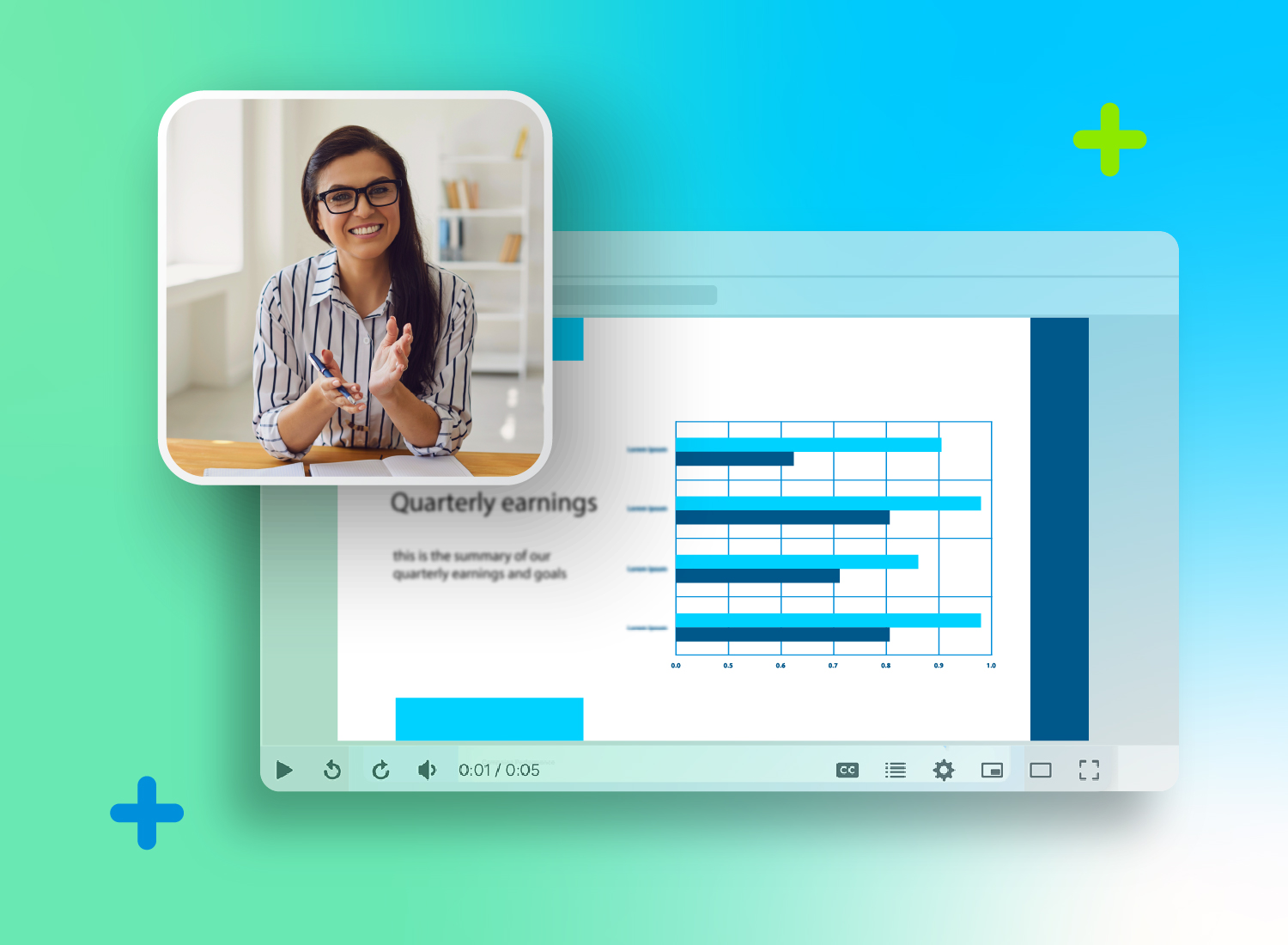
Video decks have quickly become a go-to alternative to live presentations and webinars, especially for remote and hybrid teams. A presentation deck is the set of slides used to support a spoken presentation, and recording yourself presenting a deck means capturing those slides with narration and optional webcam video so viewers can watch it later.
But turning your slides into an engaging, effective video presentation isn’t always as easy as it sounds. If you’ve ever felt awkward on camera, stumbled through a script, or struggled to make your message land without a live audience, you’re not alone.
There’s good news: Modern screen recording and video editing tools are making it much easier to create polished presentation videos — even if you’re not a natural in front of the camera or microphone.
To record yourself presenting a deck, start with a clear slide deck, use a tool that captures your screen and webcam, record your narration in short sections, edit out mistakes, and share the finished video so viewers can watch it on their own time.
From simple screen recording setups to AI-generated avatars that can present on your behalf, there are more options than ever to create a professional result that fits your comfort level and goals.
This guide will walk you through how to record yourself presenting a deck — whether you want to appear on screen or let technology do the talking.
Key takeaways
- A clear slide deck, a recording tool, and a simple learning goal give you the foundation for a useful recorded presentation.
- The best format depends on your goal: appear on camera for connection, use voiceover-only for simplicity, or use an AI avatar for repeatable delivery.
- Short recording sections make mistakes easier to fix and help your delivery sound more natural.
- A finished deck recording should be edited for clarity, hosted where viewers can access it, and updated when the content changes.
How to record yourself presenting a deck, step by step
Use this quick workflow when you need the simplest path from slide deck to shareable video.
Share the finished video on a platform your audience can access and review later.
Prepare the deck so each slide supports one clear idea and is easy to read on screen.
Choose your delivery style: webcam, voiceover-only, or AI avatar.
Record your screen, narration, and optional webcam video in short sections.
Edit the recording to remove mistakes, tighten pauses, and add callouts or zooms where viewers need guidance.
Let Audiate write your script!
No more blank pages! Instantly generate amazing, customizable scripts in any length, tone, and style!
Get Audiate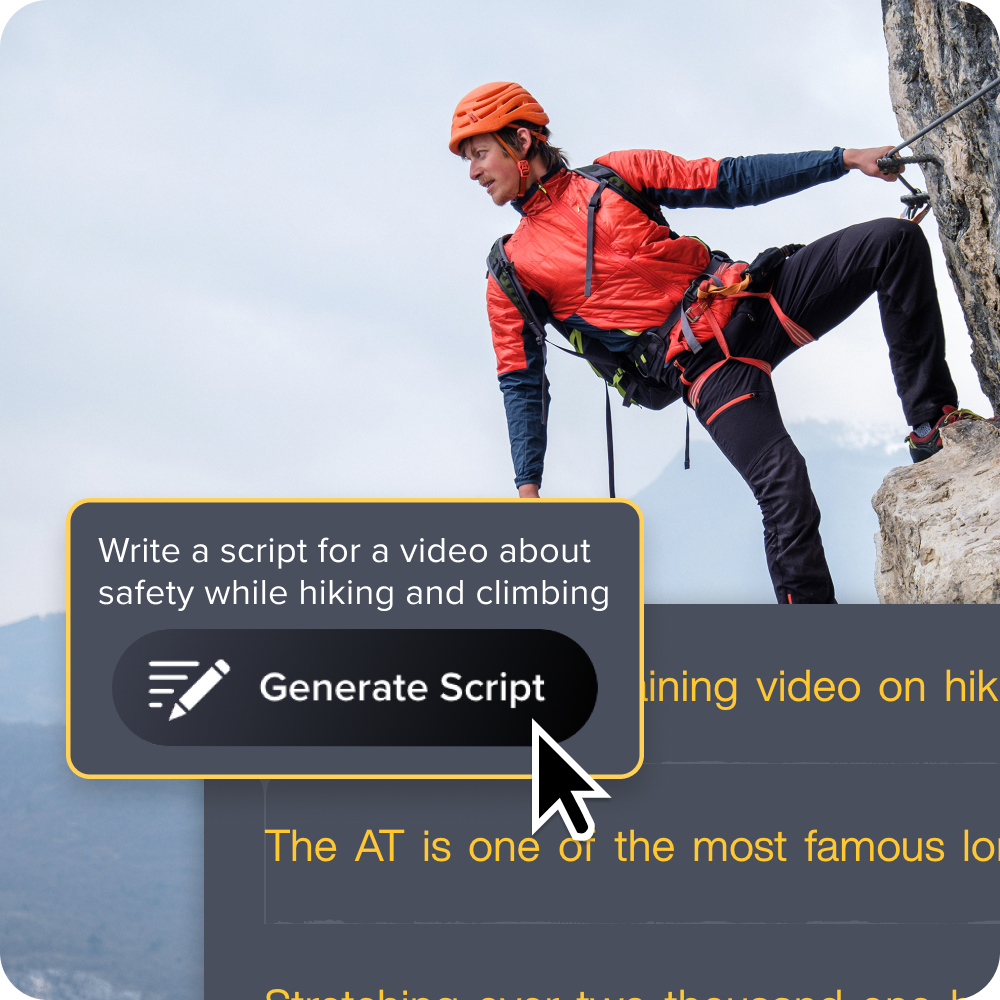
Why record yourself presenting a deck?
Recording yourself presenting a deck turns a static slide file into a video people can watch, pause, and revisit on their own schedule. Why go through the hassle of recording yourself presenting a deck when you can share your Google slides or PowerPoint slides directly with audiences? The benefits are worth the extra effort.
For you, deck recordings:
- Expand your reach: You can share them with a broader audience, unlike live presentations, where you only present to those in front of you.
- Are convenient: They allow you to share content around the clock, across different time zones and schedules without affecting your work schedule.
- Help build human connections: Recordings featuring your face or voice can help you connect more deeply with your audience, something plain slides or docs can’t really accomplish.
Recordings can make a world of difference for your audience as well. They:
- Promote flexibility: Viewers can playback your content whenever and wherever — no more scheduling conflicts or travel inconveniences for live meetings.
- Allow for better learning: Audiences can watch and rewatch videos as many times as needed to understand key concepts.
- Enhance retention: Recordings engage both of the brain’s processing systems, visual and verbal, which improves understanding and retention according to dual coding theory.
- Are engaging: Recording yourself transforms static slides into dynamic experiences that are more likely to capture and maintain viewers’ attention.
What do you need to record yourself presenting a deck?
You need a slide deck, recording software, audio capture, and either a webcam or an AI avatar if you want a presenter on screen. Before you jump in, make sure you have everything you need.
Before you get frustrated, you don’t need multiple tools for this. A solution like Camtasia can help you do it all. You can capture and edit recordings in Camtasia Editor, as well as Camtasia Audiate, a tool that unlocks script generation and AI avatar features.
Let Camtasia Audiate write your script
No more blank pages. Instantly generate amazing, customizable scripts in any length, tone, and style. Get Camtasia Audiate
What makes a slide deck ready to record?
A slide deck is ready to record when it is organized, readable, and focused on one main idea at a time. Before you can start recording, you’ll need to create a well-organized slide deck that effectively conveys the information you want to share. However, be careful not to overwhelm your audience — stick to one concept per slide presentation.
Remember that your slides will be on screen longer than any other element in your video. So, keep them clean, use readable fonts, and include some visual elements, like supporting images or animations, all the while maintaining consistency and ensuring flow.
A good way to assess your slide deck is to ask: “Would I be able to keep my eyes on the screen and follow this presentation without having someone else explain the details?” If the answer is yes, you have the foundation for your recording.
With Camtasia, you can improve your slides even further to enhance audience understanding. The tool lets you zoom in on different parts of your current slides as well as add callouts after recording, which can help improve clarity.
What recording software should you use?
Use recording software that can capture your slides, narration, and webcam while still giving you editing control after the recording. Ideally, it should help you:
- Record your screen (to capture your slides) or webcam.
- Record narration and add it to your presentation.
- Edit the recording to your satisfaction.
You can present from the slide tool you already use, such as PowerPoint or Google Slides, while using Camtasia Editor to capture the deck, narration, optional webcam video, and later edits.
Camtasia Editor is great for both experienced and inexperienced teams. It has a webcam and screen recording functionality, supports drag-and-drop editing, and offers built-in AI features like background removal. With a Camtasia Pro plan, you also have access to Camtasia Audiate for additional features, like automated script generation and AI avatars.
Do you need a webcam, mic, or AI avatar?
You need a webcam and mic if you want to appear on camera, but you can use voiceover or an AI avatar if you prefer to stay off screen. If you want to appear on camera (might be great for building emotional connections), you’ll need a decent webcam and mic. This doesn’t mean getting “Hollywood-level” gear; a simple camera and mic that captures your face and records audio will do.
Prefer to stay off-camera? AI avatars offer an alternative way to deliver your message while maintaining a professional, human feel. They’re especially useful when you want a consistent presenter across videos, need multilingual voiceover options, or simply feel more comfortable behind the scenes.
Camtasia Editor supports both live video recordings and voiceover-driven presentations. You can record your screen, webcam, and audio in one tool. And with Camtasia Audiate, background noise can be cleaned up quickly, so you don’t need a perfectly soundproof space to record audio.
Go from screen recording to polished video
A screen recording is just the start. Camtasia’s editor helps you add the callouts, animations, and edits you need to create a truly professional video.
Free Download
Go from screen recording to polished video
A screen recording is just the start. Camtasia’s editor helps you add the callouts, animations, and edits you need to create a truly professional video. Free Download
Should you use a human or AI avatar?
Use a human presenter when connection matters most, and use an AI avatar when speed, consistency, or repeatable delivery matters most. Both have their strengths, and the right choice depends on your audience, content type, and presentation goals.
Some Camtasia users opt for AI avatars when they need fast, repeatable delivery, but many still prefer the authenticity and emotional connection of a human face.
When should you record yourself vs. use an AI avatar?
Record yourself when your audience needs trust, personal context, or a stronger human connection. A human-led video is especially great when:
- Handling executive communications
- Pitching to clients or investors
- Onboarding new hires
- Presenting thought leadership content
- Sharing personal insights or stories
Use an AI avatar when your priorities are speed, scalability, and consistency. This could be the perfect route for:
- Providing product walkthroughs or tutorials
- Creating repeatable explainer videos
- Replicating the same content for different audiences, for example, when creating videos in multiple languages
Of course, none of this is set in stone. If you’re unsure which format will resonate most with your audience, consider A/B testing both and monitoring engagement data.
How do you get the best results when recording a deck?
The best recorded deck presentations are focused, natural, rehearsed, and matched to the audience’s expectations. No matter which format you choose — appearing on camera or using an avatar — the outcome depends on how you approach the recording process. Here are a few practical tips to keep in mind:
How long should a recorded deck presentation be?
A recorded deck presentation should be short enough to finish and revisit, but long enough to explain the message clearly. Shorter, focused presentation videos are easier for viewers to finish, review, and revisit, especially when you keep attention limits in mind.
This isn’t to say that you should use shortcuts. Make your recordings short enough to maintain attention, but long enough to convey your message.
Make sure they’re easy to digest by:
- Focusing on a single concept per video
- Starting with simple concepts and building up to complex ones
- Using bullet points
- Adding brief pauses between ideas
Camtasia Editor offers a timeline view of your videos, making it easy to edit out unnecessary parts and break up and rearrange sections as needed.
Should you read your slides when recording a deck?
Do not read your slides word-for-word when recording a deck; use your narration to explain, connect, and add context. It may be tempting to read directly from slides when making a video of yourself. But should you? Probably not.
Voiceovers should add meaning to your presentation, not just mirror what’s on your slides. To hold viewers’ attention, provide additional value and use a natural, conversational tone.
Use Camtasia Editor’s voice recording tool to record and review your delivery in segments. This way, you can easily re-record sections you’re unhappy with rather than having to scrap the full-length recording.
If you can edit a doc, you can edit a video
Stop fearing the timeline. Camtasia Audiate transcribes your recording so you can edit your video just by editing the text. Free Download
Should you rehearse or edit your recording?
You should rehearse enough to feel comfortable, then use editing to clean up the parts that do not need a full retake. Even the best presenters need practice. So, rehearse and retake your presentation as many times as needed until it sounds and feels right.
Take advantage of editing tools like Camtasia Audiate to polish your content. Camtasia Audiate can help cut pauses and remove filler words (yes, the “ums” and “uhs”!), so you can deliver high-quality recordings.
Which delivery style should you choose?
Choose the delivery style that matches your audience’s expectations and the kind of message you are presenting. When making internal presentations (like onboarding or update videos) or client and investor-facing decks, go the human route. For repeat or high-volume recordings, use AI avatars to streamline your workflow.
What should you do after recording a presentation deck?
After recording a presentation deck, edit it, host it, invite feedback, and update it when the content changes. What you do after you stop recording your video presentation is just as important as what you do during the production process. One of the most common mistakes presenters make is hitting “stop” and thinking they’re done without a clear plan for what happens next.
Developing a smart distribution and feedback strategy ensures your presentation actually reaches the right people and drives engagement. Here’s how to maximize your presentation’s impact.
If you can edit a doc, you can edit a video
Stop fearing the timeline. Camtasia Audiate transcribes your recording so you can edit your video just by editing the text.
Free Download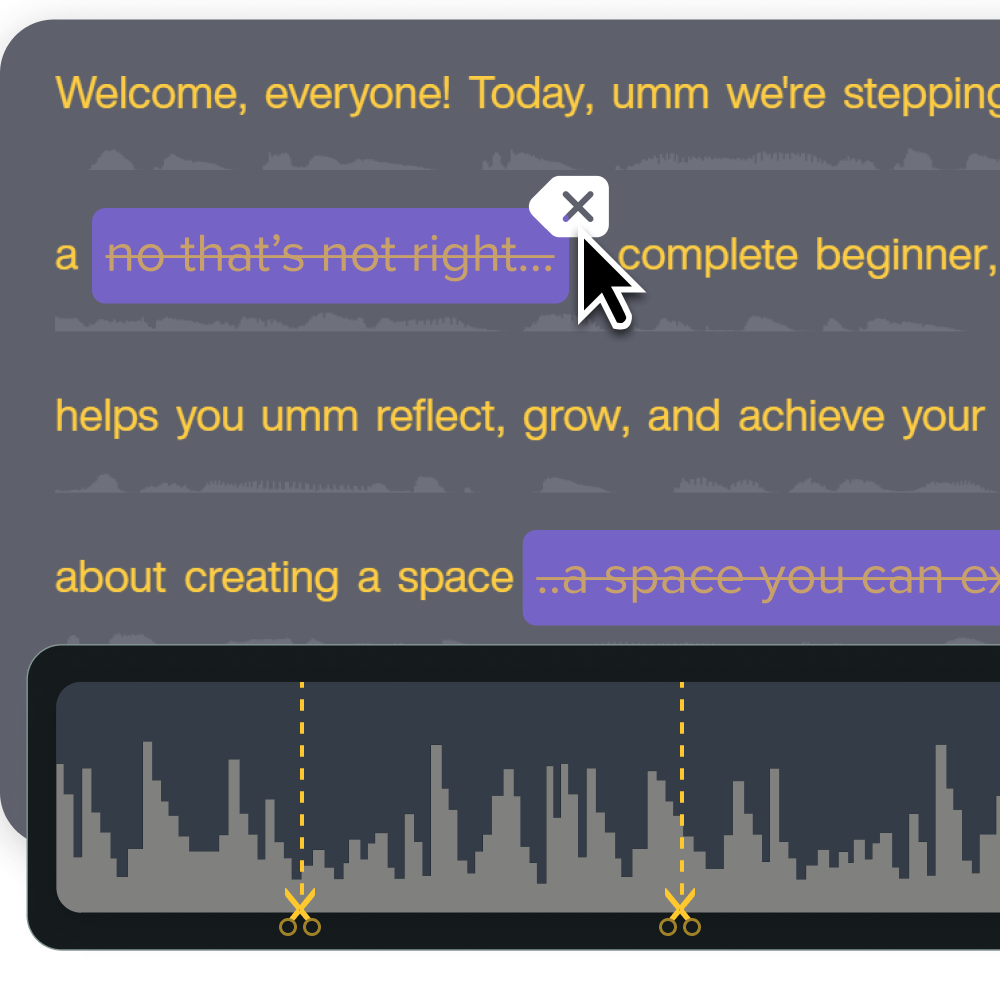
Where should you share and host the recording?
Share and host the recording so your audience can find it, access it securely, and watch it on their devices. The hosting platform you choose is a big decision, as it determines your videos’ discoverability and the viewer experience. Before settling on one, consider:
- Use case: Different platforms will be suitable for varying needs. For example, YouTube can be a good choice for thought leadership content, your company’s learning management system (LMS) for internal training, and your sales portal for sales-driven presentations. You can also share direct links with clients for sales pitches or product tutorials.
- Access control: Choose a solution that lets you control who can view your content, especially if you plan to record sensitive information. Screencast has an optional feature that requires users to enter a passphrase to view content behind a shared link.
- Mobile compatibility: Improve viewer experience by selecting a tool that performs well on mobile devices (iOS and Android).
- View and engagement analytics: Pick a solution that provides analytics, like the number of video views and completions, to help you understand viewer behavior.
- Integration capabilities: Choose a platform that integrates with existing tools, such as your CRM or video editing solution, to streamline distribution.
- Bandwidth limitations: Consider your typical video file sizes and choose a solution that can support them.
Screencast can help you share presentation recordings with viewers.
How should you collect feedback on a recorded deck?
Collect feedback by giving viewers a clear way to comment on what was helpful, confusing, or missing. Turn one-way presentations into two-way conversations by inviting feedback from viewers. Ask what they liked, what they didn’t, and what they wish you could improve on.
You can embed your video in surveys or forms to collect input, clarify points of confusion, and surface frequently asked questions — all of which can inform future updates or spin-off content.
If you’re using Screencast, viewers can leave comments and emoji reactions right alongside your video. This makes it easy to collect real-time, in-context feedback without sending out separate forms or emails. It’s a simple way to spot patterns, improve clarity, and stay connected to your audience’s needs.
When should you update a recorded presentation deck?
Update a recorded presentation deck when your audience, message, process, or tools change. As things change — whether it’s your audience, your message, or the tools you’re showcasing — your presentations should evolve too. Regularly reviewing and updating your videos keeps them relevant and valuable long term.
Periodically revisit your video content to make sure it:
- Aligns with your current audience’s expectations
- Reflects industry changes
- Addresses viewers’ questions or concerns from past videos
When it’s time to make edits, you don’t need to start from scratch. Update the key sections, re-record only the new sections in Camtasia, and redistribute the updated version.
Use Rev to move from recording to a cleaner starting point for editing. Learn More
Faster video creation with Rev
Make videos as easy as click, click, done! Camtasia Rev is so fast it’s like magic!
Learn More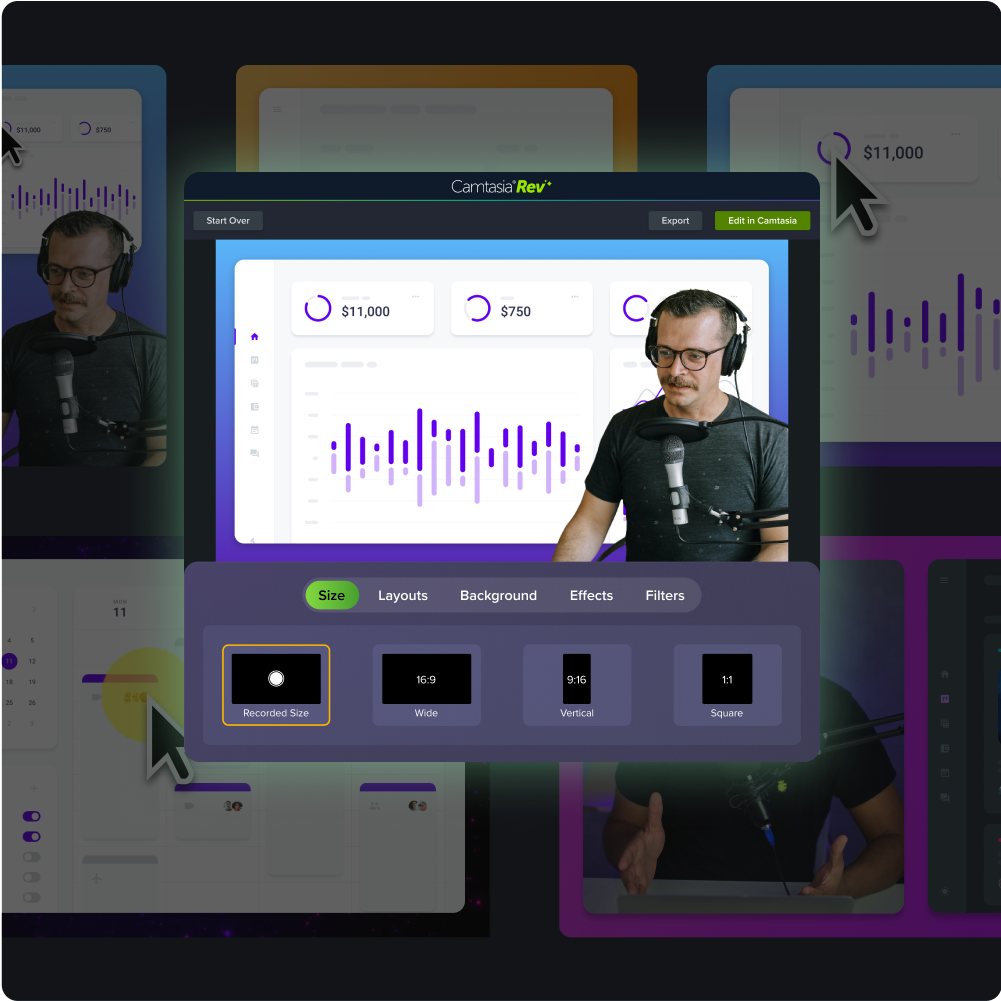
How does Camtasia help you record a deck presentation?
Camtasia helps you record a deck presentation with practical tools to capture, edit, polish, and share your video. Turning a slide deck into a compelling video doesn’t require a full production setup — or even stepping in front of the camera. Present live with your voice and webcam, or use AI avatars and voiceovers when a more flexible or behind-the-scenes approach fits better.
No matter your style, the key is creating something clear, engaging, and easy to watch.
The right tools make all the difference.
Camtasia gives you a simple way to capture your presentation, webcam, and audio in one place. Easily trim out mistakes, rearrange sections, and add polish without needing a background in video production. Want to tighten your narration or clean up your audio?
Camtasia Audiate lets you edit your voice track as if you were editing a document. You can even create AI-generated voiceovers or use avatars when staying off camera makes more sense for your content.
Use Camtasia to record, edit, and share presentation videos your audience can review on their own time.
Try Camtasia free and build a recorded deck presentation your viewers can watch when they need it.
Frequently asked questions
How do you record yourself presenting a deck?
Start with a clear slide deck and a recording tool that can capture your slides, narration, and webcam if you want to appear on screen. Record in short sections so it is easy to fix mistakes without starting over. Then edit the recording for clarity, add any needed callouts or zooms, and share it on a platform your audience can access.
Should you appear on camera or use an AI avatar?
Use your own face and voice when trust, connection, or personal context matter most. An AI avatar can be a better fit when you need speed, consistency, or repeatable delivery across multiple videos. The best choice depends on your audience, the kind of content you are presenting, and what you want viewers to take away.
What do you need to get started?
At minimum, you need a well-organized slide deck, recording software, and a way to capture audio. If you want to be on camera, add a webcam and microphone that clearly capture your face and voice. If you prefer to stay off camera, you can use voiceover or an AI avatar instead.
What should you do after recording a presentation deck?
Choose a hosting option that fits your use case, access needs, and viewer experience. Invite feedback to spot confusing sections and improve future versions. As your message changes, update the video by re-recording only the sections that need refreshing.
What does a presentation deck mean?
A presentation deck is the slide file or set of slides used to support a spoken presentation. The deck usually holds the visuals, key points, examples, and structure for what the presenter will explain. When you record yourself presenting a deck, you turn that slide support into a video with narration and optional webcam video.
Can you record yourself presenting a PowerPoint or Google Slides deck?
Yes, you can record yourself presenting a PowerPoint or Google Slides deck. Open the deck in the slide tool you already use, then use recording software to capture the slides, your narration, and your webcam if you want to appear on screen. After recording, edit the video for clarity and share it where your audience can watch it later.
Share