






Internal communication can be a real pain. Messages might be unclear, some may be repetitive, and others could be buried in walls of text and endless emails that no one has the time (or desire) to read.
But sometimes, communicating via real-time meetings isn’t any better. While it could enhance clarity, it can cause meeting fatigue, resulting in disengaged employees and disconnected teams.
Effective business communication with video means using clear, repeatable videos for onboarding, updates, walkthroughs, and asynchronous knowledge sharing so employees can watch the right message when they need it.
Fortunately, there’s a solution: video communication. It’s faster, clearer, more convenient, and more engaging than lengthy emails and live meetings. Whether you need to onboard new hires, explain SOPs, or send out quick company updates, this type of business communication can be a game-changer — but only when implemented effectively.
Here, we provide step-by-step strategies and best practices for video communication and look at easy-to-use tools.
Key Takeaways
- Video helps teams learn at their own pace, understand complex processes, and get a consistent message.
- It works especially well for onboarding, SOPs, company updates, software walkthroughs, leadership messages, and FAQs.
- A practical workflow starts with a short script, a clean recording setup, clear edits, and an easy way to share videos.
- Captions, clear naming conventions, and organized video libraries make internal content easier to find and use.
Why video works for internal business communication
Video works well for internal business communication because it gives people visuals, audio, and timing in one format they can revisit on their own schedule.
According to our 2024 Video Viewer Report, 83% of people prefer informational or instructional content when it’s in video format, while only 41% and 30% prefer text and audio, respectively.
- Facilitates self-paced learning
- Makes it easier for learners to understand complex processes
- Promotes content consistency
- Is more engaging than blocks of text
- Levels the playing field for introverts and extroverts by reducing performance anxiety
Video communication also benefits training and management teams. A single video can serve anywhere from 5 to 500 people, making it easy to scale. Plus, the convenience of video eliminates the need to schedule as many meetings, which is especially valuable for global, hybrid, or remote teams.
Best internal communication use cases for video
Video is most useful when the message needs to be clear, repeatable, and easy to revisit.
Video is really versatile. Here are some use cases where it can redefine how you engage:
- Onboarding new hires: Give new employees a quick welcome video or walkthrough of your company.
- Explaining SOPs: Create short explainer videos that show employees exactly how to perform different tasks, eliminating confusion.
- Giving company updates: Replace time-consuming staff meetings or lengthy emails with quick videos.
- Providing software walkthroughs: Show employees how to use company systems effectively, rather than issuing manuals that they’ll likely never read.
- Explaining product or process changes: Record key changes in your system and encourage employees to consult them whenever they feel stuck.
- Sharing leadership messages: Record introductions and announcements from management instead of sending memos to help build emotional connections.
- Answering FAQs: Instead of answering the same questions repeatedly, create video recordings and add them to a library that employees can revisit.
Three essential tools for producing high-quality internal videos
Whether you’re new to video creation or you’re an expert, Camtasia tools like Camtasia, Snagit, and Screencast can simplify recording, editing, and sharing. Here’s a look at these tools and when to use them:
1. Camtasia Editor
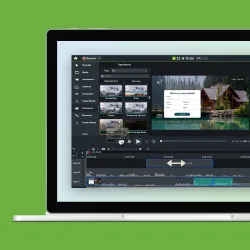
Camtasia Editor offers AI-powered solutions that can help you create high-quality, engaging videos quickly. The tool offers:
- Screen + webcam recording capabilities that make it easy to share information
- Easy-to-use cursor effects and annotations that let you highlight key details in your recording
- Customizable themes and templates that help you stay on-brand, even when you delegate video creation to different team members
- AI-powered avatars, voices, scripts, and captions to promote fast video creation (with Camtasia Audiate)
Camtasia Editor also streamlines video creation and editing by allowing drag-and-drop and text-based editing. The best part? It records all inputs — screen, mic, system audio, and webcam — on separate tracks, so you don’t need to re-record entire videos if you only want to change one element post-production.
Best for: Employee training videos, product or process tutorials, leadership messages, and PowerPoint presentations.
Go from screen recording to polished video
A screen recording is just the start. Camtasia’s editor helps you add the callouts, animations, and edits you need to create a truly professional video.
Free Download
2. Camtasia Snagit
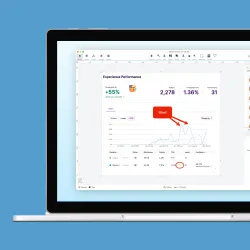
Camtasia Snagit can enhance Camtasia Editor videos by quickly grabbing visuals to support your recordings. The snipping tool offers valuable features like:
- Screen capture, which can take screenshots or videos of your entire screen or a custom region
- Scrolling capture can record your scrolling, eliminating the need to stitch multiple screenshots together
- AI-powered text recognition and element moving capabilities that allow you to adjust a screenshot’s font size and color, or even rearrange elements like call-to-action (CTA) buttons
- Video library that allows you to organize recordings by keyword, date, app, and file type
Best for: Software walkthroughs, how-to recordings, and annotated screenshots.
Stop wasting time in pointless meetings
See how small changes to the way you share information can help you reclaim your time at work.
Get the Guide
3. Screencast
While it’s not exactly a video recording or editing tool, Screencast is a valuable addition to your arsenal.
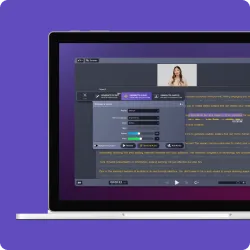
The cloud-based solution allows you to share the videos created with Camtasia Editor and Camtasia Snagit, eliminating the need for a separate collaboration tool.
With Screencast, you can:
- Streamline video access by sharing links.
- Use AI to generate titles, chapters, and descriptions for your videos.
- Offer feedback, ask questions, and make content decisions remotely.
- Create shareable Collections for different departments or projects.
Best practices for planning and scripting internal videos
A simple planning process helps you create internal videos faster and makes the final message easier to follow.
- Start with the audience. Are you creating content for employees, management, or shareholders? Your audience will shape the tone, whether that’s conversational, professional, or formal.
- Define the “why” before the “how.” Understanding your end goal will guide your script. You’ll know what to emphasize when scripting and what to cut when editing.
- Keep the script and the video short. The human attention span is getting shorter and shorter. Keep your content as brief as possible without compromising the value of your video. Source: APA
- Use available technology to speed up the first draft. You can use Camtasia Audiate’s AI script generation feature to get started more quickly.
- Plan visuals alongside the script. Determine what to show and where to show it. With Camtasia’s product suite, you can align your script, visuals, and audio by first recording your video and then adding your voiceover.
- Add annotations where viewers need guidance. Draw viewers’ attention to important details with features like callouts and arrows. Camtasia lets you add, rotate, resize, and even animate annotations to capture your target audience’s attention.
Recording tips for clarity and engagement
Good recordings usually come from a repeatable setup, not from improvising at the last minute.
- Choose the right recording area. Use full-screen recording when you want to give a broad context, like showing employees how to use multiple tools. Use focused region recording when you want viewers to pay attention to one tool or process.
- Speak like you’re talking to one person. Use a conversational tone and keep a steady pace.
- Remove distractions before you record. Close unnecessary tabs, clear cluttered desktops, and disable pop-ups and notifications.
- Record in a quiet place. Preferably, use a soundproof room.
- Turn on your webcam when the message needs a human connection. This works especially well for welcome messages, updates, and leadership communication.
- Use the clearest audio setup you can. Use an external mic for clear sound, if possible.
- Use gestures with intention. You can always add cursor effects like spotlight, kinetic movement, and smoothing, along with motion path animations in Camtasia, to highlight key actions and maintain viewers’ attention.
Editing for maximum understanding
Editing makes internal videos easier to follow by removing friction and emphasizing the parts viewers need most.
- Trim anything that slows the viewer down. Remove dead space, unnecessary pauses, and filler words. Camtasia Editor’s drag-and-drop editing feature and Audiate’s automated noise cleanup and filler word removal help speed up this step.
- Add captions and voice narration. This improves accessibility and gives viewers more than one way to follow the message. Camtasia Audiate offers automated captioning and AI-powered voiceovers, which can help.
- Use transitions and pauses between key steps.
- Blur sensitive information. This is especially important for customers’ personal details and other private data.
- Keep branding consistent and use export presets. For example, you could use Camtasia’s Screencast preset if you want to collaborate with your team on the platform.
Make your internal videos accessible and searchable
Internal videos are only useful when people can find them, watch them, and understand them without extra help.
Your videos will only be valuable if employees can easily find and watch them. So, don’t stop at editing — enhance their accessibility and searchability by:
- Adding captions, which will help people with hearing difficulties and those who prefer to watch videos with the sound off
- Translating scripts to promote accessibility for global teams; you can automate this process in Camtasia Audiate by uploading your script and selecting from the language options provided
- Grouping related videos and using clear naming conventions
- Sharing them via your company’s learning management system (LMS) or Screencast Collections minimizes the need for repeat explanations, centralizes company knowledge, and allows employees to learn from each other (via features like comments)
Build your next training video with Camtasia
Record your screen or camera. Then, use the video editor to add polish and clarity.
Learn More
How internal video supports a stronger communication strategy
Internal video supports broader communication goals by making messages easier to repeat, easier to understand, and easier to reuse.
Internal videos can enhance your broader strategy by improving message delivery, supporting asynchronous communication, and providing content for external channels — if you play your cards right. Here’s how:
Make effective communication repeatable and scalable
Video can elevate your communication strategy by promoting content consistency, even when scaled. It ensures that messages are standardized across teams, departments, and time zones, which reduces confusion and limits the need for repeated explanations.
Reinforce communication skills with visual cues
While communication methods like text can still convey messages, they may not effectively demonstrate complex processes, programs, and data.
Video, on the other hand, offers visual support, which can enhance employees’ understanding. For example, training videos that demonstrate how to use different company systems can serve as simple guides for new hires.
Use body language and facial expressions to your advantage
Video captures your message as well as nonverbal cues that are impossible to show in chats, phone calls, or emails. It shows your facial expressions and hand gestures, which can communicate the emotion behind your words.
When you record video welcome messages, for example, you can showcase your company’s warmth through smiles to build trust — just like you would in typical in-person or face-to-face meetings.
Repurpose internal videos for external channels
Some internal videos, such as product overviews, FAQs videos, and how-to tutorials, can serve your employees and external stakeholders, like customers.
62% of consumers say that they watch video content like FAQs and demos to learn more about brands.
So, don’t underestimate the value of your videos.
If you measure video engagement and your metrics show that your recordings perform well internally, optimize them for external communication tools or social media channels like LinkedIn and YouTube — after confirming they don’t disclose sensitive company information, of course.
Camtasia Editor can make it easy for your team to repurpose internal videos. It supports vertical formats, features presets for different platforms, and allows you to create branded templates, to serve as a guide for video creators, promoting alignment with external channels and messaging consistency.
How visual tools improve internal business communication
Effective business communication requires a mix of visuals, audio, and text — things that video delivers. Internal videos can enhance employee engagement, understanding, and message consistency.
But this depends on how you create your videos. For optimal results, write a script that meets your audience’s needs, prepare your recording setup for clear visual and audio capture, and work with a reliable video editor.
With Camtasia tools like Camtasia Editor and Camtasia Snagit, you don’t need a video production expert or a studio. These tools can record your screen, take quick screenshots, remove background noise and filler words, and streamline video creation with AI avatars and voiceovers.
Want to use video for a product walkthrough, a welcome message, or a how-to tutorial?
Give Camtasia products a try today!
FAQs
What is effective business communication with video?
Effective business communication with video is a clear, repeatable way to share updates, training, walkthroughs, and other internal messages. It works best when people can watch the message on their own time, understand the next step, and return to it later if they need a refresher. In practice, that usually means keeping videos short, showing the right visuals, and editing out anything that creates confusion.
What internal messages work best as video?
Video works especially well for onboarding, SOPs, company updates, software walkthroughs, product or process changes, leadership messages, and FAQs. These topics benefit from visuals because employees can see the process, hear the explanation, and revisit the message later. That makes video a practical replacement for some long emails, manuals, and recurring meetings.
What tools can help create internal communication videos?
Camtasia Editor, Camtasia Snagit, Camtasia Audiate, and Screencast each support a different part of the workflow. Camtasia helps with screen and webcam recording, editing, templates, captions, and annotations. Camtasia Snagit helps you capture supporting visuals quickly, Audiate speeds up text-based editing and cleanup, and Screencast helps you share videos and organize feedback.
How do you make internal videos accessible and searchable?
Start with captions so people can follow along with or without sound. Then use clear naming conventions, group related videos together, and store them somewhere employees already go, such as an LMS or Screencast Collections. That combination makes videos easier to find, easier to understand, and less likely to create repeated questions.
Looking for professional screen recording software?
From simple screen captures to polished video editing, TechSmith has everything you need to create professional-quality content.
Learn More
Share