


What’s New in Snagit
Learn how Snagit's new features automate tedious tasks to make communication fast, efficient, and effective.


Learn how Snagit's new features automate tedious tasks to make communication fast, efficient, and effective.

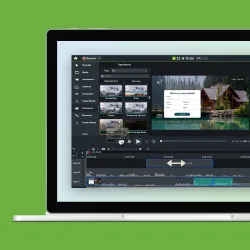
Send your Snagit images and videos to Camtasia Online, our free online screen recorder and video maker, for easy, collaborative video creation.
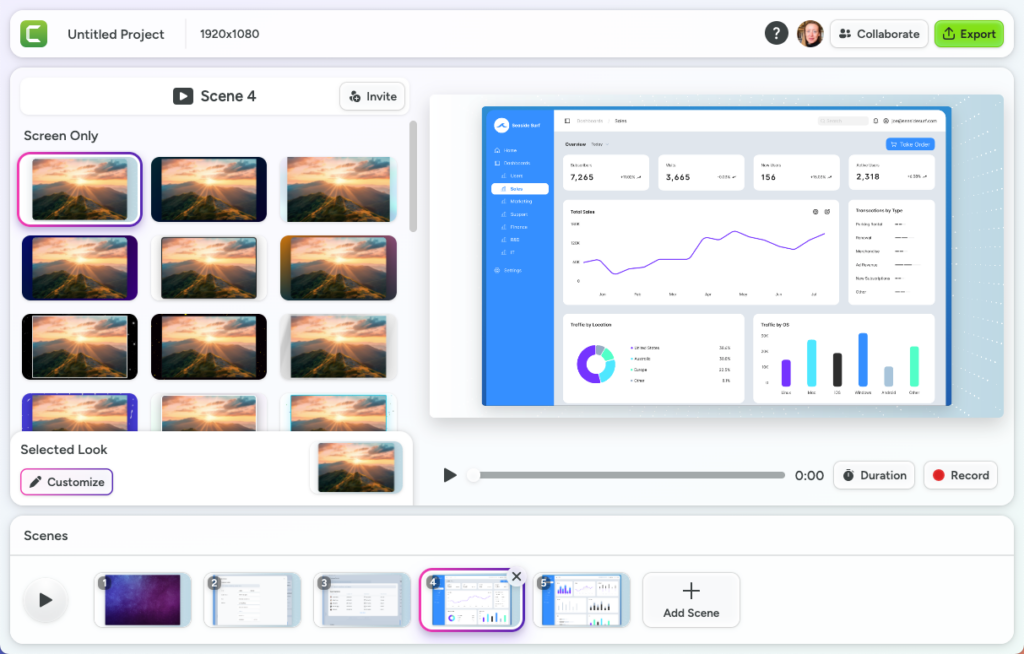
To learn more, see 3 Ways to Turn Your Snagit Screenshots into Video and Collaborate on a Video Project.
Tired of scrolling through Snagit for that one capture you took? Keep it in view with capture pinning.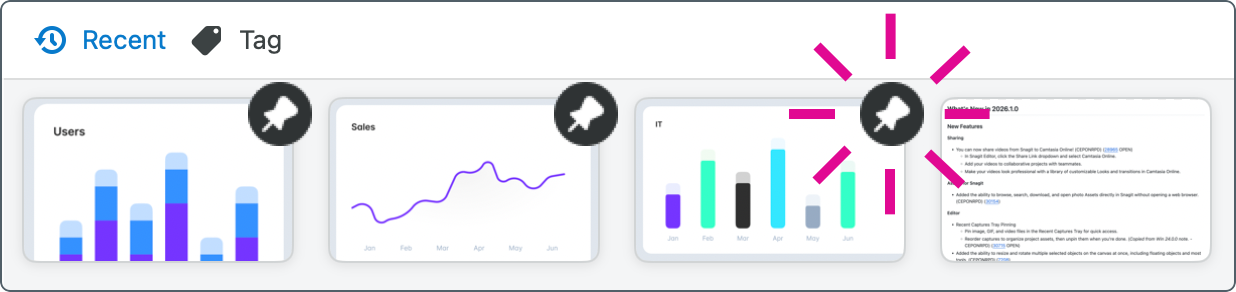
Pin a capture in the Recent Captures Tray with a single click, pin multiple captures to keep project assets together, and drag to reorder pinned captures in the tray. Unpin captures when you’re done.
To learn how, see Recent Captures Tray.
Released in Snagit for Mac 2026.1.0 and Snagit for Windows 2024.0.0.
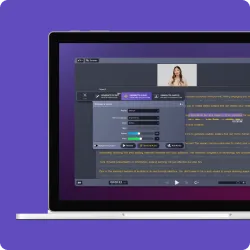
Now Snagit can record your screen, camera, cursor, and audio as separate streams for robust editing in Camtasia Editor.
On the Video capture tab, select Camtasia Editor from the Open In dropdown. 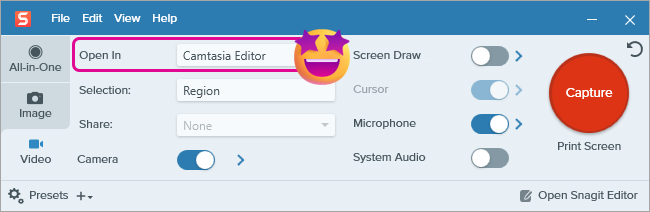
When you finish recording, your video opens in Camtasia Rev where you can apply professionally-designed layouts and quick effects with just a few clicks. See Introduction to Rev Media.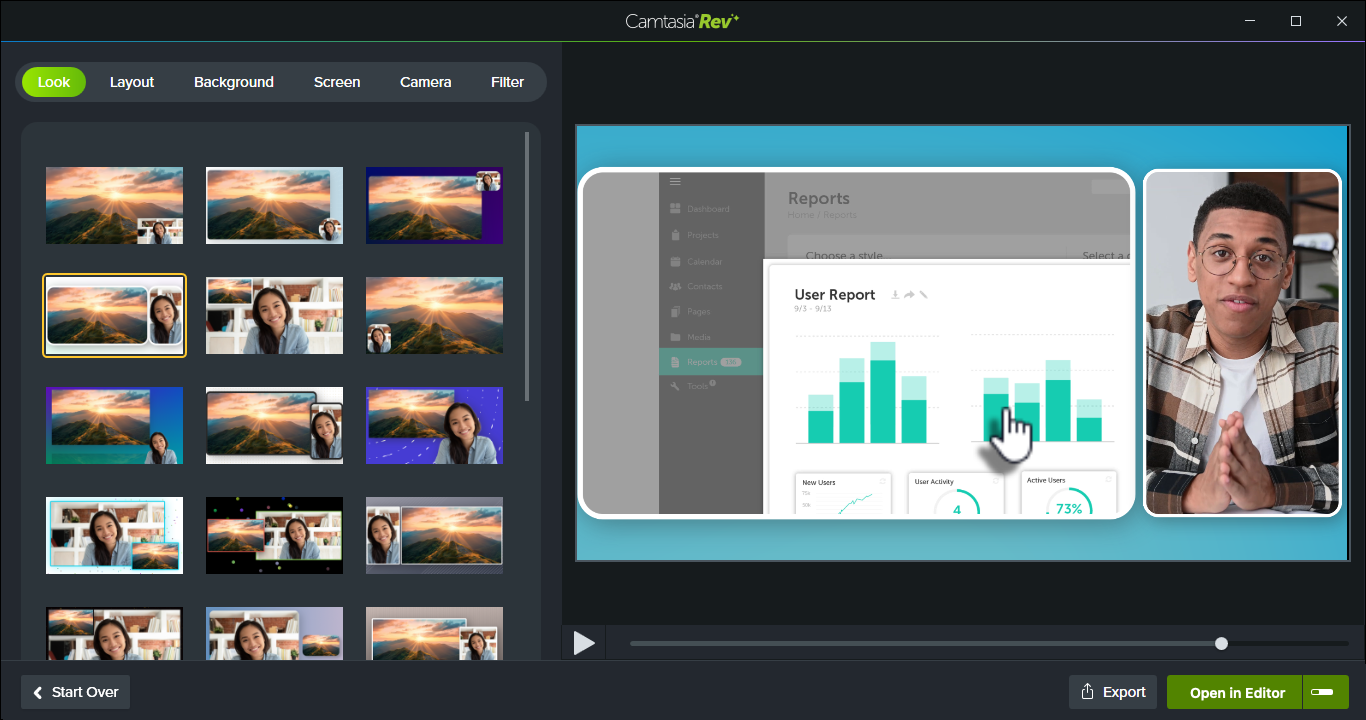
Export your video from Camtasia Rev, or click Open in Editor to take advantage of Camtasia Editor’s full editing capabilities.
See Record Multitrack Video for Flexible Editing in Camtasia Editor.

No credit card needed. Videos exported without a Camtasia Essentials, Create, or Pro subscription include a watermark.
Download Now
Send images between Snagit and Camtasia Editor to build and edit your video project.
1. Share multiple images to Camtasia Editor
Select multiple images in Snagit Editor or the Snagit Library to send to a Camtasia Editor video project. Your images are automatically added to the Media Bin, ready to incorporate into your Camtasia video.

2. Send images from Camtasia Editor back to Snagit for editing
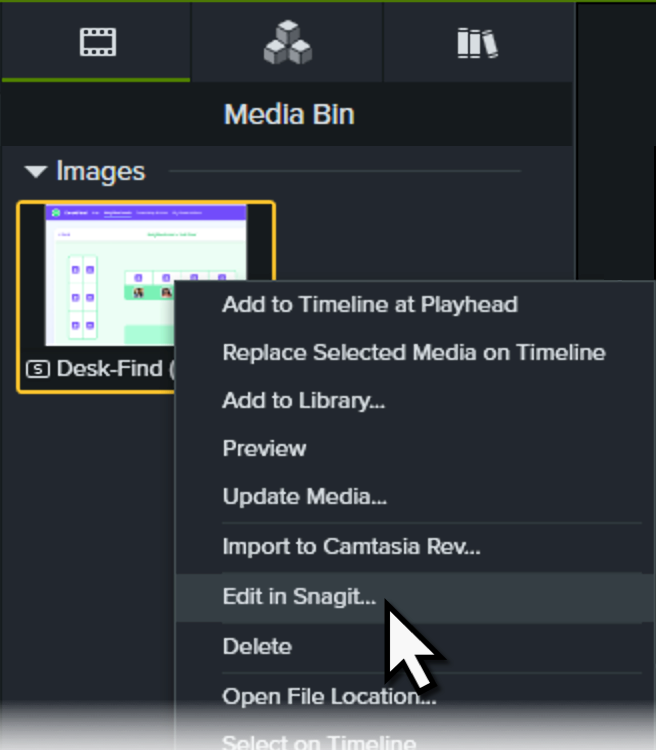
Need to edit or update an image from Camtasia Editor? Right-click the thumbnail in the Media Bin and select Edit in Snagit.
3. Snagit syncs the edited images back to Camtasia Editor
When you’re done editing in Snagit, click Send (Windows) or Finish (Mac) to automatically update the image in Camtasia Editor.
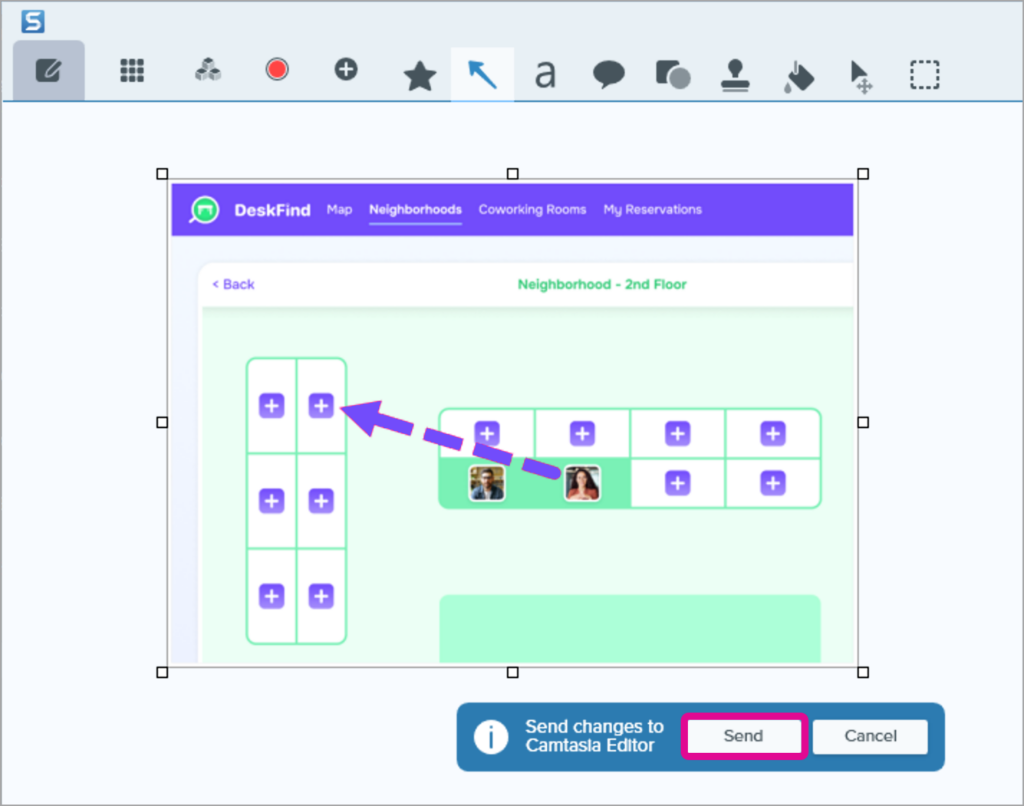
See 3 Ways to Turn Your Snagit Screenshots into a Video.
Find and download Assets directly in Snagit Editor without opening a web browser.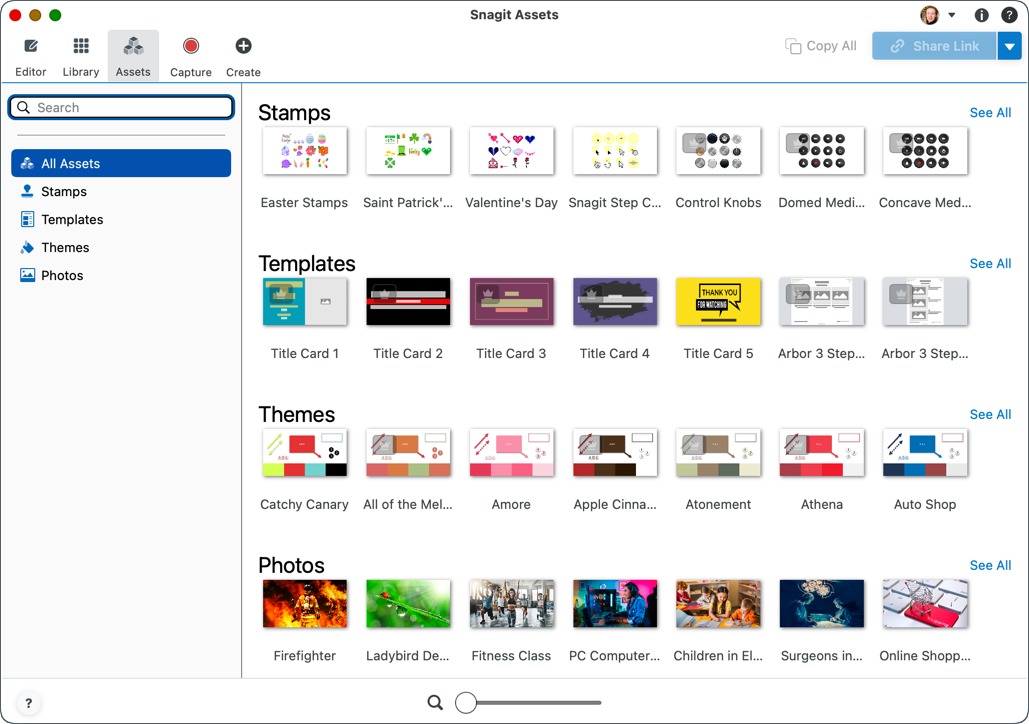
In Snagit Editor, click the Assets tab to choose from thousands of royalty-free photos, stamps, templates, and themes to use in your Snagit projects.
See Download TechSmith Assets for Snagit.
Need to quickly document a process or workflow? Snagit’s Step Capture automatically grabs screenshots as you click through a process on the screen. Snagit quickly turns the screenshots into an editable visual guide with numbered steps for you.
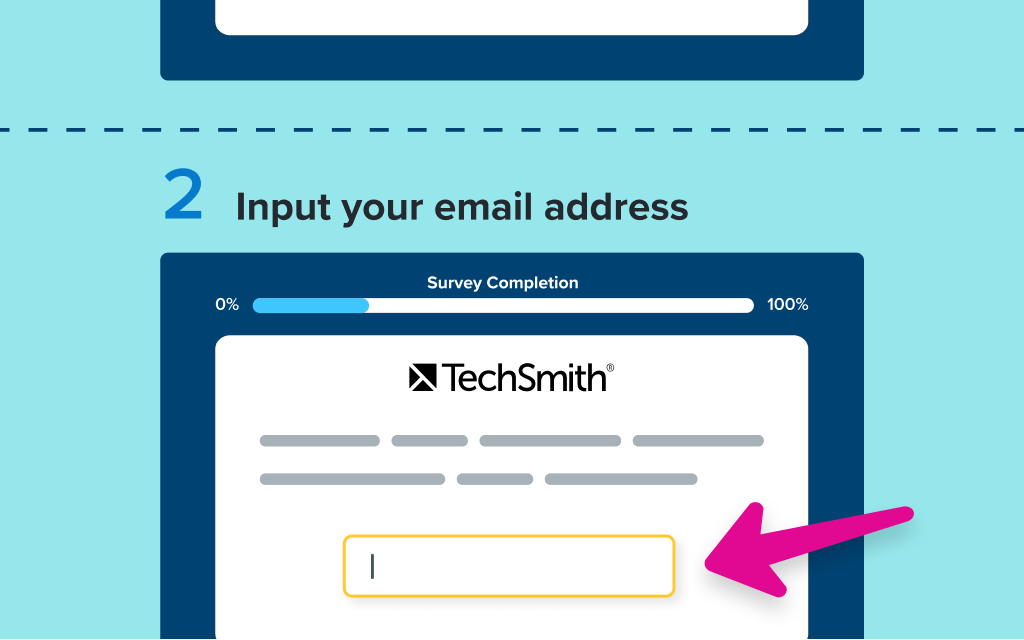
Use Step Capture to:
See Automatically Create a Step-by-Step Guide (Step Capture).
Combing through screenshots to remove personal or confidential information is tedious and time consuming. Let Smart Redact do the work for you!
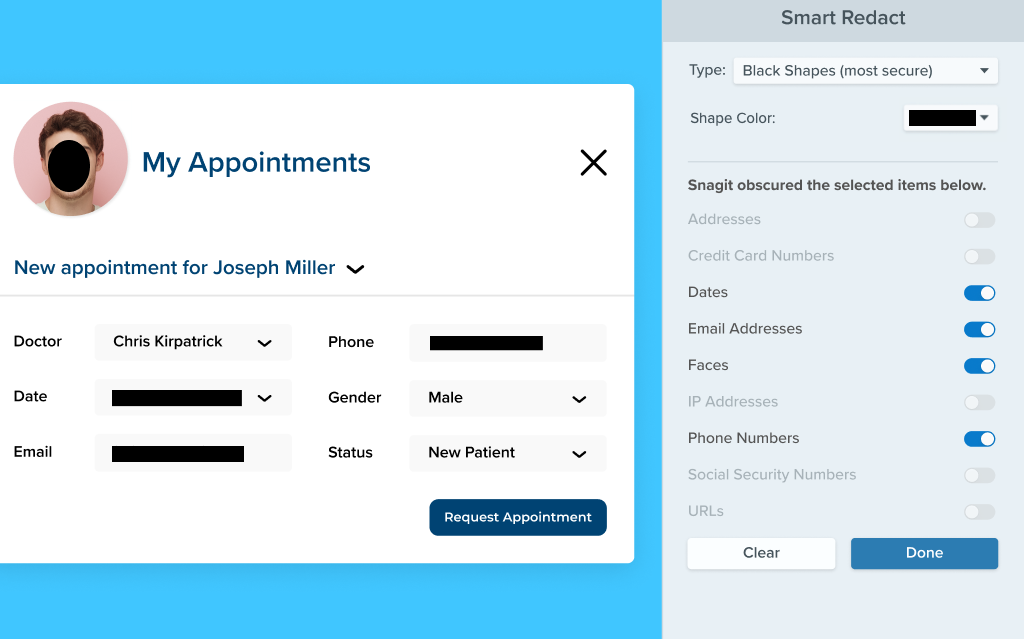
Smart Redact identifies and automatically covers sensitive information, such as contact information, credit card numbers, Social Security numbers, faces, and more.
To access Smart Redact in the Editor, select Blur tool > Smart Redact.
To learn more, see Hide Sensitive Information in an Image.
No need for a professional audio recording setup when you record video with Snagit! Say goodbye to background noise, such as fans, nearby conversations, dog barks, and keyboard taps.
Snagit automatically filters out background noise when you record video, so your audience can focus on you.

Keep the focus on you – not what’s behind you. Blur or remove the background for your webcam recording, or choose a virtual background.

To access virtual backgrounds from the video recording toolbar, select Webcam Options > Virtual Backgrounds.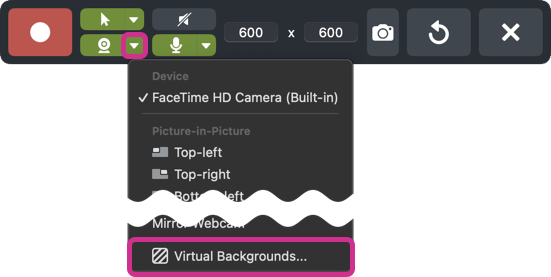
Note: Virtual backgrounds are not supported on Macs with Intel processors.
To learn more, see Record a Picture-in-Picture Video.
To see the complete list of what’s new in Snagit, see our version history for Windows or Mac.
To make sure you’re on the latest version:
The best screen capture software for professionals