Understanding Dimensions, Project Settings and Aspect Ratio
Have you ever made a video with black bars or one that appeared squashed or stretched?
(Yes! I’m in that situation now! Is there anything I can do to recover so I don’t have to start completely over? You may be in luck. Try these two strategies.)
If this happened to you it probably went something like this: You recorded a window, maybe some region, or maybe the full screen. You clicked through the Project Settings dialog, made your edits, and when you produced and watched your video, it didn’t look quite like you thought it would.
What should you do so that doesn’t happen next time? Well, it may sound strange, but before you ever click the Record button, you really need to start…at the end. Where will your final video be viewed?
You see, Camtasia Studio didn’t make “the rules”, but over time two standard aspect ratios have emerged, 4:3 and more recently (at least for the home LCD & plasma widescreen TVs) 16:9. The 4:3 ratio means for every 4 pixels in width, there are 3 pixels in height. Similarly, the 16:9 ratio means 16 pixels in width for every 9 in height.
If your video doesn’t conform to these standards, one of three things will happen:
- The video has black bars on the sides, top and bottom, or maybe even around all four sides. You may remember renting movies, and seeing a message on your home TV like, “This movie has been modified from its original version. It has been formatted to fit your screen”. What it was essentially saying is that the movie theater had a nice wide screen whereas your TV is more square-like. Therefore, in order to keep the actors from looking really squished, they put some black bars on the top and bottom.
- Your video gets squashed down or stretched out. You may have seen this when you drag a photo’s edge in a word-processing program. Maybe you have seen some videos on online video sites where people look disproportionate. Kind of funny, but not when it’s your video.
- Nothing will happen. Some sites, like TechSmith’s Screencast.com don’t attempt to re-encode or re-scale your video. What you see is literally what you get. This result is something of an exception.
How do I avoid this?
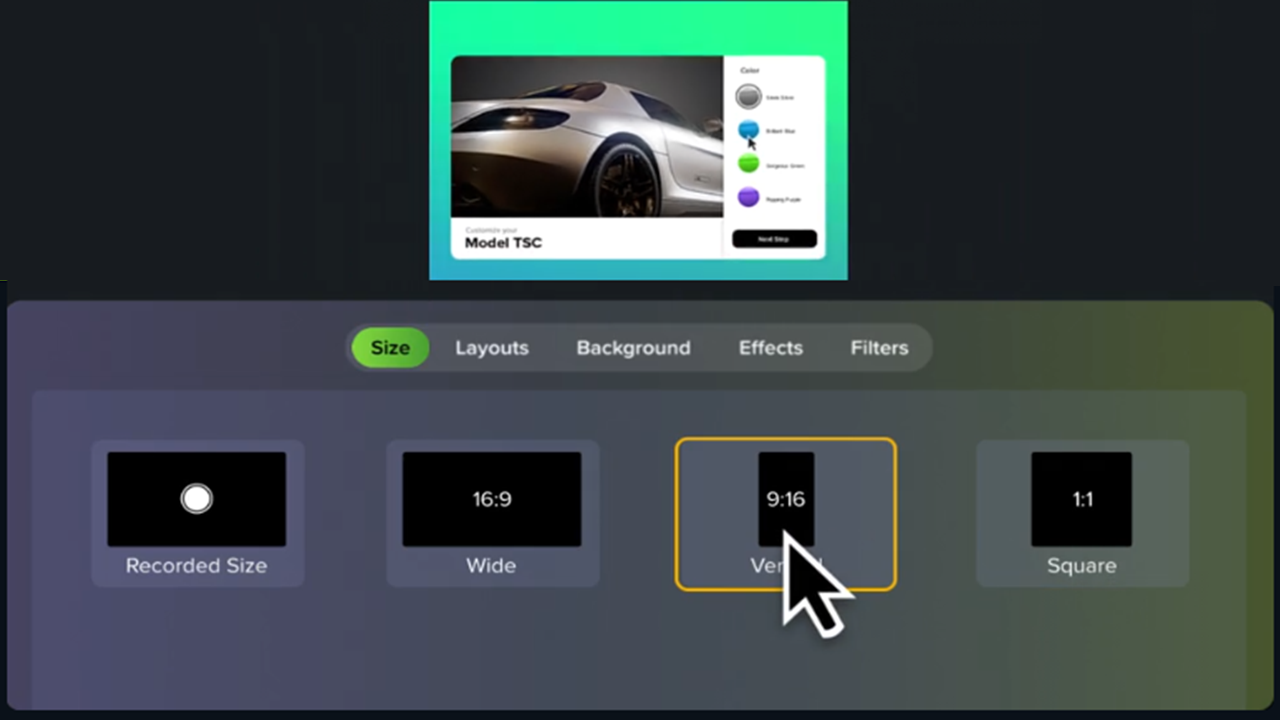
First we recommend picking an aspect ratio. You can’t really have it both ways. The “default” way used to always be 4:3, but now all the cool kids are making 16:9 videos, and sites like Hulu, Google Video, and YouTube support 16:9 which is also sometimes referred to as wide screen or HD (high definition).
Here’s a list with popular dimensions at each aspect ratio.
Standard, 4:3 (width:height) Popular dimensions include: 320x240, 640x480, 800x600, 1024x768
Widescreen, 16:9 (width:height) Popular dimensions include: 640x360, 800x450, 960x540, 1024x576, 1280x720, and 1920x1080
We’re almost done. But there’s one last trick—if you know your finished video will be 640x480, it DOES NOT mean that you have to record at 640x480. In fact—you SHOULDN’T record at 640x480! What?!?
Think of it this way. If you shrink down a web browser window to fit in a 640x480 area, your viewers will likely have a hard time seeing some of the text and details. Plus, you will have to scroll a lot to show things. A more extreme case would be if you knew you wanted people to watch the video on an iPhone so you recorded at the tiny 480x320.
What’s the solution? You want to record at the same aspect ratio as 640x480. This is a 4:3 aspect ratio so for every 4 pixels wide, there are 3 pixels in height. As long as we record at something like 1024 x 768 (also 4:3), it’ll scale down perfectly and we’ll use Camtasia Studio to zoom in on the parts we want the viewer to see!

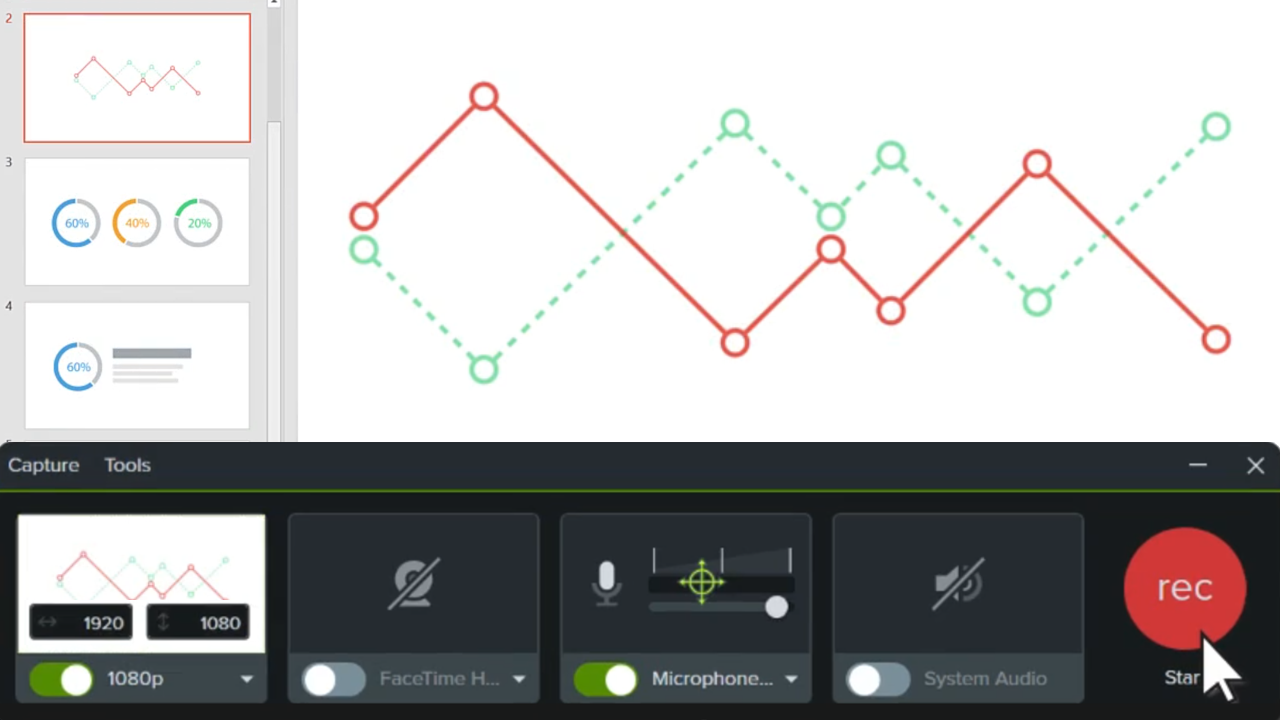
To configure Camtasia Recorder to record at a specific aspect ratio:
- Click Custom.
- Type your dimensions in the box shown above. It should be a 4:3 or 16:9 aspect ratio.
- Lock the chain icon to the right of the dimensions. This will lock the aspect ratio so as you drag the region to any width and height, your video will scale nicely.
Fix a Video that Already has Messed Up Dimensions
We recommend trying two things:
Host Video on Screencast.com or Rescale Video using Zoom and Pan
Host Your Video on Screencast.com
You can convert your video to its original recording dimensions. You can then produce at these dimensions and publish to Screencast.com. The reason Screencast.com is important here is because it does not alter your dimensions. As an analogy, if you upload to YouTube or your video is played in most other players, it’ll have to conform to some size “box”. If the video doesn’t fit nicely, you’ll either get black bars or scaling. Screencast.com has a hands-off policy so your super tall, super skinny video will look tall and skinny on Screencast.com too.
To revert to original recording dimensions:
- In Camtasia Studio, select Project Settings from your Preview Window.
- Select Recording Dimensions from the Presets drop down menu.
IMPORTANT: Double-check your video. When you change dimensions after editing, it’s likely your callouts may now be misaligned or way too big or small, zoom and pans may be “off”, and so on. - Now that the video is fixed, you are ready to produce to Screencast.com.
Rescale Video using Zoom and Pan
One way you can recover from a video with black bars is to use Camtasia Studio’s “Snap to video edges” feature or manually apply Zoom-n-Pan keyframes.
To apply snap to video edges:
- In Camtasia Studio, select Project Settings from your Preview Window. Select the dimensions for the produced video. (e.g. 640x480)
- Click Zoom-n-Pan in the Task List.
- Right-click the preview area in the Zoom-n-Pan panel. Select Snap to video edges. Camtasia Studio will attempt to detect the black bars and snap a Zoom-n-Pan keyframe to the video edges.
- Click Finished. The Zoom-n-Pan Properties Panel closes. In the Preview window, click 100% Scale in the Preview dimensions drop down menu. Verify your video looks good, and that the video dimensions are at a ratio (likely 4:3 or 16:9) that will work with your intended viewing medium.
- Produce your video at the same dimensions used during editing.
Manually apply Zoom-n-Pan Keyframes
If Snap to video edges yields unsatisfactory results, you can manually apply Zoom-n-Pan keyframes. This might be especially necessary if you have multiple clips in your video at varying dimensions, as a “one-size-fits-all” approach may not work. You will be leveraging the “Pan” part of the feature as you show the viewer a part of your screen that conforms to standard dimensions.
Tip: You can make that green “Zoom hint” rectangle disappear for the viewer by clicking Tools > Options > Zoom (tab). Then uncheck the Apply Zoom-n-Pan hints checkbox.
To manually apply Zoom-n-Pan keyframes:
- In Camtasia Studio, select Project Settings from your Preview Window. Select the dimensions at which you will produce. (e.g. 640x480)
- Click Zoom-n-Pan in the Task List.
- Click the Advanced drop down menu. Choose a width and height that conforms to a 4:3 or 16:9 aspect ratio.
- Uncheck the Maintain aspect ratio checkbox. Type in width and height values that conform to a 4:3 or 16:9 ratio. Move the Zoom-n-Pan to show the viewer the part of the screen you want them to see.
- At any point in the Timeline, move the Zoom-n-Pan region. A keyframe is automatically inserted at the corresponding point on the Timeline. You will likely not be zooming in and out too much, but instead panning around the screen.
- Produce your video, ensuring that you are producing at the same dimensions used during editing.